Choosing a suitable router and finding a good physical location for it is only the beginning. The next step — and one of the most important for long-term network performance — is WiFi setup.
This stage determines whether your network will remain stable, predictable, and scalable, or slowly degrade into a mix of slow speeds, random disconnects, and interference problems. A proper Wi-Fi setup isn’t a matter of luck; it’s about first seeing what’s happening on the airwaves and then changing the settings.
Why WiFi Setup Requires More Than Default Settings
Modern WiFi networks operate in a shared and highly dynamic radio environment. Unlike wired connections, Wi-Fi performance is affected not only by your own equipment, but also by factors you do not control: neighboring networks, client behavior, and fluctuating noise levels throughout the day.
Default router settings are designed to be safe and generic. They assume average conditions, average layouts, and moderate device counts. In real environments, these assumptions rarely hold. A channel that looks acceptable at night may become unusable during peak hours. A wide channel that works well for a single device can quickly turn into a bottleneck when multiple clients compete for airtime.
Another often overlooked aspect of WiFi setup is that signal strength alone does not guarantee usable performance. A device may show a strong signal while still suffering from poor throughput due to interference, retries, or excessive contention on the channel. This is why many WiFi issues appear “random” to users, even though they follow clear RF patterns.
Because of this, effective WiFi setup starts with understanding how the radio environment behaves, not just how it looks at a single moment. Before changing settings or adding hardware, it is important to see which bands are crowded, how channels overlap, and where noise and interference are likely to impact real usage.
To avoid this, WiFi setup should begin with Wi-Fi scanning and analysis tools that show what is actually happening in the air.
How Wi-Fi Apps Help You Understand and Configure Your Network
To “see” your Wi-Fi environment, use specialized Wi-Fi analyzer apps.
If you’re using a Mac and can run KisMAC, it can serve as a first line of diagnostics.
KisMAC is an open-source Wi-Fi scanning and monitoring tool for macOS that allows for a more detailed look. In practical Wi-Fi setup scenarios, KisMAC helps answer two basic but important questions.
First, it shows how busy the 2.4 GHz band really is and which channels neighboring networks are using. If 1, 6, and 11 channels are already occupied, leaving the router in “Auto” mode or blindly selecting the same channels is unlikely to yield good results. Even at this stage, it often becomes clear that switching clients to 5 GHz or 6 GHz would be a more sensible solution.
Second, KisMAC provides a rough idea of the signal strength distribution throughout an apartment or small office, although this remains a very basic form of mapping without floor plans or heat maps.
It’s important to be honest about KisMAC’s limitations. It’s an outdated tool with limited support for modern macOS versions, no heatmap visualization, no predictive modeling, and no recommendations for physical access point placement. KisMAC displays a radio frequency spectrum, but all decisions still have to be made manually in the router’s web interface. While it does its job for a quick, superficial understanding of “what’s going on around me,” it’s not very useful.
When you need to go deeper and configure Wi-Fi in a more modern and structured way, a tool like NetSpot becomes far more practical. NetSpot is built around the full WiFi setup lifecycle: analysis, planning, and validation. It’s designed not just to show networks, but to help you make informed decisions and verify that those decisions actually work.
At the configuration stage, Inspector Mode is especially useful. It displays surrounding networks with detailed parameters such as SSID and BSSID, channel and channel width, frequency band (2.4, 5, or 6 GHz), security type, and signal level.
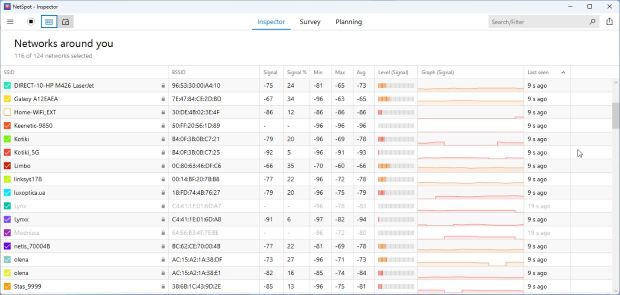
This makes it much easier to choose channels based on real congestion rather than guesswork, confirm whether your router is actually operating in the expected standard (Wi-Fi 6, 6E, or even Wi-Fi 7), and understand why a network with “full signal bars” may still feel slow. NetSpot officially supports modern standards, including Wi-Fi 6E and Wi-Fi 7, and works with the 6 GHz band for both analysis and planning.
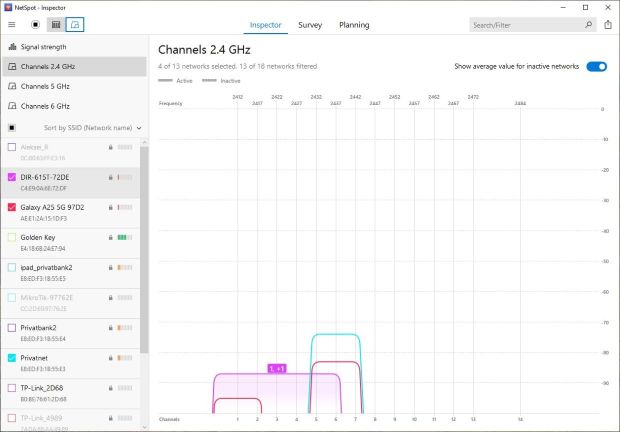
For greater clarity when setting Wi-Fi parameters, Survey and Planning modes are especially useful.
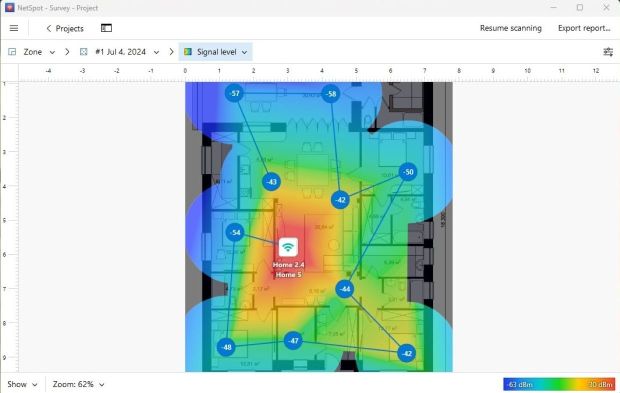
Survey Mode compares real, on-site measurements with a floor plan and shows how the selected configuration parameters actually behave in the space. It reveals how channel choice, transmit power, and access point placement affect coverage consistency, noise levels, and problem areas, presenting the results as Wi-Fi heatmaps rather than isolated signal readings.
Planning Mode focuses on what-if analysis before deployment. It allows you to simulate network behavior using different access point placement options, compare various access point models, and experiment with antenna types and orientation. This makes it possible to evaluate expected coverage and interference patterns in advance, before any hardware is installed or reconfigured.
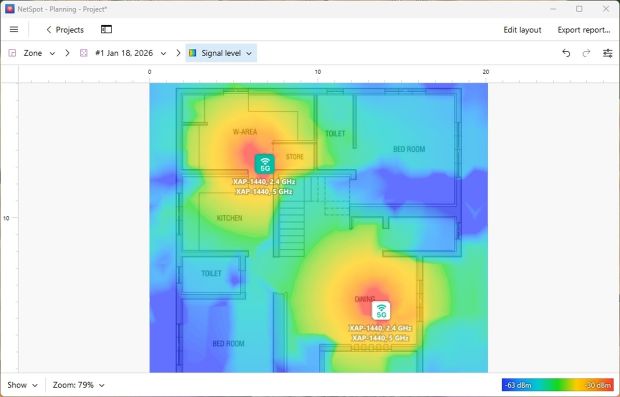
This approach allows configuration decisions to be validated against measured and simulated data, rather than inferred from signal bars or subjective experience.
When Basic WiFi Setup Isn’t Enough: Infrastructure and Capacity
If you stop at the basics — picking a decent router, placing it in a sensible location, scanning the environment, choosing channels and channel width thoughtfully, and then testing and fine-tuning the settings — you already avoid most of the common Wi-Fi setup mistakes.
But in many environments, that’s only the first layer.
Behind every “well-configured” WiFi network there is a wireless infrastructure that either enables or limits what your setup can achieve. The quality of cabling, switch capacity, backhaul links, PoE budgets, and how access points are connected all change what “good settings” actually mean in practice. If the underlying infrastructure is weak, even perfectly chosen channels and bands will not save the network.
The other side of the equation is WiFi capacity. It’s not enough to have signal everywhere — the network also has to survive peak load when many devices connect at the same time. Decisions you make during setup (channel width, band steering, transmit power, number and placement of access points) directly affect how much airtime is available and how fairly it is shared between clients.
When WiFi setup is approached with these factors in mind, it stops being a one-time configuration task and becomes part of a deliberate, scalable network design. This is the difference between a network that merely connects devices and one that continues to work as demands change.