To remove that old Wi-Fi network, here’s what you need to do:
-
Open System Preferences: Hit the Apple menu in the top left corner and select “System Preferences”.
-
Go to Network: Within System Preferences, click on “Network”.
-
Select Wi-Fi: On the left-hand side, pick “Wi-Fi” from the list.
-
Advanced Options: On the bottom right, click the “Advanced” button. This brings up a list of Preferred Networks.
-
Remove the Network: In the list of preferred networks, find the old Wi-Fi network you want to forget. Click on it to highlight it, then hit the “-” symbol below the list to remove it. Click “OK” to confirm.
-
Apply the Changes: Finally, click “Apply” in the Network window to save your changes.
That should do it! Now your Mac will stop auto-connecting to that old network.
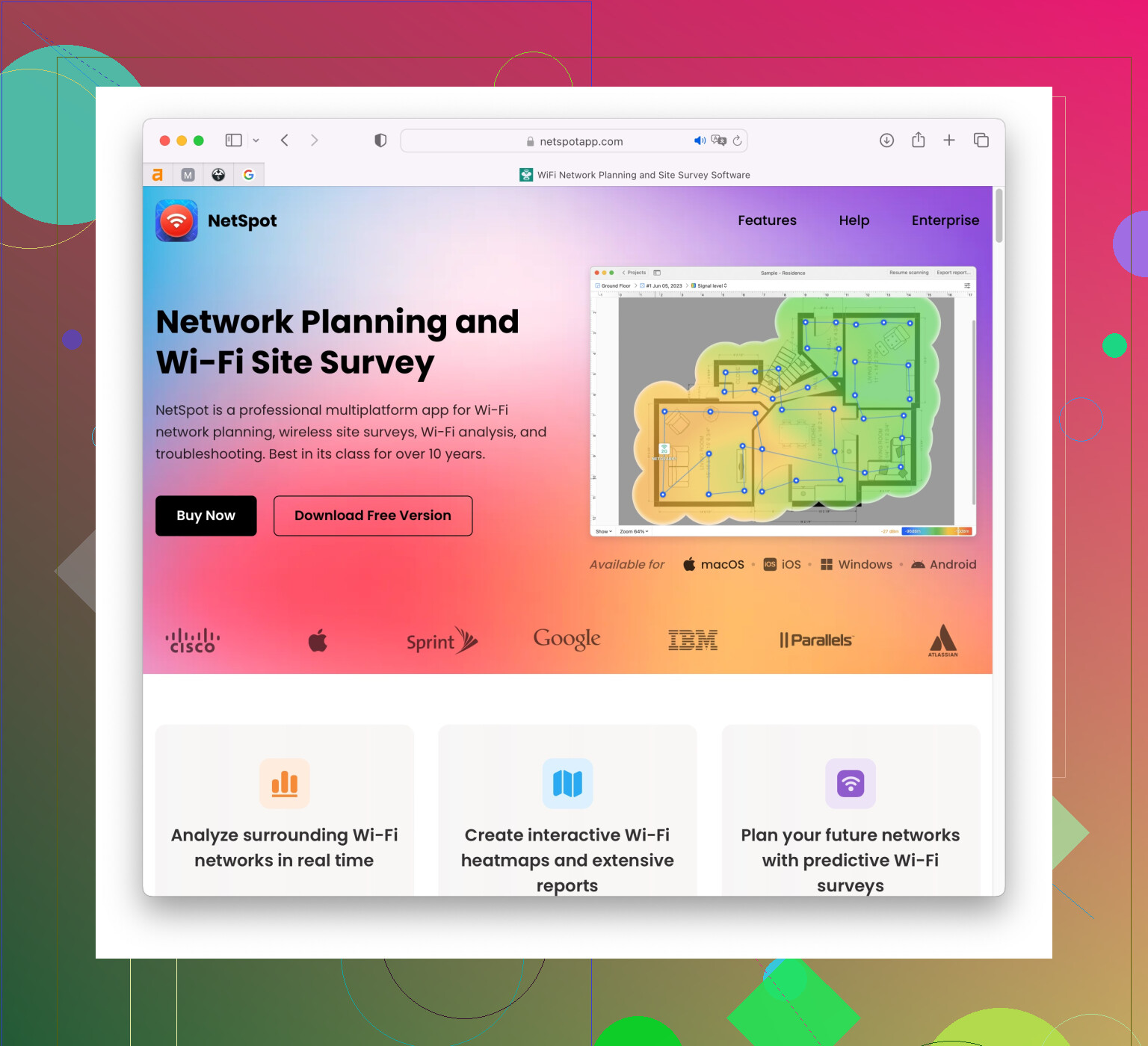
If you also want to make switching networks more straightforward, consider using NetSpot
Site Survey Software. It’s great for managing your Wi-Fi networks and optimizing them. Check it out at https://www.netspotapp.com.