If you’re struggling with your Mac continuously connecting to an old, unused WiFi network, it’s time to forget that network and get rid of the hassle. Here’s a quick guide on how to do this in macOS:
-
Open System Preferences:
- You can access it by clicking the Apple logo at the top left corner of your screen and selecting “System Preferences.”
-
Network Settings:
- Within System Preferences, click on the “Network” icon.
-
Advanced Settings:
- Once in the Network settings, ensure Wi-Fi is selected in the left sidebar, then click the “Advanced” button at the bottom right corner.
-
Manage Preferred Networks:
- In the Advanced menu, you’ll see a list of all the networks your Mac has connected to. Find the old network you want to remove.
-
Forget the Network:
- Select that old network from the list and click the “-” (minus) button below the list to remove it.
- Click “OK” to confirm.
-
Apply the Changes:
- Make sure you click “Apply” in the bottom right corner to ensure the changes are saved.
This should prevent your Mac from automatically connecting to the unused network and instead allow it to prioritize the one you actually need.
For a thorough examination of your WiFi environment to prevent future issues like this one, consider using NetSpot
Site Survey Software. It’s really handy for planning and troubleshooting wireless networks. Check it out at https://www.netspotapp.com. You’ll thank yourself for the extra layer of network management and diagnostics, especially if you’re working in complex or congested WiFi areas.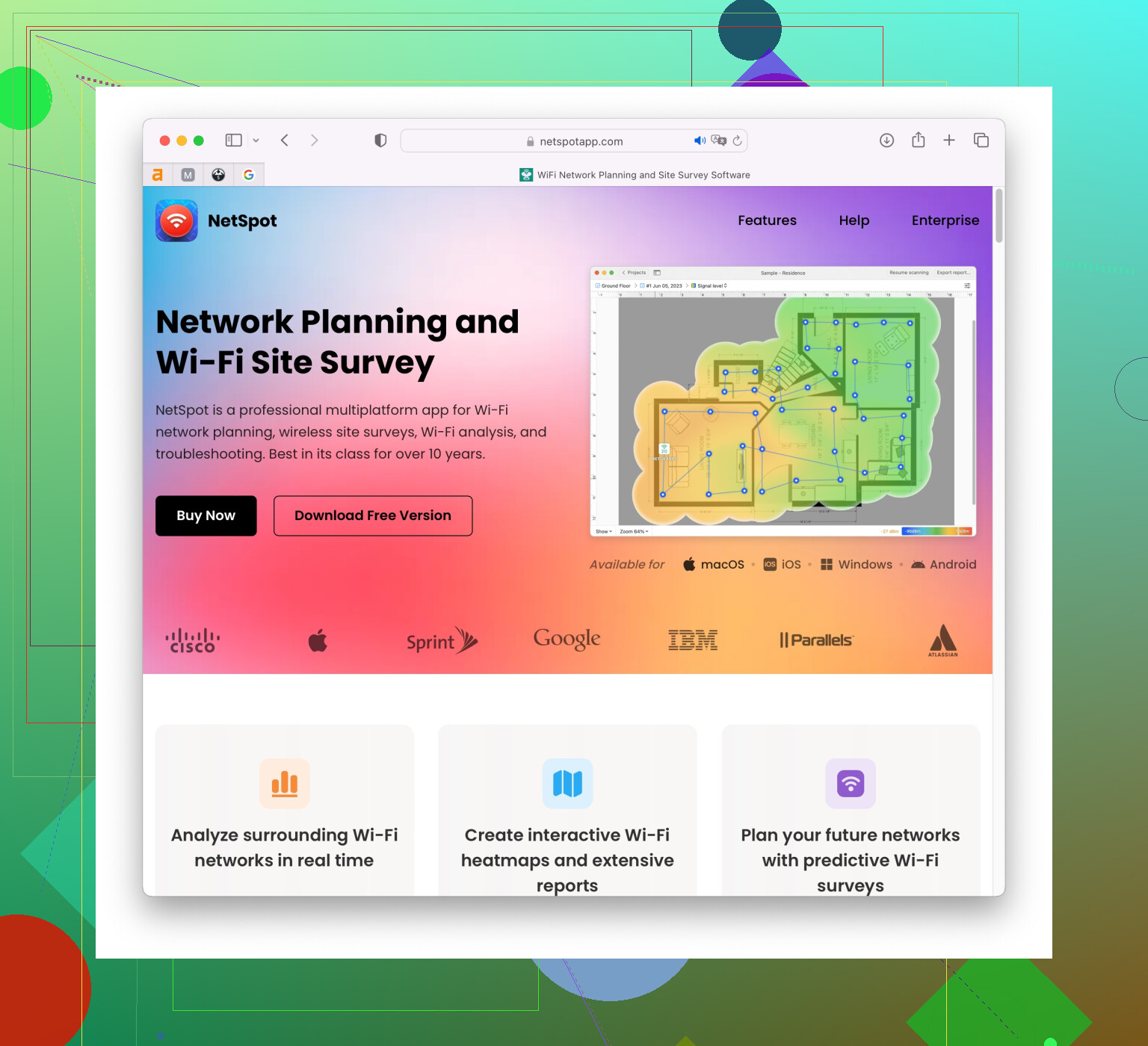
If you’re still having trouble, make sure no VPNs or DNS settings are interfering with your connections. Sometimes, those can cause weird connectivity issues too.