I accidentally formatted my SD card on a Windows PC and lost important photos and videos that were not backed up. The card was working fine before, and I stopped using it right away to avoid overwriting anything. I need help with the best way to recover data from a formatted SD card on Windows and what recovery software or steps might actually work.
I did this once with a shoot I could not repeat. Wrong menu tap, full SD format, stomach drop. So first thing, stop using the card now. Pull it out. If it has the little lock tab, switch it on.
What usually saves you is the kind of format most devices do. Cameras, drones, phones, even PCs often run a quick format. The files are still sitting on the card for a while. What gets removed first is the map to those files. The space gets marked free, and new footage starts eating into it. If you keep shooting, your odds get worse fast.
Skip CHKDSK, Terminal tricks, Command Prompt fixes, all of it. I tried some of those years ago on another card and they helped the file system, not the missing media. Different problem. You want recovery software, not a repair tool.
The one I had the best results with was Disk Drill. In my case it handled camera and action cam video better than the free stuff I tested. Some tools pulled back clips which looked fine until playback hit 3 seconds and froze. Disk Drill did better with fragmented video, especially when the card came from a camera, drone, or GoPro. The preview step helped too, since I could check files before saving a pile of junk.
If you want the free route, PhotoRec is worth a shot. It works. It also feels like software from another era. You get a text-heavy interface, and file names plus folders usually come back scrambled or gone. If you recover 600 photos and 40 clips, sorting later is a pain in the neck.
What I’d do, in order:
- Put the SD card in a card reader and plug it into a Mac or Windows PC.
- Install the recovery app on your computer, not on the SD card.
- Scan the card. If the tool has a camera or video-specific recovery mode, use it for lost clips.
- Preview what it finds. Open samples, don’t trust file names alone.
- Save recovered files to a different drive. Never back onto the same SD card.
If nothing new has been written to the card, recovery odds are often decent. Not perfect, but decent. Leave the card alone, scan it carefully, and sort through the results after. That part is annoying, but it beats losing the whole shoot.
7 Likes
You did the most important part already. You stopped using the card.
I agree with @mikeappsreviewer on avoiding repair tools first, but I’d add one thing before scanning. Make a full image of the SD card if you have space on your PC. Use something like USB Image Tool or HDD Raw Copy Tool. Work from the image, not the card. If a scan crashes or the card starts acting weird, you still have one clean shot left. People skip this, then regret it.
A few practical points.
1. Check what kind of format happened.
If Windows did a quick format, recovery odds are often solid.
If you ran a full format on newer Windows builds, odds drop hard because Windows writes zeros during the process.
2. Watch the card size and brand.
Fake or failing SD cards often show up right after a format. If the card was unstable before, recovery gets messy fast.
3. Sort photos and videos differently.
Photos usually come back easier.
Videos are harder if they were fragmented. This is where Disk Drill tends to do well on exFAT and FAT32 cards, esp for mixed media.
4. Recover to your PC or an external drive.
Do not write one byte back to the SD card. Not even by acident.
If you want a guide, this one is pretty close to your case,
how to recover files after formatting an SD card on Windows
If the files matter a lot and the card starts disconnecting, stop all DIY stuff and go to a lab. Software helps with formatted cards. It does not fix dying flash memory.
If you stopped using the SD card right away, that was the single best move. That gives you a real shot.
I mostly agree with @mikeappsreviewer and @viaggiatoresolare, but I’d push one extra check before doing a deep recovery scan: open **Disk Management** in Windows and look at how the card appears. If it still shows the expected capacity and no weird size mismatch, that’s a decent sign the card itself is healthy and you’re dealing with a logical loss, not hardware failure. If Windows keeps dropping it, shows RAW, or reports a bizarre capacity, don’t keep hammering it with repeated scans.
Also, tiny disagreement with the “image it first no matter what” advice. In theory, yes. In practice, if the card is healthy and you’re not super technical, some people waste hours fumbling with imaging tools and make things more confusing. If the card is stable, a direct read-only scan with **Disk Drill** is often the faster path for photos/videos. If the card is unstable, then yeah, clone/image first.
One more thing people forget: if this SD card came from a camera or phone, check whether the media was stored in a proprietary folder structure or split clips. Sometimes recovered videos need post-processing or repair because the actual video data comes back but the container/header is messed up. That doesn’t always mean the clip is gone. It just means the file is annoyngly incomplete.
What I’d do:
- confirm the card is detected normally in Windows
- use a good card reader, not some junk drawer mystery adapter
- run Disk Drill first for organized recovery and preview
- if results are weak, then try PhotoRec as a second-pass carve tool
- save everything to your PC or external SSD, never back to SD
If Windows did a full overwrite format, then honestly, odds are bad. If it was quick format, odds are usualy pretty decent.
For anyone else landing here, this covers the same situation well: recovering photos and videos after formatting a 128GB microSD card on Windows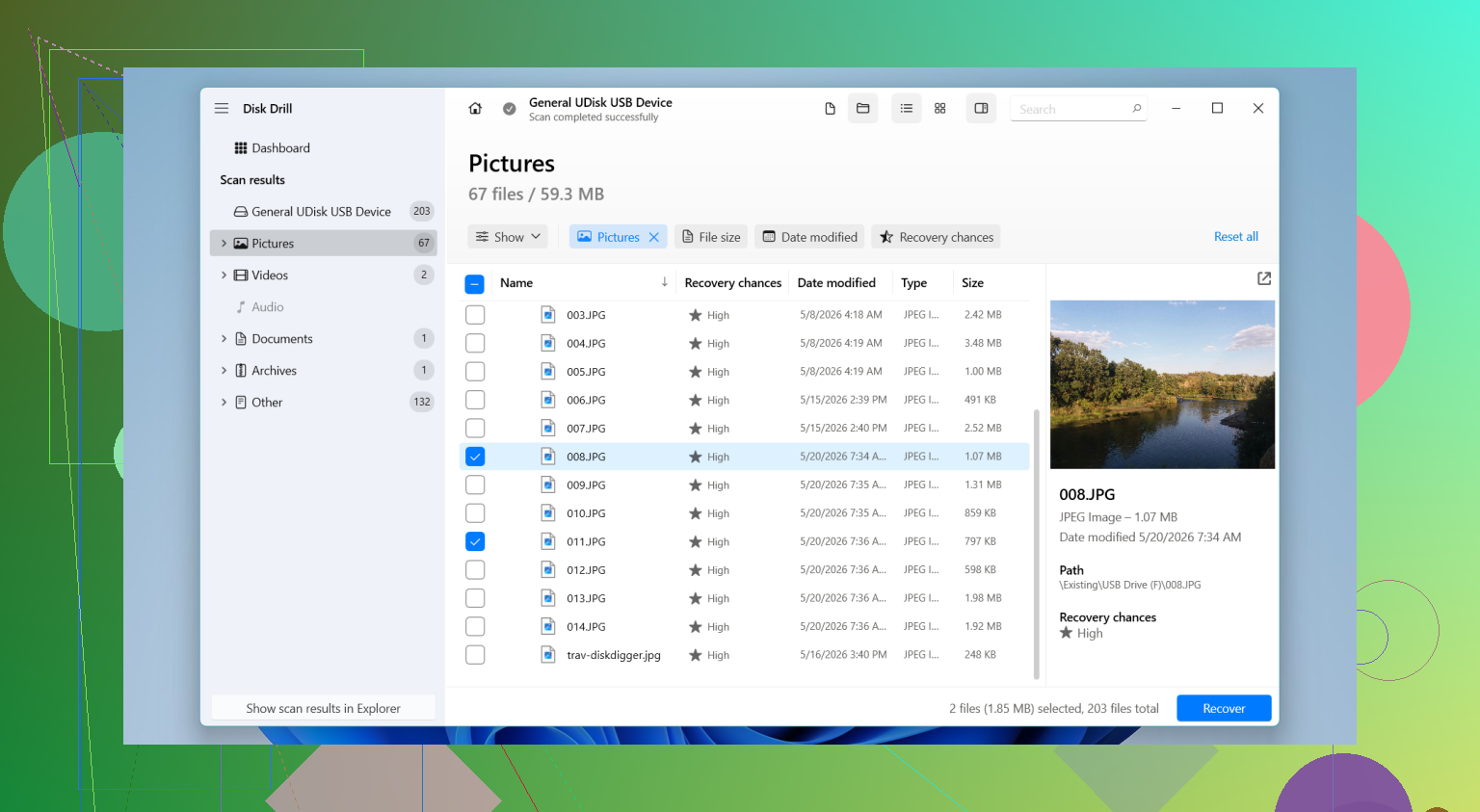
One small disagreement with @viaggiatoresolare and @viajeroceleste: if the card mounts cleanly and stays stable, I would check the recovered file previews before spending time on a full image. Imaging is safest, sure, but for a plain accidental quick format it can be an unnecessary detour.
What matters more is the file system. exFAT cards from cameras often recover with original names/folders better than people expect. FAT32 usually means more fragmented video pain. That is where Disk Drill is handy.
Disk Drill pros:
- good preview for photos and clips
- usually better folder/name recovery than carve-only tools
- simple enough not to make things worse
Cons:
- free recovery limits apply
- deep scans can return lots of duplicates
- not magic if Windows did a real full overwrite format
I would avoid repeatedly reconnecting the card through flaky USB hubs. Use one decent reader, one scan, recover to SSD. If videos come back but won’t play, keep them anyway. Sometimes they need separate repair afterward, which people mistake for total loss.
PhotoRec is still worth a second pass if Disk Drill misses stuff. @mikeappsreviewer was right about not using repair tools first.