My drive suddenly changed from NTFS to RAW after a restart, and now Windows says I need to format it before I can use it. It has important files on it, so I’m trying to find a safe way to convert RAW to NTFS without losing data. What should I do first to recover the drive and avoid making things worse?
A RAW result on an NTFS drive usually means Windows lost track of the file system. I’ve seen this after a power cut, a drive being yanked without ejecting, a crash during a copy job, bad sectors, or flaky USB hardware like the cable, enclosure, or bridge board. The drive did not always change in some dramatic way. A lot of the time, the files are still sitting there, but Windows no longer reads the NTFS structure.
What I’d do is simple. Get the data off first. Fix the file system after.
-
Do not format the drive, even if Windows throws the prompt in your face.
-
Try the easy stuff first. Plug it into another USB port. Test it on another PC. Swap the cable if it’s an external drive. I’ve had a cheap cable fake a dead disk before, and it wasted an hour.
-
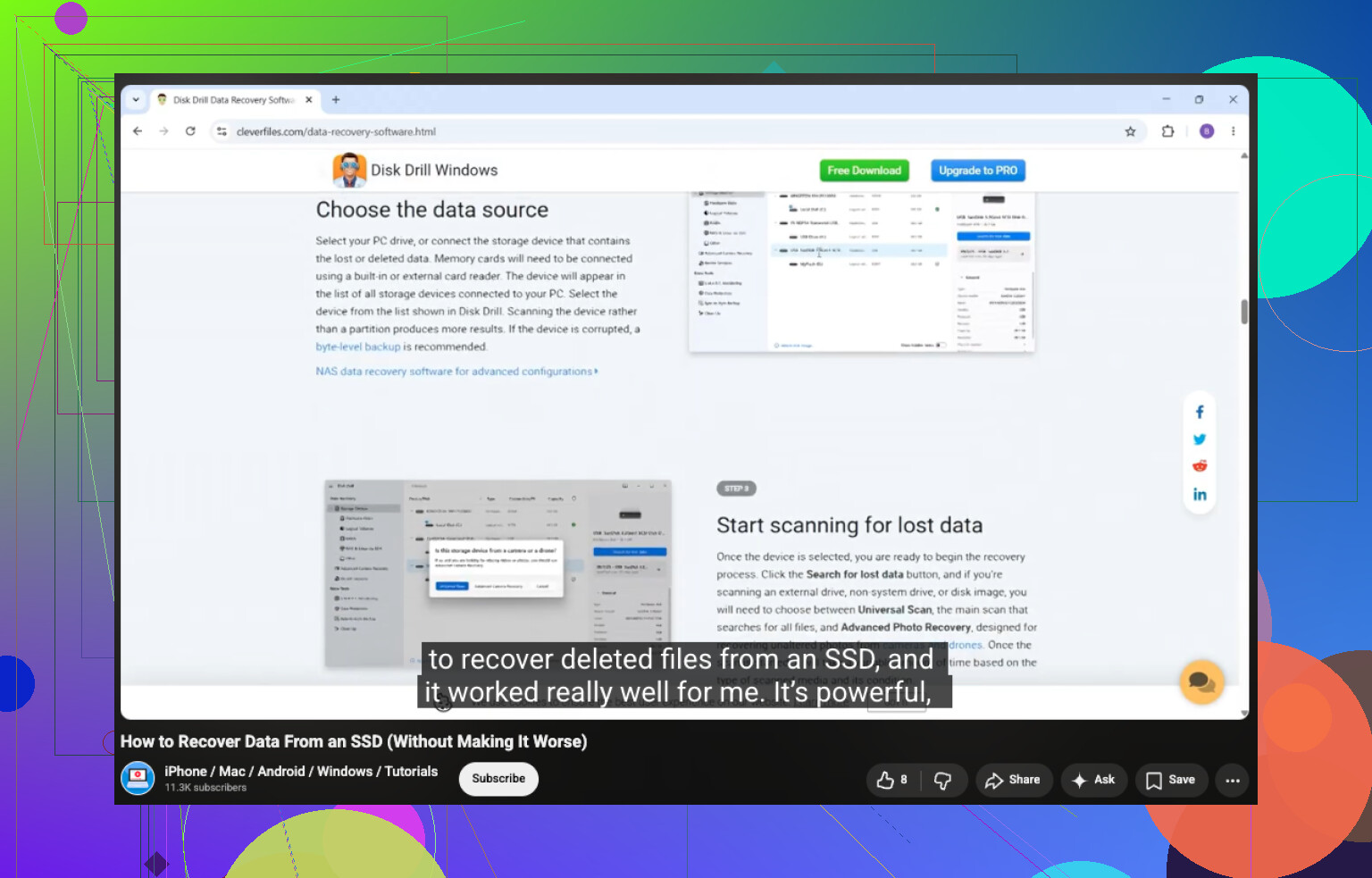
If it still shows up as RAW, move to recovery software. I’ve had decent results with Disk Drill on RAW partitions because the workflow is straightforward and it tends to find files without much fuss.
-
If the drive feels unstable, random disconnects, weird noises, crawling transfer speed, stop poking at it directly. Make an image first. In Disk Drill, open Extra Tools > Byte-to-byte Backup, save the image to a different disk, then mount or attach the image and scan the image instead of the original drive. This matters more than people think. One bad drive can get worse while you’re experimenting.
-
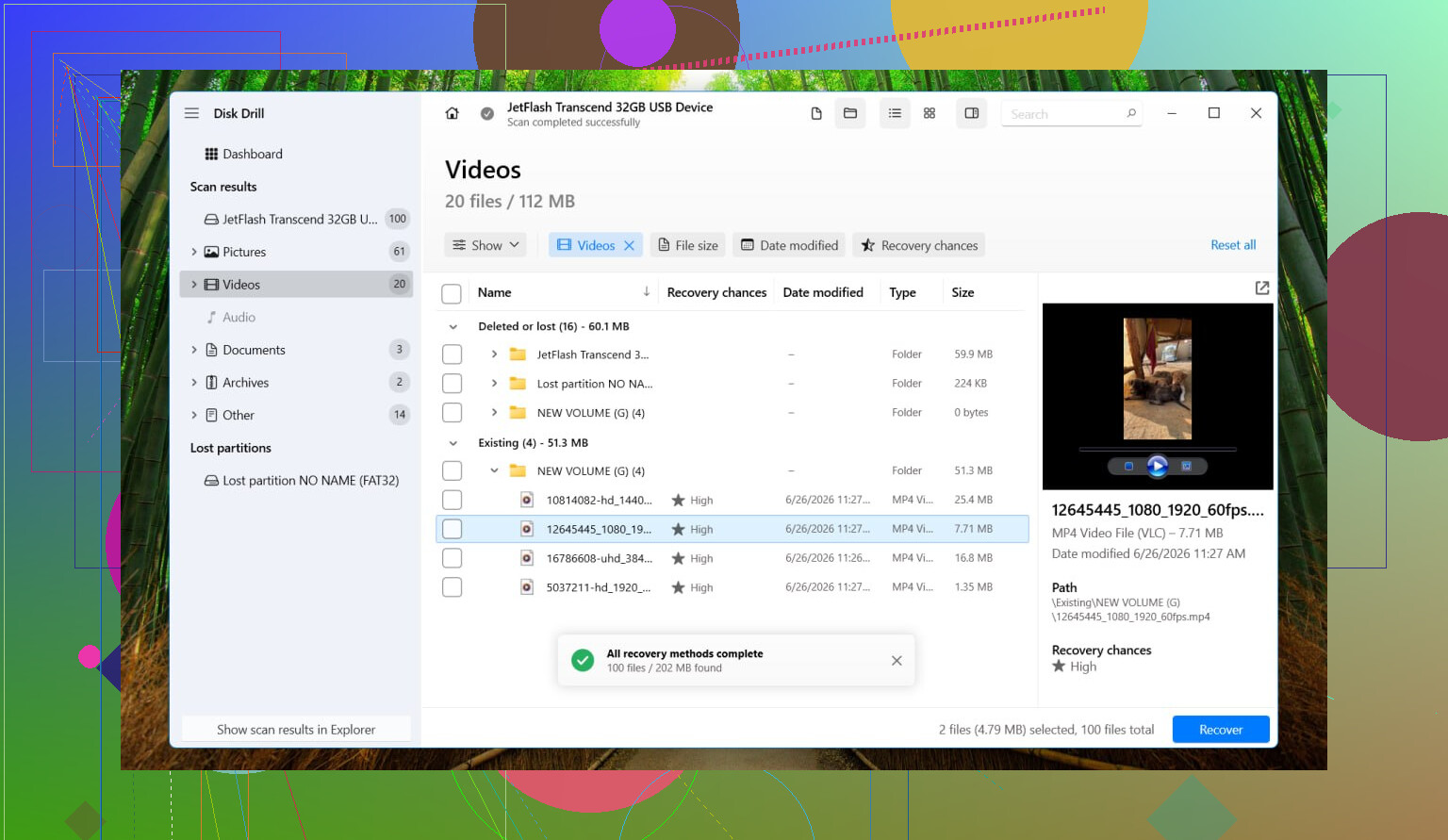
Run a Universal Scan. Check the preview results. Recover the files to another drive, not back onto the RAW one. I know this sounds obvious, but people still write recovered data onto the same damaged disk and make the mess worse.
-
After you’ve checked the recovered files and know they open, format the RAW partition back to NTFS. File Explorer works. Disk Management works too. DiskPart if you prefer the command line.
-
Then copy your recovered files back to the newly formatted drive.
A few extra points, since this part trips people up.
A RAW volume does not prove the hardware is dead. I’ve seen plenty of drives go RAW from file system damage alone.
SMART showing “Good” is useful, but only for the physical side of the drive. It does not confirm the NTFS structure is healthy. People mix those up a lot.
I would not run CHKDSK before recovery if the files matter. On RAW volumes, CHKDSK often refuses to run anyway. TestDisk is another one I’d treat carefully. It can repair some layouts, sure, but it writes changes to disk structure. I wouldn’t risk doing surgery before I had the files somewhere safe. Been there once, did not enjoy it.
So no, there isn’t some clean in-place RAW-to-NTFS switch where your files stay put. The usual path is recover first, format second. If you do it in that order, you end up with your data back and the drive usable again.
1 Like
There is no safe in-place RAW to NTFS conversion if your files still matter. RAW means Windows lost the file system map. Changing it back to NTFS writes a new one. Your data stays at risk until you copy it off.
I slightly disagree with @mikeappsreviewer on one point. I would check the drive’s SMART stats before doing much else, with CrystalDiskInfo or the maker’s tool. If you see reallocated sectors, pending sectors, CRC errors, or temp disconnects on a USB drive, treat the disk like it’s failing and work from an image first. If SMART is clean, file system damage is more likely than full hardware death.
A few practical checks people skip:
- Look in Disk Management. If the partition size looks correct, your odds are better.
- Check Event Viewer for disk and NTFS errors right after the restart.
- If it is an external HDD, test the bare drive in another enclosure or SATA port. A bad USB bridge causes RAW reports more often than peolpe think.
If you need files fast, Disk Drill is a solid pick for RAW drive recovery. Scan, preview, recover to another disk. Do not write anything back to the RAW one yet.
Only after your data is safe, delete the RAW volume and format NTFS.
Also, this thread covers the same issue in a clean way, best ways to recover a RAW drive and format it back to NTFS.
No truly safe in-place RAW to NTFS conversion exists if the files matter. That part I agree with. Once Windows sees RAW, “converting” usually means rebuilding or replacing file system metadata, and that can absolutely make recovery harder.
Where I slightly differ from @mikeappsreviewer and @caminantenocturno is this: I would not rush straight into “fixing” anything unless you first answer one question: is the problem logical, or is the drive physically unstable? Those are two very diff cases.
My order would be:
-
Check Disk Management
- If the partition size looks normal and the disk capacity is correct, that’s a decent sign.
- If size is wrong, unallocated, or keeps changing, I’d be more worried about hardware or enclosure issues.
-
Check the connection path
- External drive? Try a diff cable, diff USB port, and if possible a diff enclosure/dock.
- I’ve seen USB bridge boards turn a perfectly fine NTFS disk into “RAW” for no real reason. Annoying as hell.
-
Read SMART if possible
- Not because SMART tells you the file system is healthy, it does not.
- But if you see pending sectors, reallocated sectors, CRC errors, or disconnect issues, stop testing random fixes and image it first.
-
Image first if the drive is shaky
- This is the safest move when the disk is unstable.
- Then recover from the image, not the original.
-
Recover data before formatting
- Disk Drill is a solid option here, esp for RAW partition recovery on Windows.
- Scan the RAW volume or its image, preview files, and recover to another disk only.
What I would not do:
- Don’t format just to “see if it helps”
- Don’t run write-heavy repair tools right away
- Don’t recover files back onto the same drive
- Don’t trust “SMART says Good” as proof the data structure is fine
If your files are important enough, the safe path is basically:
diagnose → image if needed → recover with something like Disk Drill → verify files → format NTFS → copy data back
Also, if you want a clearer walkthrough on SSD recovery basics, this may help: how to recover data from an SSD step by step
Short version: no magic RAW-to-NTFS flip without risk. Recover first, then rebuild the file system. Thats the part people try to skip, and it usually bites them.