I lost a partition on my Windows PC after making changes in Disk Management, and now an important drive is missing. I need help figuring out how to recover the lost partition without losing my files, because it had personal documents and backups I still need.
I did this once in Disk Management and picked the wrong volume. Thought I nuked the whole thing. What usually happens is simpler than it looks. Windows removes the partition entry, while the file data often stays put for a while. If new data lands on the same area, your odds drop fast.
First move, stop touching the drive. No new partition. No format. No copying files onto it. Don’t even install recovery software there. Every write cuts into what you’re trying to save.
Check Disk Management before you do anything bigger.
- If the partition still shows up and it only lost its drive letter, assign one and see if it mounts again.
- If the space shows as Unallocated, treat it like a deleted partition. Pull data off first, fix structure later.
Get the files out first
I’d start with file recovery, not partition repair. Safer path. Less chance of making the mess worse.
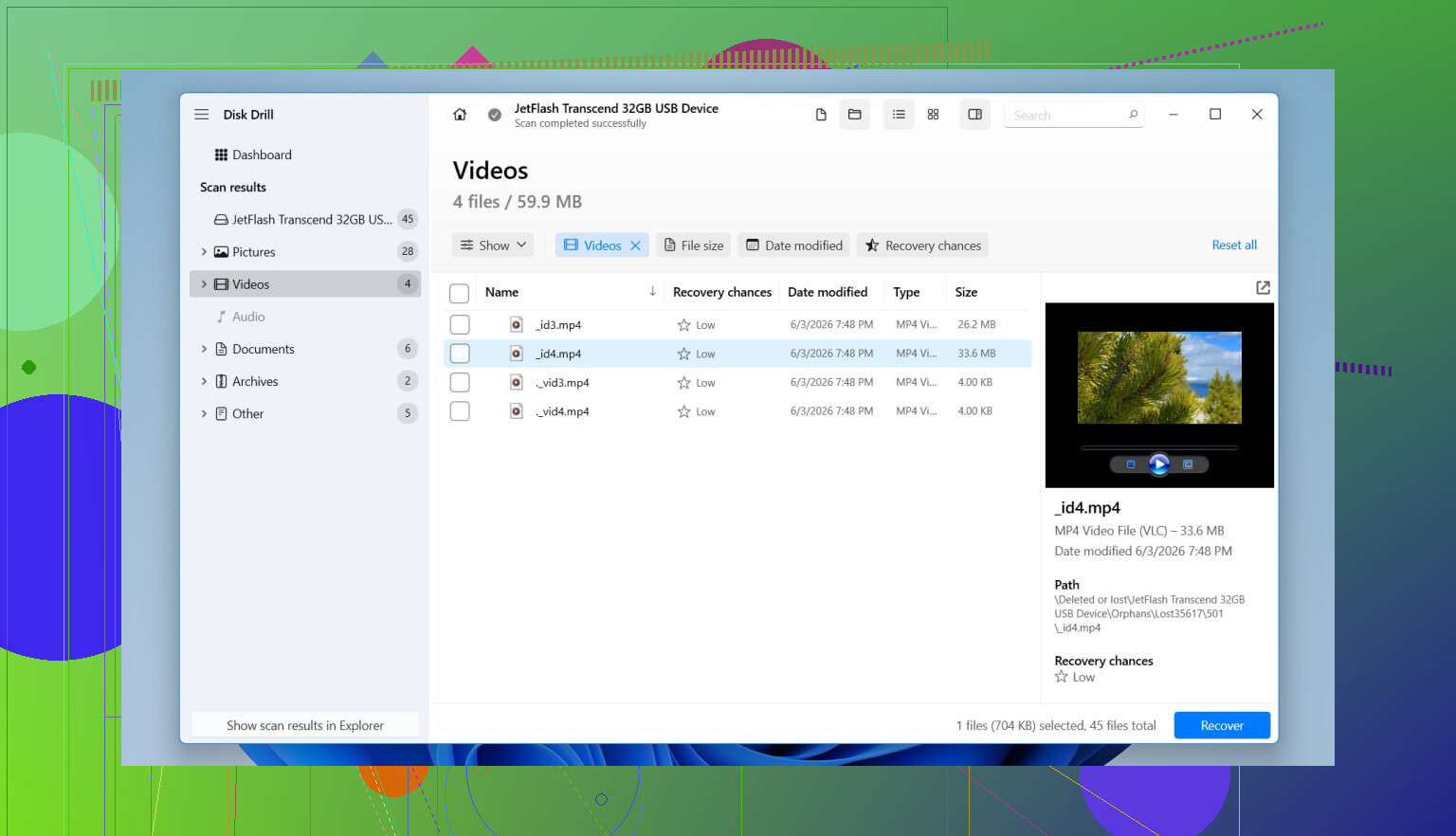
I used Disk Drill for this kind of mistake. What helped me was it spotted the deleted partition as a partition, not a pile of random leftovers. Folder names and filenames often come back in a usable state, which saves hours. It reads the common Windows file systems too, including NTFS, FAT32, exFAT, and ReFS.
What I did:
- Installed Disk Drill on a different physical drive.
- Opened it and picked the whole physical disk, not a tiny volume entry.
- Started a Scan.
- Waited it out. If the old partition is found, it usually appears as its own item.
- Previewed a few files first. Photos, docs, whatever matters most to you.
- Selected the folders I wanted back.
- Recovered everything to another drive.
- Opened some recovered files right away to make sure they weren’t corrupt.
If the drive was already acting weird before this, random disconnects, clicks, SMART alerts, slow reads, I’d make an image first and scan the image. Repeated reads from a failing disk are a bad bet. Learned tht the hard way.
Then try to restore the partition
After your important stuff is safe, you can try putting the partition itself back.
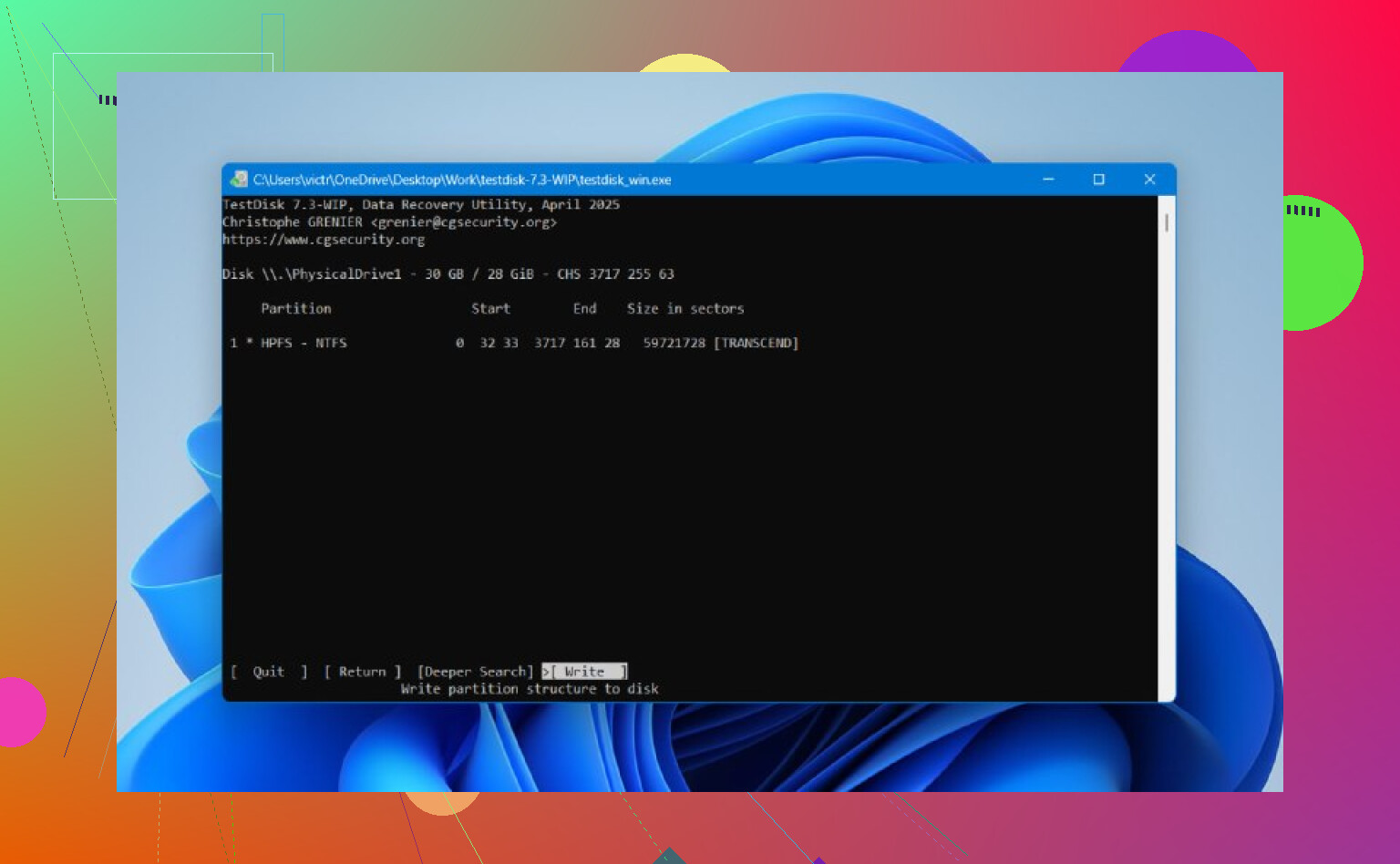
TestDisk is still one of the better free options for this. It looks old and it’s text-based, so yeah, not friendly at first glance. Still, it does serious work if the partition table wasn’t overwritten too much.
Usual flow:
- Download and extract TestDisk.
- Run testdisk_win.
- Create a new log.
- Select the physical disk with the deleted partition.
- Accept the detected partition table type.
- Pick Analyse.
- Run Quick Search.
- If the missing partition appears, highlight it.
- If nothing useful shows up, run Deeper Search.
- Pick Write to save the recovered partition table.
- Confirm and restart Windows.
If it works, the partition often comes back with the old contents still there. I’d still be careful with TestDisk. It exposes low-level stuff, and if you start clicking around without a plan, things get sketchy fast. Recover your important files first. No hero moves.
One more thing. SSDs are rougher for this because of TRIM. A deleted partition on an SSD is not always wiped right away, but keeping the drive in use raises the chance the old blocks get cleared internally. So if this happened on an SSD, time matters even more.
If neither Disk Drill nor TestDisk brings the partition back, but your files are already recovered, I wouldn’t dwell on it. Create a new partition in Disk Management, do a quick format, then copy your recovered files back. Not elegant, but it gets you moving again.
4 Likes
First, do not create a new volume in the empty space. That is where people make it worse.
I agree with part of what @mikeappsreviewer said, but I would check the partition table state before going all in on file carving. If the partition entry is gone but the file system is still intact, restoring the entry is cleaner and faster than recovering thousands of files one by one with lost folder structure.
Use this order:
- Open Disk Management.
- Look at the disk status.
- If the missing area shows as Unallocated, stop there.
- Open Command Prompt as admin and run:
diskpart
list disk
select disk X
list volume
Sometimes the volume still exists and only the letter is missing. If you see it, assign a letter with:
select volume X
assign letter=E
If it does not show there, check SMART health with CrystalDiskInfo or your SSD/HDD vendor tool. If health is bad, clone the disk first. Do not scan a sick drive for hours if you have other options.
If the drive is healthy, TestDisk is the first repair tool I would try for partition table recovery. If your goal is file recovery first, Disk Drill is a solid option on Windows because it often detects deleted partitions and lets you preview files before recovery. Install it on another drive, not the damaged one.
For a simple guide on Windows file recovery and partition loss, this helps:
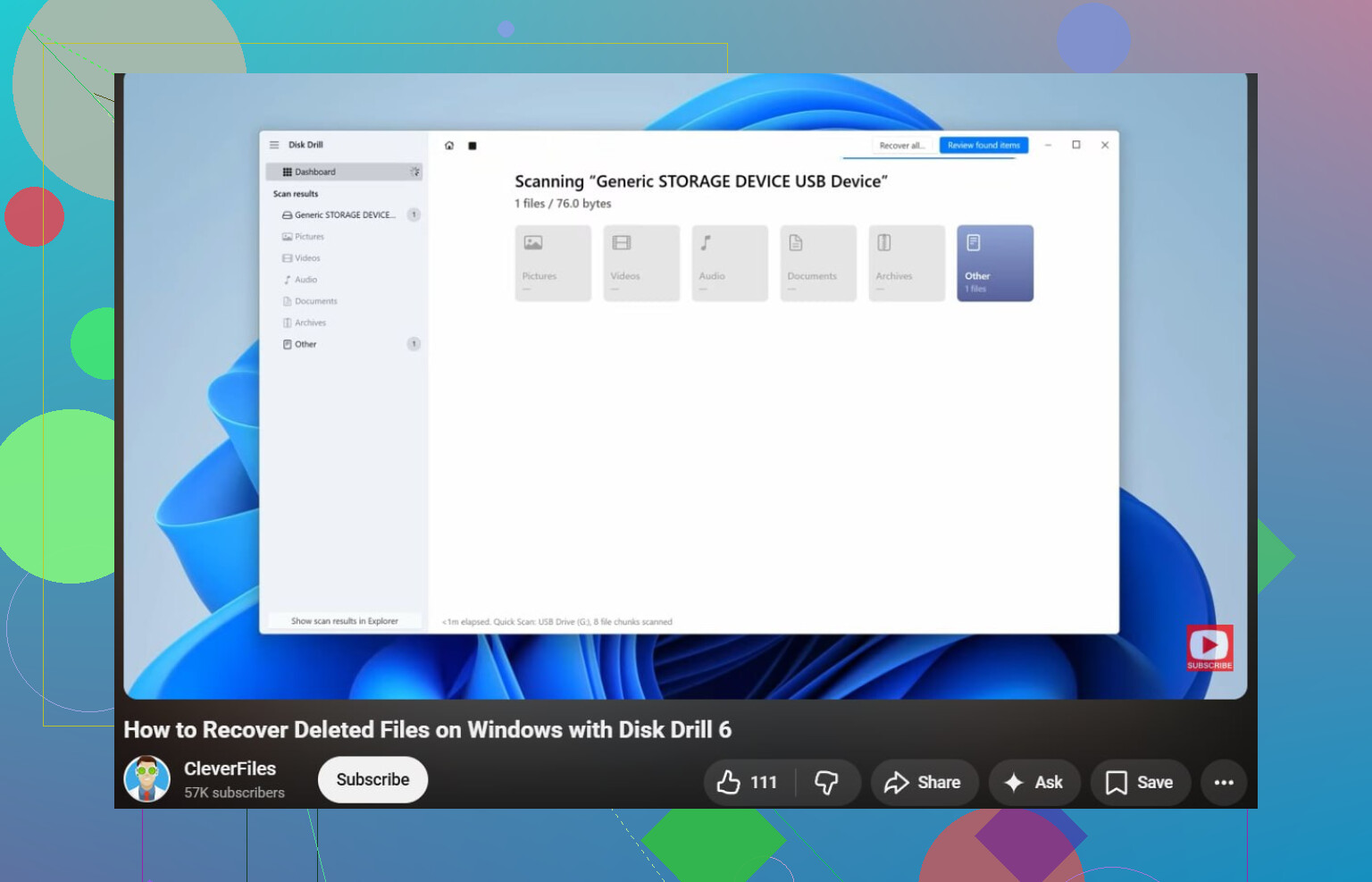
watch this Windows file recovery walkthrough
For search intent, the plain-English version of your issue is: recover lost partition files on Windows PC without formatting.
One more thing, if this was an SSD and TRIM ran, recovery odds drop fast. If it was an HDD, your chances are usualy better.
If the partition vanished right after Disk Management changes, I’d also check whether you actually broke the partition table or just hid the volume from Windows. That’s the one place I kinda differ from @mikeappsreviewer and @boswandelaar a bit. People jump straight into recovery tools, but sometimes the disk is just marked Offline, missing a mount point, or has a damaged boot record while the partition entry still exists.
A few things worth checking that were not mentioned much:
-
Device Manager and Event Viewer
See if Windows is throwing disk errors, controller resets, or filesystem warnings. -
Disk status in Disk Management
If the disk says Offline, bring it online first. If it says Not Initialized, do not initialize it. That can make things worse fast. -
Hidden partitions with no mount point
You can use mountvol in Command Prompt to list volumes Windows sees but is not assigning letters to. -
Read-only protection
Sometimes a disk gets flipped into a weird state after errors.diskpartcan show if the disk is read-only.
Also, before doing any repair, I’d make a sector-by-sector backup if the data matters a lot. Macrium Reflect, ddrescue from a boot USB, or another imaging tool can save your butt if the first attempt goes sideways. Bit boring, but safer.
If you want files back fast without messing with partition repair too much, Disk Drill is a legit option because it can scan the whole physical drive and often find deleted partitions and recover the data from them. For comparing options, this thread on best data recovery software for recovering lost partitions and deleted files is decent even if your system is Windows-focused.
One more curveball: if BitLocker was enabled on that missing partition, recovery gets weirder. You may need the recovery key before anything useful mounts agian. That part catches ppl off guard.