My Western Digital My Passport drive stopped working right after a failed data transfer, and now I can’t access important files stored on it. I need help figuring out the safest way to recover data from the external hard drive without making the problem worse.
I’ve had to deal with a few WD My Passport failures, and yeah, it sucks. Most of mine were fine for years, then one day the drive starts acting off and your whole evening is gone.
First thing I’d do, stop using it now. If files were deleted, or the drive is freezing, disconnecting, or showing weird errors, keeping it powered on gives you more chances to overwrite data or push a weak drive further downhill.
Open Disk Management from the Start button menu. Look for the Passport there. If it appears with the right capacity, even if Windows labels it RAW or Unallocated, you still have a decent shot at recovering stuff yourself. If it does not appear there at all, or you hear clicking, grinding, or repeated spin-up noise, I’d stop and treat it like hardware damage.
What I’d do first
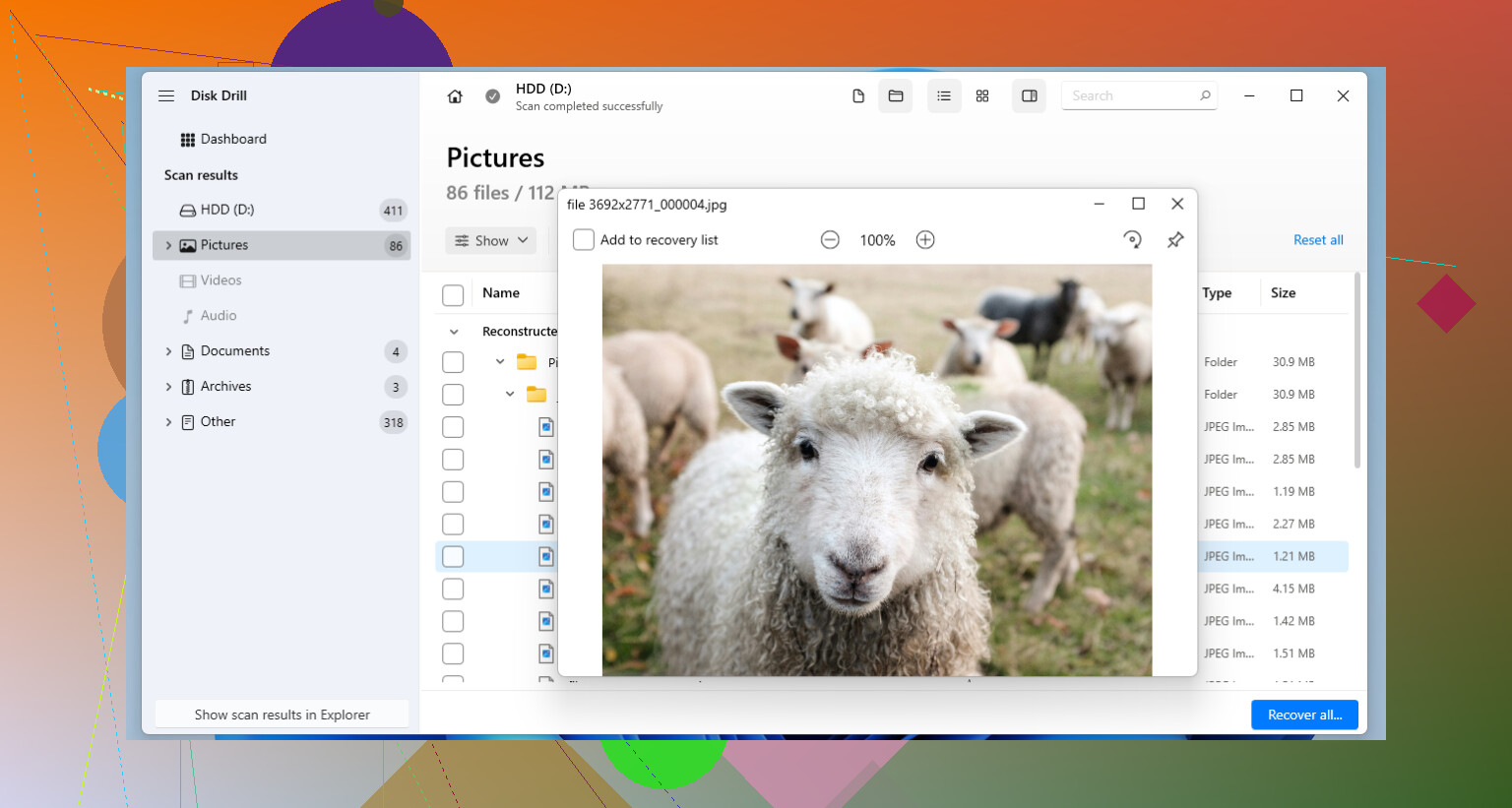
If the computer still detects the drive, I’d go with recovery software. Out of the stuff I’ve tried, Disk Drill worked well on WD My Passport drives for me.
The main reason is simple. These drives are often formatted as NTFS, FAT32, or exFAT, and it handles all of those without much fuss.
One thing I learned the hard way. If the drive feels slow, drops off mid-copy, or reconnects on its own, do not scan the physical disk for hours if you can avoid it. Use the byte-to-byte backup option in Disk Drill first. Make a full sector image, then scan the image instead of the original drive. I’ve seen weak WD portables get worse during long scans, and imaging first puts less strain on the hardware.
Other tools people reach for
If you deleted a small number of files and the drive is otherwise healthy, Recuva is worth a shot. It looks old. It feels old too. Still, for a basic delete mistake, it’s fast and easy.
If you know your way around disk tools and the partition went missing, or the drive suddenly shows as uninitialized, TestDisk is one of those tools people keep around for a reason. It’s free, text-heavy, and not forgiving. Sometimes it repairs the partition table and the files show back up without a full recovery pass. I would not poke at it blindly.
Stuff people mess up with My Passport drives
Do not pull the bare drive out of the case unless you know exactly what model you have and what you’re dealing with. A lot of My Passport units use hardware encryption through the USB board inside the enclosure. I’ve seen people remove the drive, plug it into another adapter, then panic because the data looks empty or RAW. The files are still encrypted through the original board path, so bypassing the enclosure often gets you nowhere. If the USB port is damaged, board-level repair by a lab or technician makes more sense than trying random adapters.
If you enabled a password with WD Security, you need that password. No shortcut here. The AES-256 encryption on those units is not something recovery apps are going to skip past. The drive has to be unlocked first with WD’s own method before file recovery software will read the contents properly.
Once you get your files back, set up a backup somewhere else. I learned this after losing a folder I thought I had copied already. WD points people to Acronis these days, which is fine if you like it. A second external drive works. So does OneDrive or Google Drive for the stuff you care about most. Anything is better than trusting one portable drive and hoping for the best.
8 Likes
Stop plugging it in over and over. That is where people make it worse.
I agree with @mikeappsreviewer on one point, if the drive clicks, spins down, or vanishes from Windows every few seconds, skip DIY. A lab is the safer move. But I would not start with repair tools like CHKDSK or partition fixes after a failed transfer. Those tools write to the disk. If the file system is damaged, writes are the last thing you want.
What I’d do:
-
Try a different USB cable first.
A bad My Passport cable causes a lot of fake “dead drive” cases. Short cable, direct port, no hub. -
Check if it shows in Device Manager and Disk Management.
If you see the correct size, your odds are better.
If it shows 0 bytes, or keeps disconnecting, stop there. -
If it stays connected, make an image first.
This matters more than people think. A 1 TB weak drive often dies during a long scan. Read once, save the image to another healthy drive, then work from the image. -
For file recovery, Disk Drill is a solid pick.
It tends to do well with exFAT and NTFS on WD portables. I’d recover files to a different disk, never back onto the Passport. If you want a quick walkthrough, this video shows Disk Drill data recovery steps clearly, watch Disk Drill recover files from an external drive.
One extra WD-specific thing. Some My Passport models tie encryption to the USB bridge board. If the enclosure electronics failed, removing the drive and attaching it another way often gives you unreadable data. People do this and think the platters are toast. Nope, wrong path to the data.
If your files are worth a lot, stop testing stuff after the first bad sign. DIY is fine for logical damage. For unstable hardware, it gets risky fast. I learned this the dumb way once, so yeah, don’t do waht I did.
I’d be a little more cautious than @mikeappsreviewer and @shizuka on one thing: if the failed transfer happened right before the drive “died,” there’s a decent chance this is power/USB bridge weirdness and not instant platter death. So before recovery apps, test the boring stuff once. Different cable, different PC, different USB port, no hub, no front panel.
If it mounts even briefly, copy the most important files first, not the whole drive. People always go for the giant folder dump and then the drive taps out halfway through. Bad move.
Also check WD Drive Utilities if your model supports it. Not to repair, just to see if SMART/status can still be read. If SMART is screaming, stop DIY.
If the disk is readable enough, I’d still use Disk Drill, but mainly for creating an image and pulling files from that. Recover to another disk only. If the drive is invisible in BIOS, smells hot, or makes ugly noises, software is done, lab time.
Also, if you want a solid guide to the best data recovery software for external drives, that roundup is worth skimming. It helps compare tools without wasting houurs installing random junk.