I’m trying to get a physical serial (COM) port working from within a Hyper-V virtual machine for console access and some legacy hardware tools. I’ve tried basic settings and passthrough options, but the VM either doesn’t see the port or the connection drops under load. What is the correct way to configure and use a serial port in Hyper-V, and are there any limitations or best practices I should know about for stable, production use?
Short answer: not reliably, not directly, and not in the way you probably want.
Hyper‑V basically doesn’t give the guest VM raw PCI / UART access to a physical COM port like older hypervisors or bare metal would. The “COM port” option in Hyper‑V is really meant for debug / management (named pipes) rather than true hardware passthrough. That’s why:
- The VM “sees” a COM port but nothing actually talks to the hardware
- Legacy tools that bang the UART directly just time out or act flaky
- Console access to routers, switches, etc. randomly fails or lags
If you need stable serial access inside a Hyper‑V VM, you usually end up doing one of these:
-
Use a serial over network solution
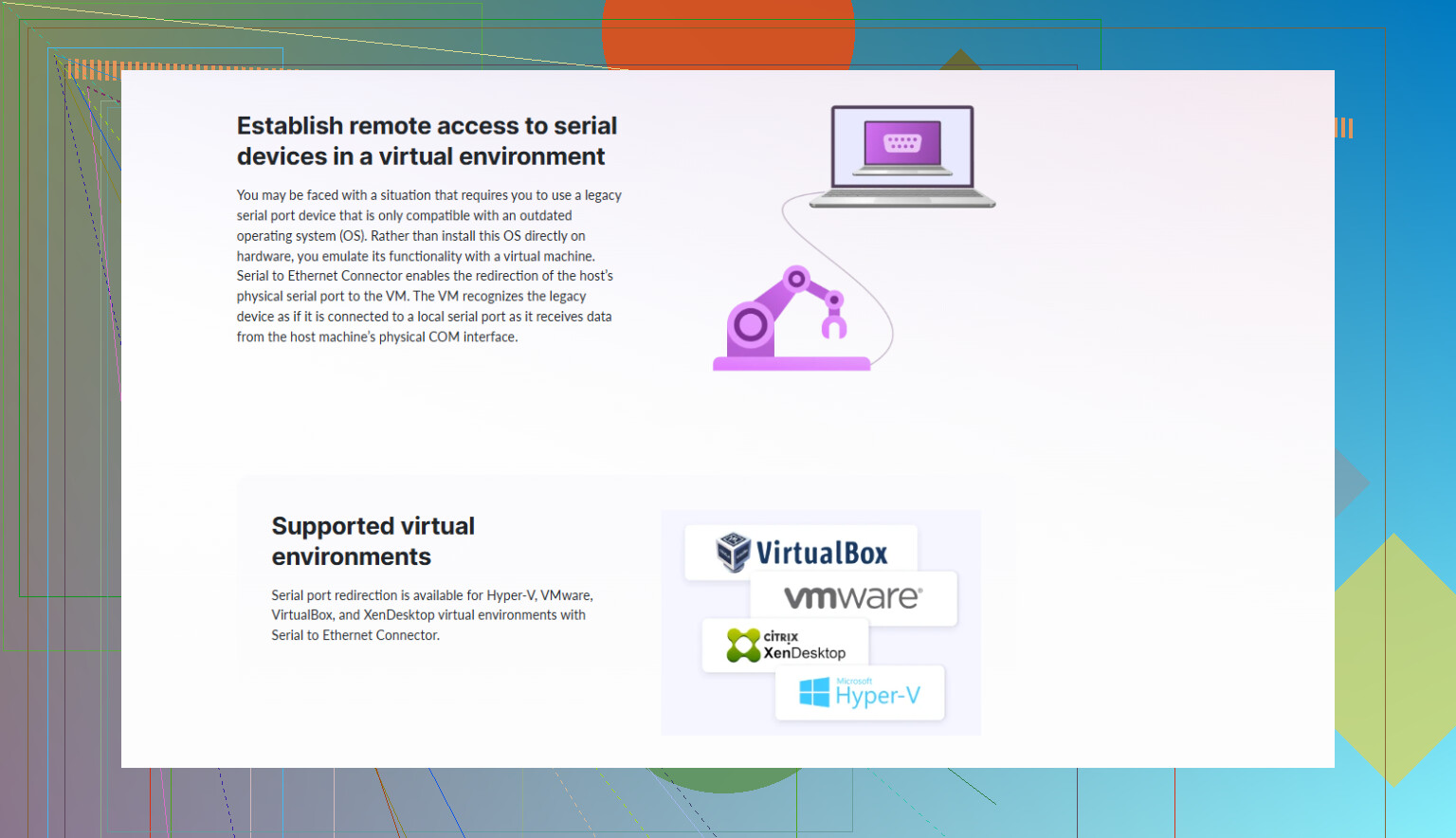
Install a tool on the host that exposes the physical COM port as a network service, then install the client in the VM to create a virtual COM port. The VM only sees a virtual serial device, but all traffic goes to the real hardware.This is where something like Serial to Ethernet Connector actually makes sense.
- Host: maps the real COM1 / USB‑serial adapter and shares it over TCP/IP
- VM: connects to that share and gets a virtual COM port with the same name and settings
Your legacy console tools usually work fine because the app just thinks it is talking to a normal local COM port.
-
Run the serial stuff on the host and remote into it
Not pretty, but if the tools can run on the Hyper‑V host directly, do that and access them with RDP or similar. Boring but very stable. -
Move the serial workload to a box that supports proper passthrough
Some other hypervisors offer better hardware passthrough options, or you can avoid virtualization entirely for the serial‑critical part.
For context on setting up a more VM‑friendly serial configuration, this page is decent:
Hyper‑V virtual serial port setup guide
TL;DR: Hyper‑V is not designed for native physical serial passthrough. If you want it to “just work” inside the VM, treat the serial port as a network resource with something like Serial to Ethernet Connector or move that workload off the VM.
10 Likes
Short version: no, not reliably and not in the “bare-metal COM1” sense you’re expecting. Hyper‑V’s idea of a COM port is mostly for debugging and piping text, not for real UART banging or timing‑sensitive legacy gear.
I’m mostly on the same page as @sognonotturno, but I’ll push back a tiny bit on the “never” vibe: you can sometimes get light serial use working if:
- The guest only does high‑level Win32 serial I/O (CreateFile / ReadFile / WriteFile)
- You’re talking to something very tolerant, like a simple console port, and
- You accept that it may glitch, lag, or die whenever the host is under load
That said, for anything where reliability actually matters (firmware flashing, finicky legacy tools, industrial controllers, lab hardware, weird test rigs, etc.), Hyper‑V is pretty much the wrong hypervisor for “true” hardware passthrough.
Instead of repeating the same serial‑over‑network trick mentioned already, here are a few different angles to consider:
-
Avoid Hyper‑V’s synthetic COM completely for real hardware
Treat Hyper‑V’s COM setting like a debug console: fine for logs and kernel debugging, not for production serial. If your workflow depends on things like exact baud timing or control lines (RTS/CTS/DTR/DCD), the synthetic port is going to lie to you or drop them. -
Use a dedicated serial terminal server on the network
Rather than wrestling with passthrough, stick the serial cable into a little hardware box (Lantronix, Digi, Moxa, etc.) that exposes that port over TCP.- VM connects to the terminal server’s IP/port
- Your tool either talks raw TCP or uses a virtual COM driver
This is boring but incredibly stable and hypervisor‑agnostic. If you ever move from Hyper‑V to something else, nothing changes.
-
Prefer USB passthrough (if possible) over native COM
Hyper‑V doesn’t do raw PCI passthrough in a nice polished way like some other hypervisors, but if your “serial port” is actually a USB‑to‑serial adapter, you have options:- Use USB redirection from a Remote Desktop session to the VM (can be janky, but works for light use)
- Or attach the USB device to a different host / small PC and forward it over the network
It’s still not real UART passthrough, but USB layers can sometimes hide a lot of the quirks that kill direct COM use.
-
If timing is critical, skip virtualization for that part
For very old or picky tools that manually twiddle UART registers, no amount of virtual COM magic will save you. You either:- Run that one app directly on the Hyper‑V host
- Or keep a small dedicated physical box (old desktop, thin client, even a Raspberry Pi) with actual serial hardware and remote into that
-
Plan around line‑control quirks
Tons of router/console gear and legacy devices care deeply about DTR/RTS toggling and break signals. Hyper‑V’s faux COM won’t always propagate those properly. If your device uses those for reboot, mode switching, or firmware upload, your success rate will be… “occasional.”
If you want to keep everything inside the VM but still hit a real physical COM port, a serial‑over‑network solution is indeed the most practical compromise. This is where a tool like Serial to Ethernet Connector earns its keep: it creates a virtual COM port in the VM that forwards everything over TCP to the actual serial port on the host (or another machine). The guest OS just sees “COM3” and your legacy app usually doesn’t care that it’s virtualized.
When you get to the installation part, grab the software from here:
explore Serial to Ethernet Connector downloads
That page gives you the current builds and makes it pretty straightforward to match host and guest versions.
So: if “reliable” for you means “set and forget, no mysterious timeouts when the host is under CPU load,” then Hyper‑V alone cannot give you that with a raw physical serial port. You’ll either:
- Treat the serial port as a network resource using something like Serial to Ethernet Connector or a terminal server
- Or move the serial‑critical piece outside the VM (host OS or a small dedicated box)
Anything else tends to work until the one day it absolutely cannot fail… and then it fails.
Hyper‑V and physical COM is basically a game of “how much jank can I live with.” @vrijheidsvogel and @sognonotturno already nailed the big picture: no clean raw UART passthrough, and anything timing critical is on thin ice.
I’ll add a few angles that often get missed:
1. When Hyper‑V might be “good enough”
You can sometimes get away with the built‑in Hyper‑V COM (via named pipe to the host) if:
- You only need a human console (router CLI, basic debug text).
- You do not care about DTR/RTS/CTS or break.
- You are not doing firmware uploads, bootloaders or anything that checks strict timing.
In that very narrow use case, I would not bother with extra software. Just use the named pipe and a terminal app on the host. Direct from the VM to hardware via Hyper‑V “COM” is where things fall apart.
2. PCIe serial cards and SR‑IOV / DDA fantasies
People often try this:
“What if I put in a PCIe multi‑port serial card and use Device Guard / DDA to pass it straight through?”
Reality:
- Hyper‑V’s DDA is picky and mostly targeted at GPUs and some NICs.
- Many commodity PCIe serial cards do not behave nicely with DDA.
- Even if it works, you are in “unsupported science project” territory for production.
So technically possible in a few edge cases, practically unreliable as a general answer.
3. USB‑to‑serial tricks and why they are only half a solution
Different from what was suggested earlier, I actually see USB redirection work reasonably well in some lab setups:
- USB‑to‑serial on a client machine.
- RDP to the VM with USB redirection.
- VM sees a USB serial device.
Issues:
- Latency spikes any time RDP hiccups.
- Multi‑user / headless scenarios become a pain.
- Control signals still not guaranteed.
I would only use this for infrequent manual console pokes, not automation or mass device work.
4. Serial over network: software vs hardware
Both earlier posts recommend serial over TCP in one form or another. I agree, but I’d split it into two main camps.
A. Software “bridge” on the Hyper‑V host
This is where something like Serial to Ethernet Connector is valid:
- Host maps the real serial or USB‑serial device.
- Host exposes that as a TCP endpoint.
- VM installs the client and gets a virtual COM port.
Pros of Serial to Ethernet Connector:
- Easy to deploy if you already control host and guest.
- Multiple VMs can share or “take turns” on the same physical port.
- Apps in the VM usually do not know it is virtual.
Cons of Serial to Ethernet Connector:
- Extra moving piece on the host you must keep updated and running.
- Depends on Windows networking stack and host stability.
- Licensing cost if you are doing this at scale.
- Still software emulation, so extreme edge‑case timing is not perfect.
Compared with what @vrijheidsvogel hinted at, I am a bit more optimistic here: for 95 percent of “normal” serial workflows this style of solution is actually plenty reliable, provided the host is not a dumpster fire.
B. Dedicated hardware terminal server
This is the route I prefer for production:
- Small box on the network with physical DB9 / RJ45 console ports.
- Exposes ports over TCP or via its own virtual COM driver.
- VMs, physical servers, whatever all connect over IP.
You neatly sidestep Hyper‑V’s limitations and most OS weirdness. The tradeoff is cost and yet another device in the rack.
5. When to absolutely avoid virtualization for serial
If any of these are true, I would not rely on a Hyper‑V VM regardless of clever tricks:
- Legacy DOS or Win9x tool directly poking UART registers.
- Vendor’s flashing utility that explicitly warns about “no VMs.”
- Industrial or lab equipment that is sensitive to millisecond timing or line state.
In those cases, run it on the host or a cheap dedicated box and remote in. @sognonotturno leans pretty hard into “VMs are wrong for this,” and for this class of workloads, I agree completely.
6. Competitor angles and practical mix‑and‑match
Rather than picking a single magic bullet, mix approaches:
- Use a hardware serial server for the gear that must never misbehave.
- Use a software bridge like Serial to Ethernet Connector for “nice” devices and general console access from VMs.
- Reserve Hyper‑V’s own COM / named pipe for debugging or emergency OOB text, not production tools.
So you can use a Hyper‑V VM with serial, but only if you accept that “physical COM” really becomes “networked serial accessed by a virtual COM driver,” not true hardware passthrough. Once you design for that model, things get much more predictable.