I lost my Samsung Smart TV remote and need to control the TV with my iPad. I tried a couple of remote apps, but the TV is not showing up or connecting. I need help figuring out the right app and setup steps so I can use my iPad as a remote again.
Yep. I did this with an iPad and a Samsung smart TV, and the main thing was simple: both devices had to be on the same Wi‑Fi. Once they were, the iPad saw the TV through the app and paired in a few seconds.
Apps worth trying
1) TVRem – Universal TV Remote
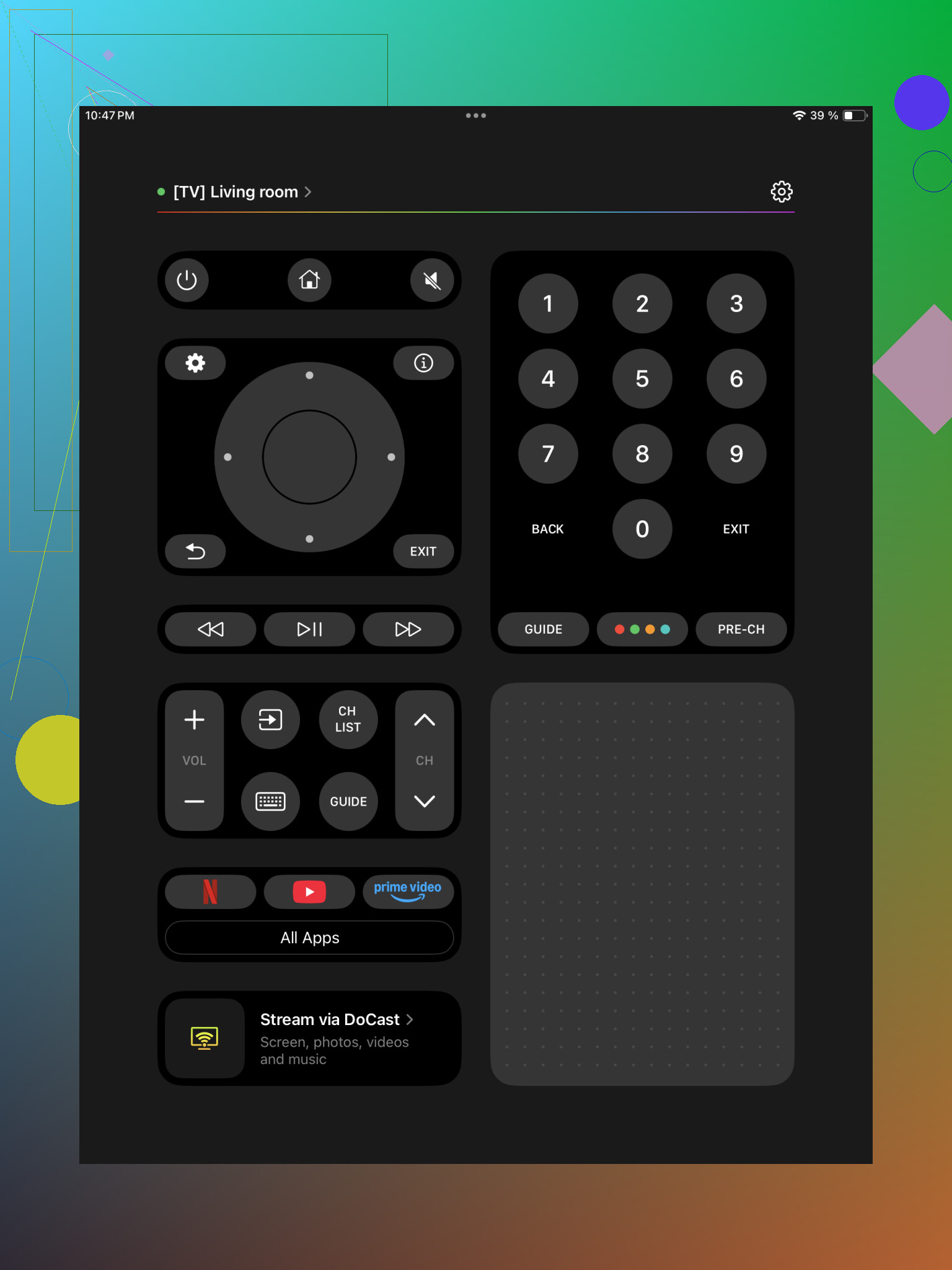
I started here because I wanted one app for more than one screen in the house. Install it, open it, let it scan, tap your Samsung TV, then approve the pairing prompt on the TV. Done. I got volume, channels, a touchpad, text entry, and app shortcuts. The part I liked most was not being stuck with a Samsung-only tool, since it also works with LG, Roku, Fire TV, Android TV, Google TV, and Apple TV. If your setup changes later, you keep the same app.
2) Universal Remote Smart TV
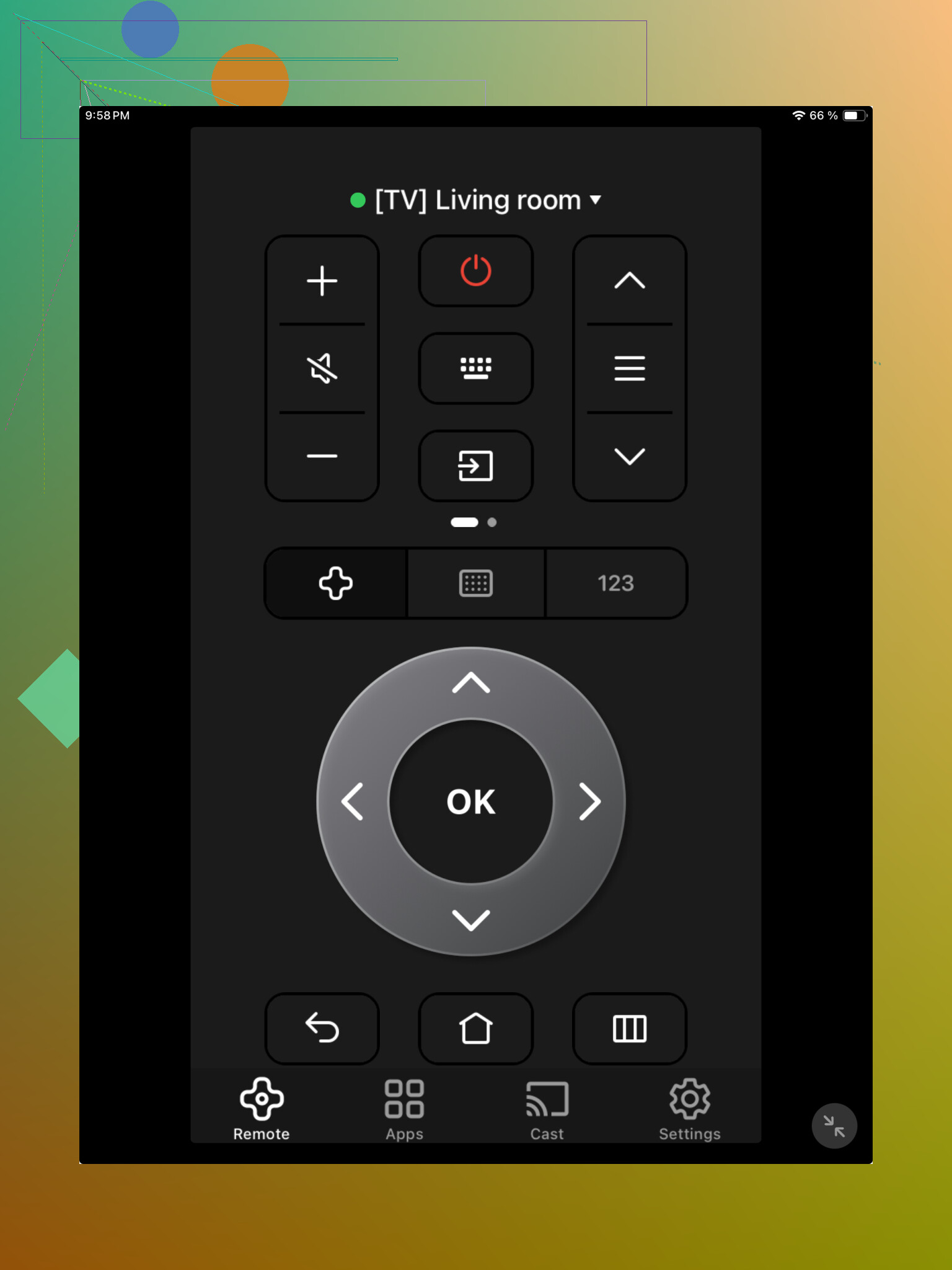
This one felt similar during setup. Same routine, same network, open the app, pick the Samsung TV from the list. It covers the usual stuff, playback buttons, menu movement, and standard remote controls. Nothing fancy, though it did the job when I tested apps side by side.
3) Samsung Smart TV Remote Plus
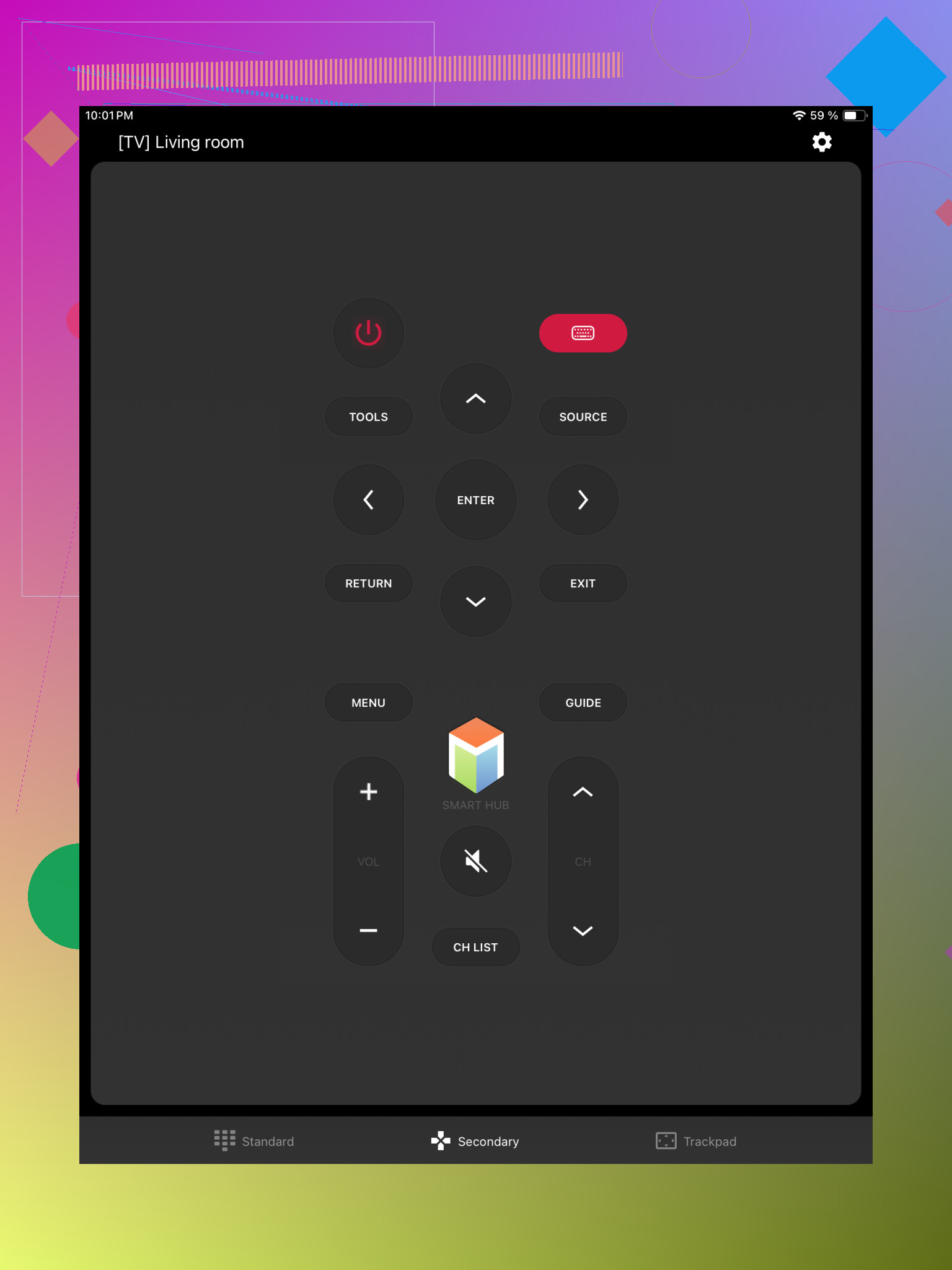
This app sticks to Samsung, which some people prefer. The layout looked closer to a normal Samsung remote, so there was less poking around to find buttons. If you only care about one TV and want it familar, this is a clean option.
4) Remote for Samsung TV Smart
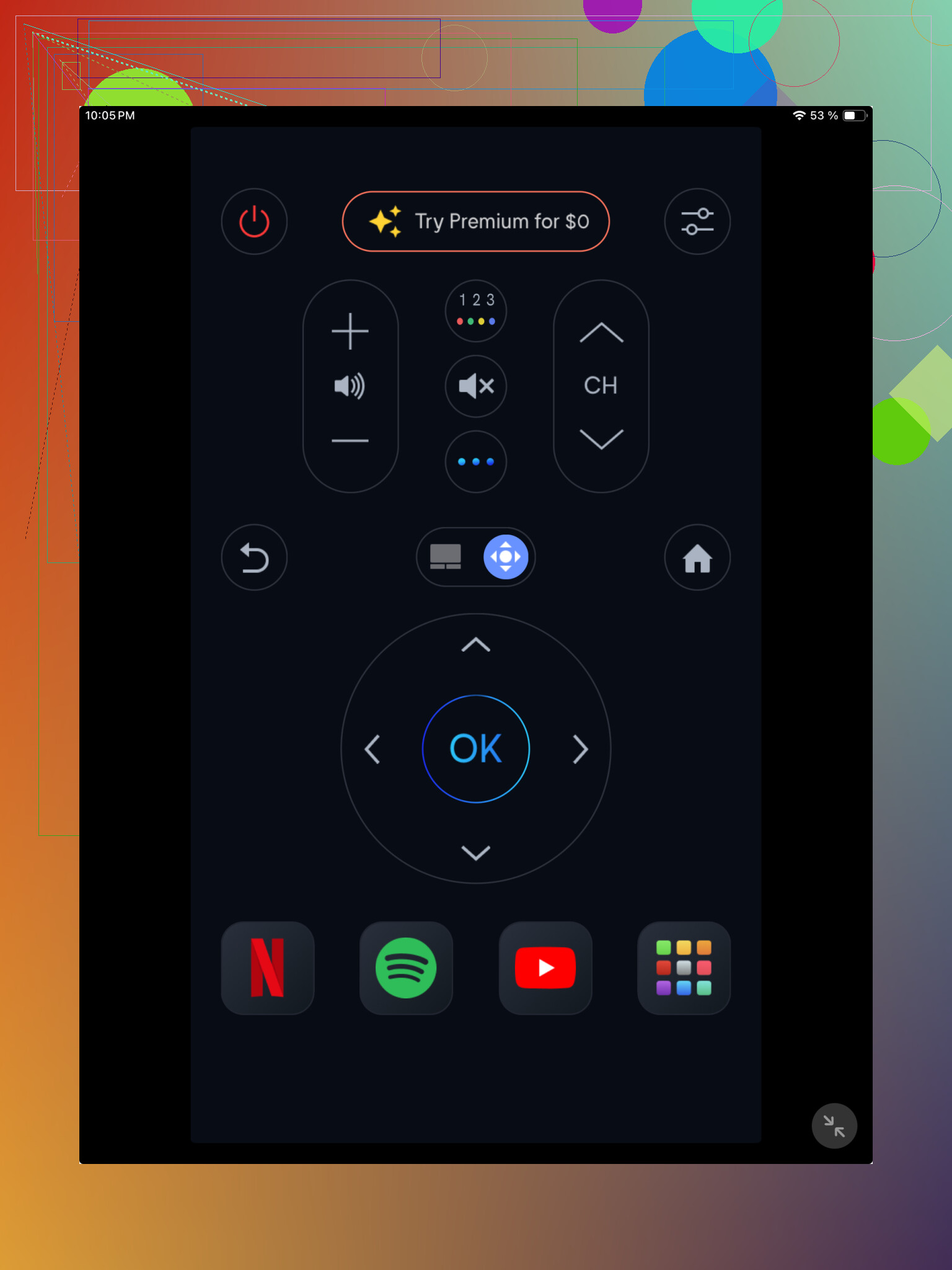
Another Samsung-focused app. I saw the usual controls here, volume, channel changes, menu navigation, and playback. Setup was quick for me, around a minute, after the TV showed up on the same network.
What I’d try first
I’d begin with TVRem. It was the least annoying to set up on my end, and it saved me from keeping a different remote app for each box and TV in the room.
7 Likes
Yes, with one catch. Your Samsung TV has to already be on your home network. If the TV got disconnected from WiFi, an iPad app will not see it, and no app fixs that.
A few checks people miss:
- Turn off cellular on the iPad for a minute. Force WiFi only.
- Make sure the iPad is on the 2.4 GHz or 5 GHz network the TV uses. Some routers split them.
- On the TV, if you still have access with the little joystick button under the screen or on the back, go to Settings, Network, and confirm it is online.
- Restart both the TV and the iPad.
- If your router has AP isolation, guest WiFi, or device isolation on, remote apps will fail.
I don’t fully agree with @mikeappsreviewer putting the app first. The network check matters more than the app. If the TV is not visible, the app is often not the problem.
Also try Samsung SmartThings on iPad. It is Samsung’s own app, and on newer Samsung TVs it tends to pair more cleanly than random remote apps. Add Device, TV, Samsung, then wait for the PIN or permission prompt on the TV.
If no remote and no app work, use a USB keyboard or mouse on the TV. A lot of Samsung sets support this, and it helps you reconnect WiFi so the iPad remote starts working agian.
Yes, you can, but only if the TV is already reachable over your network. That’s the part a lot of people skip past.
I actually disagree a bit with @mikeappsreviewer’s app-first approach. If your Samsung TV is not showing up at all, swapping between 5 remote apps usually won’t magically fix it. @viajeroceleste is closer on that point.
A few things that are easy to miss:
- Some Samsung TVs will only accept remote pairing after a prompt appears on the TV screen. If nobody can click “Allow,” the iPad app just sits there looking broken.
- If your TV was recently unplugged or factory reset, it may have dropped off WiFi. In that case, iPad control is dead untill the TV gets reconnected.
- Ethernet counts too. If the TV is wired to the router and the iPad is on the same home network, that should still work fine.
What I’d try that hasn’t been mentioned much:
- Install Samsung SmartThings first, not just third-party remote apps.
- If the TV doesn’t appear, connect a USB mouse to the TV. Samsung sets usually support it, and it’s way easier than fighting apps blind.
- Check your router admin page and see if the TV is actually listed as connected. That tells you right away whether the problem is the TV or the app.
Also, if your iPad is on a VPN, turn it off. That can break local discovery and make the TV vanish from scan results. Small thing, but it gets people all the time.
Big picture: yes, but I’d separate powering on the TV from controlling the TV once it’s already on. A lot of iPad remote apps are fine after connection, but they are lousy at handling the first-time wake/pair situation.
Where I slightly differ from @viajeroceleste, @sonhadordobosque, and @mikeappsreviewer: if the TV is missing from scans, I’d also check the TV model year. Older Samsung sets can be picky with newer iPad remote apps, and some only work reliably with Samsung’s own ecosystem features.
A few extra things to try that haven’t really been stressed:
-
Enable Local Network access on iPad
Go to Settings > Privacy & Security > Local Network and make sure the remote app is allowed. On iPadOS, this permission can silently block discovery. -
Disable Private Wi-Fi Address temporarily
Settings > Wi-Fi > tap your network > turn off Private Wi-Fi Address for testing. Some routers handle device discovery badly with it enabled. -
Check IPv6 quirks
If your router has odd IPv6 settings, discovery can fail even though internet works. Temporary test: disable IPv6 on the router if you know how, then rescan. -
Use the TV’s IP address manually
Some apps let you enter the Samsung TV IP instead of waiting for auto-discovery. That can work when scan/broadcast detection fails. -
Cold boot the TV properly
Not just off and on. Unplug it for 60 seconds. Samsung network modules sometimes come back cleaner after a full power drain.
If you want to try another app, TVRem – Universal TV Remote is reasonable for testing because it can work across different TV brands, so it’s useful beyond this one problem.
Pros of TVRem – Universal TV Remote
- simple layout
- works with multiple platforms
- good as a backup remote app
Cons
- still useless if the TV is offline
- discovery can fail on strict router setups
If the TV is totally unreachable, the most practical fix is still physical input like a USB mouse or keyboard, then reconnect network from the TV itself. That’s the point where apps stop mattering.