I used Recuva to recover deleted files from my drive, and now I’m worried some of them may be corrupted or overwritten. I need help understanding whether Recuva itself can damage files, how safe file recovery is, and what steps I should take to avoid losing more data.
People ask this a lot, and I never found the clean yes or no version all that useful. My short take is this. Yes, Recuva is safe to run. It is not malware, it is not some fake recovery app, and it is not built to wreck your PC. The messy part starts after that. 'Safe' also touches privacy, installation habits, and whether your deleted files stay recoverable after you start poking the drive.
I spent too many nights testing recovery tools on old SSDs, camera cards, and a USB stick I formatted by mistake. Recuva still has a place, but you need to know where it helps and where it falls on its face.
About the old malware scare
The rumor usually goes back to 2017. Same company family, same trust problem. Piriform, the maker of Recuva and CCleaner, got hit in a supply chain breach. An official CCleaner update was trojanized. It was bad, and people still bring it up for a reason.
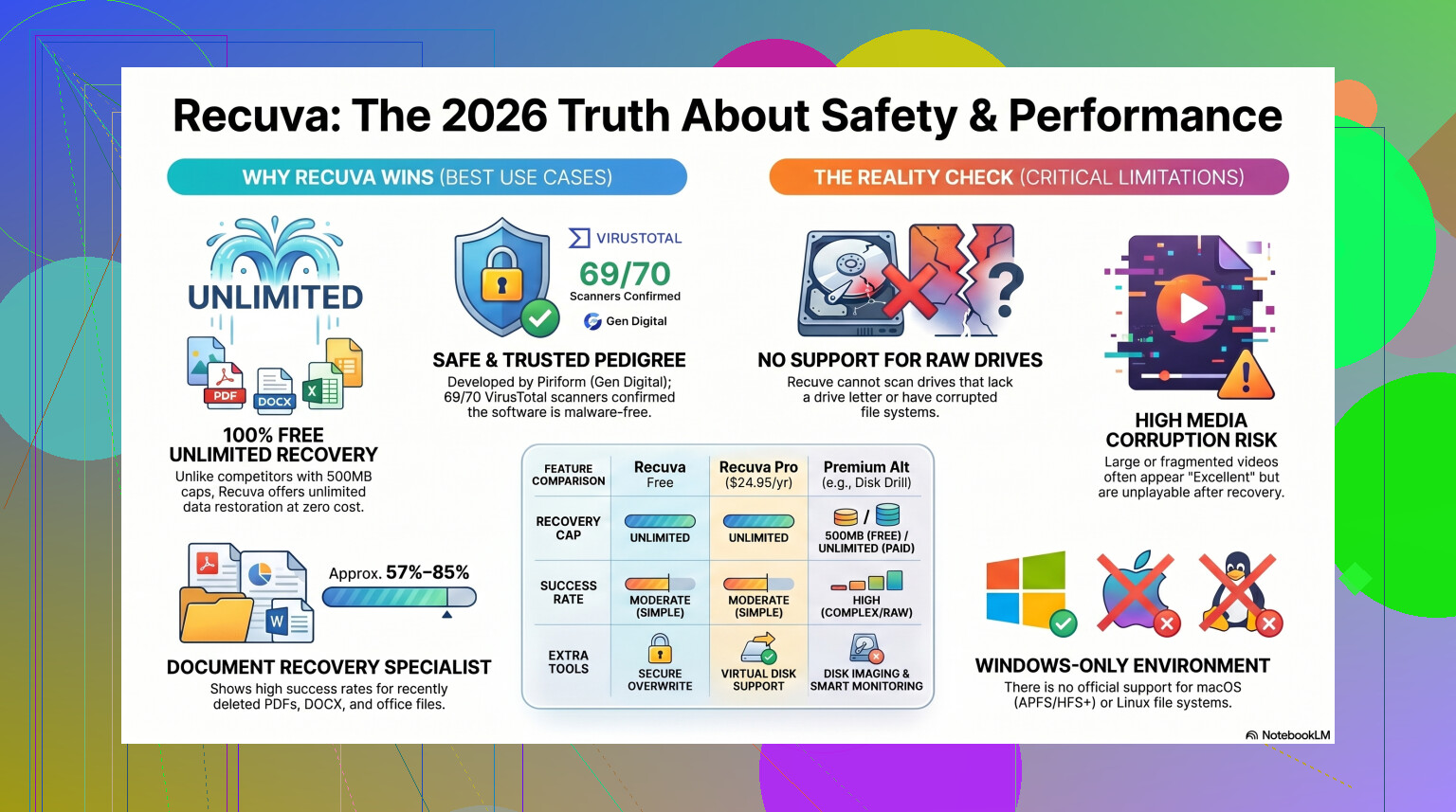
What I saw in current builds is different. Piriform ended up under Avast, then Gen Digital. The current Recuva installer in 2026 does not show the sort of red flags people fear when it comes from the official source. If you toss it into VirusTotal, you might get one weird hit from some tiny engine nobody uses. I saw that too. Usually it comes from heuristic scanning because recovery software digs into disk structures and deleted entries, which looks shady to some AV tools.
If you get it from the official vendor page, the virus angle is low risk. If you grab it from some random download mirror, you are asking for trouble.
Privacy is a separate problem
This part gets skipped a lot. Safe from malware does not mean quiet.
Under Gen Digital, the privacy policy is clearer than it used to be, though they still collect system and network data. Expect things like IP address, device identifiers, operating system details, and location-related info used for licensing and fraud checks. Some people do not care. I do, at least enough to turn off what I can.
After install, open Options, then Privacy, then clear the box for sending usage data. I do this before my first scan. It takes ten seconds. Their policy also says IP data stays around for 36 months before anonymization, so if your bar for privacy is strict, keep that in mind.
The mistake I see most often
Recuva is usually not what kills the recovery attempt. The user does.
The big rule is simple. Do not install Recuva onto the same drive that lost the files.
Deleted data often still sits on the disk until something overwrites it. Windows removed the reference, not the contents. If your missing photos are on drive D, and you download an installer onto D, you might overwrite the exact blocks you needed. No warning. No second shot. I did this once years ago with a flash drive full of old PDFs. Dumb move. Those files were done.
The safer route is the portable version. Put it on a USB drive, run it from there, and keep writes off the target disk. Same rule after recovery. Do not save recovered files back to the drive you scanned. Use another disk, an external SSD, anything else.
How well it works in 2026
Here is the blunt part. Recuva feels old.
The app still works on Windows 11, and there were maintenance updates, but its recovery engine feels stuck in an earlier era. It is good at undelete jobs on healthy Windows volumes. It is not a full recovery platform.
When I tested it on a machine where the Recycle Bin had been emptied a few minutes earlier, it was fast and decent. No file cap, no paywall for basic use, no bloated install. That still matters.
Once the problem gets ugly, results drop fast.
If your drive shows up as RAW, or Windows asks you to format it before use, Recuva often does nothing useful. It tends to need a readable partition. On formatted USB media, results are mixed. In tests like these, success rates often sit around the mid 60 percent range, roughly 63 to 67 percent, and even those numbers hide a lot of bad recoveries. I had image files show as recoverable with 'Excellent' status, then fail to open. Recuva also tends to flatten folder trees, so you end up sorting through a dump of renamed files. If you have 10,000 JPGs with generic filenames, have fun with that.
Cases where I would stop using it
If the files matter, I would not burn hours on repeated Recuva scans.
Stuff like wedding photos, business docs, project archives, drone footage, camera RAW files. Different situation. If the drive is unstable, each extra read adds stress. You want fewer passes, not more.
When Recuva misses the files, returns corrupted junk, or refuses to work with the disk structure you have, I would move on fast. For damaged partitions, RAW disks, and more complex recovery jobs, I had better luck with Disk Drill.
It handles cases Recuva often skips, including RAW volumes and damaged partition maps. The recovery rate tends to be much higher on formatted media too, often around 95 to 97 percent in stronger test runs. The feature I care about most is Byte-to-Byte Disk Imaging. Clone the failing drive first. Scan the image, not the hardware. If the original dies halfway through, you still have a full copy to work from. Recuva does not give you that safety net.
Video and camera files are another weak point for Recuva. Fragmented clips, Nikon NEF, Canon CR2 and CR3, larger media sets. It gets rough fast. A newer recovery tool usually has broader signature support and does a better job stitching things back together - this side-by-side review shows the difference pretty clearly.
What I would do
If you deleted something on a normal Windows PC and noticed right away, Recuva is a fine first try. Cheap setup, low friction, easy wizard. Good enough for simple mistakes.
- Get it from the official site only.
- Pick the portable build if you have the option.
- Turn off usage sharing in the privacy settings.
- Save recovered files somewhere else.
- Do not expect miracles on damaged or formatted drives.
If the scan comes back empty, or the files recover broken, stop writing to the drive. I mean stop. Do not install more tools on it, do not copy stuff onto it, do not keep rescanning for hours out of panic. Move to a stronger recovery app or clone the disk first if the hardware looks unstable.
My own take, after too much trial and error, is simple. Recuva is safe enough as a starter tool. It is useful for the easy jobs. For anything more serious, I would not trust it with my only copy of something important. That part hurts when you learn it the hard way, ask me how i know.
7 Likes
Recuva itself usually does not damage files. It reads disk records and copies what it finds. The risk comes from what happens around recovery.
If you installed Recuva on the same drive where the deleted files lived, or saved the recovered files back onto that same drive, you raised the chance of overwrite. That is the big danger. Recuva did not “corrupt” the originals by magic. Your drive space got reused, or the files were already incomplete when deleted.
A few points people mix up:
-
Recovered file does not mean healthy file.
A recovery app often finds file entries, not perfect content. If part of the data got overwritten, the file recovers but opens broken. Common with videos, photos, PSTs, ZIPs. -
“Excellent” status is not a promise.
I disagree a bit with @mikeappsreviewer here. Recuva’s status labels are useful for a quick sort, but they are not proof. I’ve seen files marked good that were half junk, and files marked worse than expected still open fine. -
SSDs are a different mess.
If your deleted files were on an SSD and TRIM ran, recovery rates drop hard. At that point Recuva is not the main problem. The data is often gone from the flash translation layer. Same story on many modern laptops. -
Recuva is safe software, but it is old.
Fine for simple undelete on a healthy NTFS drive. Less fine for damaged partitions, RAW volumes, and large media files. If you need a stronger data recovery tool for Windows, Mac, USB drives, SD cards, and formatted disks, check this list:
best data recovery software for deleted, formatted, and corrupted files
What to do now:
Stop using the drive.
Do not save anything else to it.
Test recovered files from a different disk.
If the drive is failing, clone it first.
If Recuva gave mixed or broken results, switch to Disk Drill or another more complete recovery tool and scan the clone, not the original. Disk Drill tends to do better with damaged file systems and it previews more file types cleanly.
Short version, Recuva is safe to run. Unsafe recovery habits are what mess things up. If your files look corrputed now, the issue is usuallly overwrite, TRIM, fragmentation, or prior file system damage.
Recuva itself usually does not damage files. It’s mostly a read-and-copy tool, not a shredder. Where I kinda disagree a little with @mikeappsreviewer and @cazadordeestrellas is this: people blame “overwrite” for everything, but sometimes the file was already unrecoverable the second it got deleted. Especially on SSDs, or on fragmented video files. Recuva just shows you the bad news.
What can make things worse is:
- installing recovery software onto the same drive
- saving recovered files back to that same drive
- continuing to use the PC normally after deletion
- scanning a drive that’s physically dying over and over again
So yes, Recuva is generally safe. The recovery process is what’s risky.
If your recovered files are corrupted now, that usually means:
- parts were already overwritten
- the file system metadata was damaged
- the file was fragmented and Recuva rebuilt it badly
- SSD TRIM wiped the blocks faster than you expected
Also, don’t put too much faith in Recuva’s health labels. “Excellent” is more like “looks fine from the directory entry,” not “I personally opened your file and checked it.” Big differnce.
If the files matter, stop using the drive now and work from a clone or image. That’s where something like Disk Drill makes more sense, because it’s better suited for deeper recovery and damaged file systems. Recuva is fine for basic undelete, but it’s kinda old-school.
For anyone reading up on it, here’s a cleaner overview of how Recuva file recovery software works.
Short version: Recuva is safe, but safe software does not guarantee safe recovery. That part trips people up all the time.
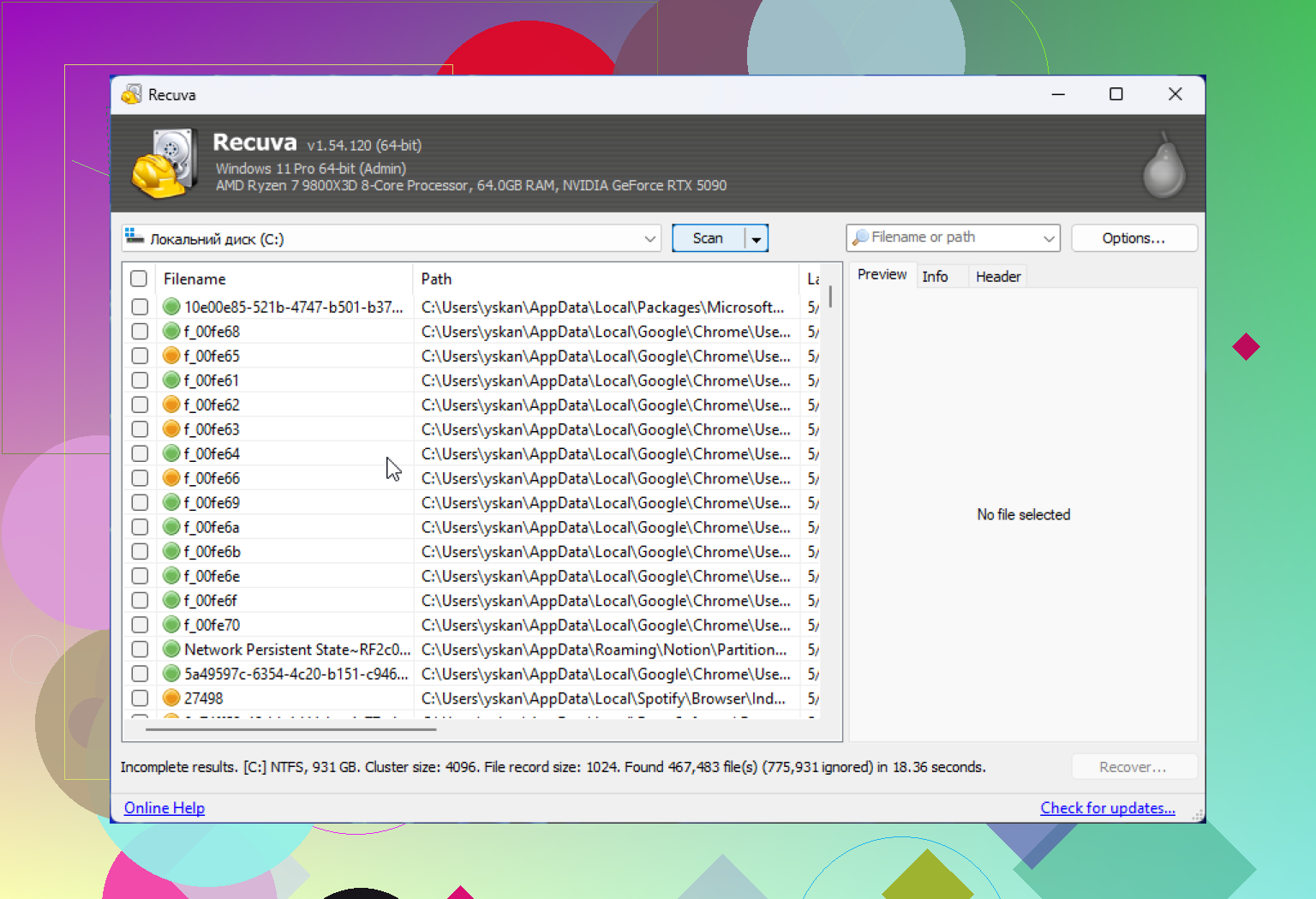
Recuva itself is usually safe. I’ll push back on one tiny point from @cazadordeestrellas, @viajantedoceu, and @mikeappsreviewer though: not every broken recovery means overwrite. Sometimes Recuva simply reconstructs the file poorly, especially with fragmented videos, archives, and files pulled from messy file systems.
Think of Recuva as a file scavenger, not a file repair tool.
What it generally does:
- reads deleted file records
- tries to copy remaining data elsewhere
- does not normally “damage” healthy existing files by itself
What actually causes bad results:
- writing anything to the same source drive
- recovering files back onto that drive
- SSD TRIM
- filesystem damage
- partial recovery of fragmented files
So if your recovered files are corrupted now, Recuva probably exposed damage that already existed in the deleted data area. It usually did not create that damage from scratch.
One thing I’d add that gets overlooked: opening a corrupted recovered file does not prove the whole recovery failed. Some file types can be partially repaired afterward, especially photos, Office docs, and some video containers.
If you want a second pass, use a disk image first, then scan that image with something stronger like Disk Drill.
Disk Drill pros:
- better with damaged partitions and deeper scans
- can create and scan disk images
- broader file signature support
- cleaner previews
Disk Drill cons:
- heavier than Recuva
- not as lightweight for quick undelete jobs
- deeper scans can return lots of raw results with lost filenames/folders
Recuva is fine for simple undelete. For anything important, fragile, or already showing corruption, I’d stop testing the original drive and move to imaging plus a more capable tool.