I’m trying to clear the Messenger cache on my iPhone because the app storage keeps growing fast, even after deleting chats and restarting the phone. What’s causing Messenger to take up so much space, and is there a safe way to clear the cache without losing important messages?
If Messenger is taking up a few gigs on your iPhone, the annoying part is that there isn’t a simple “clear cache” button like there is on Android. On iPhone, the fix is more blunt: you either offload it, or you delete and reinstall it. Those are not the same thing.
Deleting Messenger does not erase your chats
Your Messenger conversations are stored on Facebook’s servers, not only on your phone. So if you delete the app and install it again, your messages and contacts should sync back once you log in.
What gets removed is the local stuff Messenger has been keeping around: thumbnails, temporary media files, cached conversation data, video bits, and anything else it saved to make the app feel faster.
The one thing to be aware of is downloaded media. If you had photos or videos saved inside Messenger for offline access, deleting the app removes those local copies. They should still be available in the chat, but you would need to download them again.
Offload App vs Delete App
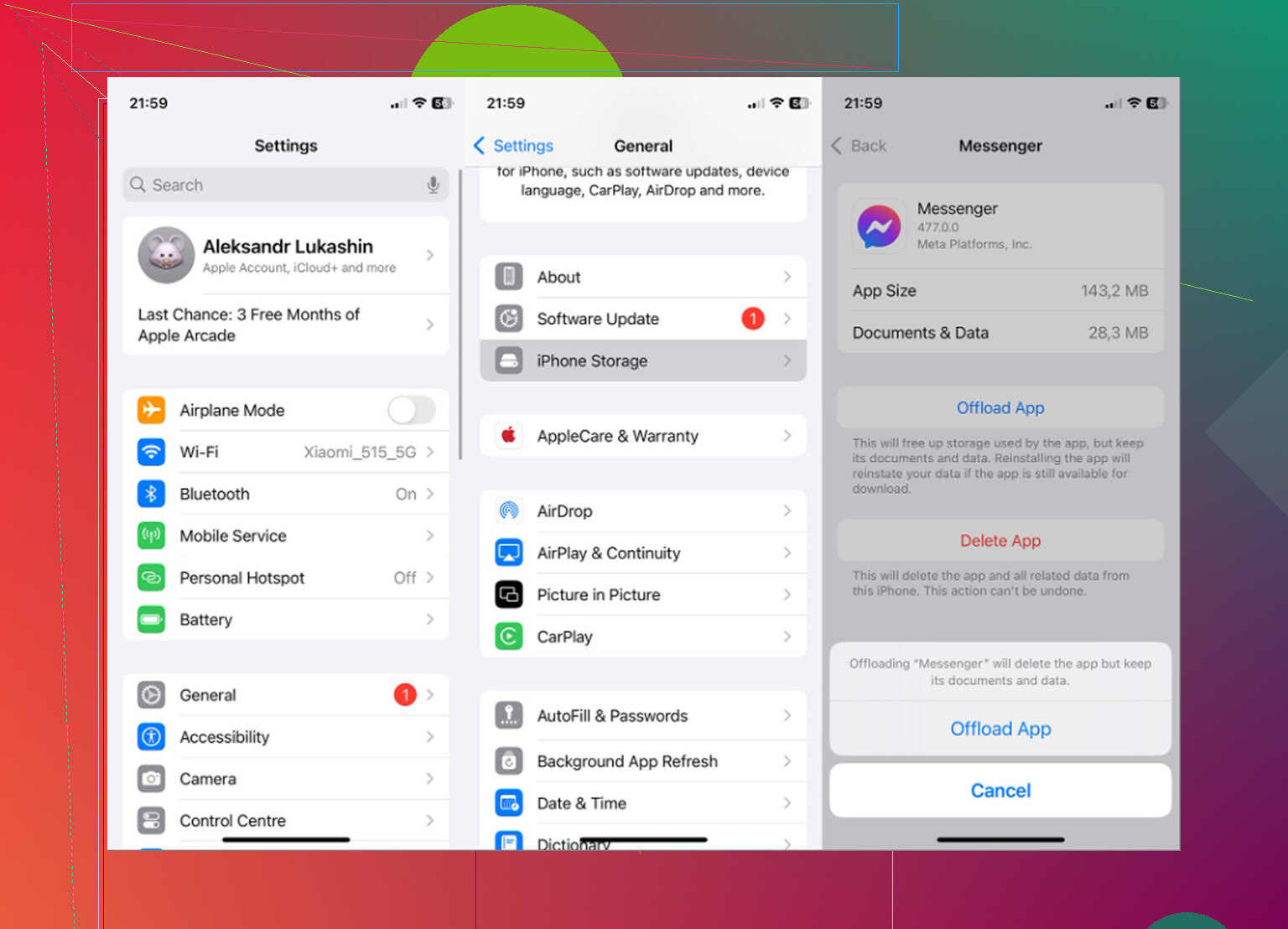
Go to Settings > General > iPhone Storage > Messenger.
If you tap Offload App, iOS removes the app itself but keeps its Documents and Data. That can help if Messenger is buggy or crashing, and it often keeps you signed in after reinstalling. But it usually will not fix the storage problem, because most of the cached data is still sitting there.
If you tap Delete App, iOS removes the app and its local data, including cache, temp files, and downloaded media. After reinstalling Messenger, you’ll need to log in again, but the chat history should come back from the server.
For a real cache cleanup on iPhone, Delete App is the one that actually matters.
If the storage number still looks wrong
iOS can be slow about recalculating app storage. If you offloaded or deleted something and the number still looks off, restart the phone and check iPhone Storage again. Sometimes it just needs a refresh.
Messenger cache may not be the real reason your phone feels slow
Clearing a couple gigs from Messenger can help, but if your iPhone is nearly full, the bigger issue is usually overall free space. iOS needs room for temporary files and background tasks. When storage is almost maxed out, the whole phone can start dragging no matter which app you clean up.
In a lot of cases, the photo library is where the real space is going. Burst shots, duplicate-looking photos, old screenshots, and big videos pile up quietly. A few forgotten 4K videos can take more space than Messenger cache ever did.
What helped with the bigger storage issue
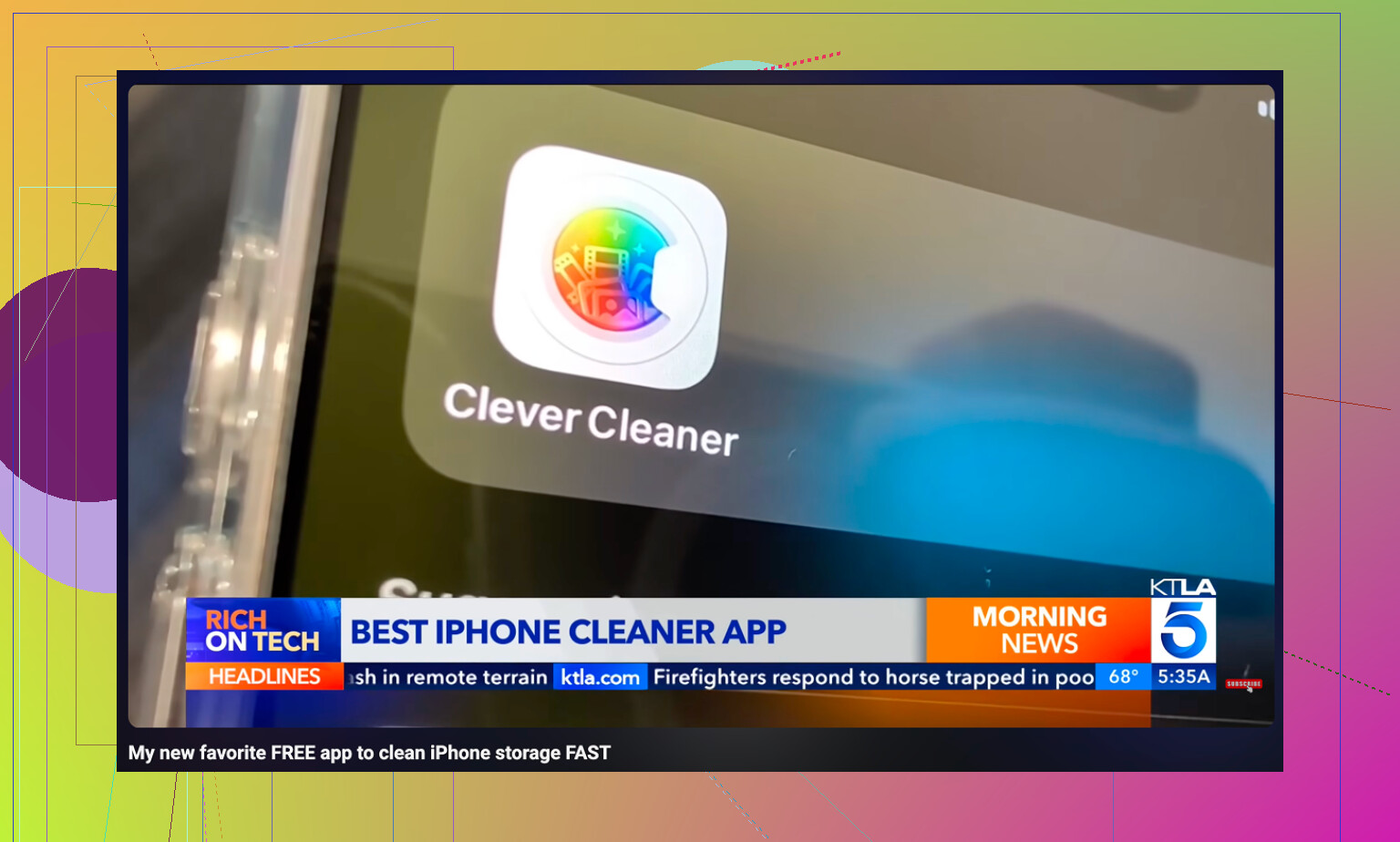
After clearing Messenger, the real storage problem was still in Photos. Clever Cleaner made that part easier to deal with.
It does not clear Messenger cache or touch Messenger data. You still need to delete and reinstall Messenger for that. What it does is show the photo and video clutter that is usually taking up the serious space.
It is free, with no ads and no subscription.
The Heavies tab sorts files from largest to smallest and shows the exact file sizes, which makes it obvious when a few old videos are eating a huge chunk of storage.
The Similars tab groups near-duplicate photos and picks a Best Shot, so you do not have to manually compare five versions of the same picture one by one.
It also shows screenshot sizes before deletion, which helps when you’re cleaning out a big pile of old screenshots.
Everything runs on the device, so the photo processing is not uploaded to an outside server.
The cleanest order is: delete and reinstall Messenger first, then deal with the photo library if the phone is still low on space. And after deleting photos or videos, go to Photos > Recently Deleted > Delete All. Otherwise, the storage will not actually be freed yet.
1 Like
If you use Messenger for lots of videos, voice notes, stickers, Marketplace photos, or big group chats, the storage will rebuild pretty fast after a reinstall. I agree with @mikeappsreviewer that Delete App is the real iPhone cleanup, not Offload App, but I wouldn’t treat it as a permanent fix. Messenger keeps local copies and previews so you don’t have to redownload everything every time you open a thread. Deleting old chats can help, but it often won’t shrink the app right away because the cached files are separate from what you see in the conversation list. Before deleting it, make sure you know your Facebook login and have access to any 2FA method, because that is the annoying part people forget. After reinstalling, expect the app to start small and then grow again as you open busy chats.
Check iPhone Storage before and after opening your busiest Messenger threads, because the size can jump back just from loading old media previews again. Deleting chats helps less than people expect since Messenger is caching thumbnails, link previews, profile pictures, stickers, and media bits separately from the visible conversation. I agree that “Delete App” is the real reset, but I’d treat it like emptying a trash can, not fixing a leak. If you keep opening the same group chats full of videos and Marketplace photos, it will rebuild. The safer routine is: confirm your Facebook login/2FA, delete Messenger, reinstall, then avoid scrolling way back through huge media-heavy chats unless you actually need to. Offload is mostly a waste for this specific problem.
Two phones, same app. One person texts, sends a few reactions, done. Their Messenger sits at a couple hundred megs for months. The other person lives in three big group chats full of reels, voice notes, and Marketplace haggling, and their Messenger balloons back to two gigs a week after a reinstall. Same fix, wildly different results, which is exactly why the delete-and-reinstall advice above is only half the story.
I agree with @cacadordeestrelas that deleting the app is more like emptying a trash can than fixing a leak. But nobody in here mentioned the actual leak valve. Inside Messenger there’s a setting under Photos & Media where you can turn off automatic media downloads and stop it saving received photos to your camera roll. Kill autoplay too. That won’t shrink an already bloated cache, but it slows how fast the thing refills, which matters way more than repeatedly nuking the app every few weeks.
So my take is a bit less blunt than the reinstall crowd. Do the Delete App reset once if it’s genuinely huge, sure. After that, change the download behavior so you’re not back here next month. Constantly reinstalling and logging back through 2FA just to reclaim a gig is a lot of effort for something that rebuilds on its own.
On the Clever Cleaner mention, it fits if your real problem turns out to be Photos rather than Messenger, and honestly for a lot of people that’s the case. Just don’t expect it to touch anything Messenger-related, it won’t. I’d treat it as a separate job for the photo library once you’ve confirmed Messenger isn’t the main hog. Check iPhone Storage first and see which number is actually bigger before you decide where to spend your effort.