My iPhone storage is almost full, and I found that large message attachments are taking up a lot of space. I’m trying to figure out if there’s a select-all option or a faster way to delete large attachments on iPhone without removing them one by one. I need help freeing up storage quickly.
What happens when you delete message attachments on iPhone
I ran into this mess on my own phone, so here is the plain version.
Your main worry seems to be this: if you remove a photo or video from Messages, does it also vanish from Photos?
No, if you already saved it to Photos first.
When somebody sends you an image in iMessage or SMS, the file sits inside Messages. If you tap it and use ‘Save Image,’ iPhone puts a separate copy into the Photos app. After tht, you have two copies eating storage.
So when you go here:
Settings > General > iPhone Storage > Messages > Review Large Attachments
and delete an item, you are deleting the Messages copy. The one in Photos stays there.
Same deal with stuff you sent yourself. If you recorded a video with your camera, then texted it to somebody, your original video remains in Photos. The sent copy inside the conversation is separate. Remove the message attachment, and the original clip is still safe.
About ‘Select All’
This part is bad.
Apple still does not give you a real ‘Select All’ button in the large attachments screen. You hit Edit, then tap each circle one by one. If your message history goes back years, it turns into a stupid amount of tapping.
There is one broad shortcut, but it is harsh:
Settings > Messages > Keep Messages
You can switch message retention to 30 Days or 1 Year. That clears old conversations and their attachments automatically. I did not like this route because it wipes message history too, not only the bulky files.
If you use Messages in iCloud
This changes one thing.
If ‘Messages in iCloud’ is enabled, deleting an attachment from Messages on your iPhone removes it from synced Apple devices too, like your iPad or Mac. It also disappears from the Messages data stored in iCloud.
It does not remove a version saved in Photos.
So there are still two buckets to think about:
- Messages storage
- Photos library
Delete from one, and the other is untouched, unless you manually remove both.
Why your iPhone feels slow when storage is full
I noticed this before I understood what was happening. My phone got laggy, apps froze, keyboard pauses showed up, and random crashes started. Once storage gets crowded, iOS has less room for temp files and background tasks. The phone starts feeling worn out even if the hardware is fine.
On mine, freeing space fixed more than I expected.
The cleanup method I ended up using
I got tired of digging through threads by hand, so I tried Clever Cleaner.
I was skeptical, because most cleaning apps are ad farms or lock the useful parts behind a paywall. This one was free when I used it. No ads on my end, no subscription screen popping up every five seconds.
A few parts stood out:
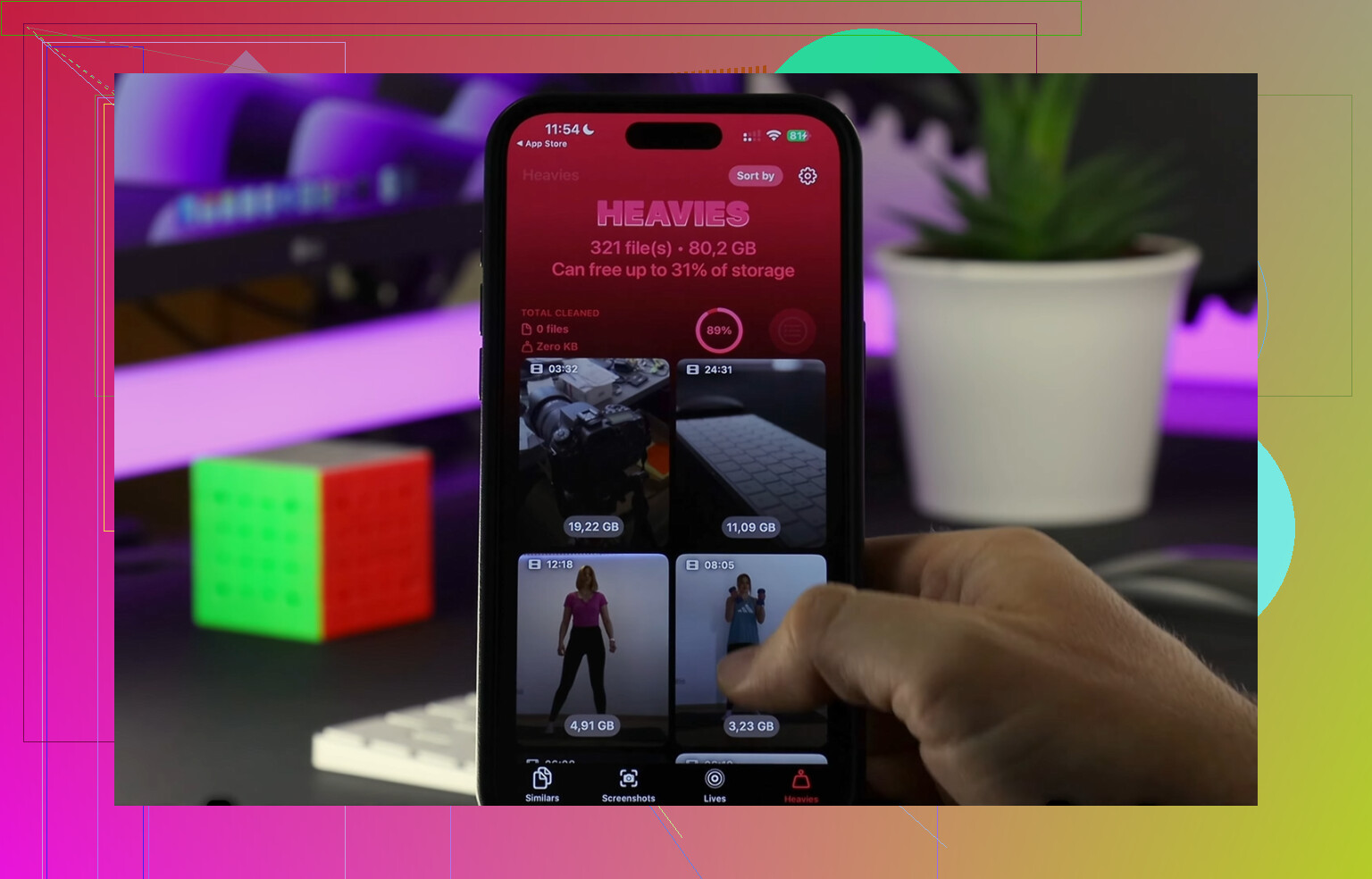
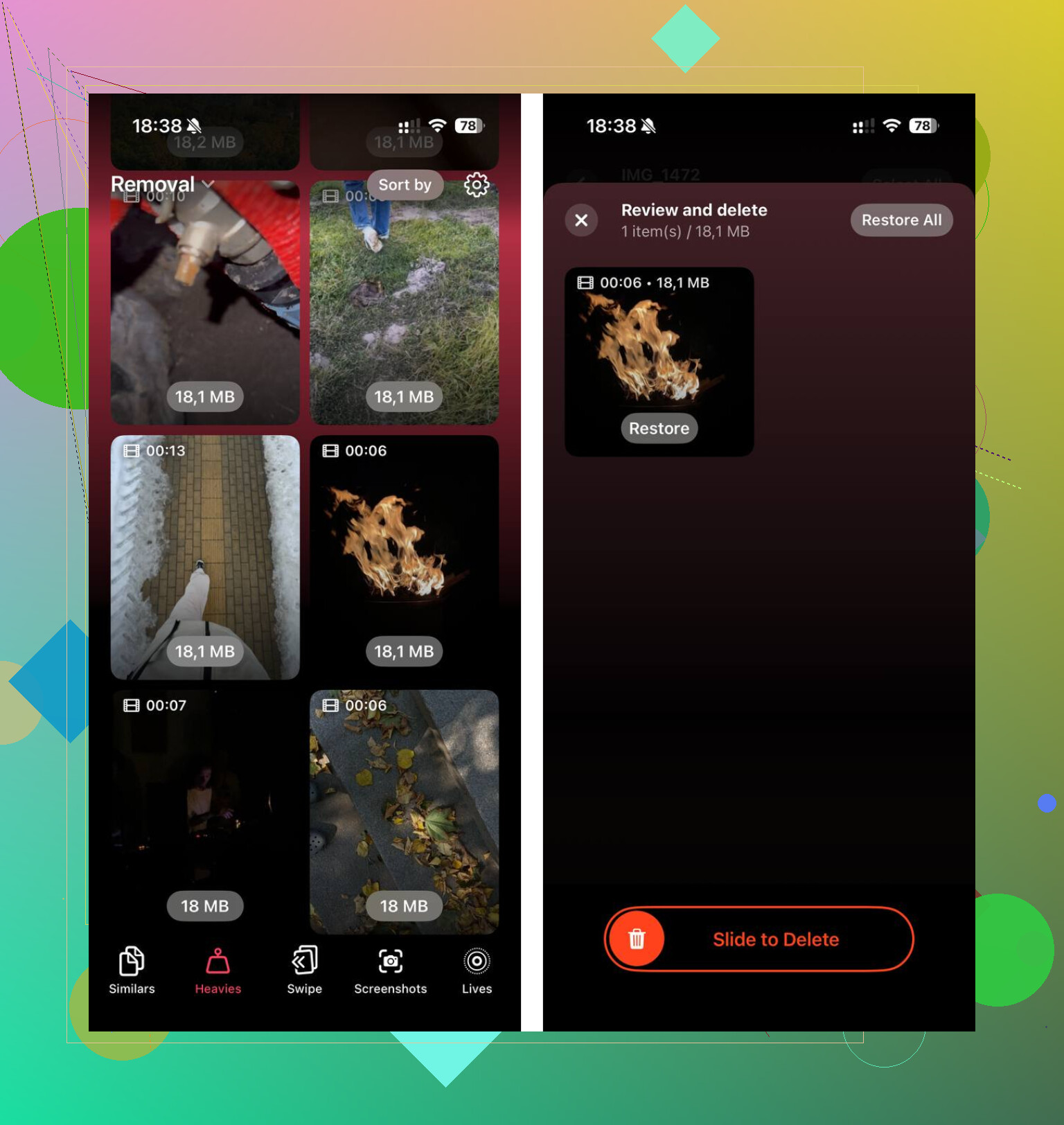
Heavies
This tab sorted the biggest files by size. I did not have to guess which videos were killing storage. The largest ones showed up first, and I could remove them fast.
Similars
This found near-duplicate photos. Good for those bursts where you take six pics of the same thing and keep one. My camera roll had a lot of junk like this, more than I thought tbh.
Privacy
What I liked most was local processing. My photos stayed on the phone. I did not want personal stuff getting pushed to some server for analysis.
After one cleanup pass, I cleared around 15 GB. My phone felt normal again. Lag was gone. Apps stopped hanging.
One thing people forget
Deleting files is only half the job.
Open Photos and clear the ‘Recently Deleted’ folder. Apple keeps removed media there for 30 days, so storage does not fully come back until you empty it.
Do the same inside Messages if deleted attachments are still sitting in its ‘Recently Deleted’ area.
If you skip this part, your storage number might barely move, which is annoyng and makes it look like nothing worked.
Short version
- Deleting from Messages does not erase the copy in Photos, if you saved it there first
- Sent attachments in Messages are separate from the original files in Photos
- Apple has no real ‘Select All’ for large message attachments
- If Messages in iCloud is on, deleting from Messages removes it across synced devices
- Low free storage can make iPhone feel slow
- Clear ‘Recently Deleted’ after cleanup or space will not come back fully
14 Likes
Nope. There is no true select-all for large attachments on iPhone. Apple still makes you tap items one by one in the Messages storage screen. @mikeappsreviewer is right on that part.
Where I disagree a bit is the “faster way” part. I would skip spending too much time inside Messages first if your storage is almost full. Message attachments are often a chunk of the problem, but your Photos library is usualy the bigger one.
What works faster:
- Check Settings, General, iPhone Storage.
- Look at the biggest categories first.
- If Messages is huge, use Review Large Attachments and delete the worst offenders.
- Then go after photos and videos, since those often eat 10 GB, 20 GB, or more.
If you want speed, Clever Cleaner is a decent shortcut for photo and video cleanup. It helps find large videos, duplicate shots, and similar pics faster than Apple’s built-in tools. For a quick look, watch how Clever Cleaner helps delete large files on iPhone.
One more thing people miss. In Messages, search by conversation and delete whole media-heavy threads if one person sent you years of videos. That is often faster than picking 200 attachments by hand. Crude, but way less tapping.
So, short answer: no select-all. Fastest path is delete biggest message files, then clean Photos too, becuase thts where the storage usually goes.
Nope, there isn’t a real Select All for large attachments in the iPhone Messages storage screen. Apple gives you the illusion of bulk cleanup, then makes you tap every single item like it’s 2012.
I agree with @mikeappsreviewer on that part, but I slightly disagree with @stellacadente about jumping away from Messages too fast. If your Messages storage is absurdly bloated, deleting a few giant videos there can free space faster than sorting 8,000 photos.
A couple faster angles that werent mentioned much:
- Delete entire convo threads with the one person or group chat that sends nonstop videos and memes
- In the Messages app, open a chat, tap the contact name, then “See All” under Photos. Sometimes it’s quicker to purge by conversation than from Storage settings
- Restart the phone after cleanup. iOS storage calculations can lag and look broken for a bit
Also, if you use iCloud backups, do a fresh backup after clearing junk so the next backup doesn’t keep dragging old clutter along.
If you want a quicker cleanup beyond Messages, Clever Cleaner is worth a look for large videos and duplicate pics. This page gives a decent overview of why Clever Cleaner is one of the best free iPhone cleaner apps.
So yeah, no select-all. Annoying, dumb, very Apple.
No real Select All, unfortunately.
One thing I’d add to what @stellacadente, @cazadordeestrellas, and @mikeappsreviewer said: if you want less tapping, sometimes the better move is not the Large Attachments screen at all. Go into the worst conversation, tap the contact or group name, open the shared media area, and prune there. It can be faster because you’re deleting in context instead of hunting random files.
I slightly disagree with the “just switch Keep Messages to 30 Days” idea people often suggest. That’s a sledgehammer, not cleanup. Great if you don’t care about history, bad if you do.
If your storage problem is broader than Messages, Clever Cleaner is actually useful for the photo/video side.
Pros
- Finds big videos quickly
- Good at duplicates and similar shots
- Easier than manual Photos cleanup
Cons
- Doesn’t magically add Select All to Messages
- You still need to review before deleting
- Best value is outside Messages, not inside it
So the answer is: no, Apple doesn’t give you a proper Select All for large message attachments. Fastest workaround is deleting by media-heavy conversation, then cleaning Photos separately if needed.