I turned on Optimize iPhone Storage to save space on my iPhone, but I’m not sure if it does anything without iCloud Photos enabled. My storage is still filling up, and I’m confused about whether this feature only works with iCloud or if it can help with local photos too. I need help understanding how it actually works and what I should do next to free up space.
I ran into this after my iPhone started throwing the ‘Storage Almost Full’ alert every day. I spent a while messing with settings, watching what changed, and checking iPhone Storage over and over. Here’s the plain version.
Does Optimize iPhone Storage work without iCloud
No. It doesn’t.
‘Optimize iPhone Storage’ depends on iCloud Photos. Your phone keeps smaller device versions of your pictures, and the full files stay in your iCloud library. If iCloud Photos is off, or your iCloud storage is full, the feature stops doing its job. There has to be a full copy online, or iOS has nowhere to offload the originals.
Is it safe
From what I saw, yes. Your photos are not being erased from existence. The storage location changes. Full resolution copies sit in iCloud, and your phone pulls them back down when you open or edit something.
The catch is simple. If your connection is bad, or you’re offline, you might only see the smaller version for a bit. I noticed this once on a flight. The image was there, but the sharp version did not load until I got signal again.
Why it looks like it isn’t working
This part annoyed me.
I had Optimize turned on and my phone still sat near full storage. iOS seems slow about clearing local files. It often waits until space is tight before it starts being aggressive. So you turn the setting on, expect instant relief, and nothing happens for hours, sometimes longer.
The other common issue is iCloud space. The free 5GB plan fills up fast. Once it’s full, your phone stops moving original photo files into iCloud because there’s nowhere left to put them.
Optimize or keep originals
This comes down to how much storage your phone has and how you use it.
If you’ve got a 512GB iPhone and plenty of room, ‘Download and Keep Originals’ feels better. Everything stays on the phone. No waiting. No dependence on signal.
If your storage is tighter, Optimize helps a lot. Mine was not a big storage model, so I kept it on.
What low storage did to my phone
This was the part I ignored for too long.
When my phone was nearly full, it got sluggish. Apps hung up. The camera opened slower. A few apps crashed for no obvious reason. After digging through my library, I realized the problem wasn’t only iCloud settings. I had piles of junk. Screenshots, blurry shots, duplicates, near-duplicates, random videos I forgot about.
So even with Optimize enabled, the mess still mattered.
What fixed it for me
The real fix was cleaning out the trash, not flipping one Apple setting and hoping for magic.
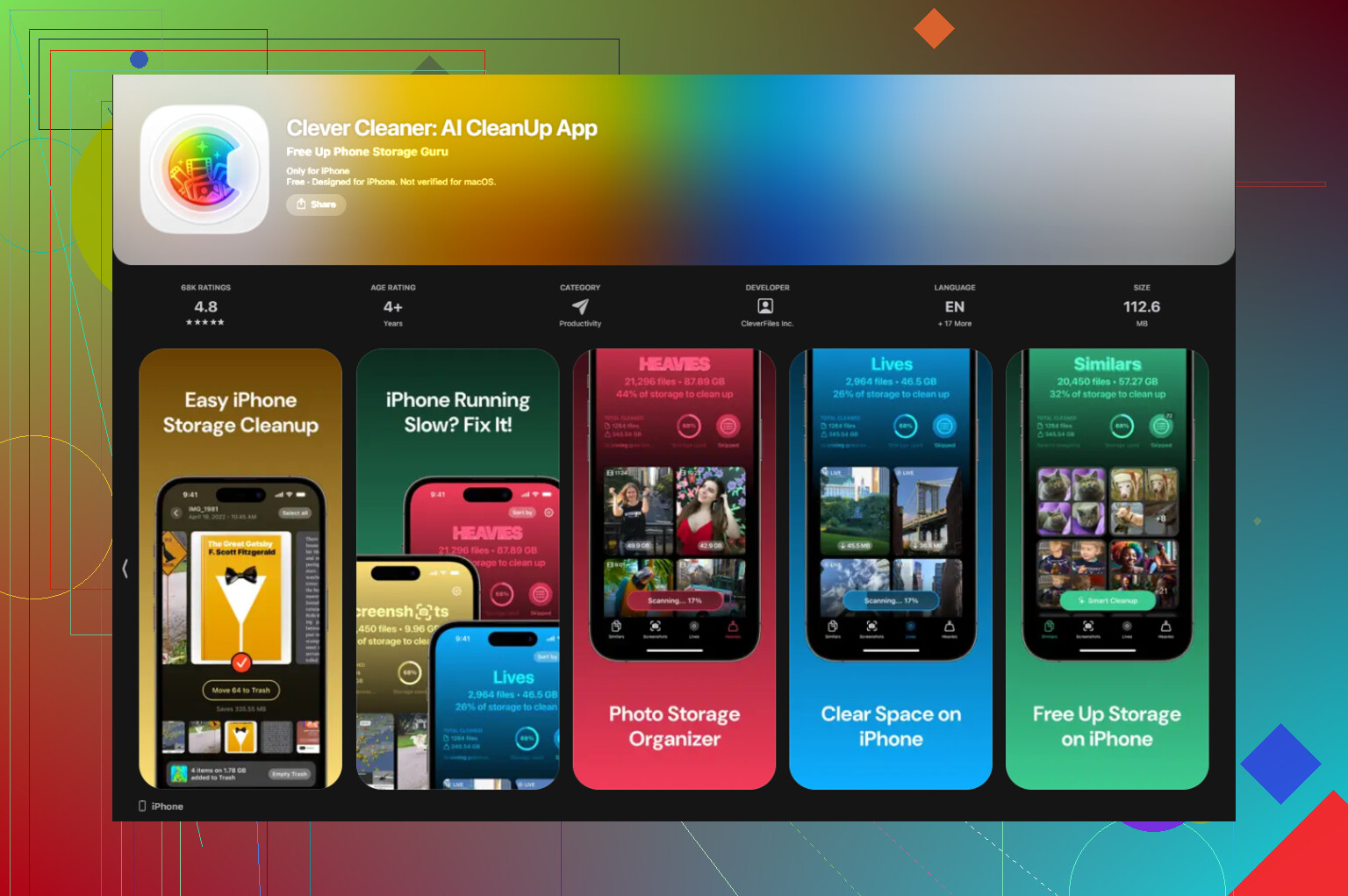
I tried a few cleanup apps and most felt shady. Too many paywalls, weird trials, or subscription traps. The one I ended up keeping was Clever Cleaner.
What stood out for me:
It shows file sizes clearly
This helped more than I expected. You see which screenshots, clips, and videos are eating space. No guessing.
The Heavies section is useful
It sorts media by size, so the worst offenders float to the top. I found one huge 4K video I recorded by mistake and dumped it in seconds. Stuff like this adds up fast.
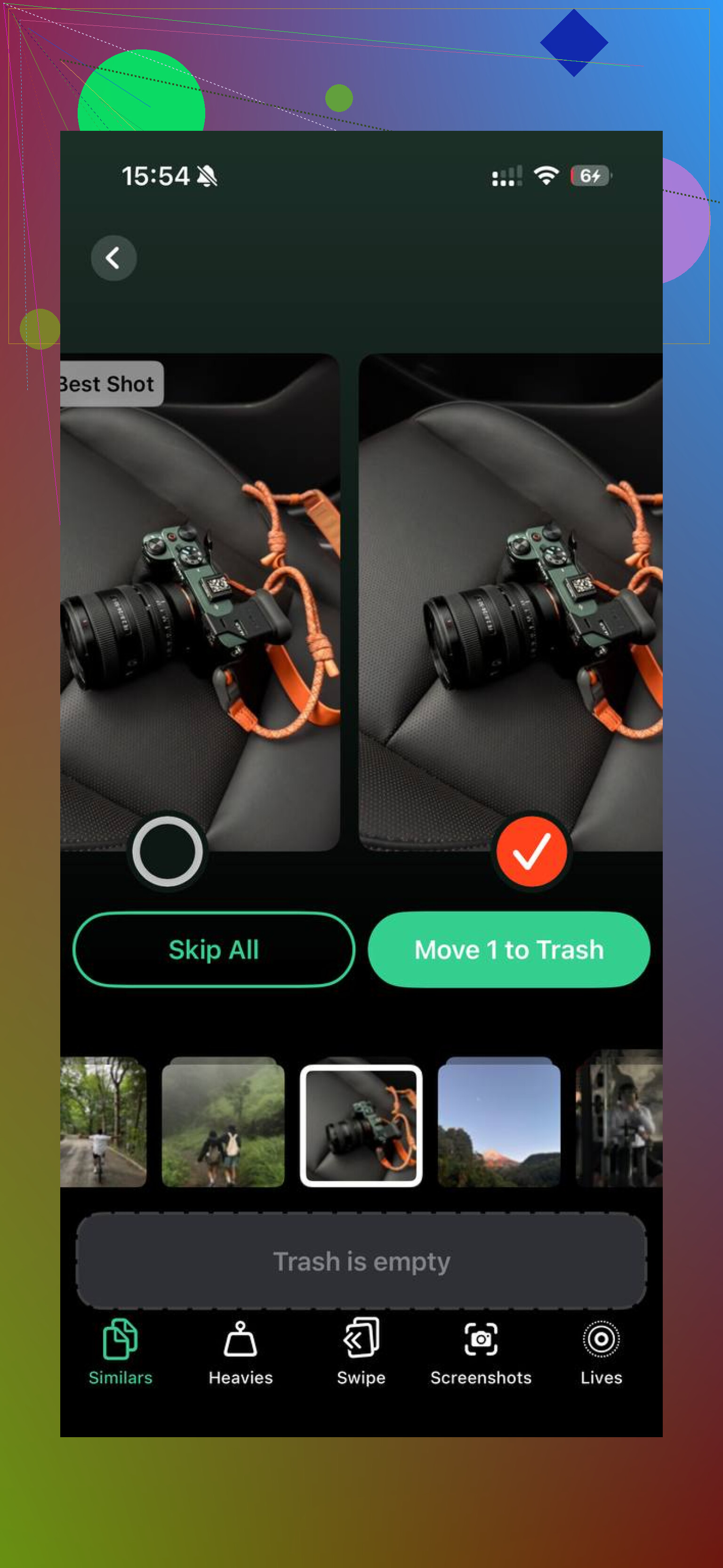
The Similars tool cuts down photo clutter
I had whole batches of near-identical photos. Same angle, same subject, tiny differences. The app grouped them and picked a best shot. I still checked before deleting, but it saved me a ton of time. I tihnk this was the first time cleaning my library didn’t feel miserable.
Privacy felt less sketchy
The processing happens on the device. For me, this mattered. I did not want my photo library bouncing through some random server.
After I cleaned things up, I got back around 15GB. My phone stopped lagging almost right away.
If Optimize Storage still seems broken
Open Settings > General > iPhone Storage and look at the categories first. Don’t guess. Check what is filling the phone.
If Photos is huge, or System Data looks out of control, start there. For photo clutter, cleaning the library helped me more than waiting for iCloud to sort itself out. If you’ve got thousands of screenshots and duplicate shots, they still take space one way or another.
So yeah, Optimize iPhone Storage works, but only with iCloud Photos, and it’s slower than people expect. If your phone is still packed, the better move is to clean the junk first and stop keeping stuff you don’t need.
12 Likes
No. It only works with iCloud Photos on.
“Optimize iPhone Storage” saves space by keeping full-res photos in iCloud and smaller versions on your iPhone. If iCloud Photos is off, your phone keeps the originals local. Nothing gets offloaded. So if your storage is still filling up, the setting alone won’t fix it.
One spot where I slightly disagree with @mikeappsreviewer is timing. iOS is often slow to reclaim space, yes. But if iCloud Photos is off, waiting longer won’t change much. There’s no cloud library for Photos to lean on, so there’s not much to optimize in the first place.
Quick check:
- Settings, your name, iCloud, Photos.
- Make sure “Sync this iPhone” is on.
- Make sure iCloud has free space.
- Then keep “Optimize iPhone Storage” enabled.
If you do not want iCloud Photos, your other option is manual cleanup. Photos, videos, downloads, Messages attachments, and app caches are usualy the big ones. For photo cleanup, Clever Cleaner is worth a look if your library is messy. Also, this iLounge review of Clever Cleaner for iPhone storage cleanup gives a clear overview.
Check Settings, General, iPhone Storage first. That screen tells you what’s eating space, which is better than guessing.
Nope. If iCloud Photos is off, “Optimize iPhone Storage” is basically just a pretty checkbox doing nothing useful for your photo library.
@mikeappsreviewer and @codecrafter already covered the main part right, but I’d add one thing: people sometimes assume this setting works like a general iPhone cleaner. It does not. It only affects photos/videos that are part of your iCloud Photos library. It won’t magically shrink apps, message attachments, Safari downloads, or the mysterious “System Data” blob that loves to eat storage for no reason lol.
So the short version:
- iCloud Photos ON + iCloud space available = Optimize can work
- iCloud Photos OFF = no offloading, originals stay on the phone
- iCloud full = also kinda broken, because there’s nowhere to put the full files
Where I slightly differ from the others is this: even with iCloud Photos enabled, don’t expect huge savings if your biggest problem is apps/videos/downloads, not Photos. A lot of people blame the Photos app when Instagram, Messages, and downloaded media are the actual storage hogs.
If your library itself is a mess, Clever Cleaner is worth checking out because it helps spot duplicates, similar shots, and big files faster than doing it manually. That’s more practical than waiting for iOS to maybe free space eventualy.
Also if you want a more visual guide, this easy guide to optimize iPhone storage and clear space fast lays it out pretty clearly.
So yeah, without iCloud Photos, Optimize Storage does not really work. That part is very Apple: confusing label, very specific function, zero explnation.
Short answer: no.
I agree with @codecrafter and mostly with @reveurdenuit and @mikeappsreviewer on the core point. “Optimize iPhone Storage” is not a standalone cleanup feature. If iCloud Photos is off, Photos has nowhere to park the full originals, so your iPhone keeps them locally.
One small nuance though: even with iCloud Photos on, this setting is not a guaranteed instant space saver. Apple tends to optimize only when the phone decides storage pressure is high enough. So people expect a big drop right away and get confused when nothing moves.
What I’d look at instead is whether Photos is even the real problem. A lot of “full storage” cases are actually:
- Messages attachments
- Downloads in Files
- Offline media from apps
- App caches
- Large videos shot in 4K
So yes, the setting needs iCloud Photos, but your storage issue may still be somewhere else.
If your library is cluttered, Clever Cleaner can help, especially for duplicates and oversized media.
Pros:
- easy to scan big files
- useful for duplicate/similar photos
- simple interface
Cons:
- won’t fix app cache or system data
- you still need to review before deleting
- less useful if Photos is not your main storage hog
So my take is: Optimize Storage is only for iCloud Photos, not general storage cleanup. If space is still disappearing, check iPhone Storage categories first, then clean manually or with Clever Cleaner if Photos is the messiest part.