My external drive suddenly stopped mounting on my Mac, and Disk Utility shows a com.apple.diskmanagement.disenter error when I try to open it. I need help figuring out whether this is a macOS issue, a drive problem, or something I can fix without losing my files.
I ran into the same 'disenter error' on macOS, and it felt less like one bug and more like the system refusing to finish the job. The Mac saw the drive. Finder didn’t. Disk Management got stuck somewhere in the middle.
The thing I kept seeing was fsck hanging in the background. macOS starts it after an unsafe unplug, especially with big ExFAT drives or larger APFS volumes. On paper, it checks and repairs the file system. In practice, I’ve watched it sit there forever, holding the disk hostage so nothing mounts.
If you want the fastest thing to try first, open Terminal and run:
sudo pkill -f fsck
You’ll need your admin password. After I did this, the drive mounted right away once, and another time it came back read-only. That was fine. Read-only is enough if your goal is to pull files off before the disk gets worse.
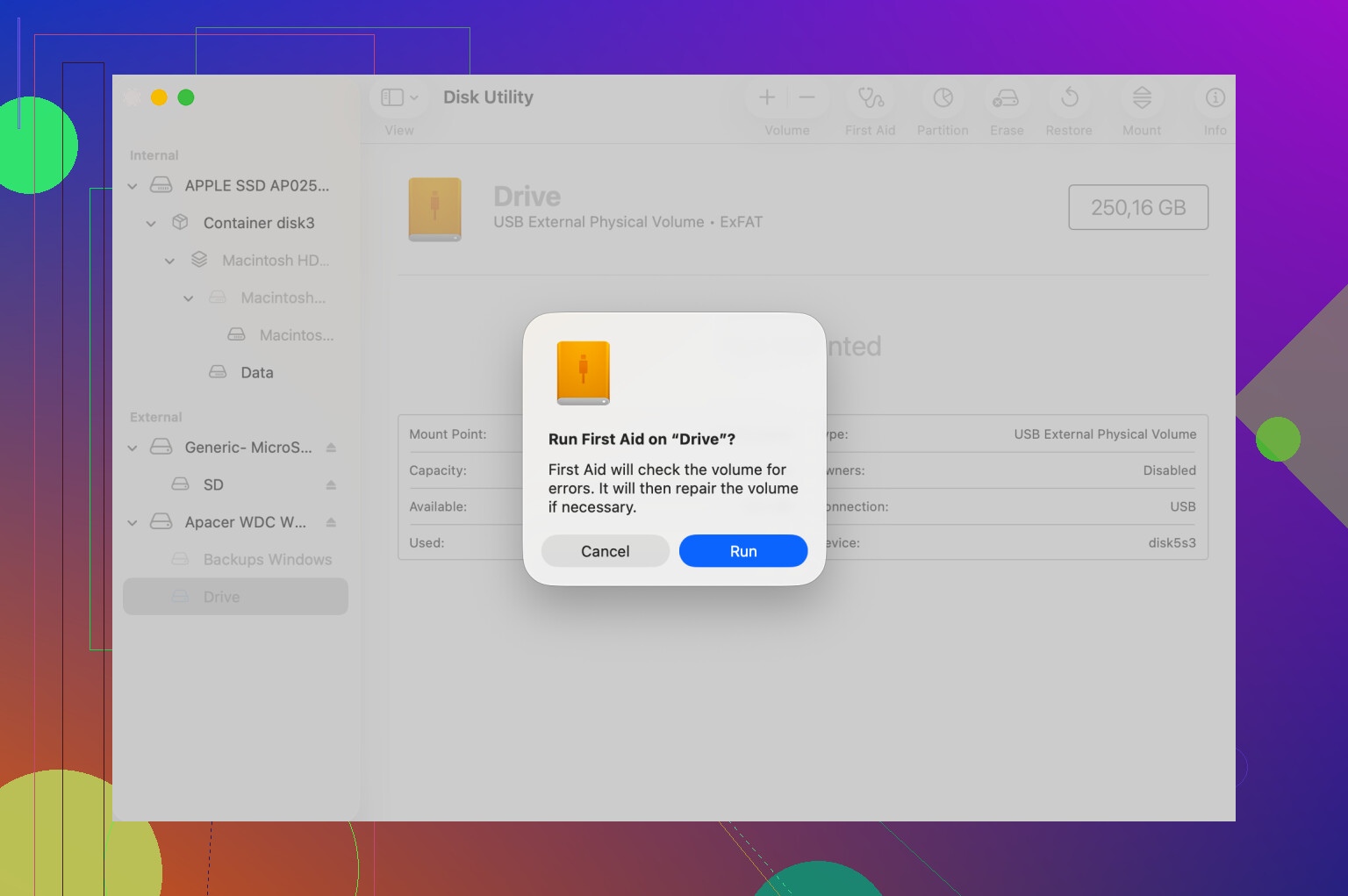
Disk Utility is where people often waste time. If you only run First Aid on the dimmed volume, you’re skipping part of the chain. Open Disk Utility, hit View, then Show All Devices. Start at the top physical disk. Then run First Aid on the container. Then the volume last. I’ve had it fail, then work on the second pass. One bad APFS structure took three tries before it stopped throwing errors.
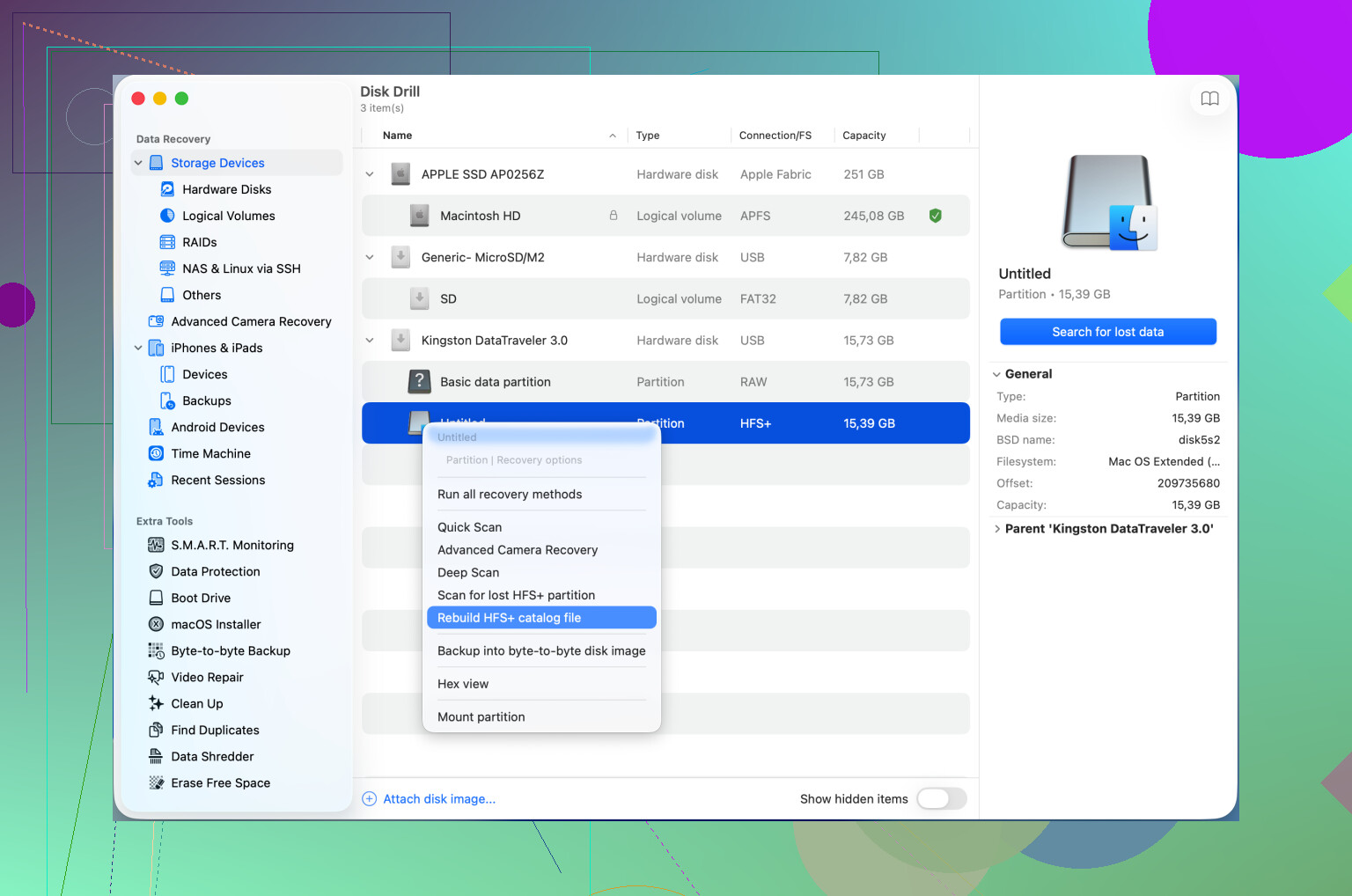
If First Aid throws exit code 8, or says the volume can’t be repaired, I’d stop pushing it. I learned this the hard way on an old external SSD. Repeated mount attempts made the situation worse, not better. At that point, a recovery tool makes more sense than more guessing. Disk Drill is one of the few tools I’ve seen pull usable data from a drive macOS refused to mount. It can rebuild directory info in some cases, or fall back to scanning raw sectors. If you’re lucky, you’ll get a preview of your folders and copy the important stuff onto a healthy disk before wiping the bad one.
One more odd fix. Newer macOS builds seem to get DiskManagement into a bad state sometimes. I’ve cleared it by logging out and back in. Safe Mode helped once too. A full reboot is worth trying before you erase anything. It sounds dumb, but I saw it work, so I’d still put it on the list.
5 Likes
Start by figuring out if the Mac sees hardware or only a broken volume.
Open Terminal and run:
diskutil list
If the external disk shows up there, but the volume will not mount, this is often file system damage, not macOS itself. If the disk does not appear at all, look at hardware first. Swap the cable. Swap the port. If it has its own power supply, check it. A lot of ‘disenter’ cases end up being a bad USB bridge or weak cable. Sounds dumb, fixes stuff.
I partly disagree with @mikeappsreviewer on killing fsck early. If the drive is making no noise, not dropping offline, and the activity light is still blinking, I would give it some time first, esp on large exFAT disks. I have seen 4 TB externals sit for 30 to 90 minutes before coming back. If the disk keeps disconnecting, stop waiting.
Next check the disk health. In Terminal:
diskutil info /dev/diskX
Replace diskX with your external drive id.
If SMART says failing, or if Console logs show I/O errors, the drive is the problem. At that point, stop mount attempts and copy data with recovery software. Disk Drill is one of the better Mac options for a drive that appears in Disk Utility but refuses to mount. It helps recover files from an unmountable external drive and works well when the file system metadata is damaged.
If this is an old HFS+ disk, this guide is relevant for fixing a disenter error by repairing the HFS catalog and recovering files with Disk Drill:
watch how to repair an HFS catalog error and recover data with Disk Drill
One more thing people miss. Test the drive on another Mac, or a Windows PC if it is ExFAT. If it opens elsewhere, your data is fine and your macOS mount stack is the issue. If it fails on two machines, the disk is sick. Simple test, saves time.
If your goal is data first, do not erase, dont reformat, and dont keep hammering Mount in Disk Utility.
I’d split this into 3 buckets: enclosure/cable, filesystem, or actual dying drive.
@viajeroceleste is right that diskutil list tells you a lot, but I’d go one step farther and check System Information > USB/Thunderbolt. If the enclosure shows there but not cleanly in Disk Utility, that points to the bridge board acting weird, not neccecarily the disk itself. I’ve had perfectly fine SATA drives trapped in junk USB enclosures.
Also, slight disagreement with @mikeappsreviewer on force-killing fsck as an early move. Sometimes that helps, sometimes it just interrupts the only repair attempt macOS was making. I’d save that for when the process is clearly frozen, not just slow.
What I would do that hasn’t been covered yet:
-
Mount it read-only from Terminal if possible
diskutil mount readOnly /dev/diskXsY
Sometimes Finder chokes on a writable mount but read-only works long enough to copy data. -
Check if the partition map is damaged
sudo gpt -r show /dev/diskX
If GPT output looks broken or missing entries, that’s different from a simple filesystem issue. -
Try a direct connection
Skip hubs, adapters, docks. Those cause so much fake “drive failure” drama it’s not even funny. -
If it’s an HDD, listen to it
Clicking, spin-down, repeated reconnects = stop messing with it.
If the disk is visible but won’t mount, Disk Drill is a reasonable next step for data recovery from an unmountable external drive, especially before reformatting. If you want a walkthrough on how to choose software for data recovery for an unmountable drive, this is pretty relevant: best data recovery software for an unmountable external drive.
If it fails on multiple Macs with different cables, I’d stop blaming macOS. At that point the drive or enclosure is probly the real problem.
I’d add one angle the others only touched lightly: permissions and kernel extensions/background drivers. com.apple.diskmanagement.disenter is sometimes just the last error in the chain, not the real cause.
If @viajeroceleste, @viaggiatoresolare, and @mikeappsreviewer’s hardware and filesystem checks don’t expose it, try this:
- Boot in Safe Mode, then connect the drive. Safe Mode blocks a lot of third party junk that can interfere with mounts.
- Check Login Items > Allow in Background and temporarily disable drive tools, NTFS utilities, antivirus, backup apps, sync apps.
- In Terminal, run:
log show --last 10m --predicate 'process == 'diskarbitrationd' || process == 'kernel''
You’re looking for deny messages, I/O errors, or filesystem-specific mount failures. - If it is an NTFS drive, macOS may see it but still fail weirdly depending on what driver was installed before.
I slightly disagree with killing fsck unless you already confirmed it is truly stuck. On flaky disks, interrupting repair can muddy the picture.
If the data matters more than the disk, clone or recover before experimenting. Disk Drill is reasonable here.
Pros of Disk Drill
- Good at finding files on unmountable volumes
- Simple UI
- Can preview recoverable data
Cons
- Not magic on physically failing drives
- Deep scans can take ages
- Recovery results depend on how damaged the filesystem is
If the same disk mounts fine in Recovery Mode but not normal boot, I’d suspect software conflict on macOS before blaming the drive.