I accidentally formatted my USB flash drive and lost important files I still need. I’m looking for safe USB drive data recovery steps, software recommendations, or anything I should avoid so I have the best chance of recovering my data.
Yeah, it feels bad when a USB gets formatted by mistake. I did this once with a small work drive and the first thing I learned was simple, formatting does not always mean the files are gone.
The big detail is the type of format.
If it was a Quick Format, your odds are often decent. That kind usually finishes fast because it clears the file system records, not the full contents. A lot of the old data still sits there until new files overwrite it.
If it was a Full Format, the outlook is worse. That process writes over the storage, so normal recovery software usually finds little or nothing.
One thing I had to unlearn, there is no true way to unformat a USB stick. Once the format happened, it happened. Recovery apps do something else. They scan the device for leftover file data and try to piece it back together. If the raw data blocks still exist, you might get files back. If those blocks were overwritten, you're done.
Do this first, and do it now, stop using the USB.
Do not copy anything onto it. Do not format it again. Do not run CHKDSK. Do not try random 'repair' steps from search results. Every write makes recovery harder, and sometimes one bad move is enough.
What I’d do next is use a recovery tool right away. I’ve seen decent results with Disk Drill. It’s one of the less annoying options if you haven’t done file recovery before.
My usual steps:
- Install Disk Drill on your computer’s internal drive, never on the formatted USB.
- Plug in the flash drive.
- Open Disk Drill and pick the USB from the drive list.
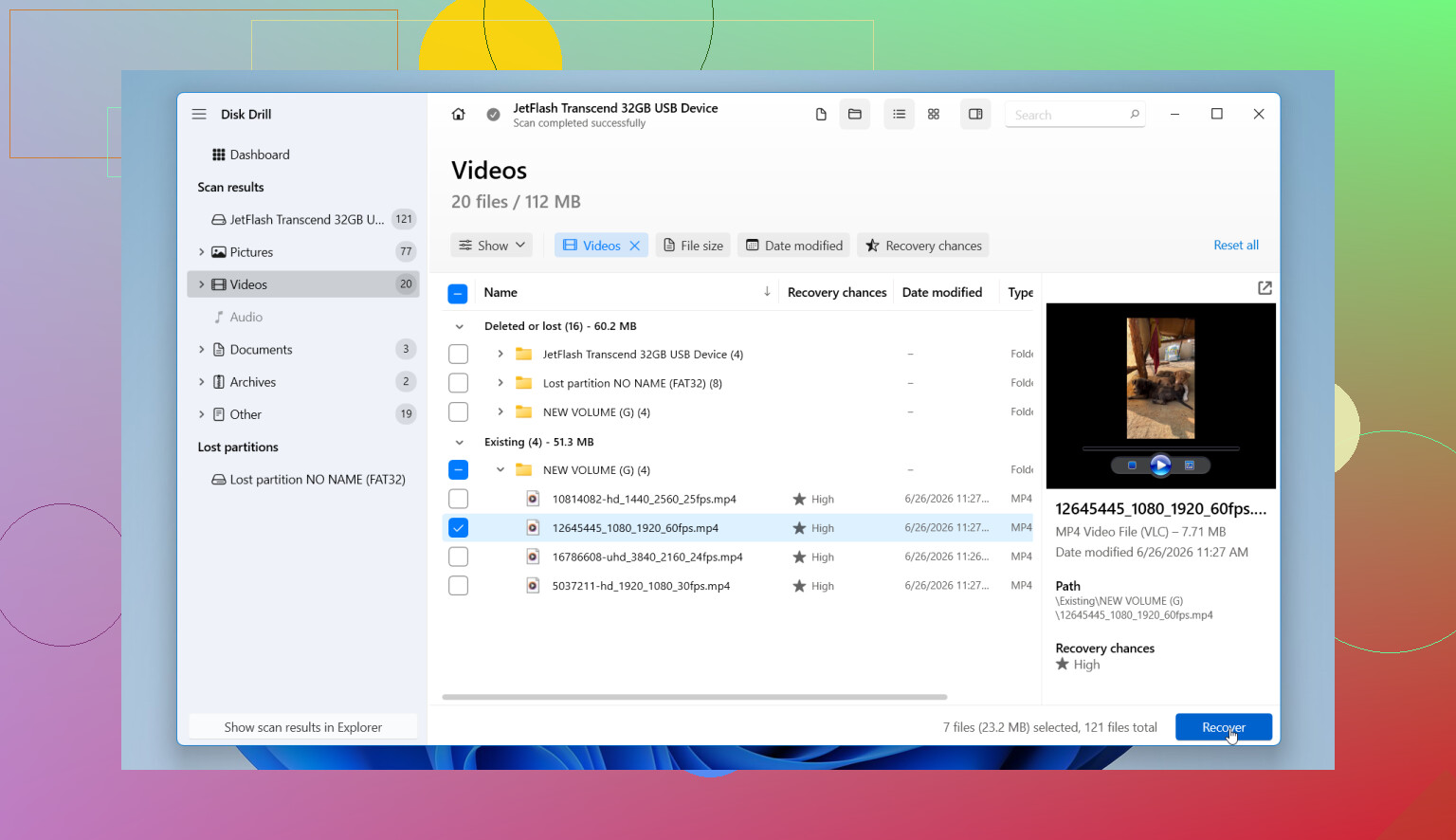
- Press Search for Lost Data, then choose Universal Scan when it asks. For formatted USB drives, this is often the right place to start.
- Let the scan run to the end. You can look through results early, but I’d wait. I got better results that way, or at least it seemed so.
- Preview what it finds. If a photo opens, or a document renders, or a video plays in preview, your chances for a clean recovery go up.
- Recover the files to a different drive. Not back onto the same USB. Never do taht.
One part people skip and then regret, Disk Drill lets you make a byte-for-byte disk image. If the flash drive keeps disconnecting, throws read errors, or acts flaky, image it first and scan the image instead. I did this once with a dying stick and it saved me from losing a second shot at recovery.
If the recovered files come back with weird names or the folders are gone, that’s normal after a format. Messy names are annoying, sure, but the main thing is whether the file data still opens.
So yes, file recovery from a formatted flash drive is often possible, mostly after a quick format. Best move is to leave the drive alone, scan it as soon as you can, and save recovered files somewhere else. Time matters here. Every extra write hurts your odds.
9 Likes
First, check what kind of format you did. @mikeappsreviewer covered quick vs full format well, so I won’t rehash it. I’ll add one thing. On newer Windows versions, a full format often writes zeros. If that happened, home recovery odds drop hard.
My advice is to verify the drive’s health before a long scan. Use CrystalDiskInfo if it shows up as a normal USB SSD or HDD. For plain flash sticks, use a read test tool only if you are sure it won’t write. If the USB disconnects, slows to 0 KB/s, or throws I/O errors, skip repeated scans. Make one image first, then work from the image. This part matters more than people think.
I slightly disagree on one point. I would not always start with the broadest scan first. If the format was recent and the file system stayed the same, a quick file system scan sometimes returns original names and folders faster. If it finds little, then switch to a deep scan. Disk Drill is fine for this because it supports both paths and handles formatted USB recovery well.
A few practical points people miss:
- Check if the files were copied anywhere before. Windows File History, OneDrive, Google Drive, old email attachments, camera imports.
- Look at Disk Management. If the USB shows the wrong size, or as unallocated, that hints at partition damage, not only formatting.
- Recover to your PC or another external drive with more free space than the data you want back.
- Sort scan results by file type first. Photos and videos often recover better than office files after a format.
- Open previews before restoring a ton of stuff. It saves time.
What to avoid, from expereince:
- Don’t run repair tools.
- Don’t save recovered files back to the USB.
- Don’t keep plugging it into random TVs, cars, printers, and other junk. Those devices write hidden files.
If you want the best software for formatted USB recovery, start with a tool made for deleted and formatted drive scans, like Disk Drill. It’s simple enough for most people and gives you previews before recovery.
Also, this short clip on USB data recovery tips and PC cleanup is worth a look.
If the files are business docs, legal records, or irreplaceable family photos, and the first image or scan looks bad, stop there. A lab costs more, but repeated DIY attempts make thigns worse.
One thing I’d add to what @mikeappsreviewer and @cazadordeestrellas said: before you start throwing scans at the USB, check whether the drive is even being read at the correct capacity. If a 128 GB stick suddenly shows up as 32 MB or asks to be initialized, that can mean controller or partition table damage, not just a simple format issue. In that case, recovery gets weirder fast.
I also kinda disagree with the idea that people should keep trying multiple apps one after another on the live USB. Even read-only scans stress flaky flash media. If the data matters, make an image first if possible, then test recovery on that image. Way safer.
For software, Disk Drill is a solid pick because it can scan formatted USB drives and preview files before recovery. That matters more than people think. If previews are broken, the recovered files may be junk too. Also, save results to another drive, not the same stick. Sounds obvious, yet ppl still do it.
Another tip: if the USB was used in a camera, phone, or recorder, search by known file signatures instead of folder names. Formatted USB recovery often loses the original structure, but the raw files can still be there.
This guide on how to recover files from a formatted USB flash drive is worth a read too.
Avoid CHKDSK, avoid reformatting again, and avoid “testing” the drive by copying files onto it. That’s how people turn recoverable into not recoverable realy fast.
One extra angle nobody’s hit hard enough: check whether the USB is using TRIM/UASP behavior. On many plain flash drives, TRIM is not active, so a quick format leaves decent recovery chances. But on some USB SSDs and newer enclosures, deleted blocks can get wiped in the background pretty fast. That’s why I slightly disagree with the “time matters” advice being universal. It matters, yes, but powering the device on repeatedly can also trigger cleanup on some hardware. If this is a USB SSD, fewer reconnects is better.
Also, don’t judge recovery only by “scan found 50,000 files.” Quantity means nothing. What matters is:
- original filenames
- intact folder tree
- valid previews
- correct file sizes
- documents that actually open
A practical test I use: recover 5 to 10 sample files from different types first. One JPG, one DOCX, one PDF, one video, one ZIP. If those are corrupt, don’t waste hours restoring everything else from the same result set.
About tools, Disk Drill is a reasonable choice here.
Pros
- easy to use
- good preview support
- can scan formatted USB drives well
- imaging feature is useful before risky recovery
Cons
- deep scans can return lots of renamed files
- full recovery isn’t free
- on badly damaged flash media, results still depend more on hardware condition than software
Compared with the points from @cazadordeestrellas, @sognonotturno, and @mikeappsreviewer, I’d add this: if the USB contains mostly small Office files, spreadsheets, or databases, recovery can be less forgiving than photos/videos because even minor corruption can break them completely. So set expectations accordingly.
If the drive mounts normally, make an image if possible, then test with Disk Drill or another serious recovery app from the image, not the stick. If the first solid scan returns garbage previews, stop experimenting. That’s usually the point where DIY turns into evidence destruction.