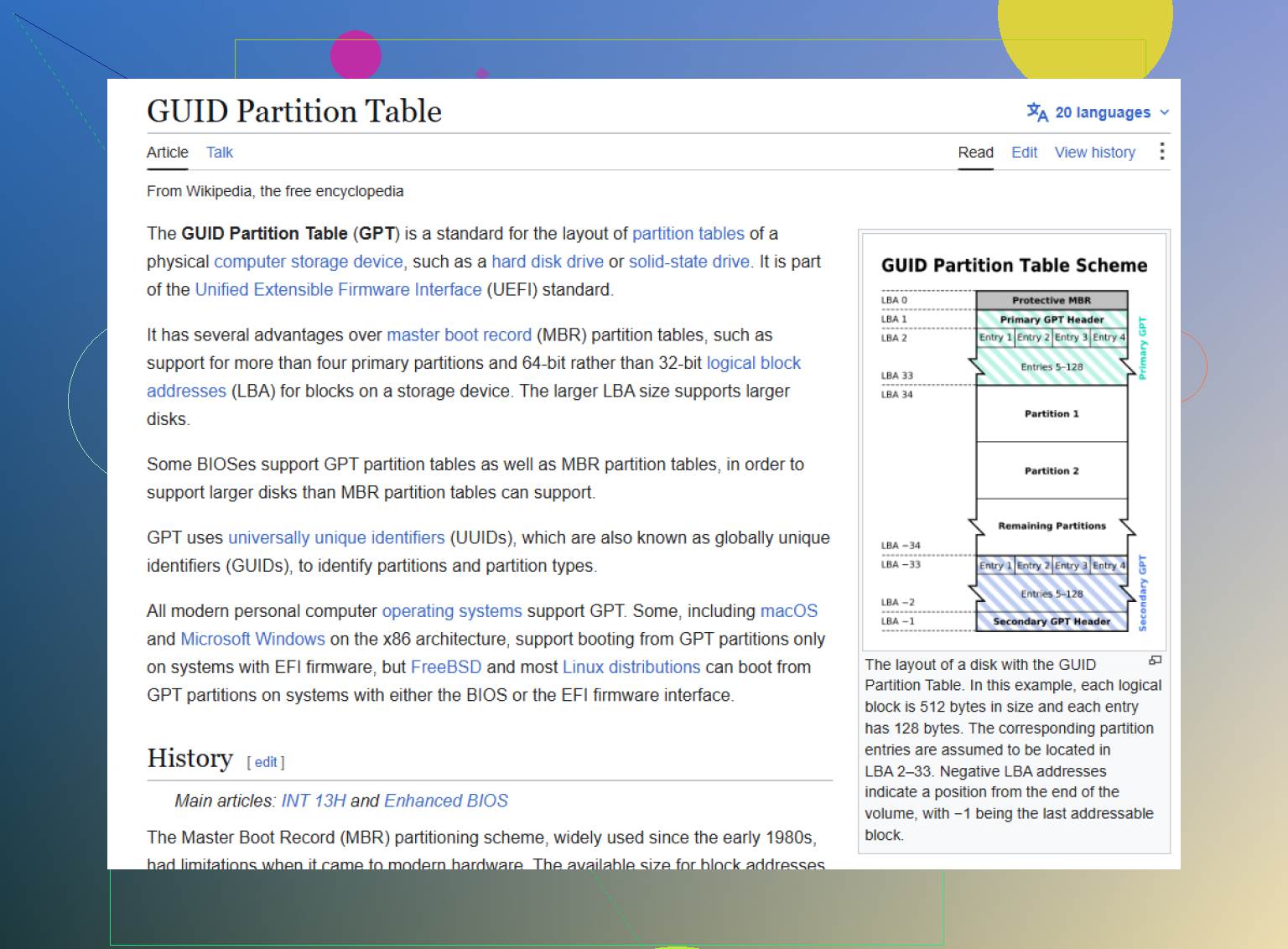
I accidentally initialized a disk that used a GPT partition table, and now my partitions/data are missing in Windows Disk Management. I haven’t formatted or copied anything to the drive since it happened. What are the safest GPT partition recovery steps or tools to restore the partition table without losing files?
First thing: don’t format it, don’t run random “repair” commands, and don’t copy anything onto that drive. If Windows says something like “You need to format the disk before you can use it,” cancel out of that. The files may still be there, especially if this is a GPT partition issue. What’s usually broken is the partition info, basically the drive’s map.
If this is your main Windows drive, stop booting from it if you can. Use another machine or a recovery USB. The more the drive gets written to, the more you risk overwriting the data you’re trying to get back.
I’d try recovering the files before trying to rebuild the partition table in place. Fixing GPT directly can work, but it can also make a recoverable situation worse if the wrong thing gets written. A safer approach is to scan the physical disk and copy the recovered files to another healthy drive.
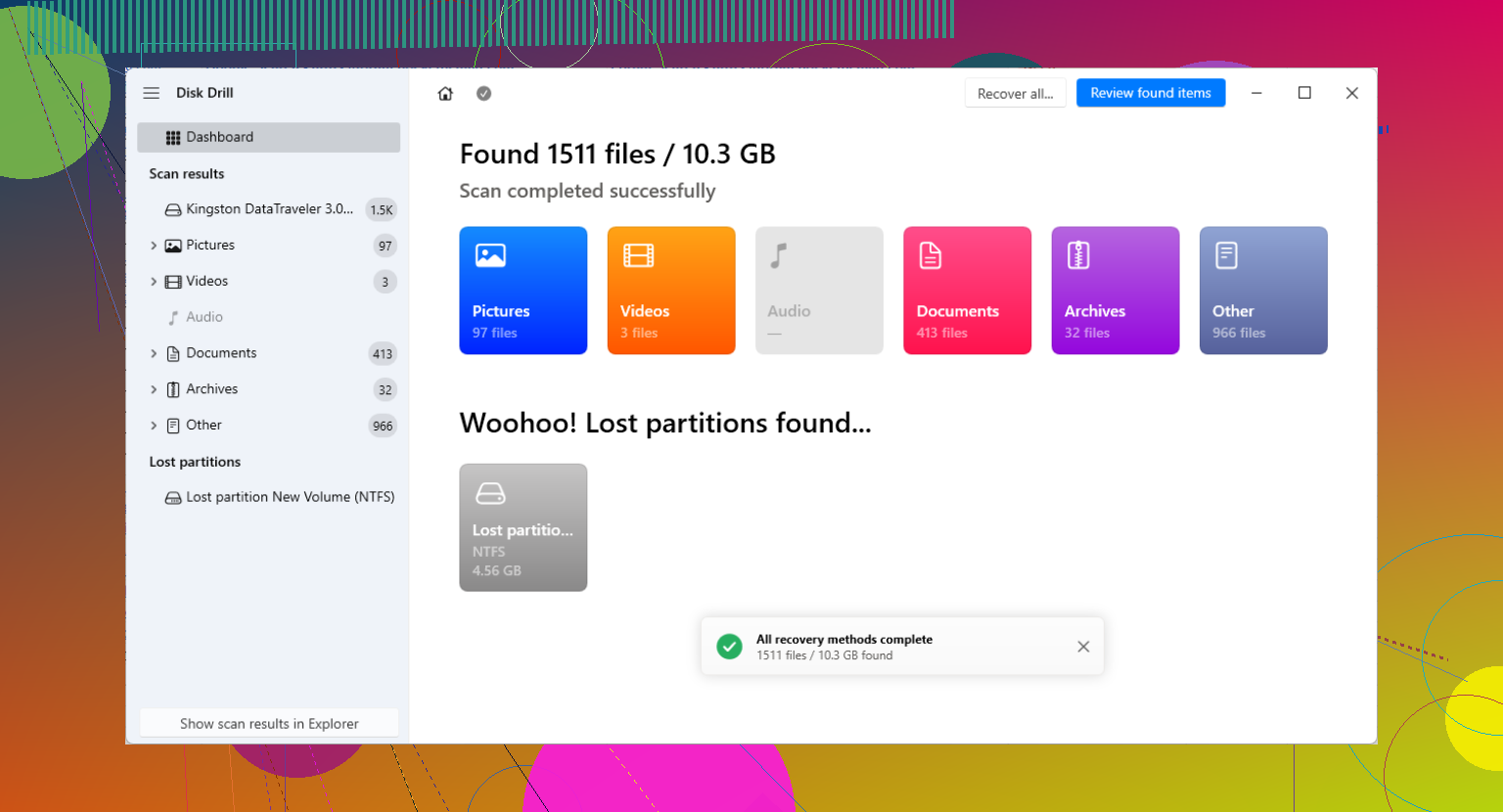
For that kind of job, Disk Drill is a solid option. It’s meant for situations where the drive shows up as Unallocated, RAW, missing partitions, or some weird GPT-related mess. It doesn’t rely only on the existing partition table. It can scan the disk itself and look for recoverable files.
The basic process is:
- Select the actual physical drive, not the missing or broken partition.
- Run a deep scan and let it search for lost or reconstructed partitions.
- Use preview to check whether the files look intact before recovering them.
- Recover everything to a different physical drive, never back onto the damaged one.
If you’re comfortable with command-line tools, TestDisk is another route. It’s free and open-source, but it’s not especially beginner-friendly. GPT disks normally keep a main header near the beginning of the disk and a backup header at the end, so if only the main one is damaged, tools like TestDisk or gdisk may be able to rebuild the layout from the backup. Just be careful, because choosing the wrong options can make the mess harder to undo.
Also, if this is an external drive, think about how it was originally connected. A “GPT Protective Partition” can sometimes show up when a drive was formatted in a USB enclosure or dock, then later plugged directly into SATA, or the other way around. Some docks handle sector sizes differently, like 512-byte versus 4096-byte sectors, and Windows can get confused.
If that sounds like your situation, don’t use Diskpart’s clean command. That wipes the partition table. Try the drive in the original enclosure or dock first and see if the partitions come back. If they don’t, go back to scanning and recovering the files instead of trying to force Windows to fix it.
6 Likes
Initializing the disk and formatting the new partition are very different accidents. If all you did was initialize it, there’s a decent chance only the GPT/partition records got replaced while most of the file system contents are still sitting there. If you created a new volume, quick-formatted it, or let Windows write anything else, the odds start dropping depending on where those writes landed.
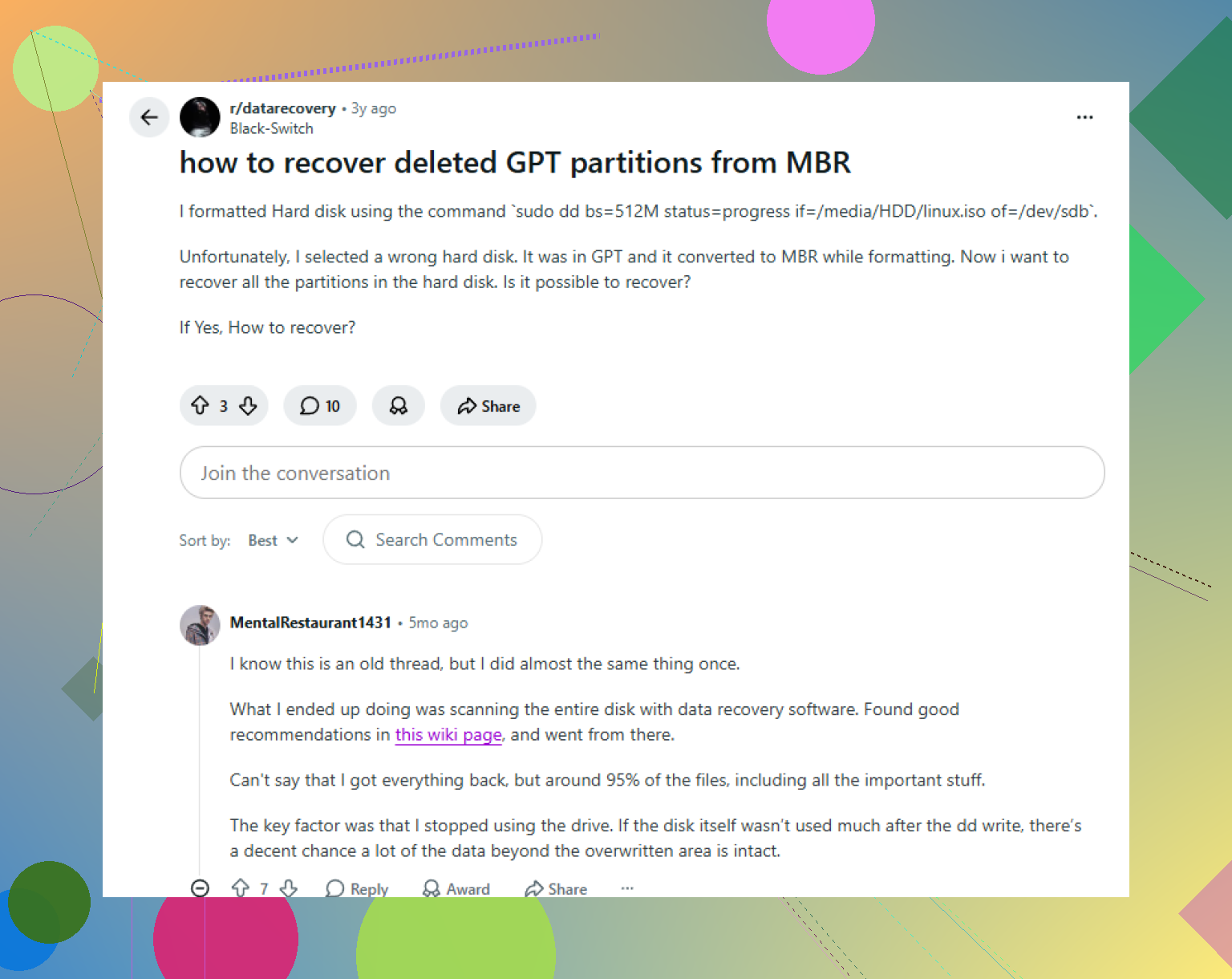
I agree with the “recover to another disk first” advice, but I’d be a little cautious about immediately trying to rebuild the GPT just because a tool says it found something. A recovered partition table that is off by even a small amount can make Windows mount the wrong range and then “fix” it in ways you don’t want. If the data matters, image the whole drive first with something like ddrescue or another sector-by-sector cloning tool, then experiment on the clone. That gives you a reset button.
For a simpler route, scanning the physical disk with Disk Drill or TestDisk is reasonable, but don’t judge success only by whether the old drive letter comes back. Check whether the folder structure and file previews look normal, then copy the recovered files to a separate drive. After you have the important stuff copied somewhere safe, then you can worry about repairing the partition table or wiping and recreating the disk cleanly. Right now the goal is not making Disk Management look pretty, it’s avoiding the first real overwrite.
Whether the old volume was encrypted matters a lot. If this was BitLocker, VeraCrypt, or some NAS/enclosure encryption, a normal deep scan may show junk or no useful previews even though the data is still there, because the files are not readable without the original volume metadata and key. In that case I’d be more interested in restoring the exact old partition entry or cloning the disk and working on the clone than doing file carving. If it was just a normal NTFS/exFAT data drive, then scanning the physical disk with something like Disk Drill or TestDisk and recovering to another drive is the safer first move. Just don’t let Windows “initialize,” “convert,” or “repair” it a second time while you’re figuring that out.