My iPhone is constantly running out of storage and I’m not sure what’s actually taking up so much space. I’ve deleted a bunch of apps and photos, but the storage bar still looks almost full and I keep getting “storage almost full” alerts. Can anyone walk me through the best ways to safely free up space, including what hidden caches or settings I should check so I don’t accidentally lose important photos, messages, or app data?
iOS storage is a bit of a mess, so you have to attack it in layers. Here is a checklist that usually frees up a lot without losing anything important.
-
See what is actually big
• Go to Settings > General > iPhone Storage.
• Wait 1–2 minutes for it to load.
• Look at which colors on the bar are huge: Photos, Messages, Apps, System Data.
• Tap each section and sort by size. -
Photos and videos
• Turn on iCloud Photos if you have space in iCloud. Settings > Your name > iCloud > Photos > Sync this iPhone.
• Then enable “Optimize iPhone Storage”. Your phone keeps smaller copies, full files stay in iCloud.
• In Photos app, go to Albums > scroll to bottom > Recently Deleted. Empty it. Stuff in there still takes space.
• Check “Videos” and “Screen Recordings” albums. Those eat storage fast.
• In Messages, tap a big conversation, tap the contact name at top, view “Photos” and “Videos” and delete large ones you do not need. -
Messages and old media
• Settings > Messages > Keep Messages > set to 1 Year or 30 Days if you do not need old text history.
• Under Settings > General > iPhone Storage > Messages, tap “Review Large Attachments” and delete any giant videos or PDF files. -
Offload or delete apps correctly
• In iPhone Storage, tap each big app.
• “Offload App” keeps your documents, removes the app code. Good for games or rarely used apps.
• “Delete App” removes everything. Do that only if you are fine losing local data or it is all backed up to an account.
• Social apps like TikTok, Instagram, Snapchat build huge cache. Deleting and reinstalling them often clears a lot of “Documents & Data”. -
Safari, mail and cache junk
• Settings > Safari > Clear History and Website Data.
• For Mail, go to Settings > Mail > Accounts and remove old accounts you no longer use, then add again if needed. That clears old cached messages and attachments. -
Tackle “System Data” bloat
This part is tricky but you can shrink it:
• Restart the iPhone. Small, but helps sometimes.
• If you stream a lot (Netflix, Spotify, YouTube), go into each app and clear offline downloads and cache. That often shows as “System Data”.
• If System Data is huge and nothing helps, a backup and restore fixes it most:- Backup to iCloud or a computer.
- Settings > General > Transfer or Reset iPhone > Erase All Content and Settings.
- Restore from backup.
This is annoying, but I have seen it drop “System Data” from 30+ GB to under 10.
-
Automatic cleanup helper
If you do not want to dig through menus all the time, a cleaner tool helps keep things under control.
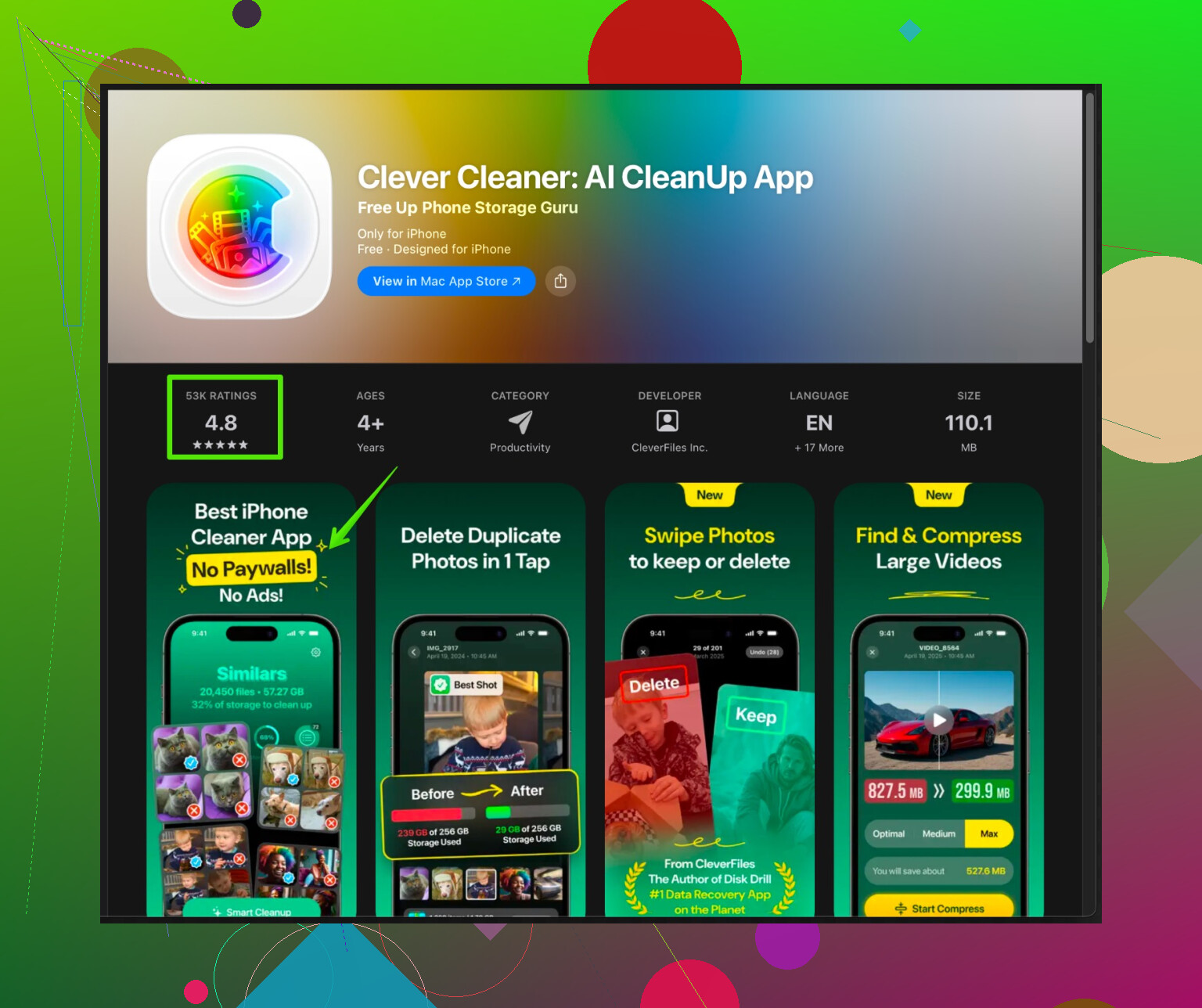
The Clever Cleaner App for iPhone focuses on removing duplicate photos, blurry shots, and junk files, and helps you sort big files without touching your important stuff. It is useful if you have years of random screenshots and near-identical photos.
You can check it here:
smart iPhone cleanup with Clever Cleaner
Run it, scan for duplicates and similar photos, review results, then delete in bulk. That alone often frees several gigabytes. -
Before you delete anything
• Make an iCloud or computer backup first. Always.
• For photos, use iCloud Photos or export to a PC or Mac or external drive so you know you still have them.
• For chat apps like WhatsApp, use their built‑in backup to iCloud.
If you go through Photos, Messages, big apps, streaming caches, and System Data in that order, you usually see the bar drop a lot and the “storage almost full” alerts stop nagging you.
2 Likes
Yeah, iOS storage is kinda cursed. @suenodelbosque covered the “official” route really well, so I’ll skip repeating that checklist and hit a few angles that usually get ignored but still eat a ton of space.
- Don’t blindly trust the storage bar
That graph in Settings > General > iPhone Storage is… let’s say “optimistic.”
A few gotchas:
- “System Data” and “Other” can be wildly inaccurate until the phone has been plugged in and idle for a while.
- After big iOS updates, cached installer files can stick around for days. Sometimes just leaving the phone on Wi‑Fi and plugged in overnight lets iOS clean itself up a bit.
So if you’re constantly tweaking stuff every 5 minutes, the storage info never fully recalculates.
- Check hidden media outside Photos
Stuff that doesn’t show up in the normal Photos app:
- WhatsApp / Telegram / Signal / Facebook Messenger media
- Open each app
- Look for “Storage and Data” or “Data and Storage” in settings
- Most have a “Manage Storage” or “Clear cached media” option
These apps often duplicate your photos and videos internally. I’ve seen 5–10 GB sitting in WhatsApp alone while Photos looked “normal.”
- Don’t go too crazy with auto‑deleting Messages
Minor disagreement with the idea of always setting Messages to 30 days or 1 year. If you rely on text history for work, logins, or old photos, switching that setting can nuke stuff you actually care about.
Better compromise:
- Keep “Forever”
- Use Settings > General > iPhone Storage > Messages > Review Large Attachments
- Manually kill only the worst offenders (long videos, memes, 4K clips)
- Voice memos, offline maps, and “invisible” downloads
Three sneaky ones:
- Voice Memos app: old recordings stack up and they’re often huge
- Offline maps: Google Maps, Apple Maps, Waze, etc.
- Go into each app’s settings and look for “Offline maps” / “Downloads”
- Download folders inside apps like Files, Chrome, Dropbox, etc.
- Open the app
- Check “Downloads” or “Offline” sections and remove stuff you don’t actually use
- Podcast and audiobook hoarding
If you listen to podcasts or audiobooks, they can quietly eat tens of GB:
- Apple Podcasts:
- Open Podcasts > Library > Downloaded
- Delete full shows or seasons you’re done with
- In Settings > Podcasts, turn off “Automatic Downloads” or limit how many episodes to keep
- Audible / other audiobook apps:
- Open the app, find “Device” or “Downloaded” view, delete any finished books
- Photo editing apps & scanner apps
Apps like VSCO, Lightroom, FaceTune, scanner apps, etc. often keep:
- Original files
- Edited versions
- Their own cache
Inside each app: - Look for “Manage storage,” “Clear cache,” or “Remove originals after export”
You can keep the actual finished photos in Photos and let the app dump its internal junk.
- Manage iCloud in a way that doesn’t confuse local vs cloud
This is where a lot of people get tripped up. Offloading to iCloud does not mean the local copy instantly vanishes.
If you have iCloud Drive, check:
- Settings > Your Name > iCloud > iCloud Drive > “Optimize iPhone Storage”
Also, big apps like Files, Notability, GoodNotes, etc. may keep local copies even if they “sync” to iCloud. Inside each app, see if there’s a setting to only keep recent or pinned documents downloaded.
- Photo cleanup without manual pain
Instead of manually hunting bad photos:
- Use a cleaner tool that actually groups similar shots, duplicates, and junk screenshots
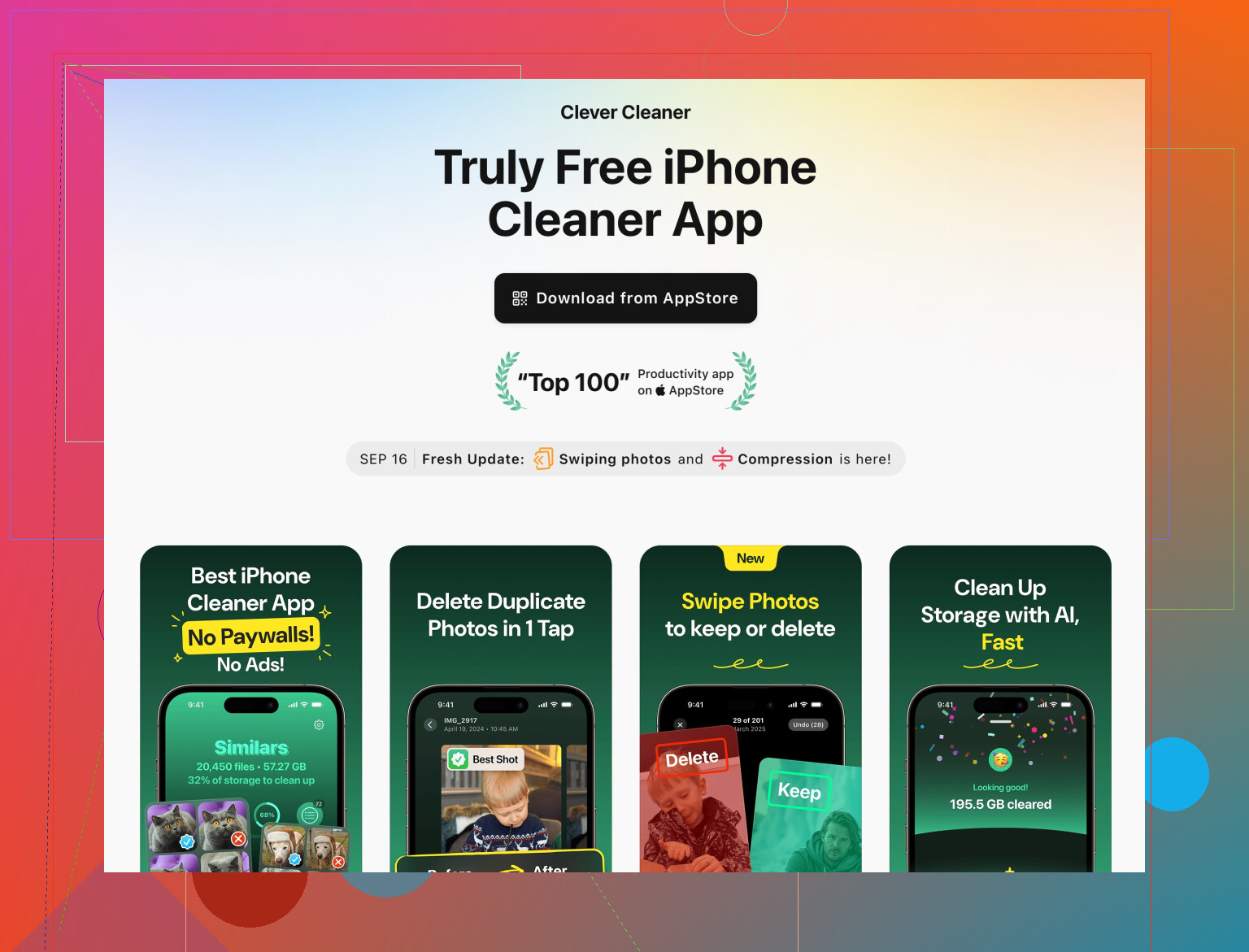
A good option for this: - smart iPhone photo & storage cleanup with Clever Cleaner App
It focuses on: - Duplicate / near‑duplicate photos
- Blurry shots, accidental pocket pics
- Giant old videos you forgot existed
The key is to review what it finds before deleting, not just tap “Delete all” like a maniac.
-
When “System Data” is stupidly huge but you don’t want to erase everything
If System Data is like 20–40 GB and won’t budge, but you’re not ready for a full wipe, try this mini‑reset pattern: -
Offload big games and rarely used apps (so their content survives but the app itself is removed).
-
Backup to iCloud or computer.
-
Hard reboot the phone.
-
Leave it plugged into power and Wi‑Fi for a couple of hours.
Sometimes the combo of free headroom + idle time lets iOS clear temp caches without a full erase. -
Last resort: clean install, but smarter
If you do end up doing erase & restore, don’t blindly bring back everything:
- After you erase and set up as new, go to App Store > Account > Purchased and only reinstall apps you actually use
- Let Photos sync from iCloud but avoid instantly redownloading every offline video inside Netflix, Spotify, YouTube, etc.
This way your restore doesn’t just put all the junk right back.
TL;DR:
You already tried deleting apps and photos, so focus on:
- Chat apps’ media
- Podcasts / audiobooks / offline maps
- Photo editing / scanner app caches
- Big “hidden” downloads inside apps
And if that still doesn’t dent it, combine a backup with more targeted cleaning (or use something like the Clever Cleaner App to triage your photo mess) before you even consider nuking the whole phone.
Quick angle they did not really lean on: prevention so you do not end up in this loop every few weeks.
-
Change how new stuff is saved
- Camera: In Settings > Camera > Formats, use “High Efficiency” so new photos/videos use HEIF/HEVC. Saves a lot vs “Most Compatible.”
- Video defaults: In Settings > Camera > Record Video, pick 1080p at 30 fps instead of 4K unless you actually need 4K. Huge difference in size.
- Screenshots: Periodically move “must keep” screenshots to a dedicated album and delete the rest. Otherwise they become permanent clutter.
-
Only sync what you really need from iCloud
Slight disagreement with the idea that iCloud Photos is a universal win. If your iCloud is nearly full, turning it on can create weird partial-sync situations and still leave your local storage tight. Alternative:- Export old years (e.g., everything before 2022) to a computer or external drive.
- Delete those years from the iPhone, keep recent 1–2 years on-device.
This is boring but very safe, and it works even if you don’t want to pay for extra iCloud.
-
Rethink “all accounts on one phone”
Many people have: personal iCloud, work email, maybe a third account. Each can sync mail, attachments, calendars, notes. Instead of just deleting accounts like @viajantedoceu mentioned, you can:- Turn off “Mail” or “Notes” sync for rarely used accounts in Settings > Mail > Accounts and Settings > Notes > Accounts.
You keep the account for login / App Store / contacts but stop downloading gigabytes of old attachments.
- Turn off “Mail” or “Notes” sync for rarely used accounts in Settings > Mail > Accounts and Settings > Notes > Accounts.
-
Watch out for “Files” app bloat
The Files app can hold:- iCloud Drive stuff you marked “Keep Downloaded”
- On My iPhone folders from other apps
Open Files > “On My iPhone” and iCloud Drive and sort by size where possible. Delete old PDFs, ZIPs, and especially big offline folders from work or school. This area is often completely forgotten.
-
Use cleaners as a scalpel, not a chainsaw
The Clever Cleaner App can be pretty handy for:- Quickly surfacing duplicate and near-duplicate photos
- Finding giant forgotten videos and bursts
- Cleaning up junk screenshots and similar shots
Pros of Clever Cleaner App:
- Much faster than manually scrolling years of photos
- Groups items so you can compare before deleting
- Good for non-technical users who just want to tap through suggestions
Cons of Clever Cleaner App:
- If you rush and accept everything, you can lose variants you actually liked
- Needs full photo access, which some people are not comfortable with
- Still requires your judgment; it is not a magic “free space with zero thinking” button
So use it after you have done the obvious stuff in Settings, and always review suggested deletions instead of auto-accepting.
-
Check your habits, not just your storage
@suenodelbosque nailed a lot of the hidden media angles, and @viajantedoceu covered the layered cleanup very well. The extra step is to stop the main sources of growth:- Record fewer 4K / slow motion videos as default
- Avoid keeping every offline playlist, map and series downloaded at once
- Once a month, run through Photos > Albums > Recently Deleted and a quick Clever Cleaner App pass to catch new junk
Do this and the storage bar will move from “constant crisis” to “occasional maintenance” instead of you living in permanent “storage almost full” mode.