My iPhone storage is completely full because my Photos app has thousands of pictures, including a lot of similar shots and duplicates. I want to delete all photos at once and also find an easy way to clean up duplicate or near-identical images, but I’m worried about missing something important or not removing them fully from storage. What’s the safest and fastest way to do this?
Thirty thousand photos, red storage bar, phone moving like molasses. I hit this mess myself. And Apple still doesn’t give you a plain delete-everything button in the main library. So if you go in blind, you end up dragging through thumbnails forever, then watching the Photos app choke.
Stop before deleting anything. Check iCloud first.
If iCloud Photos is on, your phone is syncing, not keeping a separate backup. I learned this the annoying way. Delete a photo on the iPhone, and it disappears from iCloud, your iPad, your Mac, all of it tied to the same account.
If your goal is to keep the photos but get space back on the phone, do this:
Settings > Photos > turn on Optimize iPhone Storage
What happens after is simple. Your phone keeps smaller preview versions. Full originals stay in iCloud. You recover local storage without wiping your library.
If you already saved everything somewhere else and want the library gone, use one of these routes.
Native iPhone method
This works when the library isn’t huge. Once you get into the tens of thousands, it gets flaky.
- Open Photos.
- Tap Select in the top right.
- Press on the bottom-right photo in the grid.
- Drag upward slowly so the screen scrolls and keeps selecting.
- When you reach the end, tap the trash icon.
- Open Albums.
- Scroll to Recently Deleted in Utilities.
- Tap Select, then Delete All.
What went wrong for me on a big library was the app lag. Around 20,000 photos and up, the scrolling gets messy. If your finger slips, selection breaks. If your storage is almost full, Photos sometimes freezes because iOS needs temporary room to update the library database. Feels dumb, but yep, it happens.
Computer method
If you’ve got access to a computer, this is less painful.
| Platform | Tool | Notes |
|---|---|---|
| Mac | Image Capture or Photos app | Select all, delete once, more stable |
| Windows | File Explorer, DCIM folder | Works, though large batches often throw device connection errors |
On Mac, I’d pick the desktop route over touchscreen cleanup every time. Less fiddly. Fewer failed selections.
For giant libraries, this felt like the least annoying option.
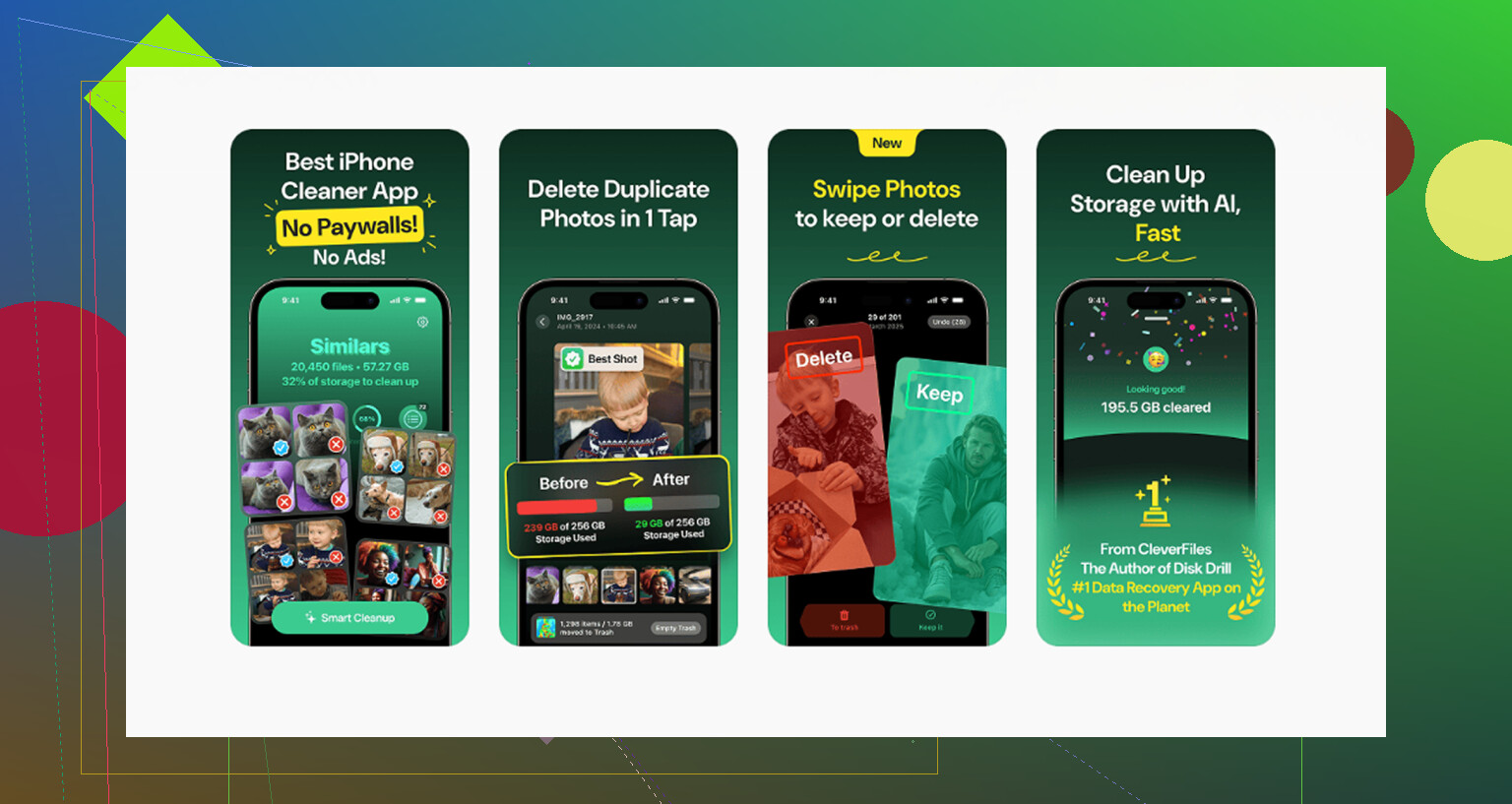
A lot of cleanup apps pull the same trick. Free install, then you hit a paywall the second you try to remove anything. This one doesn’t. No ads, no subscription wall inside the app.
Here’s the practical way to use it:
- Open the Heavies tab. It sorts photos and videos by size.
- Start from the top. Big 4K videos usually eat storage fast.
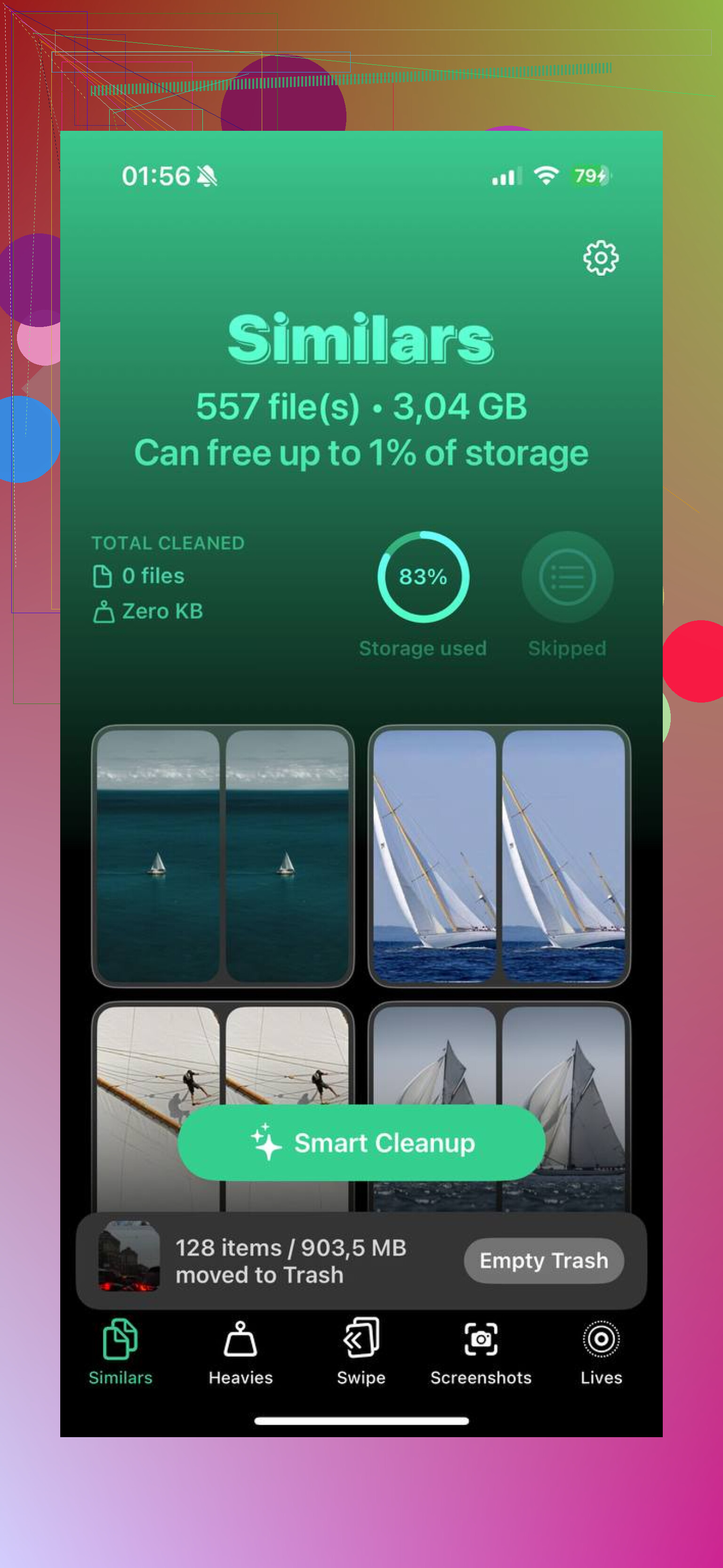
- Check the Similars tab. It groups near-duplicate shots, so you keep one and dump the rest.
- Open Screenshots. Each item shows file size right on the thumbnail.
- The scan stays on-device. Your media isn’t being sent off somewhere else.
The part people miss
Deleting files is only half the job. If you stop there, your storage might barely change.
iOS keeps deleted photos in Recently Deleted for up to 40 days. Until you clear that folder, the space is still taken.
Go here:
Albums > Recently Deleted > Select > Delete All
That’s the step that frees the storage for real.
Last thing. If your phone is already on fumes and deletions keep failing, remove a couple of large apps first. I’d start with games or streaming apps. Freeing even a few gigabytes gave my phone enough room to finish the photo cleanup without locking up mid-process.
8 Likes
If your goal is delete everything fast, I would skip the giant manual select trick @mikeappsreviewer described. It works, but on a stuffed phone it gets janky fast.
Better route for full wipe:
- Plug your iPhone into a Mac or PC.
- Import anything you want to keep first.
- On Mac, use Photos or Image Capture and remove the whole library in bigger batches.
- Then clear Recently Deleted on the phone.
For duplicates, check the built-in iPhone tool first:
Photos > Albums > Duplicates
Apple groups exact duplicates there, and you tap Merge. It keeps the best-quality version plus metadata. This is the easiest first pass, and a lot of people miss it. It won’t catch near-duplicates well, though. Burst shots, 10 almost-identical pet pics, screenshots with tiny changes, those often stay behind.
That’s where Clever Cleaner helps more. It sorts similar shots, large videos, screenshots, and other space hogs faster than Photos does. If your storage is red-lined, start with the biggest videos first. Deleting 20 videos often frees more space than deleting 2,000 photos. People forget this alll the time.
Also, if you want a cleaner breakdown of free iPhone photo cleanup apps, this thread is worth a look:
best free iPhone cleaner app discussion for photos and duplicates
One more thing. If you use iCloud Photos and want a true reset, it’s often easier to do it from iCloud.com or a Mac signed into the same Apple ID. Less lag, fewer failed taps. Way less annyoing.
If you want the nuclear option, there’s one route nobody mentions enough: reset just the photo library by turning off iCloud Photos, then erase locally, then turn sync back on only if you actually want it. I kinda disagree with @mikeappsreviewer on doing giant manual selection unless your library is pretty small, because on a stuffed phone that method is a rage simulator.
A few practical notes:
- Live Photos are sneaky storage hogs. Convert or delete those first if you want fast results.
- Burst mode hides clutter. In Photos, search “Burst” and trim those stacks.
- Use search terms like receipts, screenshots, WhatsApp, Instagram, videos, selfies. You can wipe whole categories faster than scrolling the full library.
- If you use Shared Albums, deleting from your main library does not always affect shared copies the way people expect, so double-check what’s actually stored.
For duplicates, Apple’s built-in tool is fine for exact matches, but not great for “same pic, slightly different angle” junk. That’s where Clever Cleaner is actually useful, esp if you want to remove similar photos without babysitting every folder. Also worth reading this detailed Clever Cleaner iPhone review for free photo cleanup if you want a quick breakdown before installing anything.
My order would be:
- Delete biggest videos
- Clear bursts and Live Photos
- Merge duplicates
- Use Clever Cleaner for similar shots
- Empty Recently Deleted
That combo usually frees way more space than trying to brute-force delete 8,000 random cat pics lol.
I’d add one route nobody’s mentioned clearly: use Search and media types to bulk-prune before you try an all-out wipe. It’s less glitchy than mass-selecting the whole library.
Try these in Photos search:
ScreenshotsScreen RecordingsReceiptsVideosSelfies- app names like
InstagramorWhatsApp
That usually surfaces the junk fastest.
I slightly disagree with @mikeappsreviewer on the “select everything by dragging” method as a default. It’s fine in theory, but on a nearly full phone it can stall hard. @boswandelaar and @sternenwanderer are closer to the mark about using smarter cleanup order instead of brute force.
For duplicates, Apple’s Duplicates album is okay, but it misses near-matches. Clever Cleaner is better for that middle ground.
Pros of Clever Cleaner
- catches similar shots, not just exact duplicates
- easy size-based cleanup
- good for screenshots and large videos
Cons
- still needs review so you do not delete good photos
- “similar” detection is not perfect
- any cleanup app is slower if your phone storage is critically full
One more practical tip: after deleting, restart the iPhone. Storage totals sometimes lag until Photos reindexes. If nothing budges, check whether iCloud Photos is re-downloading originals in the background.