My iPhone storage is almost full, and I think large videos are the main reason. I have too many clips to check one by one, so I need a quick way to find the biggest videos, sort them by size, and free up space without deleting the wrong files. Looking for the easiest method on iPhone.
I ran into the same wall. Apple still doesn’t give Photos a plain size sort, and yeah, by iOS 26 it feels overdue.
If you want the direct answer first, the stock Photos app does not sort videos by file size. I tried all the usual spots. Nothing. If your library is small, you can brute-force it. Open each video, swipe up or tap the little info icon, then check the size there. I did this once with a few dozen clips and got annoyed fast. With hundreds, it turns into dumb busywork.
People often say to sort by length instead. That helps a bit, but it falls apart once your videos use different resolutions or frame rates. A short 4K 60fps clip can eat more storage than a much longer 1080p one. So duration is a rough guess, not a clean answer.
What worked better for me
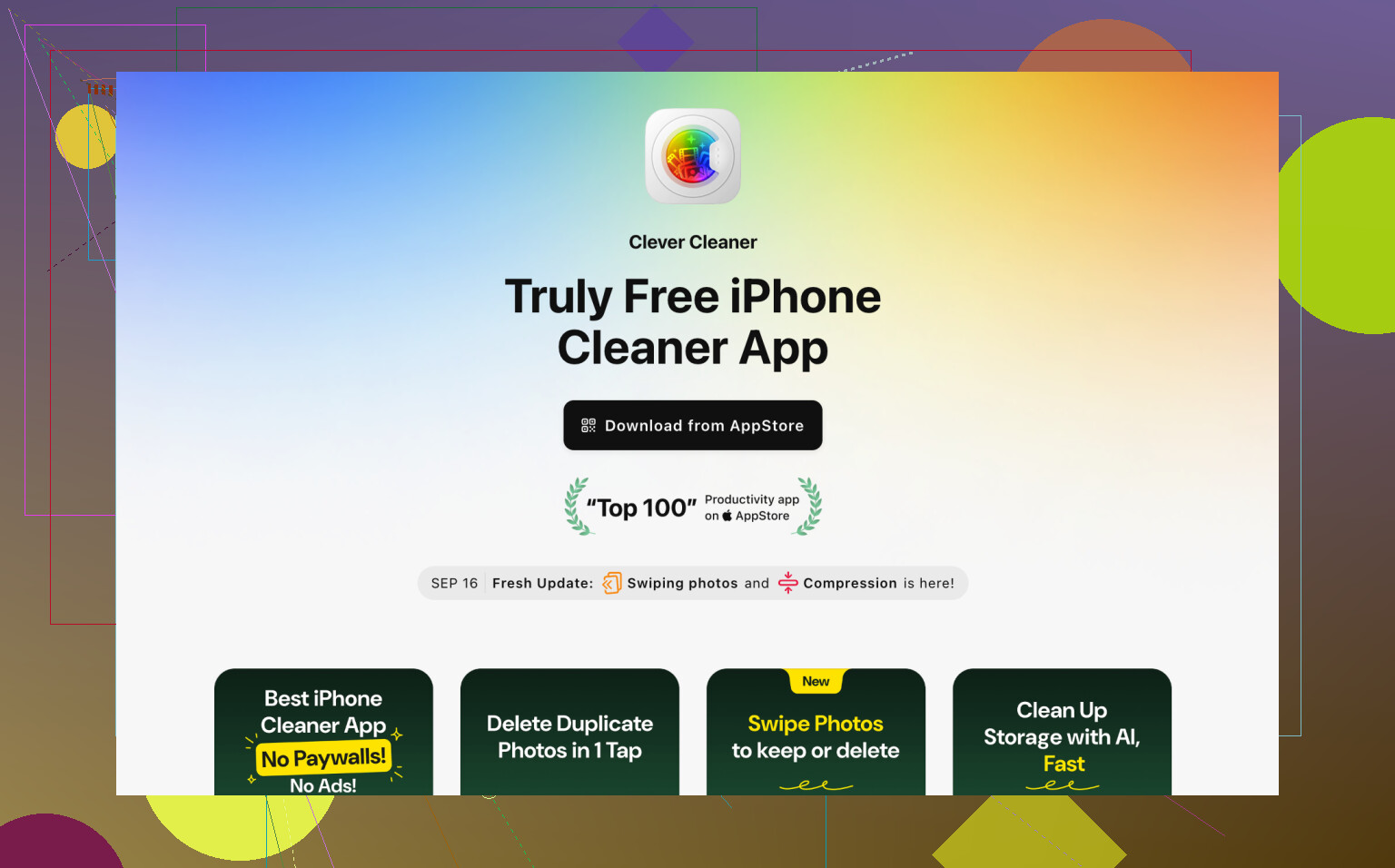
I gave up on the manual method and tried Clever Cleaner. I usually avoid cleanup apps because a lot of them push subscriptions and do little else. This one solved the one thing I needed.
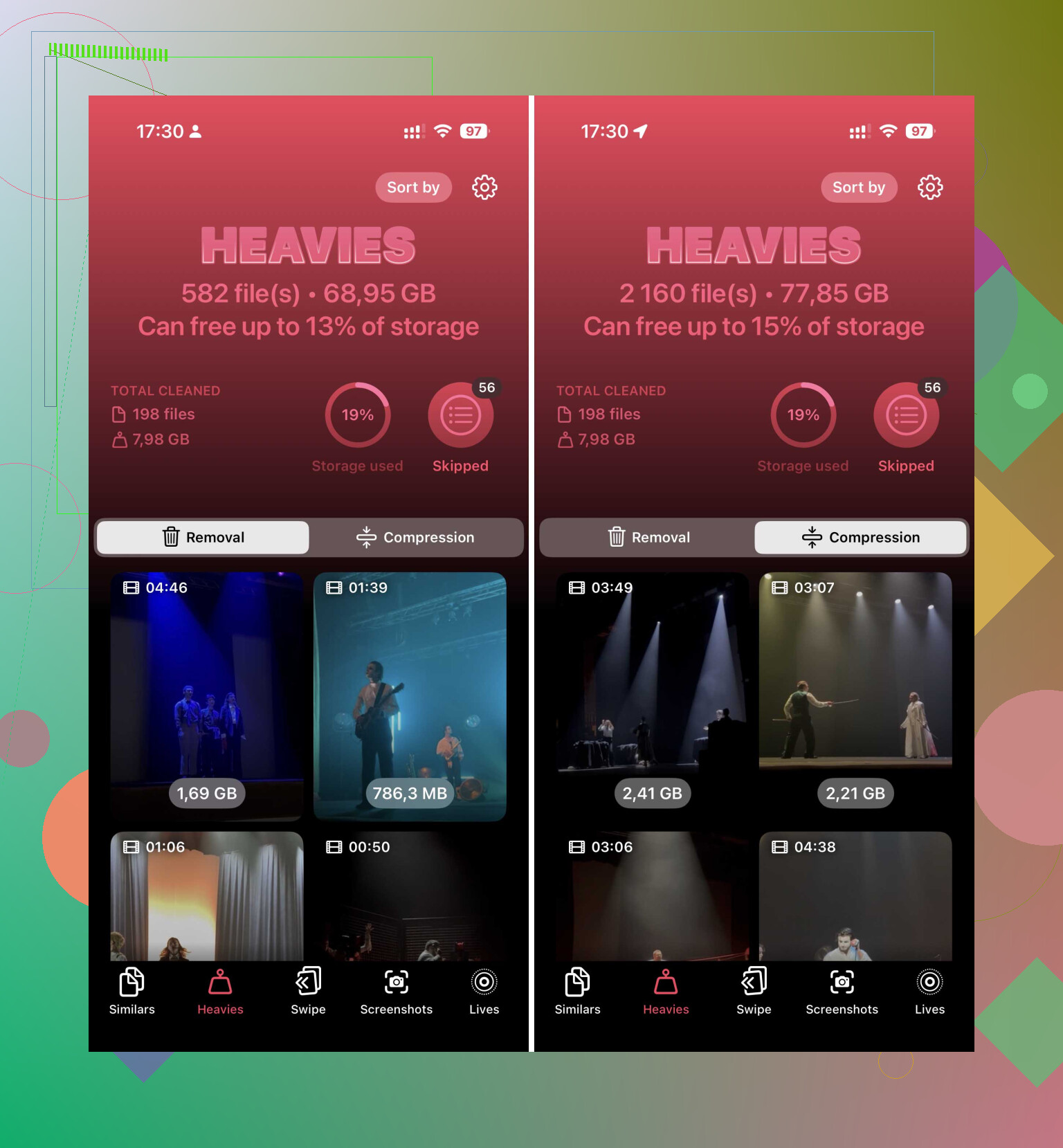
After you let it read your photo library, there’s a section called Heavies. It scans your videos and puts the biggest files at the top. You see the size beside each item in MB or GB, so there’s no guessing. I went through mine, picked off the biggest space hogs first, and cleared a chunk of storage way faster than I ever did inside Photos.
If you don’t want to erase clips outright, there’s also a Compress option. I tested it on a few videos I wanted to keep. On a phone screen, the result still looked fine to me, and the file got smaller. Not perfect for everyone, but it beat deleting old family stuff I still wanted around.
If you want to stay close to Apple’s built-in tools
There are a few partial workarounds. None of them replace size sorting inside Photos.
-
Check Settings, then General, then iPhone Storage. Sometimes iOS shows a “Review Large Videos” suggestion. When it appears, it’s useful. I found a couple of forgotten clips there.
-
Use Shortcuts if you don’t mind setting things up yourself. In the Shortcuts app, build one with Find Photos. Filter for videos only, then add a rule like duration greater than 5 minutes. Sort by duration, longest first. It still is not size sorting, though for some libraries it gets you close enough.
-
Look in the Files app for videos saved outside Photos. Anything stored in On My iPhone or iCloud Drive can be sorted by size from the folder menu. Tap the three dots, then choose Size. This does not cover your main camera roll. You could move videos out of Photos, sort them there, clean up, then move them back, but I tried similar workflows before and it felt like a waste of time.
The one part people forget
When you delete videos, the storage does not come back right away. They sit in Recently Deleted for 30 days. If you want the space back now, open Photos and empty that album yourself. I missed this the first time and wondered why my free space barely changed. tiny gotcha, big difference.
So yeah, if your goal is simple, find the largest videos fast, the easiest route I found was Clever Cleaner and its Heavies tab. The built-in options feel half-finished for this job.
13 Likes
I’d skip the manual hunt.
One fast check is Settings, Camera, Record Video. If you’ve been shooting in 4K at 60 fps or ProRes, your biggest files are often from those modes. Switch future recording to 1080p before cleaning, or you’ll free space once and end up full again in a week.
For finding the worst offenders fast, I partly disagree with @mikeappsreviewer on one point. Sorting by length is weak, but screen recordings are often easier to target first. They get huge fast, and people forget them. In Photos, search “Screen Recordings” and “Slo-mo.” Those two folders are common storage hogs.
If you want size-based triage without poking every clip, Clever Cleaner is still the shortest path. It’s one of the easier tools for spotting large videos and trimming the junk fast. If you want a broader list of iPhone cleanup options, this roundup is decent, best free iPhone cleaning apps for clearing storage fast.
Two more things people miss.
- Turn off “Download and Keep Originals” if Photos is hoarding full-res files locally.
- Open Messages and delete big video attachments there too. Those pile up bad, realy bad.
That combo frees space faster than doing a clip-by-clip audit.
Honestly, I’d do a two-pass cleanup instead of obsessing over a perfect size sort inside Photos, because Apple still makes that weirdly harder than it should be. @mikeappsreviewer is right about the lack of true size sorting, but I slightly disagree with @cazadordeestrellas on one thing: chasing camera settings first helps future storage, not today’s mess.
What worked faster for me was this:
- Go to Settings > General > iPhone Storage.
- Check which app is actually eating space. Sometimes it’s Photos, sometimes Messages, sometimes both.
- In Photos, use Albums and hit Media Types plus Utilities. Bursts, screen recordings, cinematic clips, and downloaded videos are often the sneaky junk.
- If you want actual large-video triage fast, use Clever Cleaner. Its heavy file view is the closest thing to a real “largest videos on iPhone” finder without doing the caveman routine one clip at a time.
One extra trick nobody mentions enough: if you use iCloud Photos, tap a video and see whether it has to download first. A bunch of “huge” items may not even be fully local, so deleting them won’t always free as much space as you expect right away. That part gets annoyng.
Also, after deleting, restart the phone once. iOS storage bars can lag and look kinda broken for a bit.
If you want a quick visual breakdown, this Clever Cleaner features overview for finding large videos and freeing iPhone storage is pretty useful.
I’d add one angle the others barely touched: use a Mac if you have one. Photos on iPhone is terrible for size triage, but on a Mac you can often spot oversized clips faster by importing or syncing your library, then sorting and filtering with way more screen space. Not as instant as Clever Cleaner, sure, but better than poking at thumbnails on a 6-inch display.
I also slightly disagree with @codecrafter on restarting as a cleanup step. It can refresh storage reporting, but it does not magically reclaim space. Emptying Recently Deleted, old message attachments, and offline downloads matters more.
Quick places people forget:
- TV app downloads
- Netflix, YouTube, Prime Video offline videos
- CapCut, iMovie, VN, InShot project exports and caches
- WhatsApp/Telegram media storage
That stuff can rival your camera roll.
About Clever Cleaner specifically:
Pros
- Finds heavy videos fast
- Easier than manual checking
- Good if Photos is too clumsy
- Compression can save clips you do not want to delete
Cons
- You still need to review before deleting anything
- Compression may reduce quality a bit
- Another app needs photo access, which some people hate
So my order would be: check storage by app first, clear non-Photos video caches, then use Clever Cleaner for the actual biggest clips. @cazadordeestrellas, @codecrafter, and @mikeappsreviewer all covered good parts, but I would not limit the hunt to just the Photos app.