My iPhone doesn’t have enough storage to install the latest iOS update, and I’m trying to avoid wiping everything or losing important photos, apps, and messages. I’ve already deleted a few files, but it still says there isn’t enough space. What’s the safest way to get more iPhone storage for an update without doing a full reset?
I hit this wall on my iPhone more than once. You go to install an update, you expect a quick tap, then iOS throws up “Insufficient Space” and the whole thing stalls. It feels dumb because the update says 2 GB, but your phone acts like you owe it a spare closet.
What tripped me up at first was this part. The number Apple shows for the update is not the full working space it wants. Your iPhone needs extra room to download the package, unpack it, move system files around, and finish the install. For a small update, I usually plan for around twice the listed size. For a big jump, like a major iOS release, I’ve seen people need somewhere around 15 GB to 30 GB free before the phone stops complaining.
If you want to clear enough space without nuking your photos or starting over, this is the route I’d take.
Use a cleaner app
I stopped digging through storage by hand because it took forever and I still missed stuff. The easier route for me was using a cleaner app, mostly because some of the junk is buried in places you don’t think to check.
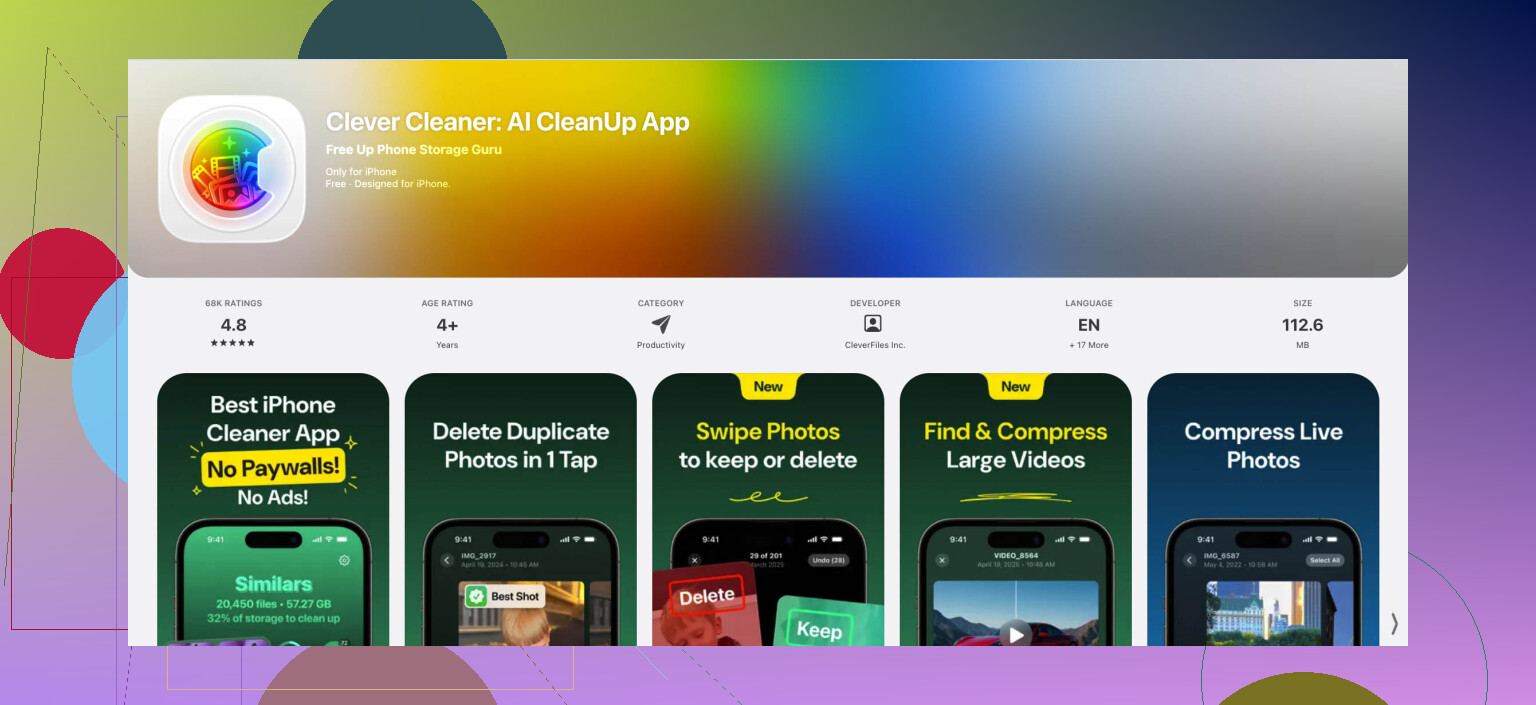
The one I’d point people to is Clever Cleaner. I tried a few of these over time and most were annoying, paywalled, or ad-heavy. This one stayed simple. It’s small, around 113 MB, and I was able to clear a few gigabytes fast.
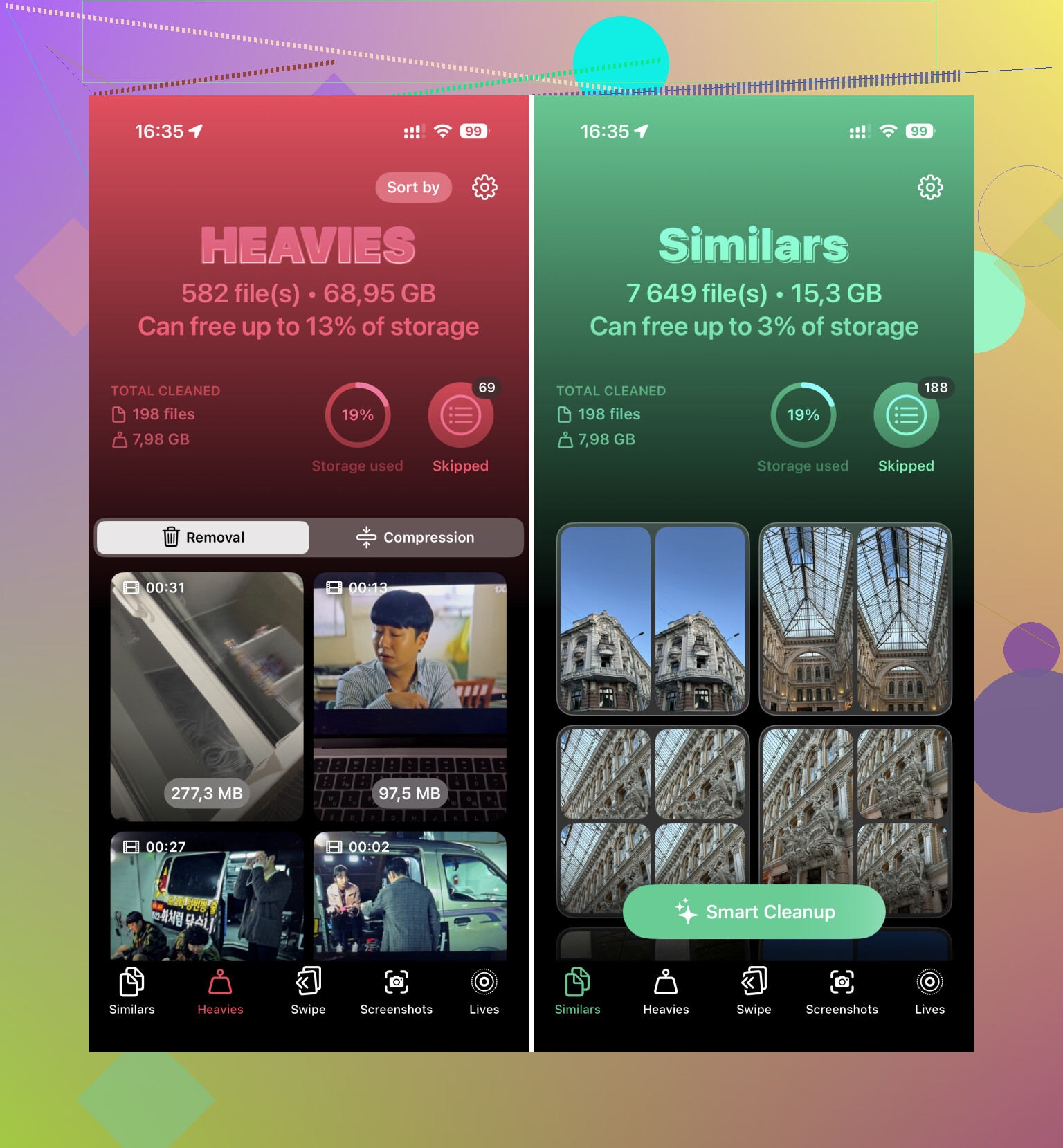
The part I used first was the Heavies section. It puts your biggest videos at the top, which is useful because one old screen recording or 4K clip often eats 2 GB to 4 GB by itself. I found a video I forgot I had, deleted it, and got space back in one shot. If you don’t want to remove the video, there’s also compression, which helped me keep the file while cutting the size down.
The Similars tool helped too. My camera roll had six versions of the same dog photo, eight blurry group shots, and a bunch of accidental duplicates. It grouped those together so I didn’t have to scroll forever.
One thing people miss, I did too. After deleting photos or videos, open Photos, go to Recently Deleted, and erase them from there. Until you do this, the storage number often barely moves.
Offload apps instead of deleting them
This one saved me when I had a few big apps I didn’t want gone for good. Go to Settings > General > iPhone Storage and tap Offload App on the stuff you don’t need right now.
Offloading removes the app itself but keeps your documents, saved files, settings, and login data. So if you offload a game, your progress stays. If you offload a work app, your stuff is still there when you reinstall it later. I prefer this over deleting because I don’t want to set everything up again after the update.
Check the places people forget
Two spots usually have old junk sitting there.
First, open the Files app and look under On My iPhone. Then open Downloads. Mine had old PDFs, ZIP files, random forms, and junk from Safari I forgot about months earlier. Sort by size and remove the biggest stuff first. You’ll get more space faster.
Second, go to Settings > General > iPhone Storage > Messages. This menu is underrated. It shows things like Top Conversations, Photos, Videos, GIFs and Stickers, and Large Attachments. I found old videos people sent me in chats I hadn’t opened in ages. You can remove those attachments without deleting the whole conversation, which is nice.
Try forcing out cached system junk
There’s a weird trick here. Sometimes System Data gets bloated with temp files and cached leftovers. One thing I’ve done is open the Camera app and start recording high-resolution video, like 4K. When the phone starts running low during recording, iOS sometimes kicks off its own cleanup process and clears old temporary system files.
It sounds goofy, I know, but I’ve seen it work. If you try it, delete the test video after.
If the update still won’t install, use a computer
At some point I stopped fighting the phone directly. If storage is still too tight, plug the iPhone into a Mac and update through Finder, or use iTunes on a Windows PC.
This worked when nothing else did. The computer handles the download and unpacking steps, so your iPhone doesn’t need to carry the full load on its own storage. If your device is almost full, this is often the cleanest way through.
After the update, stop this from happening again
Once I finally got the update installed, I turned on Optimize iPhone Storage for Photos in iCloud settings. That made a difference long term. The full-resolution originals stay in iCloud, and the phone keeps smaller local versions until you need the full file.
It won’t fix everything, but it cuts down the chance of running into the same update problem next time. If your camera roll is the main storage hog, this setting helps a lot.
19 Likes
Skip the update from the phone and do it from a computer. That’s the cleanest fix when storage is tight. On Mac, use Finder. On Windows, use iTunes or the Apple Devices app. The update file stays on the computer, so your iPhone needs less free space during install. For a lot of people, this works when on-device update keeps failing.
A few other things I’d try first.
Turn off downloaded offline content. Check Spotify, Netflix, YouTube, Podcasts, Maps. Offline videos and playlists eat space fast, and people forget them. Same for Safari Reading List downloads.
Clear Safari website data. Settings > Safari > Clear History and Website Data. It won’t erase photos, apps, or messages. It will sign you out of some sites, so keep that in mind.
Remove the old iOS update file if it already downloaded and got stuck. Settings > General > iPhone Storage. Look for an iOS update entry. Delete it. Then retry later.
Restart the phone after deleting stuff. iOS sometiems hangs onto storage numbers until a reboot.
I disagree a bit with @mikeappsreviewer on the 4K recording trick. It’s hit or miss, and on a nearly full phone I don’t love making another giant file. I’d rather target hidden junk first, or use Clever Cleaner to spot large media faster.
Also, if you want more reading, independent reviews of Clever Cleaner break down how it helps free iPhone storage.
If your Photos library is the problem and you use iCloud Photos, tap Settings > Photos > Optimize iPhone Storage. Wait a bit on Wi-Fi and power. It’s not instant, but it often frees a lot.
I’d skip a full reset and also skip chasing “System Data” ghosts for too long. @mikeappsreviewer and @mike34 already covered the usual storage wins, but one thing that helps a lot is checking for app-level downloads inside the apps themselves, not just in iPhone Storage. A lot of apps look small in Settings but keep chunky caches or downloads internally.
Stuff I’d check:
- WhatsApp or Telegram media storage
- Apple Music downloaded albums
- Audible, Kindle, podcast episode downloads
- CapCut, iMovie, Lightroom project files
- GarageBand sound packs
- Voice Memos with long recordings
Also, if Mail is huge, remove and re-add the account. That can dump old local cache without deleting your actual emails from the server. Same idea with some cloud apps like Dropbox or Google Drive, where files are set to stay offline.
One small disagreement with the cleaner-app route: it’s useful, but I would still manually check videos in editing apps first because those are sneaky storage hogs. That said, Clever Cleaner is handy if you want to quickly spot giant media and dupes without endless scrolling.
If you want a simple walkthrough, this Reddit review of Clever Cleaner for freeing iPhone storage is pretty easy to skim.
Last thing: after clearing space, plug in, get on Wi-Fi, and leave it alone for a bit. iOS storage numbers can lag and act kinda dumb for 10 to 30 mins. Rebooting helps too. Sometimes the phone just needs a sec to catch up.