I accidentally saved a lot of pictures as Live Photos on my iPhone, and now they’re taking up extra space and making it harder to organize my library. I need help finding the best way to convert all Live Photos to still photos without losing image quality or important photo details.
I ran into the same mess. My phone looked fine, then storage dropped hard, and the culprit ended up being Live Photos. Those tiny motion clips add up fast. Each one is a still image plus a short video and audio piece, so the file size jumps way past a normal photo. If your library has a few thousand, the wasted space gets ugly.
Yes, you can strip Live Photos down to regular stills after they’ve already been taken. The problem is Apple’s built-in route is clunky.
The built-in iPhone method
If you want to stick with the Photos app, there’s a workaround. Open the Live Photos album, tap Select, pick the shots you want, hit the three-dot menu, then choose Duplicate, then Duplicate as Still Photo.
Here’s the annoying part. This does not replace the Live Photo. It makes a second file. So your storage goes up first, not down. Afterward, you still need to find the original Live versions, delete them, then clear Recently Deleted. I did this once on a big library and it was a slog.
The Shortcuts route
I tried looking at Shortcuts too. You can set up an automation to pull Live Photos, convert them into JPEG or PNG, and save them back into your library. It works, sort of, but setup takes time and it’s easy to miss a step. Deleting the old Live files often still lands on you, so it doesn’t fix the whole workflow.
Cleaner apps, which felt easier
For a small batch, manual cleanup is fine. For hundreds, no shot. I’d use an app built for it.
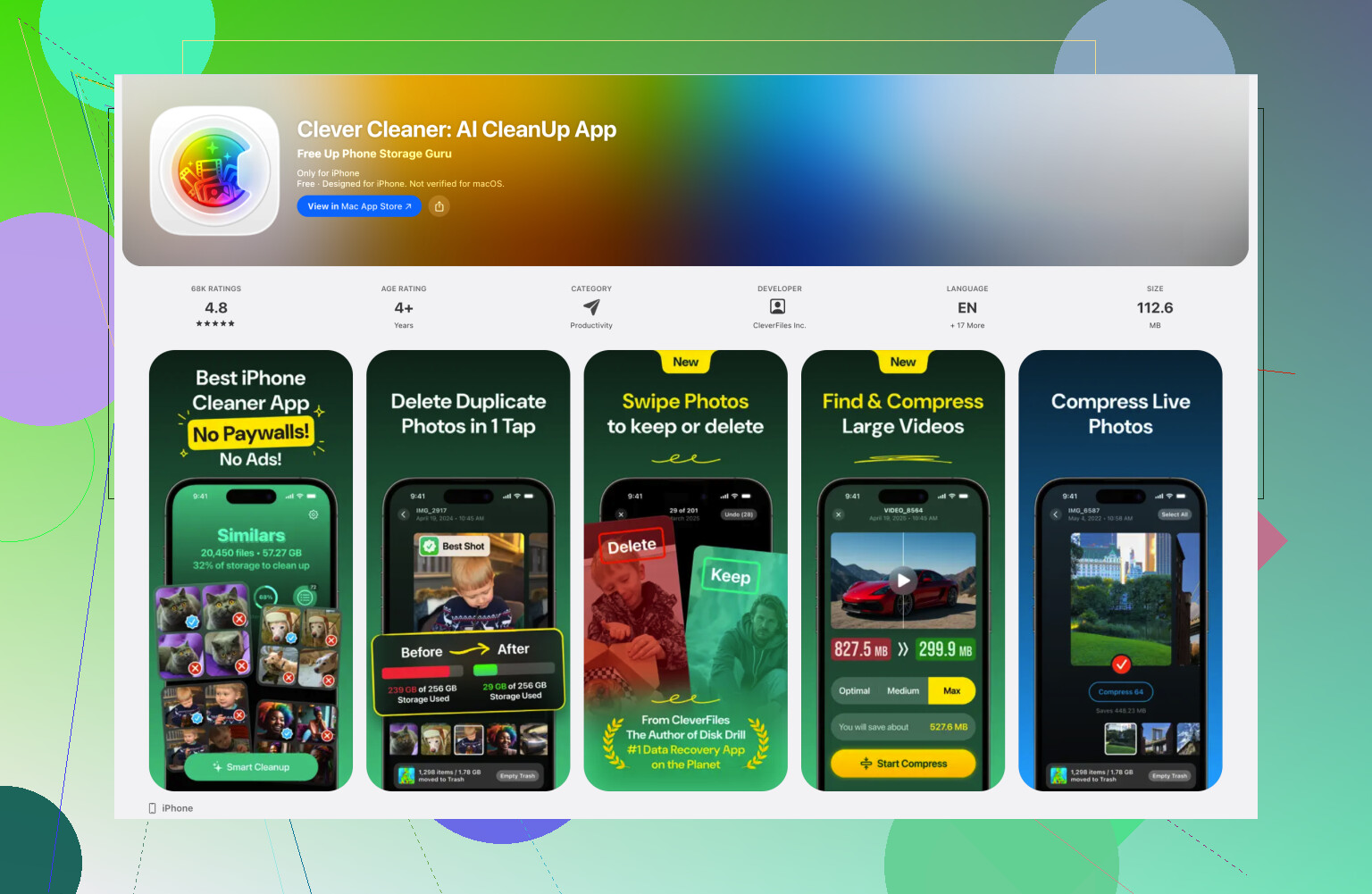
What worked best for me was Clever Cleaner. It has a Live section where the app groups those photos by date or size. I hit Select All, then Compress. The label says compress, but what it did on my end was remove the motion part and keep the still image.
The part I liked was the cleanup flow. After processing, it asked whether I wanted to delete the original Live versions or leave them in its trash area for a bit. It also showed how much space would be recovered before I started. That saved me from the duplicate hunt Apple’s method creates.
How to stop this from happening again
This part is weirdly named in iOS. Go to Settings > Camera > Preserve Settings, then turn on Live Photo there. What you’re doing is telling the camera to remember your last choice.
After that, open Camera and tap the yellow Live Photo icon, the circles thing, so it turns off. From then on, the phone should stop turning it back on every time.
If your goal is storage, the key thing is this. Apple’s native option copies first and cleans up later. A cleaner app handles both steps with less friction.
7 Likes
I’d skip Apple’s duplicate workflow. It works, but it’s slow and messy. I also don’t love the Shortcuts route people mention, including @mikeappsreviewer, unless you like babysitting automations.
Best low-effort fix, export the still frame from the Live Photos in bulk on a Mac.
- Plug your iPhone into a Mac.
- Open Image Capture or Photos.
- Import the Live Photos.
- In Photos for Mac, select the Live Photos, then use File, Export, Export Unmodified Original if you want both parts, or export edited stills as JPEG.
- Re-import the JPEG stills to your library.
- Delete the original Live Photos from iPhone.
- Empty Recently Deleted.
It takes time, but it gives you control and keeps filenames cleaner. If you have hundreds on the phone and want it faster, Clever Cleaner is the more direct iPhone option.
Also, turn Live off for future shots:
Settings > Camera > Preserve Settings > turn on Live Photo.
Then open Camera and switch Live off once. iOS should rememeber it.
If you want an app-based route, I saw this Reddit recommendation for a free iPhone cleaner app with no ads.
Honestly, I would not do the Mac export and re-import thing unless you really want to babysit filenames and metadata. @sognonotturno is right that it gives control, but for most people it’s extra hassle for a pretty basic cleanup job.
If you want the simplest iPhone-only route, the issue is not just converting Live Photos to stills, it’s removing the original Live versions after. That’s where Apple’s own Photos app gets kinda dumb. You duplicate as still, then manually delete the Live ones. So yeah, “built in” works, but it’s awkward.
One option nobody really highlights enough is using Search in Photos first. Search for “Live Photos”, sort through what actually matters, favorite the ones you want untouched, then bulk-handle the rest. That at least reduces the risk of nuking stuff you meant to keep.
For bulk conversion on-device, Clever Cleaner is probly the easiest path if your main goal is freeing storage and keeping the still frame. It’s less clumsy than doing duplicates by hand. @mikeappsreviewer mentioned Shortcuts, but imo that’s only fun if you enjoy troubleshooting your phone for an hour.
Also, if storage is the problem, check this too:
Settings > General > iPhone Storage > Photos
That won’t convert anything, but it tells you whether Photos is actually the space hog you think it is.
And for future pics:
Settings > Camera > Preserve Settings > turn on Live Photo
then switch Live off in Camera once.
If you want more info on apps that actually handle this kind of cleanup, this page is useful:
why Live Photo to still-image cleanup is so uncommon in iPhone cleaner apps
Short version:
- Native Photos app = possible, but annoying
- Shortcuts = nerdy workaround
- Mac = more control, more work
- Clever Cleaner = easiest if you have a ton of them and just want it done fast
Kinda absurd Apple still doesn’t offer a real one-tap “convert all Live Photos to stills” option tbh.

I’d do one thing first that the other replies barely stress: filter before converting.
In Photos, search Live Photos, then tap the three dots > Filter > Edited / Favorites / Videos as needed and separate out the ones you actually want to keep live, like action shots, pets, fireworks, little kid moments. Converting everything is fast, but a lot of people regret flattening the good ones later.
Where I slightly disagree with @sognonotturno is the Mac export/re-import path. It’s clean for archival control, sure, but for most people it also creates extra library management work. And I agree with @cazadordeestrellas and @mikeappsreviewer that Apple’s duplicate-as-still method is awkward because it temporarily increases clutter.
If you want the easiest bulk cleanup on the phone itself, Clever Cleaner is the practical route.
Pros of Clever Cleaner
- Finds Live Photos in one place
- Faster than duplicating manually
- Good for reclaiming storage quickly
- On-device workflow is simpler than Mac shuffling
Cons of Clever Cleaner
- You still need to double-check what gets removed
- Some people won’t want to trust a third-party cleaner with their photo library
- If metadata matters a lot to you, manual methods can feel safer
My take:
- Best for control: manual review first
- Best for speed: Clever Cleaner
- Best for perfectionists: Mac workflow
- Worst combo: duplicate everything blindly, then sort the mess later
Also, after cleanup, don’t forget the part everyone misses: Recently Deleted. If you skip that, your storage number barely moves and it looks like nothing happened.