My iPhone storage is almost full and a lot of it seems to be taken up by app data and cache, especially from social media and streaming apps. I don’t want to delete these apps or lose important data, but I need to free up space and improve performance. What are the best ways to safely clear or reduce app cache on an iPhone, and are there any hidden settings or tricks I should know about?
iOS does not give a one button “clear cache” for all apps, so you need a mix of tricks. I’ll keep it practical.
-
Check what eats space
Settings > General > iPhone Storage.
Wait for it to load.
Tap each big app and look at “App Size” vs “Documents & Data”.
If “Documents & Data” is huge, it is cache, downloads, temp stuff. -
Offload apps without losing data
This frees the app itself but keeps your data.
Settings > General > iPhone Storage.
Tap an app.
Tap “Offload App”.
Later, tap its icon to reinstall. Your documents and settings stay.
Good for big games and big social apps you use less. -
Clear cache from inside apps
Some apps have their own cache clear option.
Examples:
• TikTok: Profile > menu > Settings and privacy > Cache & Cellular > Free up space.
• Instagram: No direct button, but log out and log back in helps a bit. Also delete “Recently deleted” posts and Reels drafts.
• YouTube / Netflix / Spotify: Remove offline downloads and high quality downloads you no longer use.
Downloaded videos and songs often take multiple GB. -
Delete and reinstall worst offenders
If an app shows something like:
App Size: 200 MB
Documents & Data: 5 GB
Then the fastest way to nuke the cache is:
Press and hold the icon > Remove App > Delete App.
Then reinstall from the App Store and sign in again.
You lose cache and temp data, but your account stuff usually syncs from the cloud.
Do this only for apps where you know your login and where local data is not critical. -
Clean Safari cache
Settings > Safari > Clear History and Website Data.
This removes cookies and history too, so you log out of some sites.
If you want more control, scroll to Advanced > Website Data and delete big sites only. -
Remove large message attachments
Messages > pick a conversation > tap contact name at top > Info.
Under Photos, Videos, Documents, delete big old stuff.
Or in Settings > General > iPhone Storage > Messages, clear “Photos”, “Videos”, “GIFs and Stickers”, “Other”. -
Use a cleaner app to speed this up
If you have thousands of photos and videos, a cleaner helps more than trying to manage them one by one.
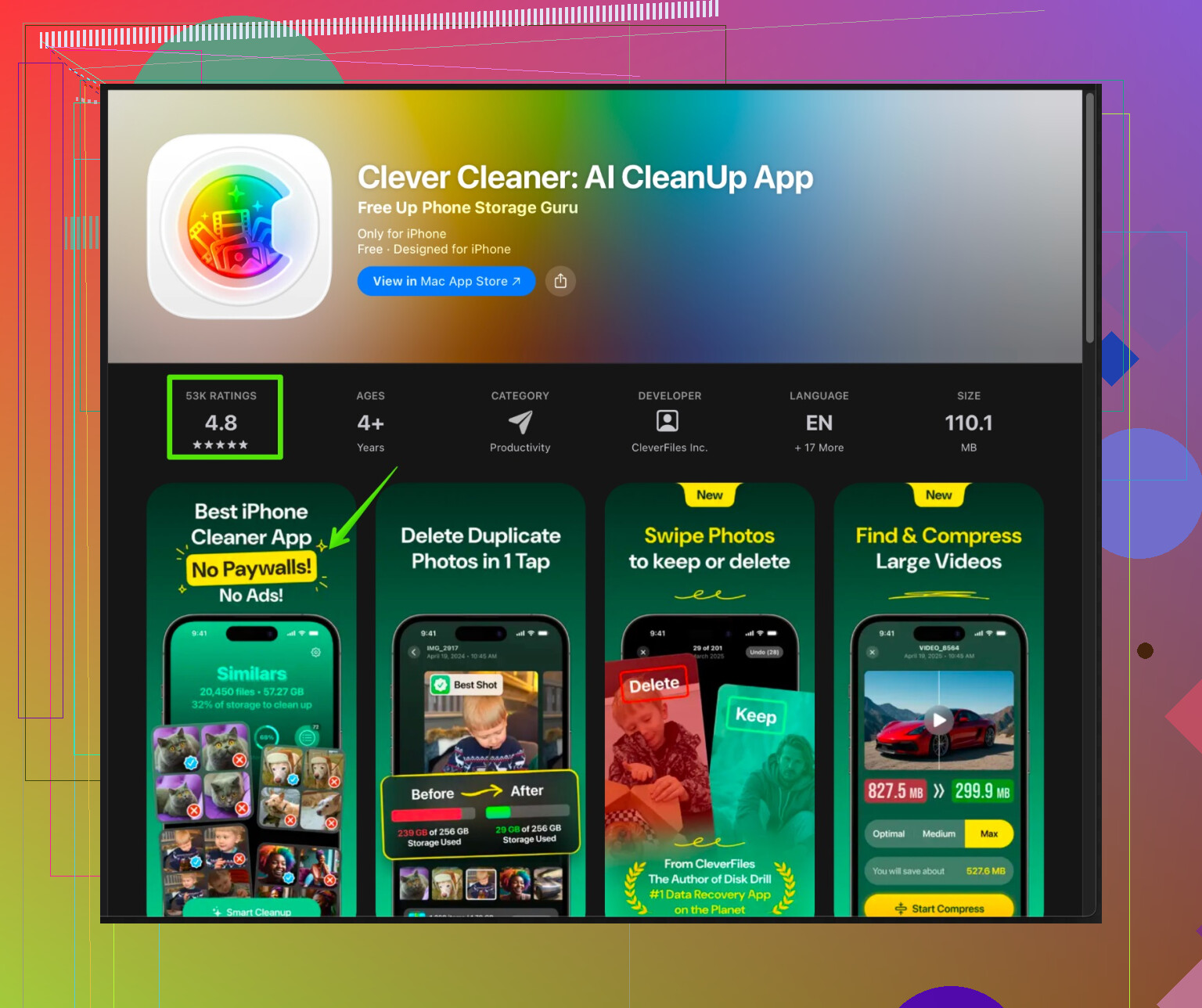
The Clever Cleaner App for iPhone groups similar photos, bursts, and big videos so you clear junk faster, and it helps track large files and duplicates.
You can check it here: smart storage cleanup for your iPhone.
Use it to sort blurred pics, near-duplicates, old screenshots, and large clips. This frees multiple GB without touching your main apps. -
Offload old iMessage data and chats
Settings > Messages > Keep Messages set to 30 Days or 1 Year, not Forever.
Old media goes away over time, gives you more storage. -
Free system space
• Restart your iPhone. This often clears some temp files.
• Keep at least 5 to 10 GB free so iOS runs smoother and updates install.
Fast wins for you
• Delete and reinstall 1 or 2 biggest “Documents & Data” apps.
• Clear offline Netflix / Spotify / YouTube downloads.
• Use Clever Cleaner to clean photo junk and large videos.
Those three steps alone usually free several gigabytes without losing important data.
22 Likes
iOS is kinda annoying here: there is no true “clear all app cache” button, and a lot of the tricks you see are just fancy ways of deleting and reinstalling. @mike34 covered a bunch of the usual stuff, so I’ll skip repeating all that and add some extras + a few things I kinda disagree on.
1. Tweak how your apps create cache in the first place
Instead of only cleaning, stop them from hoarding so much:
-
Social media apps
- Turn off or limit autoplay (reduces cached video).
- Disable “Save original photos” in apps like Instagram so they don’t duplicate every photo into your Camera Roll.
- In settings inside each app, look for things like “Data saver”, “Low data mode”, “Limit mobile data usage”. These usually also mean less cached junk.
-
Streaming apps
- Check download quality:
- Set to Standard instead of High/Ultra.
- Some apps let you choose “Only download on Wi‑Fi” and “Auto-delete watched downloads.” Turn those on if available.
- Set download limits if the app has them, like “Max storage for downloads: 2 GB.”
- Check download quality:
This doesn’t magically clear current cache, but it stops it from exploding again in 3 days.
2. Use iCloud / cloud sync more aggressively
If you haven’t leaned on cloud stuff yet, this is where a lot of space can come from without deleting apps:
-
Photos
- Turn on iCloud Photos and enable Optimize iPhone Storage.
That keeps smaller versions on your phone and full-res in iCloud. - This hits space over a few hours / days, not instantly, but it can save many GB in the long run.
- Turn on iCloud Photos and enable Optimize iPhone Storage.
-
Files & docs
- Move big PDFs / videos from Files app to:
- iCloud Drive
- Google Drive
- Dropbox
Then delete the local copies in Files. Apps like these often keep offline cache for “recent files” so check each app’s offline section and trim it.
- Move big PDFs / videos from Files app to:
3. Tame background refresh & preloading
Some apps cache aggressively because they’re constantly refreshing in the background.
- Go to Settings > General > Background App Refresh
- Turn it off for heavy offenders like TikTok, Facebook, etc.
- They’ll still work, just won’t constantly prefetch data and fill cache when you’re not using them.
This doesn’t wipe cache immediately, but over time the growth slows down a lot.
4. Use search to find hidden large files
A bunch of “app data” is actually just attachments and files that live inside apps:
-
In Files app:
- Tap Browse > On My iPhone.
- Check folders like WhatsApp, VLC, document scanners, etc.
You’ll sometimes find random 2–3 GB video files that never show up clearly in iPhone Storage. - Delete or move those to cloud.
-
Same idea inside each app:
- WhatsApp / Telegram / similar:
- Turn off auto-download media or limit it to Wi‑Fi.
- Manually clear old media from individual chats or “storage usage” sections.
- WhatsApp / Telegram / similar:
5. I half disagree about reinstalling as your first move
Deleting and reinstalling does work wonders when “Documents & Data” is like 10x the app size, but:
- Some apps keep local-only stuff:
- Drafts, downloads that aren’t in the cloud, saved playlists that aren’t synced, etc.
- Before you nuke an app:
- Confirm you know your login.
- Check if there’s any “local only” data like downloaded maps (Google Maps, offline GPS), custom presets, or exports that live only on device.
I’d only do the delete/reinstall trick for apps where you’re 100% sure everything important lives in the cloud.
6. System-level tricks that quietly free space
They’re not magic, but they sometimes free a gig or two without messing with apps:
- Update iOS to the latest version if you’re behind. System sometimes reclaims “Other/System Data” in the process.
- Restart the phone after big file deletions. iOS tends to properly reclaim temp cache on reboot.
- Use Low Data Mode (Settings > Cellular > Cellular Data Options > Low Data Mode). iOS + apps behave less aggressively with caching and background data.
7. Cleaning photos the sane way
Everyone says “clean up your photos,” but doing it manually is torture.
Here’s where I actually agree with using a cleaner app, but with one big caveat: most miracle “cache cleaners” for iOS can’t actually touch other apps’ real cache thanks to Apple’s sandboxing. What they can do pretty well is:
- Find:
- Duplicates
- Blurry shots
- Near-identical bursts
- Massive old videos
- Help you delete those from Photos the proper way.
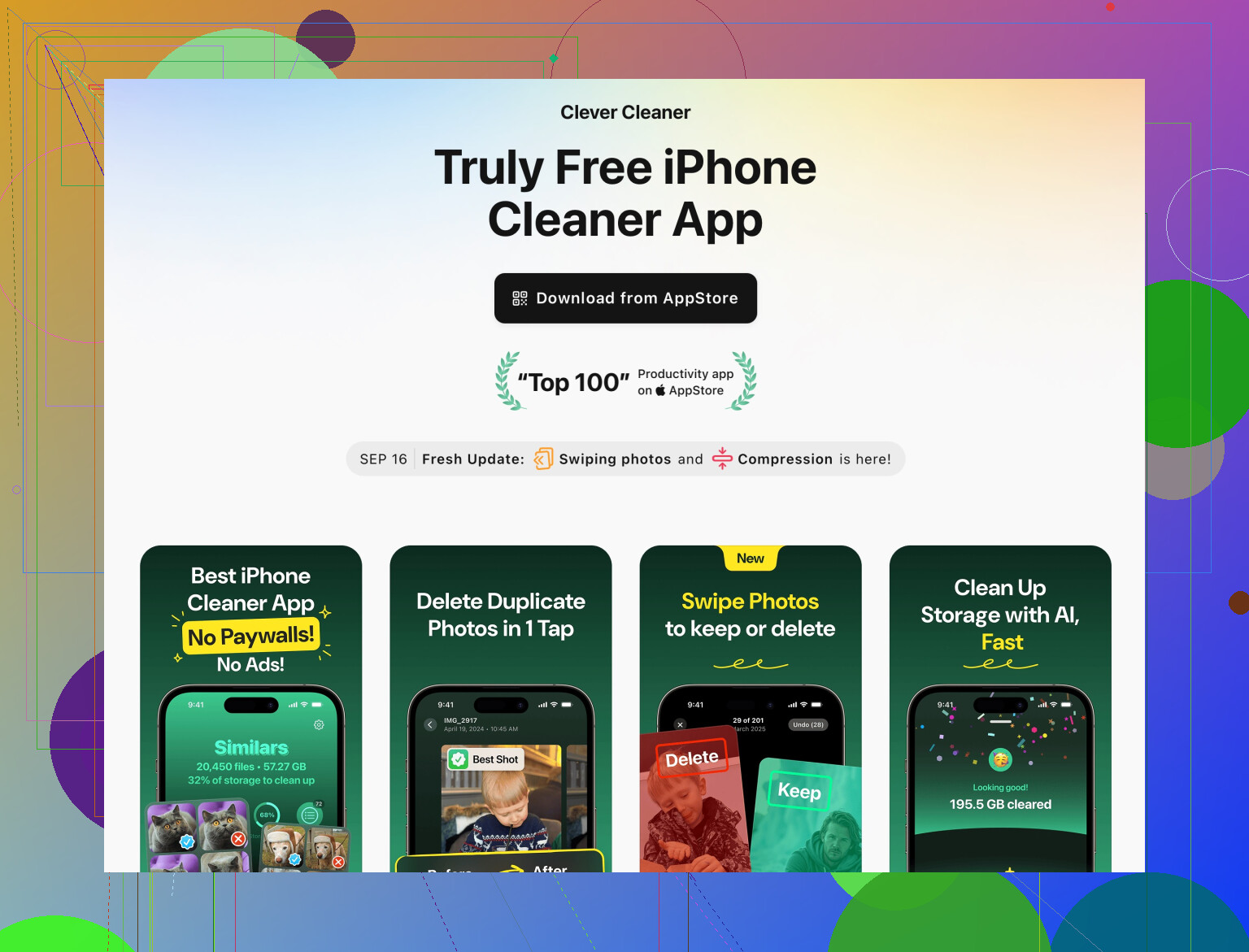
For that, something like the Clever Cleaner App is actually useful. It focuses on real space hogs you can control, not fake “deep cleans.”
You can check out the iOS-focused storage optimizer here:
smart iPhone storage cleaner for photos, videos & junk files
Used right, that plus iCloud Photos / Optimize can free way more than fiddling with tiny caches.
If you want a quick “do this now” list without deleting your apps:
- Turn on iCloud Photos + Optimize Storage.
- Kill autoplay / high-quality downloads in your main social & streaming apps.
- Disable Background App Refresh for the worst offenders.
- Use something like Clever Cleaner to nuke duplicates and large useless media.
- Restart the phone after you clean stuff.
That should free up a noticeable chunk without wiping your key apps or data.
Short version: you cannot clear all app cache on iOS without some level of manual work, but you can seriously slow cache growth and free space without constantly deleting apps.
I’ll focus on things that weren’t already covered in detail by @nachtdromer and @mike34.
1. Attack the “Other / System Data” bloat
Everyone talks about app caches, but iOS’s “System Data” can quietly eat gigs.
Check it:
- Settings > General > iPhone Storage
If “System Data” is huge (like 10+ GB on a 128 GB phone), try:
-
Force a proper cleanup cycle
- Plug into power
- Connect to Wi‑Fi
- Leave the phone locked and unused for 30–60 minutes
iOS sometimes reindexes and prunes caches only when it is idle and charging.
-
Big iOS update via computer instead of on-device
- Update using Finder (macOS) or iTunes (Windows)
On‑device updates sometimes leave behind temp update files that just sit as “Other”. A full update via computer can reclaim those.
- Update using Finder (macOS) or iTunes (Windows)
-
Mail cache reset (very underrated)
- If you use Apple Mail with big accounts:
- Temporarily disable accounts: Settings > Mail > Accounts > tap account > toggle off Mail
- Restart iPhone
- Turn accounts back on
Mail downloads indexes and attachments that live under “System Data”, not under the Mail app itself.
- If you use Apple Mail with big accounts:
2. Tame chat and social apps in smarter ways
The others already covered deleting old media, but you can cut future bloat:
WhatsApp / Telegram / Signal:
- Turn off automatic media saving into Photos. That avoids doubling storage use.
- Inside each app:
- WhatsApp: Settings > Storage and Data > Manage Storage
Sort by size, clear the worst chats instead of nuking everything. - Similar storage sections exist in Telegram / Signal. Use “keep media for 30 days” type settings if available.
- WhatsApp: Settings > Storage and Data > Manage Storage
Instagram / TikTok:
I slightly disagree with the idea that logging out / reinstalling should be normal. For some people these apps are full of drafts and local edits that never sync to the cloud.
Before you reinstall:
- Check Drafts and either post or save them to camera roll.
- For Reels / TikToks, export anything important first.
3. Use search tricks to find hidden monsters
There is a lot of “app cache” that is actually just forgotten files.
In Files app:
- Browse > On My iPhone
Look into: - Video editors
- Document scanners
- Offline map apps
These often keep huge export or cache folders that never show up clearly in iPhone Storage.
You can:
- Move big stuff to iCloud Drive / Google Drive / Dropbox
- Then delete the local copy
In Photos app, smarter filters:
- Albums > scroll down to:
- “Videos”
- “Slo‑mo”
- “Time‑lapse”
- “Screen Recordings”
Sort by size (tap ••• in some views) and delete from the top. Screen recordings and 4K clips can be multi‑GB each.
4. Where the Clever Cleaner App actually helps (and where it doesn’t)
Most “cache cleaner” apps cannot touch other apps’ private caches at all because of Apple’s sandboxing. That is why I do not recommend them as a magic “clear TikTok cache” button.
However, something like Clever Cleaner App is actually useful for the parts iOS does allow:
Pros:
- Groups:
- Duplicate and near‑duplicate photos
- Blurry shots and accidental pocket pics
- Old screenshots
- Very large videos
- Lets you mass‑select junk instead of deleting one by one in Photos
- Can give you clear stats on what type of media eats the most space
- Good if you have tens of thousands of photos and cleaning them manually is not realistic
Cons:
- Cannot directly clear cache inside social or streaming apps
- Can be a bit aggressive if you just tap “select all” without checking, so you need to skim what it wants to delete
- It is another app taking up some space itself, so it is most useful if you are actually going to run a real cleanup session with it, not just install and forget
Used as a photo and video organizer rather than a “magic cache cleaner,” it fits well with everything @nachtdromer and @mike34 suggested.
5. Change habits so you don’t have to keep firefighting
Instead of constantly chasing cache:
-
For streaming apps:
- Limit download quality
- Enable auto‑delete watched downloads where possible
- Avoid keeping massive “offline forever” playlists unless you truly need them
-
For social apps:
- Turn off “Save original to Camera Roll” in any app that already keeps your posts in its own cloud
- Turn on “data saver” or similar where available
Less preloading usually equals less cache growth.
-
Background behavior:
- Settings > General > Background App Refresh
Turn this off for any app that aggressively preloads feeds or videos. Over time that actually reduces how fast their caches grow.
- Settings > General > Background App Refresh
6. When you actually should delete & reinstall
I agree with the others that the nuclear option works, but I am more conservative about using it.
Use delete & reinstall when:
- iPhone Storage shows “Documents & Data” massively larger than “App Size”
- You are sure:
- Your account is cloud based
- Drafts / saves you care about are backed up or exported
- You know your login details
Do not do it casually for:
- Offline‑only navigation apps
- Apps that store local projects (music production, video editing, sketching) unless you have exported or backed them up
If you combine:
- System Data cleanup (idle on charger, OS updates, mail reset)
- Smarter chat / social / streaming settings
- A focused media cleanup session using something like Clever Cleaner App for photos & videos
- Targeted delete & reinstall only for extreme offenders
you can usually reclaim several GB and slow future cache growth without wiping the apps you depend on.