My iPhone storage is almost full, and apps are taking up way more space than I expected. I want to clear app storage, cache, and hidden files without deleting all my apps, photos, or important data. I’m not sure which iPhone settings are safe to use, and I need help finding the best way to free up storage without losing anything important.
If your iPhone storage screen looks wrong, you are not seeing things. I ran into the same mess. I had a small batch of apps installed, nothing huge, yet the ‘Applications’ chunk looked bloated and way off.
What tripped me up was this. ‘Applications’ is not only the app package you pulled from the App Store. Apple rolls a lot of extra stuff into that number.
Here’s what usually sits inside it:
User data. Logins, saved settings, app preferences, drafts, downloaded bits.
Support files. Extra resources, language files, bundled content the app needs.
Cache. This is the one that grows like weeds. Social apps stash images and videos. Browsers keep site data. Games hang onto assets so they load faster next time.
So yeah, your app list might look small, but the total gets fat because the apps keep leaving stuff behind while you use them. You do not need to install new apps for the Applications number to rise. Daily use is enough.
A separate thing is ‘System Data’, which used to show up as ‘Other.’ People mix these up all the time. They are not the same bucket.
Applications usually means storage tied to apps you installed.
System Data covers iPhone-level stuff like Siri voices, fonts, dictionaries, logs, indexing, and other system leftovers.
From what I saw, app storage is the part you have more control over.
If you want space back without wiping the phone, start with Offload App.
Go here:
Settings > General > iPhone Storage
Tap an app, then hit Offload App.
What this does is remove the app itself while keeping its documents and data. If you reinstall later, your stuff should still be there. I used this on apps I barely touched, and it freed a decent chunk without wrecking my setup.
For apps like Safari or Telegram, check their own settings first. Some apps include a cache clear option.
Safari path:
Settings > Safari > Clear History and Website Data
If an app gives you no cache button, the blunt fix is still the one I trust most. Delete the app. Install it again. Annoying, yes. Effective, also yes. It wipes the hidden junk the app piled up over time.
My phone got ugly before I sorted this out. Apps crashed. The camera opened slow. I kept seeing the storage warning. Once free space dropped too low, iOS felt clogged. From my experience, leaving around 6 GB free helped. Below that, things started acting weird.
I tried cleaning it by hand. Took forever. Half the battle was figuring out what was eating space in the first place.
So I ended up trying a cleanup app. The one I found was https://www.youtube.com/watch?v=PJZfJnOUmRE
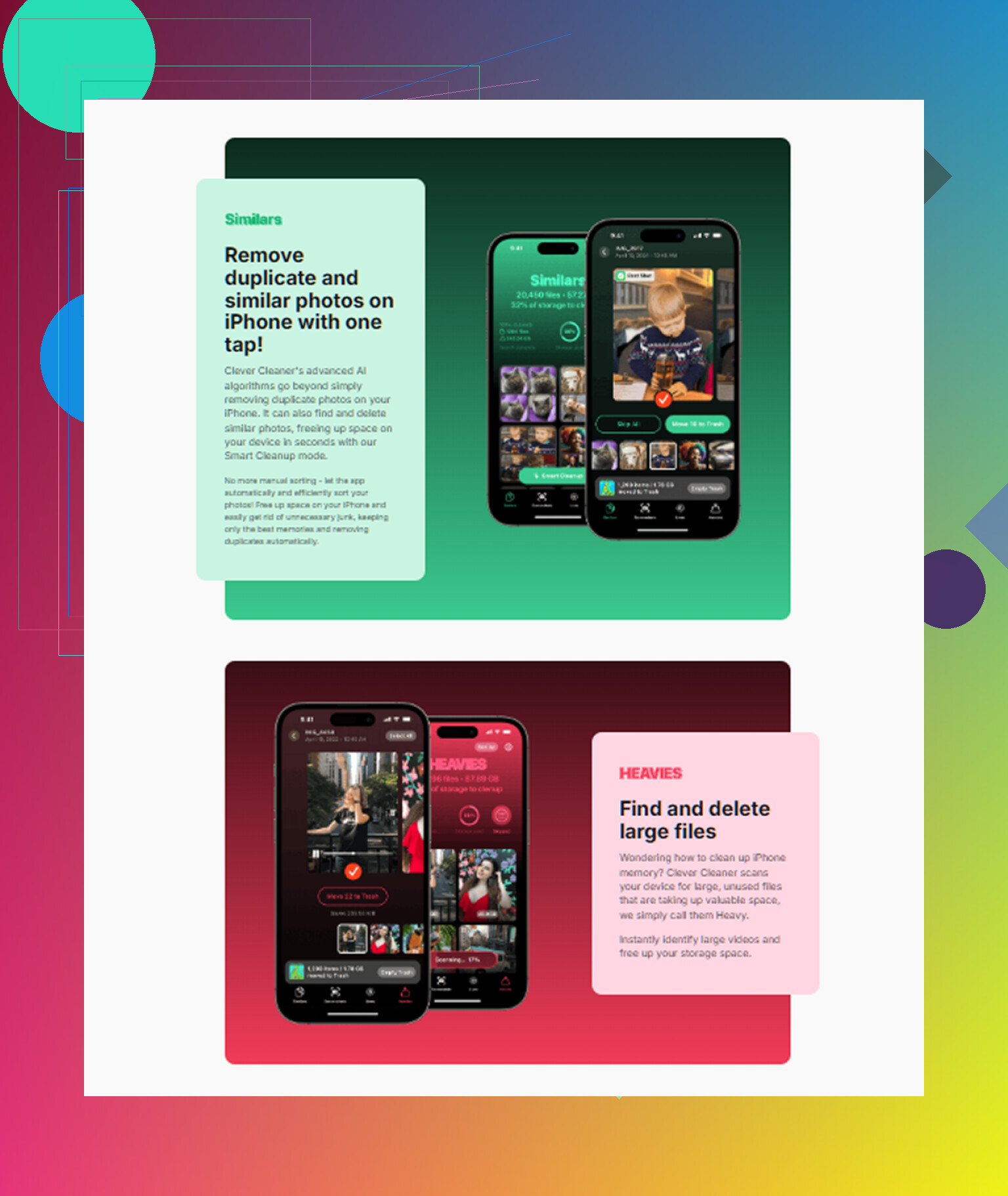
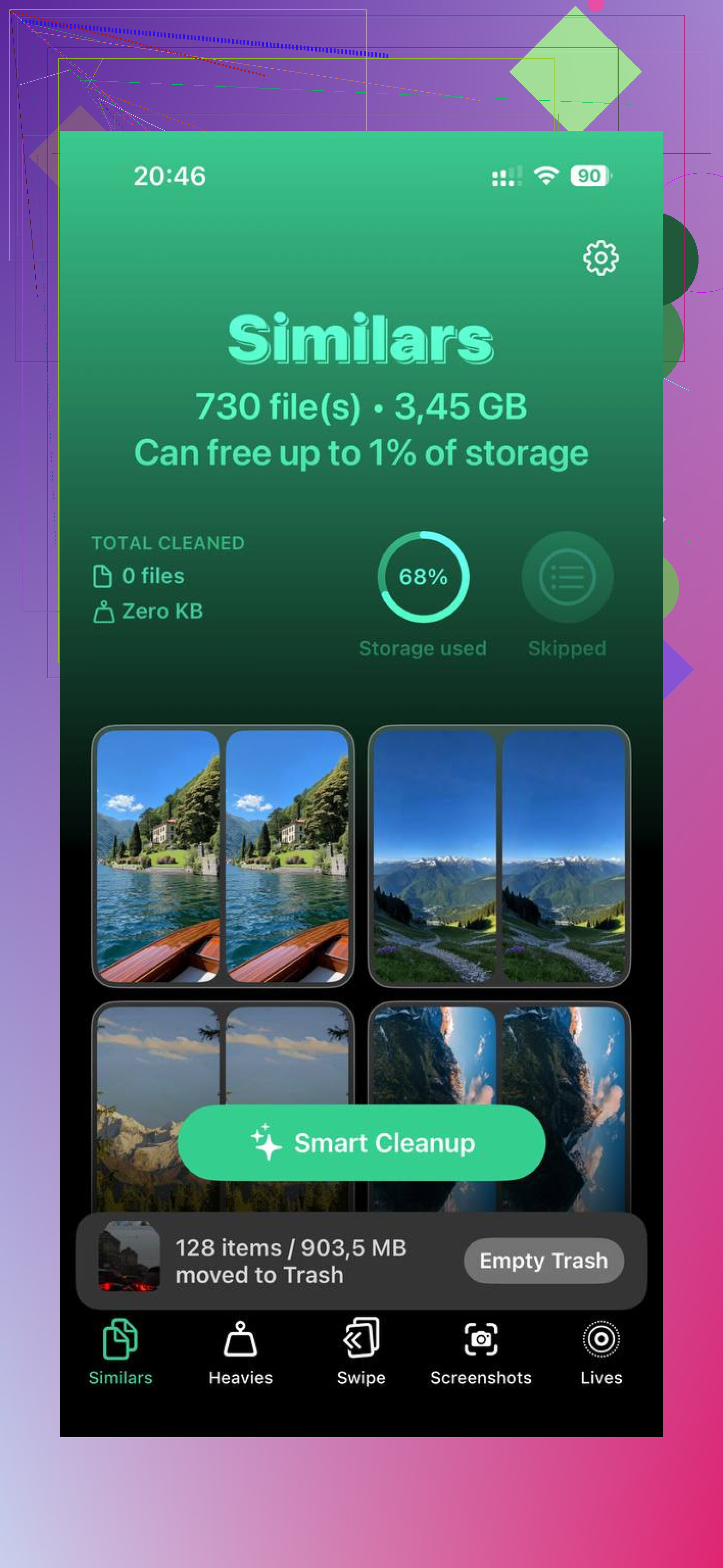
What I liked was how simple it made triage. It grouped large media files in one place, showed file sizes clearly, and made screenshots easy to spot. There was also a similar-photo finder, which helped because my camera roll was full of near-duplicates from taking the same shot three or four times and forgetting abotu them later.
The privacy part mattered to me too. From what I saw, it processed data on the phone instead of shipping personal photos off somewhere else.
After I cleared around 15 GB, the slowdown stopped. The phone felt normal again. If your Applications storage looks too big, I would start with cache-heavy apps, offload what you rarely use, and reinstall the worst offenders. That fixed more than any setting tweak I tried.
5 Likes
Start with the apps iPhone does not show clearly. Messages, Music, Podcasts, Netflix, Spotify, Instagram, TikTok. These hoard downloads and cached media fast.
A few things I’d do before deleting anything important.
-
Check app size vs data size.
Settings > General > iPhone Storage.
If an app is 200 MB but Documents & Data is 4 GB, the junk is in the app data, not the app itself. -
Clean inside the app.
A lot of storage sits in downloaded content.
Remove offline songs, videos, podcast episodes, map areas, old chats with media.
This frees more space than people think. -
Trim Messages.
Settings > General > iPhone Storage > Messages.
Review Photos, Videos, GIFs, Stickers, Top Conversations.
For some people this returns multiple GB in 5 minites. -
Change retention settings.
Set Messages to keep 1 Year or 30 Days if you do not need full history.
Podcasts set to auto-delete played episodes.
Streaming apps, turn off automatic downloads. -
Review voice memos and Files.
The Files app and Downloads folder get ignored a lot. Same with Voice Memos. Big files hide there.
I slightly disagree with @mikeappsreviewer on one point. Reinstalling apps works, but I would save it for the worst offenders only. Some apps keep data in iCloud, some keep it local, and the result is annoyngly inconsisent.
If you want a faster sweep for duplicate photos, heavy screenshots, and large media, Clever Cleaner is worth a look. I found this thread useful, see why iPhone users on Reddit recommend Clever Cleaner.
Biggest tip, keep 5 to 10 GB free. iPhones get weird when storage is packed full.
One thing I’d add to what @mikeappsreviewer and @reveurdenuit said: sometimes the “Applications” number looks huge because iOS hasn’t recalculated storage properly yet. I don’t fully agree that every bloated app total means real junk files. I’ve seen the storage graph drop after a simple restart, or after iOS finishes indexing overnight while charging.
A few things that help without doing the full delete/reinstall dance:
- Update iOS first. Storage reporting bugs are weirdly common.
- Restart the phone after deleting anything big, so the storage bar actually refreshes.
- Check Settings > Accessibility > Spoken Content > Voices. Extra downloaded voices can eat space and people miss that.
- Look in Settings > General > iPhone Storage for “Review Downloaded Videos” if it appears. Some apps stash temp video files there.
- Mail app is a sneaky one. If you use the built-in Mail app with multiple accounts, huge attachments can linger. Removing and re-adding the mail account can shrink it.
- Books, GarageBand, iMovie, and Podcasts can quietly hoard downloaded content too.
Also, app “Documents & Data” is often not cache in the normal sense. Sometimes it’s stuff you actually asked the app to keep, so be a little careful before nuking things. That’s why I’d rank it like this:
- Remove offline downloads inside apps
- Empty Files/Downloads/Recently Deleted folders
- Restart and re-check storage
- Offload rarely used apps
- Delete/reinstall only the worst offenders
If you want a faster way to spot junk photos, duplicate shots, and giant media files, Clever Cleaner is probly the easiest shortcut. I also found a clear Clever Cleaner review for freeing up iPhone storage useful because it breaks down what it actually cleans instead of doing the usual vague “boost your phone” nonsense.
And yeah, keep some free space. Not “a little.” Actual breathing room. iPhones get real dumb when they’re stuffed to 99%.
One angle I think @reveurdenuit, @voyageurdubois, and @mikeappsreviewer only touched lightly is app resets through iPhone settings for specific Apple apps. For example, Safari website data, downloaded Siri voices, Books downloads, and Mail attachments can survive way longer than people expect, and they are not always obvious in the app list.
I’d also push back a bit on constant offloading. Offloading is nice, but if the problem is bloated app data, it sometimes frees less than people expect because the documents stay behind. Good for rarely used apps, not always great for space emergencies.
What I’d add:
- Check app-specific download folders inside Files > On My iPhone
- Empty Recently Deleted in Photos, Files, and Voice Memos
- Remove old iOS update files if one is sitting in iPhone Storage
- Disable background downloads in apps that prefetch content
- For browsers, clear site data, not just history
- For cloud apps, confirm files are not stored offline locally
If the real issue is media clutter tied to apps, Clever Cleaner can help spot large photos, duplicates, and screenshots fast.
Pros:
- quick visual cleanup
- easy for photo-heavy phones
- useful for hidden media bloat
Cons:
- won’t magically clear every app cache
- less useful if your storage problem is mostly Messages or offline app downloads
- still needs manual review so you do not delete something important
My order would be: clear downloads, empty deleted folders, reboot, then only target the worst apps. That usually avoids the full wipe-and-reinstall spiral.