A file download on my iPhone froze and now I can’t remove it from the Downloads folder. I’ve tried tapping, swiping, and restarting, but it still shows up and won’t go away. I need help deleting this stuck iPhone download so it stops taking up space and cluttering my files.
I ran into this on my iPhone more than once, and the annoying part is iOS does not keep downloads in one clean spot. There is no single wipe button. Stuff lands in different places based on which app saved it.
Start with the Files app. Safari usually sends downloads there.
Open Files.
Tap Browse.
Check both ‘On My iPhone’ and ‘iCloud Drive.’
Open the Downloads folder in each place.
Tap the three-dot menu, hit Select, choose the files, delete them.
A lot of people think the files keep reappearing. What I saw was simpler. They were sitting in Recently Deleted.
Inside Files, go to Locations.
Open Recently Deleted.
Remove everything there too.
If you skip this part, iOS keeps those files around for 30 days. On top of that, iCloud sync gets weird sometimes and a file you thought was gone shows back up on another device, then comes back again. I had this happen with PDFs a few times. Thought I was losing it.
For files stuck in place and refusing to delete, I had two fixes work:
Close Safari fully, then restart the iPhone.
If the file still hangs around, open Files and try clearing Recently Deleted from the sidebar again. I had one half-downloaded ZIP file refuse normal deletion, then vanish after doing this.
Another spot people mix up is Safari’s download list.
When you tap the arrow in Safari and press Clear, you are only removing the history list. The file itself stays on the phone. To remove the real file, go back to Files and delete it there.
If you want less cleanup later, change Safari’s settings:
Settings > Safari > Downloads
Set ‘Remove Download List Items’ to ‘After One Day’ or ‘Upon Successful Download’
This keeps the list tidy. It does not empty the actual Downloads folder, so you still need to check it now and then.
Also, downloads do not all count as ‘Files’ downloads.
Photos and videos saved from a browser or social app usually go into Photos.
Offline content from apps like Netflix, Spotify, or Podcasts stays inside those apps.
You need to clear those from inside each app, or use:
Settings > General > iPhone Storage
That storage screen is the closest thing iOS gives you to a central view. It helps you spot which apps are hogging space, and some apps let you remove stored data from there.
This matters more than people think. My phone started lagging hard a while back. Apps paused, keyboard delay, random stutter. Turned out I had close to 40 GB tied up in old downloads, duplicate images, and saved video junk. Once storage gets cramped, the whole phone feels off.
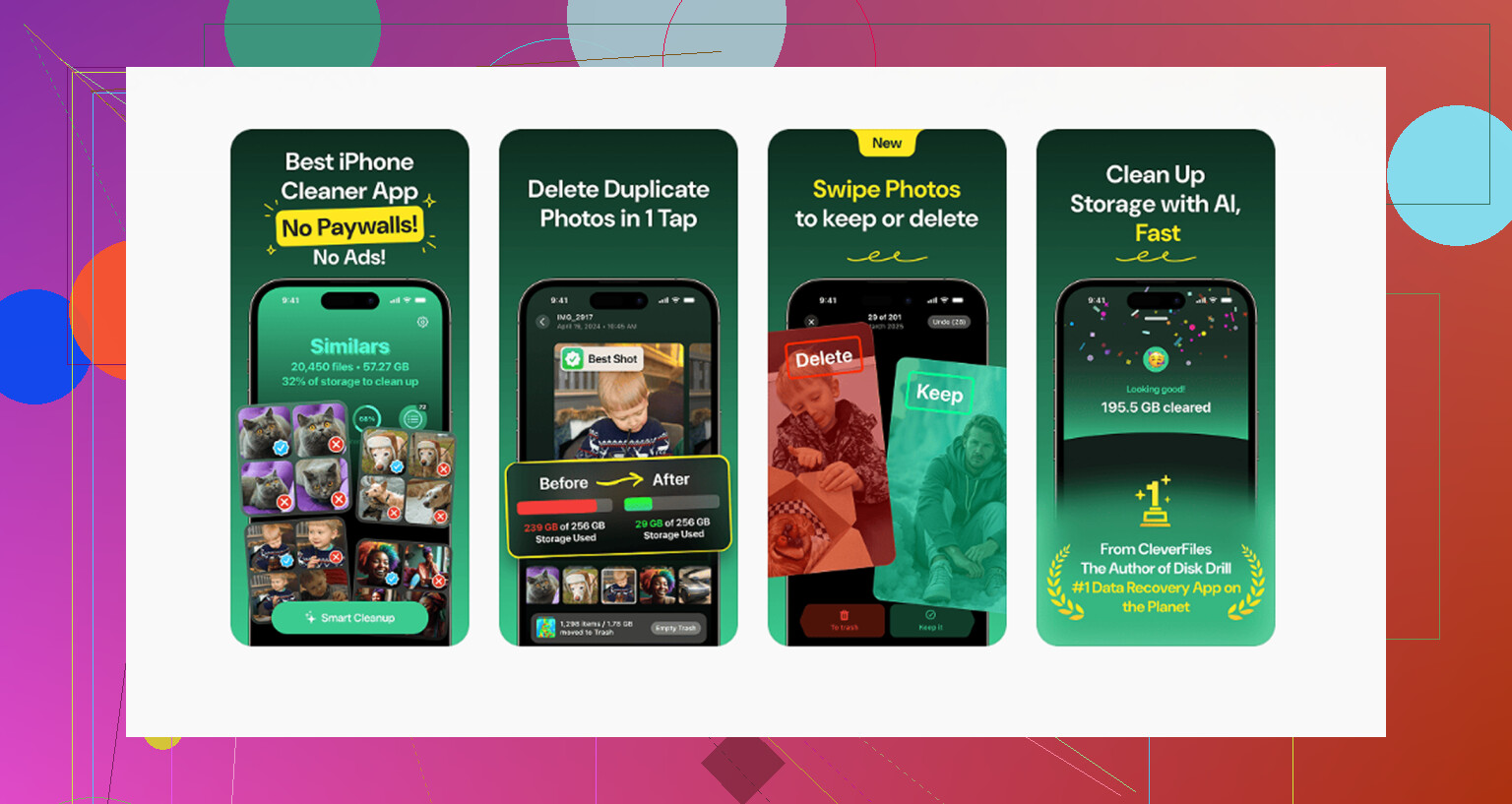
For media cleanup, I stopped doing all of it by hand. I used https://www.youtube.com/shorts/qUVkfQqrwsk for the photo and video mess because manual sorting was a time sink. The part I liked was file size sorting. Big videos show up fast, screenshots too, and duplicate-looking photos are easier to catch. That saved me the most space in the least time.
Last thing, and this is the bit people miss:
Delete the file.
Then empty Recently Deleted in Files.
Then do the same in Photos if media is involved.
If the trash bin still holds it, your storage is not back yet. That one got me more than once.
19 Likes
If the file is stuck because the download never finished, I’d check the app that created it, not only Files. @mikeappsreviewer covered the normal cleanup path. My experiance is the ghost download often lives in Safari’s process or in a bad local cache entry.
Try this order.
-
Turn off iPhone sync for Files for a minute.
Settings, Apple ID, iCloud, iCloud Drive, turn it off.
Wait 30 seconds.
Open Files and try deleting the item again.
Then turn iCloud Drive back on. -
Change the download destination.
Settings, Safari, Downloads.
Switch from iCloud Drive to On My iPhone, or the other way around.
Then open Safari and start a tiny download, like a small PDF.
This forces Safari to refresh the download target. I’ve seen stuck entries vanish after this. -
Clear Safari website data.
Settings, Safari, Clear History and Website Data.
This does not always remove the file, and I disagree a bit with people who treat restart as the main fix. If the pointer to the file is corrupted, clearing Safari data works better than rebooting. -
Force the Files app to refresh storage.
Open Settings, General, iPhone Storage.
Wait for the app list to fully load.
Tap Files if it appears, or review Safari.
Leave it open for 20 to 30 seconds.
Then go back to Files. iOS often reindexes storage here. -
If it is media clutter, use a cleaner app for the junk around it.
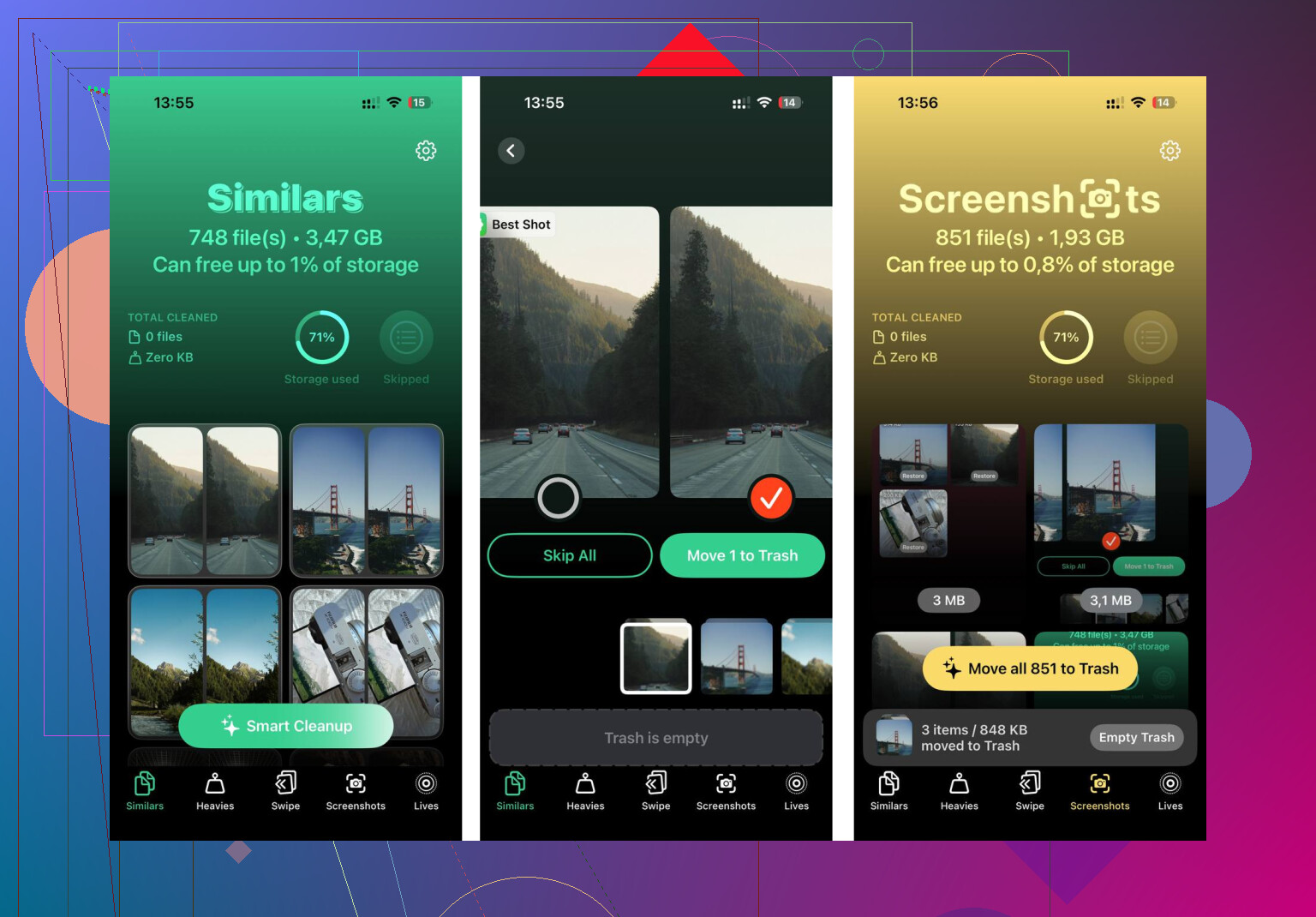
Clever Cleaner is decent for finding big videos, duplicate photos, and space hogs. It won’t fix every frozen download, but it helps when the “stuck file” is part of a bigger storage mess.
Also, if you want a clean walkthrough for clearing iPhone storage and downloads, this iPhone storage cleanup video is easier to follow than poking around blind.
Last step if none of it works.
Back up your iPhone.
Settings, General, Transfer or Reset iPhone, Reset, Reset All Settings.
No data wipe, but it resets system prefs and often clears weird file indexes. Annoying, yep. Sometimes iOS needs a shove.
One thing I’d add to what @mikeappsreviewer and @stellacadente said: sometimes the “stuck download” is not really a file problem, it’s a preview/indexing glitch in Files. Deleting from the Downloads folder won’t help if Files is still showing a broken thumbnail or stale entry.
Try this instead:
- Open Files
- Go to Browse
- Tap the back arrow until you’re at the top level
- Switch from List view to Icon view, then back again
- Use the search bar and search the exact file name
- If it appears in search but not in the folder correctly, long-press > Get Info
If Get Info shows 0 KB or weird blank metadata, it’s usually a ghost entry. In that case, create a new folder, move the stuck item into it if iOS allows it, then delete the whole folder. Weirdly, that works more often than deleting the file directly. iOS is kinda dumb about half-finished downloads tbh.
Also, I slightly disagree with clearing all Safari history right away. That’s a bit overkill if this is just one broken file. I’d first try turning off Low Power Mode and making sure you have at least a little free storage. iPhone gets real flaky when storage is nearly full, and file ops fail silently. Check:
Settings > Battery > Low Power Mode off
Settings > General > iPhone Storage
If your storage is packed, clean that up first. If the stuck item is part of a bigger mess, Clever Cleaner is actually useful for clearing duplicate photos, large videos, and other junk so iOS can breathe again. This guide on free iPhone cleaner tools for storage cleanup is worth a look if your phone is crammed.
Last weird fix that helped me once: change the file extension by renaming it in Files. Like .pdf to .txt, then delete it. Makes zero sense, but iOS sometimes lets you remove it after that. Super annoyng, but it works.
I’d try one angle nobody’s hit directly yet: remove the download manager state instead of the file.
In Safari, tap the download arrow, tap the stuck item, then press and hold if it still appears there. If it opens a blank preview, tap Share and save it somewhere else with a slightly different name. After that, go back to Files and delete both copies. Sounds dumb, but forcing iOS to rewrite the entry sometimes breaks the stuck reference.
Another trick: if the file came from another app like Mail, Telegram, Chrome, or WhatsApp, delete it from that app’s own recent files area. I slightly disagree with treating Safari as the main culprit every time. A lot of “Downloads” junk is actually handed off by the source app.
Also check Screen Time > Content & Privacy Restrictions if deletion is blocked for some reason. Rare, but I’ve seen file actions fail when restrictions got weird.
On the app side, @stellacadente, @reveurdenuit, and @mikeappsreviewer already covered the core cleanup routes. I’d only add this: if your storage is nearly full, deletion can stall until iOS frees working space. That’s where Clever Cleaner can help.
Pros of Clever Cleaner
- good at spotting large videos and duplicate photos
- quick way to free space so Files starts behaving again
- simpler than digging through storage manually
Cons
- won’t directly delete a ghost download in Files every time
- more useful for media clutter than broken file pointers
- you still need to verify app-specific downloads yourself
If nothing changes, try deleting the Files app from Home Screen and reinstalling it. It’s one of the few ways to refresh its front-end database without resetting the phone.