I’m trying to delete hidden photos on my iPhone, but the Hidden album won’t open in the Photos app. I need help figuring out another way to access or remove these pictures, because they’re taking up storage and I can’t manage them normally.
The Hidden album on iPhone is a little weird because it is not really a separate place where photos live. It is more like a filtered section of your normal photo library, and a few settings can make it look like things are missing when they are not.
First check whether the Hidden album is turned on
If you do not see the Hidden album in Photos at all, check this before assuming anything was deleted:
Settings - Photos - Show Hidden Album
That toggle can get switched off, including after some iOS updates. When it is off, the album disappears from the Photos app, but the hidden photos are still in your library. Turn it back on, then open Photos and look near the bottom of the Albums tab under Utilities.
If Hidden is there but looks empty
Start with Recently Deleted. If the missing photos are there, they were deleted and you can recover them from that folder.
If Recently Deleted is empty, but your iCloud storage or device storage still looks like the photos are taking up space, it may just be the library view acting up. In that case, turning iCloud Photos off and then back on in Settings can force the phone to re-index the photo library. That often makes the missing items show correctly again.
Deleting hidden photos
The Hidden album should ask for Face ID, Touch ID, or your passcode before it opens. If that prompt is not coming up, try a hard restart first. It is a boring fix, but it often clears that kind of glitch.
Once you can open the album:
- Tap Select in the top-right corner
- Choose Select All, or pick specific photos
- Tap the trash icon
One important catch: deleting them there does not remove them for good right away. They go to Recently Deleted and sit there for 30 days, and they still use storage during that time. If you want them gone now, go to Recently Deleted - Select - Delete All after deleting them from Hidden.
iCloud sync matters here
If iCloud Photos is enabled, deleting something from the Hidden album on your iPhone also deletes it from your other synced devices, like an iPad or Mac. Hidden is not a separate vault. It is the same library, just filtered behind an extra lock.
The bigger storage issue
A huge Hidden album is usually only one part of the mess. If you have hundreds of hidden screenshots or random saved images, the main library probably has the same problem at a bigger scale: duplicate-looking shots, old screen recordings, large videos, bursts, and screenshots you forgot about.
When photo storage gets too close to full, the iPhone can start feeling slow because iOS needs free space for background tasks. So clearing Hidden helps, but it may not fix the whole storage problem by itself.
Cleaning the main library after that
Clever Cleaner cannot clean the Hidden album because Apple blocks third-party apps from accessing it. That part has to be done manually using the steps above.
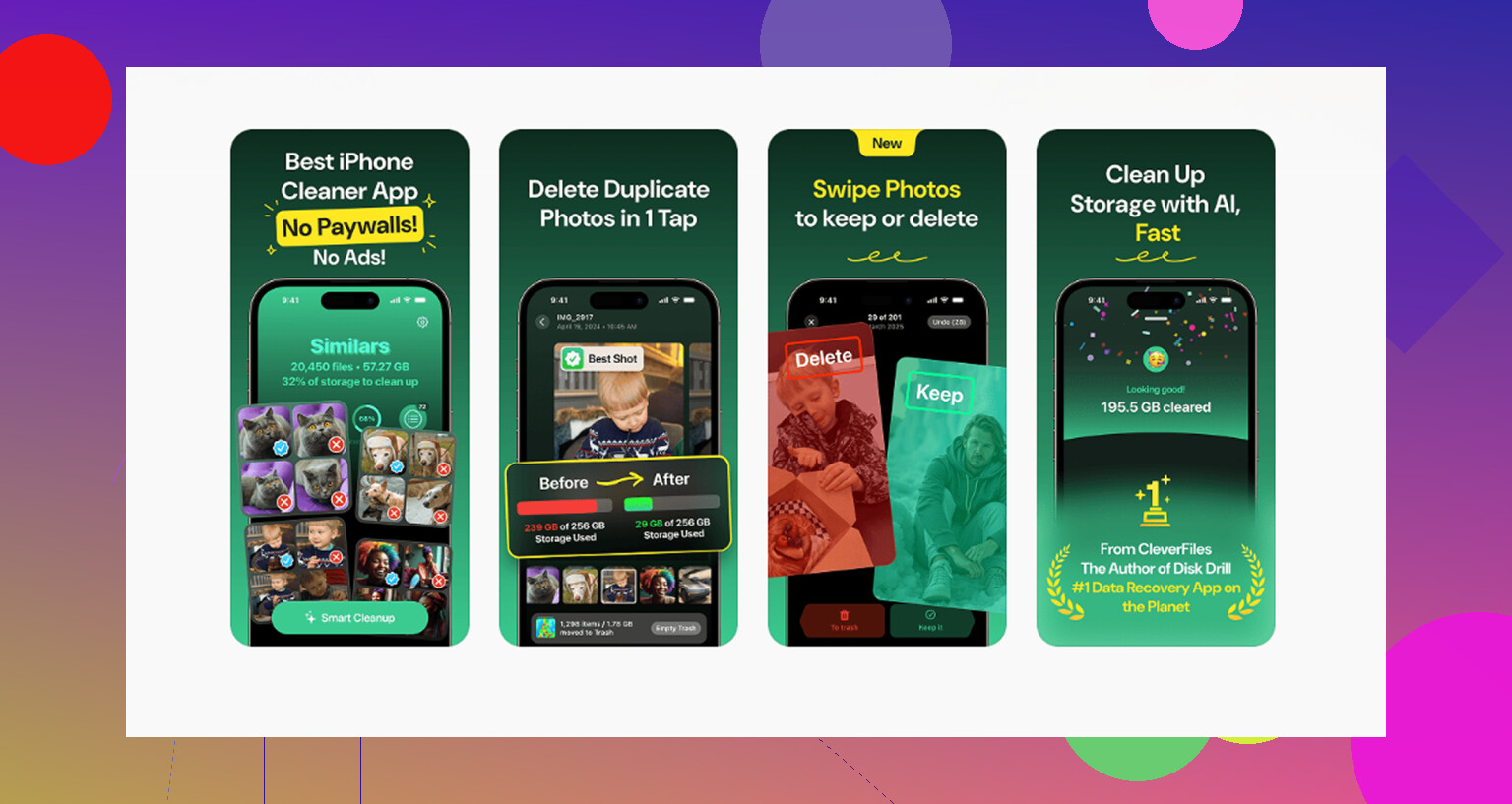
For the normal photo library, Clever Cleaner is free, with no ads and no subscription. The Similars tab groups near-duplicate photos and marks a Best Shot, so you can clear repeated vacation photos, bursts, and slightly different versions without opening every single one. The Heavies tab sorts files by size, which makes big 4K videos and screen recordings easy to spot. Screenshot sizes are shown before deletion too, which is useful when you are trying to clear space instead of guessing.
It also processes everything on the phone, so nothing gets uploaded to an outside server.
The cleanest order is: delete what you want from Hidden manually, use Clever Cleaner on the main library, then empty Recently Deleted. If you skip that last part, your storage number may not change much right away.
7 Likes
Do not start toggling iCloud Photos on and off until you know whether the originals are only on the phone or synced to iCloud, because that can turn a simple cleanup into a sync mess.
I agree with the point that Hidden is just part of the same Photos library, but I’d try a narrower fix first. Go to Settings > Photos, or Settings > Apps > Photos on newer iOS versions, and look for the option that controls Face ID/Touch ID for Hidden and Recently Deleted. Turn that off temporarily, then reopen Photos and try the Hidden album again. If the problem is the authentication screen hanging, this sometimes gets you around it without touching the whole photo library.
If you use iCloud Photos, a decent workaround is to sign in to iCloud Photos from a browser or another Apple device and check whether the Hidden album opens there. Delete from there, then empty Recently Deleted. If iCloud Photos is not enabled, that workaround will not help, since those pictures are only on the phone.
And I would not bother trying normal cleaner apps for the Hidden album itself. Apple walls that section off, so apps like Clever Cleaner can be useful for the regular library, but they are not the escape hatch for locked hidden photos. The goal is to get Photos itself to open Hidden or access the same synced library somewhere else.
The sneaky downside is that if your storage is almost full, Photos can be the thing that starts misbehaving before you get a chance to delete the photos causing the problem. I’d make some temporary space first, even if it feels unrelated. Delete a large app you can reinstall, remove downloaded Netflix/Spotify/Podcast stuff, or move a few big videos out of the regular library. Then force close Photos, restart the phone, and try Hidden again.
I’m with @sterrenkijker on not randomly toggling iCloud Photos. That can create more confusion than it solves. But there is a hard limit here: if iCloud Photos is off and those hidden items only exist on that iPhone, there is not really a secret file-manager route to delete them. Apple does not expose the Hidden album as a normal folder that another app can clean out. You have to get Photos working, or use another device/browser only if the same library is synced through iCloud.
A regular cleaner app can still be useful as a side move, not as the main fix. For example, Clever Cleaner or even Apple’s own iPhone Storage suggestions can help clear normal photos/videos first so the phone has breathing room. After that, go back to Hidden and Recently Deleted. If Hidden still will not open after a restart and some free space, I’d check the Face ID/passcode setting for Hidden next, because that lock screen is often where it gets stuck.
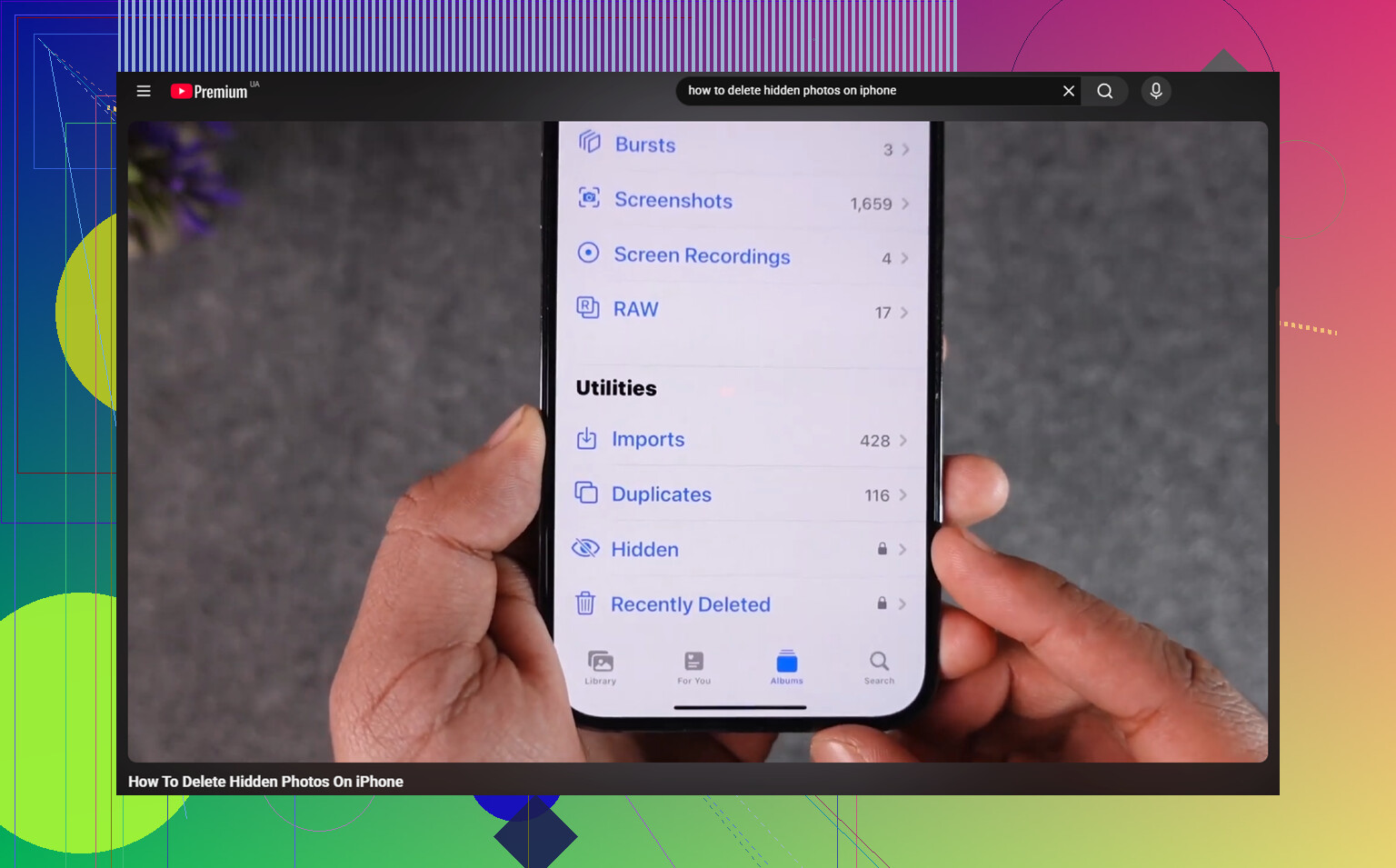
Don’t keep force-quitting and reopening Photos hoping the lock screen loads. If the Face ID prompt for Hidden hangs, the fix that worked for a lot of people is toggling that Hidden/Recently Deleted authentication off in Settings, opening the album, then turning it back on later. @sterrenkijker already pointed at that setting, and honestly it’s the first thing I’d try before touching iCloud or any cleaner app.