I imported my iPhone photos to my Mac and confirmed they’re saved, but they’re still taking up storage on my iPhone. I need help figuring out the safest way to delete the imported photos from my iPhone without removing the copies on my Mac or losing anything in iCloud Photos.
Importing photos into Photos on a Mac does not clear them off your iPhone. It only copies them. The originals stay on the phone until you delete them yourself, so don’t expect your iPhone storage to change just because the import finished.
Why the “delete after import” option may be gone
If iCloud Photos is enabled, Photos on macOS usually won’t show the Delete items after import checkbox. That’s because Apple treats the iPhone and Mac photo libraries as synced copies of the same library. If the Mac deleted the photos from the phone, that deletion could sync back and remove them from the Mac too.
You’ve basically got two options:
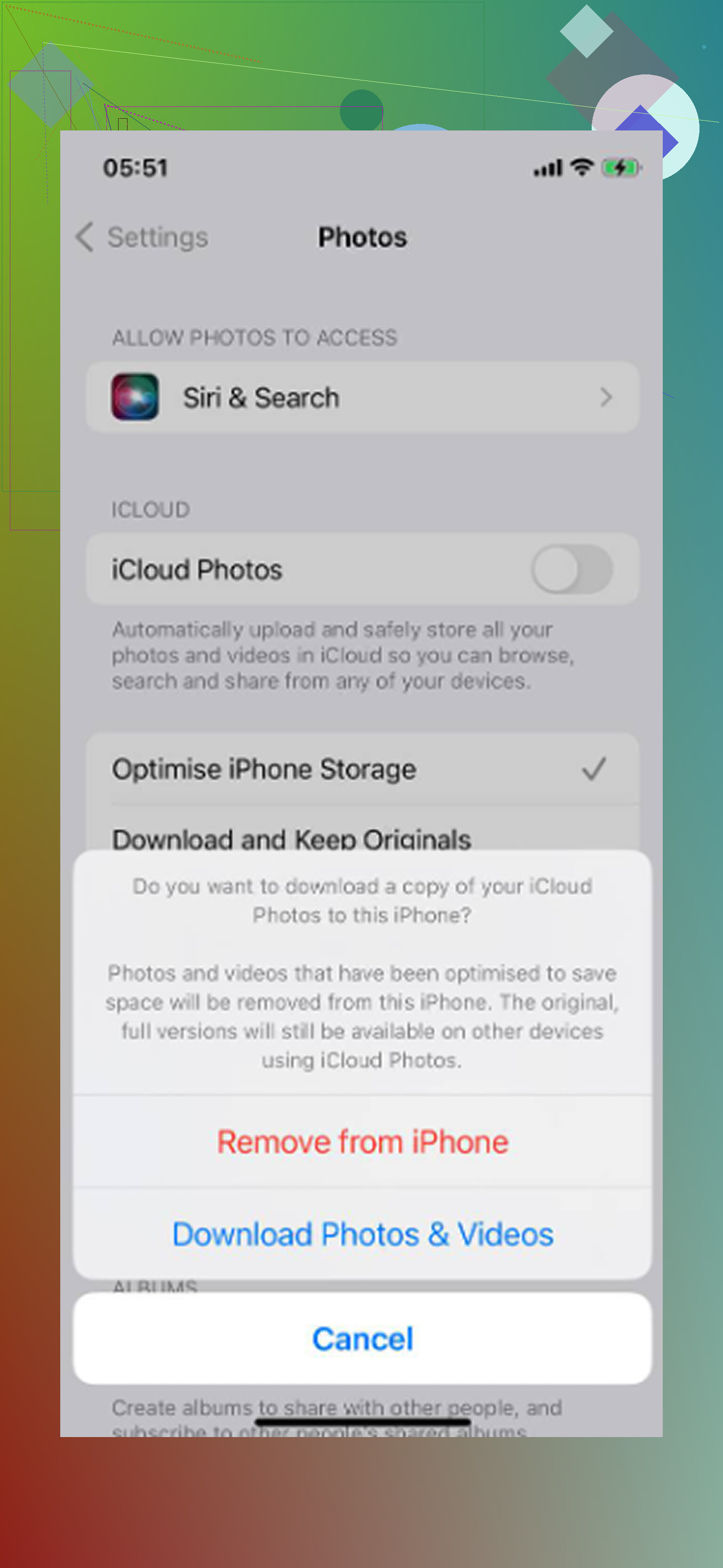
- Turn off iCloud Photos on the iPhone first, then connect it to the Mac. Go to Settings - Photos, disable iCloud Photos, do the cleanup, then turn it back on when you’re done.
- Don’t use Photos for the deletion step. Use Image Capture instead.
Image Capture is usually the cleaner way to do this
Image Capture comes with macOS and is already in the Applications folder. It’s not fancy, but it’s good for this exact job.
- Connect the iPhone to the Mac with USB
- Open Image Capture
- Choose the iPhone in the sidebar
- Press Command A if you want to select everything
- Click the delete icon at the bottom
The useful part is that Image Capture handles the iPhone more like a regular attached device, not like a synced Photos library. So the iCloud Photos behavior that hides the delete checkbox in Photos is not usually the issue there.
Check the import before deleting anything
Don’t skip this. Open a few random photos and videos on the Mac before clearing the phone. Make sure videos actually play and aren’t just showing thumbnails. Also check that the number of items on the Mac matches what you expected to transfer.
Bad or partial imports are not rare enough to ignore. Once you delete the originals, you may not have a clean way to get them back.
You can also delete the imported items from the iPhone
On the iPhone, go to Photos - Albums - Utilities - Imports. That album is meant to show recently imported items.
- Tap Select in the top right
- Tap the first photo, then drag upward without lifting your finger to select a big batch quickly
- Delete the selected items
One catch: your storage still won’t free up right away. Deleted photos sit in Recently Deleted for 30 days and still count against storage. Go to Albums - Recently Deleted and choose Delete All if you actually want the space back now.
Will deleting from the iPhone delete from the Mac too?
If iCloud Photos is on, yes, it can. A deletion on the iPhone syncs to the Mac and other devices using that same iCloud Photos library.
If you want the Mac to keep the photos while the iPhone loses them, pause iCloud Photos first or make sure the Mac copy is stored in a normal local folder outside iCloud Drive before you delete anything from the phone.
If the phone is still sluggish afterward
Clearing imported photos only deals with that one group of files. It won’t touch old burst shots, duplicate-looking photos, giant videos, screenshots, and random clutter that built up over years.
Clever Cleaner can help with that part. It’s free, has no ads, and doesn’t require a subscription. The Heavies tab sorts files from largest to smallest, which is often where the real storage problem shows up. A few old videos can take more space than the entire import batch. The Similars tab groups near-duplicate photos and picks a Best Shot so you can remove the extras more quickly. It also shows file sizes before deletion, and the processing stays on the device.
After doing the import cleanup, running that kind of scan found about 15GB more that the manual cleanup missed. Once that space was cleared, the low-storage lag, including keyboard delay and a slow camera, went away.
2 Likes
Deleting photos after a plain USB import is a different situation than deleting photos from a device that is syncing with iCloud Photos. Before you trash anything on the iPhone, I’d check one setting on the Mac: in Photos, make sure it isn’t only using “Optimize Mac Storage,” because then some items may look present but not be full local originals. If you want the safest route, export a test batch from Photos to a regular folder on the Mac, open a few videos from that folder, then delete from the iPhone and empty Recently Deleted. If iCloud Photos is on, don’t delete from the iPhone until you’re sure the Mac copy is independent, because that deletion is meant to sync everywhere.

The import method matters more than the delete button. “Saved to my Mac” can mean a few different things, and they are not equally safe before you start deleting from the phone.
If you imported into the Mac Photos app, the pictures may be inside the Photos Library, not sitting in a normal folder you can see in Finder. That is fine if you intend to keep using Photos, but I would still make sure that library is backed up before treating the iPhone as disposable storage. A Time Machine backup, an external drive copy, or an export to a regular folder gives you a second layer of safety. Having only one copy in one Photos Library is better than having only the phone, but it is still only one copy.
I’d be a little cautious with the advice to just turn iCloud Photos off and on as a cleanup step. It can work, but it can also create a confusing mess if the phone has not finished downloading originals, or if the Mac and phone are halfway through syncing. If iCloud Photos is involved, the safest rule is simple: do not delete from the iPhone unless the Mac copy is independent of iCloud syncing. “Independent” means exported originals in a regular Mac folder or a backed-up Photos Library that contains the originals, not just thumbnails or optimized previews.
A quick check I would do before deleting anything:
Open Photos on the Mac, pick a few random older photos and a few videos from the import, and use File > Export > Export Unmodified Original for a small sample. Save them to the Desktop or another folder. Then open those exported files directly in Finder. If the videos play and the photos open normally, that tells you a lot more than just seeing thumbnails in Photos.
After that, make a backup of the full Mac Photos Library or export the whole batch somewhere normal if you do not trust Photos as your only storage. Then delete from the iPhone using the iPhone Photos app or Image Capture. Image Capture is faster for bulk deletion, but I would not use it until the backup side is settled.
The other gotcha is Recently Deleted. Deleting photos from the iPhone is only half the job. They stay in Recently Deleted and keep using space until they expire or you remove them from there. So if your goal is to free storage today, delete the photos, then go to Photos > Albums > Recently Deleted, select them, and delete permanently.
I would not rely too much on the Imports album on the iPhone for this. Depending on how the photos got onto the phone, that album may not mean “everything I just imported to my Mac.” It can be useful, but I would treat it as a convenience view, not proof that you are selecting the exact same batch.
My safest version would be:
- Confirm whether iCloud Photos is on.
- Confirm the Mac has full originals, not optimized placeholders.
- Back up the Mac copy.
- Delete a small test group from the iPhone.
- Check that the Mac copy still exists.
- Empty Recently Deleted on the phone.
- Only then delete the rest.
It is slower than just hitting Select All and trashing everything, but photos are the kind of thing where being boring for ten minutes is usually worth it.