I imported my iPhone photos to my Mac, but they’re still taking up space on my phone and I’m not sure how to delete only the imported pictures safely. I need help removing them from my iPhone without losing anything on my Mac.
Yeah, I ran into this too, and it took me longer than it should have.
The missing part is usually the same culprit. If the Photos app on your Mac does not show 'Delete items after import,' iCloud Photos is often switched on. When Apple is syncing your iPhone and Mac library together, it stops offering a separate cleanup step during import. I guess the logic is simple on their side. Delete on one device, delete everywhere.
If you want the checkbox back, I’d start on the iPhone. Open Settings, tap Photos, then turn off iCloud Photos for a bit. Reconnect the phone to your Mac and check Photos again. In my case, the delete-after-import option showed up again right away. One thing worth double-checking before you turn iCloud back on later, know which library you want to keep as the main one. If you mess this part up, you risk syncing the wrong state back into iCloud. I’ve seen people do this and then spend hours trying to recover stuff.
As for deleting right after import, I never trust it blind. I always import first, then open a handful of full-size images and a couple videos on the Mac. Not thumbnails, not previews, the real files. I had one import go weird once, and since then I verify before I erase anything. Took an extra two minutes, saved me stress.
If the import already finished and your iPhone is still packed with the same photos, you do not need to remove them one at a time. On the iPhone, go to the Imports album under Utilities in the Albums tab. Tap Select in the top-right corner, pick one photo, then drag your finger across the screen and upward. It selects fast, way faster than tapping item by item. After you send them to trash, go one step further if you need space now. Open Recently Deleted and hit Delete All. Otherwise, iOS keeps those files around for 30 days, which is useless if your storage is already choking.
This part gets overlooked a lot. Low storage does not only block new photos and videos. It slows the whole phone down. I thought my old phone was starting to die, but I checked and had under 1 GB left. Apps were hanging, camera felt sluggish, random crashes, all of it. After clearing space, the phone felt normal again. So if your iPhone feels weirdly slow, storage is one of the first things I’d check.
I tried cleaning manually for a while. Screenshots, duplicate shots, bursts, giant videos, all of it. It got old fast. I ended up trying Clever Cleaner, mostly because I was tired and didn’t want to sort 8,000 photos by hand. It worked better than I expected.
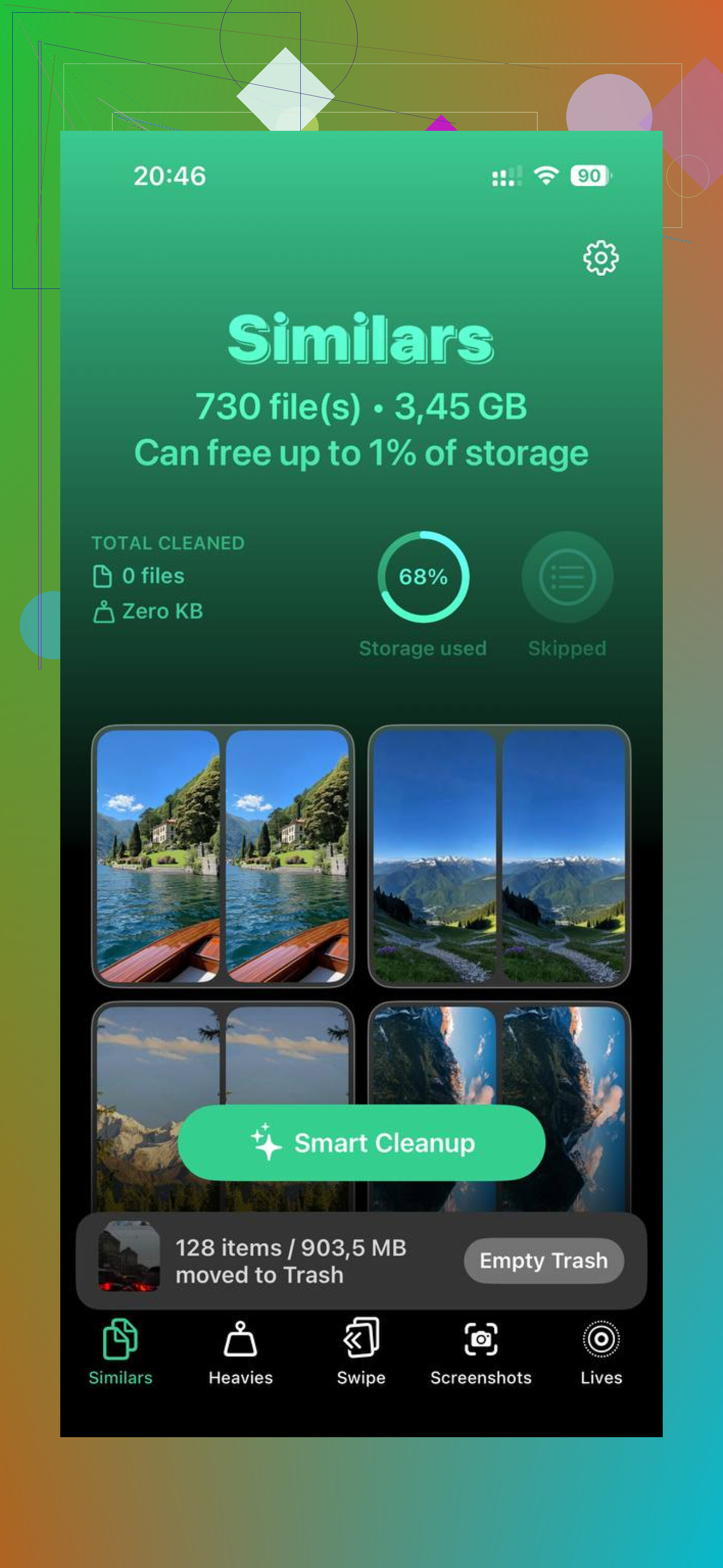
What stood out to me was the simple stuff. No paywall every second. No ad spam. The Heavies section made it easy to spot which videos were chewing through storage. The Similars section grouped near-duplicate shots well enough for quick cleanup. I also liked seeing file sizes before deleting screenshots and other junk. One more thing, it handles processing on the device, which mattered to me. I don’t like the idea of my photo library getting pushed to some random server. Typo in the original line aside, this was the main reason I kept using it.
After I cleared the large files and duplicate clutter, my phone felt snappier the same day. So if the import-delete option is gone and your library is bloated, I’d fix the import issue first, then clean the leftovers in bulk. And yeah, back up your Mac library first. I did, and I was glad I did.
10 Likes
First thing, make sure the photos are in a folder on your Mac, not only inside Photos with sync doing weird stuff. I’m gonna disagree a bit with @mikeappsreviewer on one point. I would not turn iCloud Photos off first unless you know your sync setup cold. That step trips people up.
Safer route.
-
On your Mac, confirm the imported files exist.
Open a few full-size photos and at least one video.
Check file count if you imported with Image Capture or Finder. -
Make a second copy on the Mac.
External drive, Time Machine, or a plain folder.
If you have 2 copies, deletion gets less stresful. -
Delete from the iPhone by source.
If you imported with the Mac Photos app, connect iPhone, open Image Capture on the Mac, select imported items, delete from device there. It is faster than sorting on the phone.
If you want to do it on iPhone, use Library, then sort by Recents or use Search by date range from the import day. -
Empty Recently Deleted.
This is the part people miss. Storage does not come back until you clear it.
If your library is cluttered with duplicates, screenshots, and giant videos, Clever Cleaner helps after the import cleanup. It sorts similar photos, large files, and junk shots in a way that is easier to review. This page gives a solid overview of what it does for iPhone photo cleanup, see how Clever Cleaner frees up iPhone storage fast.
Also, check Settings, General, iPhone Storage, Photos. If the size does not drop right away, reboot once. iOS is weird somtimes.
I’d actually avoid toggling iCloud stuff first unless you really know how your photo sync is set up. That can turn into a mini disaster real fast, even if @mikeappsreviewer had it work fine. @stellacadente is closer to how I’d handle it, but there’s one simpler check people miss.
On your Mac, open Photos and make sure the import is fully finished, then verify those images are stored locally on the Mac, not just showing as synced previews. In Photos on Mac, pick a few imported shots, then File > Export > Export Unmodified Original for 2 or 3 of them to a folder. If that works, you know the originals are really there. That’s the part that gives me peace of mind.
After that, on iPhone go to Settings > General > iPhone Storage > Photos and see if the storage hog is actually photos you imported, or if it’s something like “Recently Deleted” or shared media cache. People blame the camera roll and it’s sometiems the wrong culprit.
If you want bulk cleanup help after the safe import, Clever Cleaner is decent for sorting duplicate pics, screenshots, and large videos. It’s basically an easy iPhone storage cleanup app for photos and videos, not just some vague “one-tap iPhone cleaner” claim. Also, this quick clip on freeing up iPhone photo storage faster is worth a look.
One more thing: if the Photos count on iPhone does not drop right away after deleting, restart the phone. iOS loves being dramatic about storage updates.