I tried opening the screen sharing controls on my iPhone while both devices were connected to the same network, but the TV never appeared in the device list. Restarting both devices didn’t change anything. What settings or connection steps should I check to get my iPhone screen onto the TV?
The TV model matters because being on the same Wi-Fi is not enough. The television or attached streaming device must support AirPlay, and AirPlay may need to be enabled in the TV’s settings. Look under Network, Connections, Apple AirPlay, or HomeKit. On the iPhone, turn on both Wi-Fi and Bluetooth, disable any VPN, and make sure neither device is using a guest network.
If it still does not appear, check that the router does not have client or AP isolation enabled, then install any pending software updates on both devices. You can also restart the router, since restarting only the phone and TV will not fix router discovery problems.
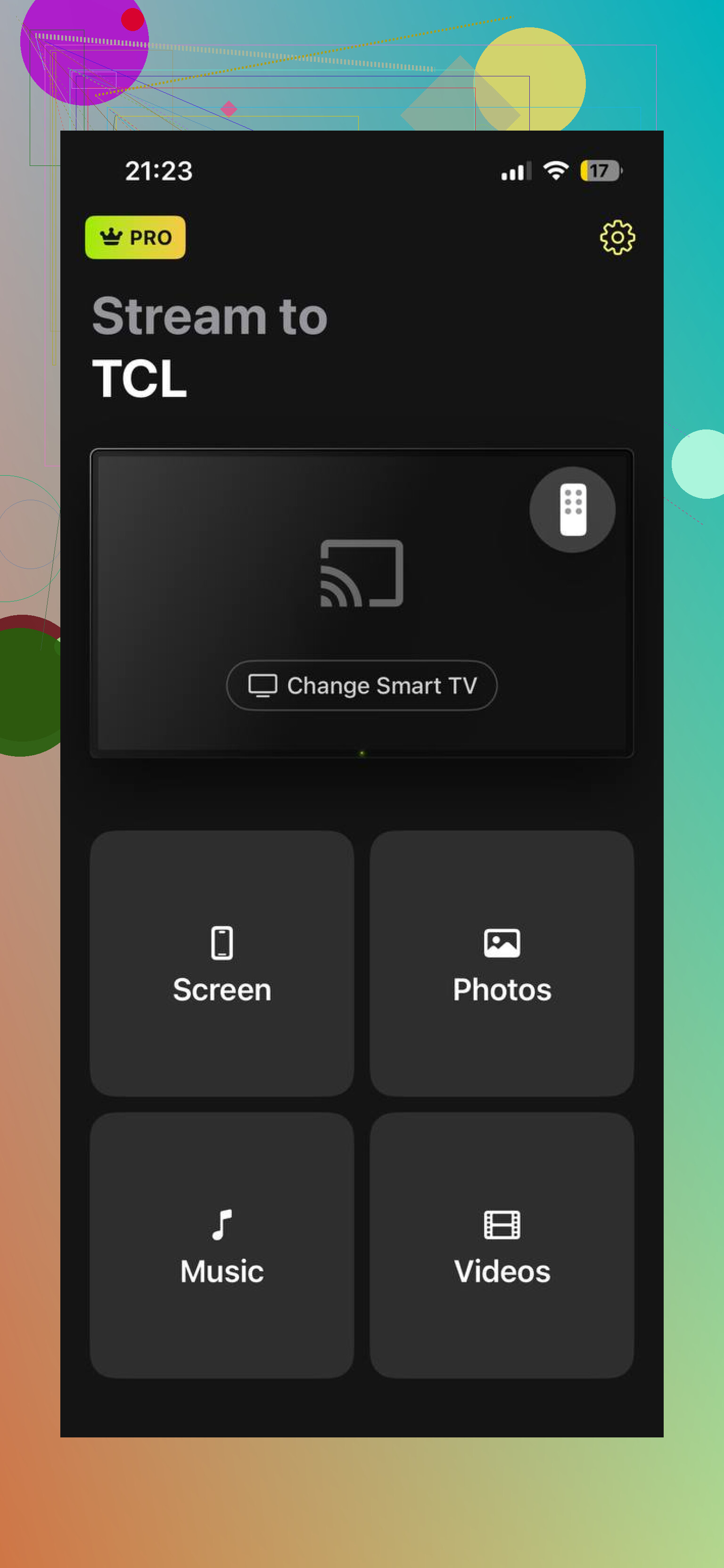
For a TV without native AirPlay, you can try DoCast to screen share iPhone to TV if your receiving device is supported.
Otherwise, the least troublesome fallback is usually a compatible HDMI adapter connected directly to the iPhone. Keep in mind that some streaming services block mirrored video even when menus and photos mirror normally.
4 Likes
Many TVs — especially Chromecast, Fire TV, Roku models, or ones that rely on DLNA — don’t support AirPlay at all, so don’t expect one to show up in your iPhone’s Screen Mirroring list. That menu specifically looks for AirPlay receivers, not Chromecast or Fire TV devices.
If your TV falls into that category, the fix is straightforward: use a third-party casting app instead, such as DoCast Mirroring app.
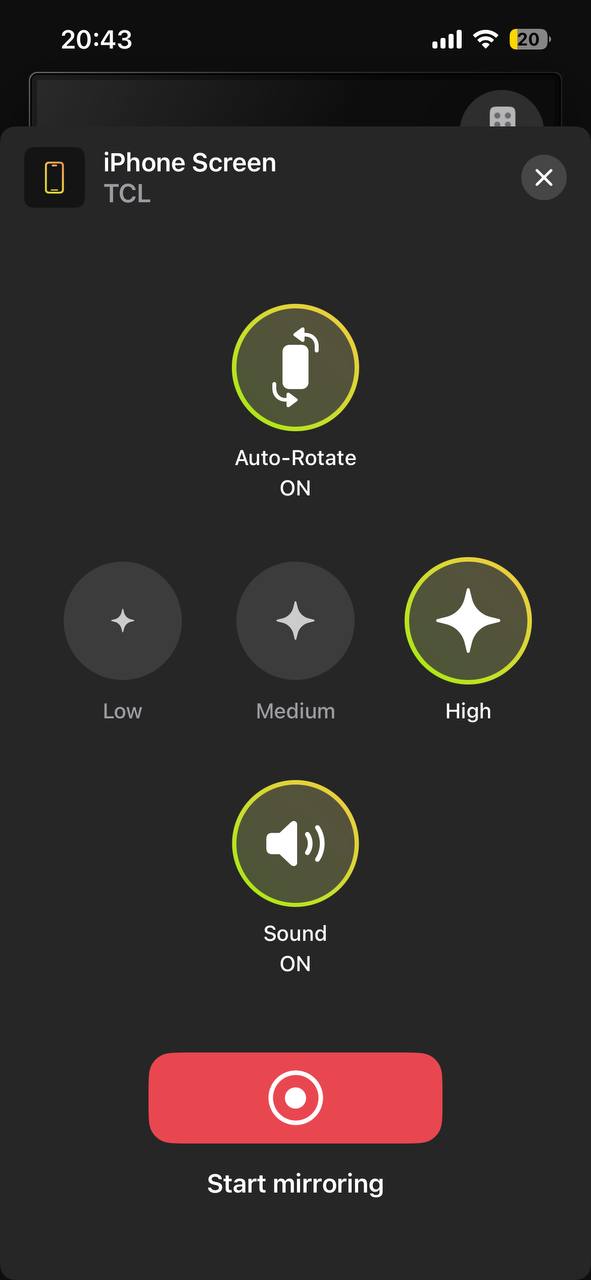
It’s built specifically for people who don’t have an Apple TV or an AirPlay-compatible screen, and it lets you mirror your iPhone or iPad to Chromecast, Fire TV, Roku, and DLNA-enabled smart TVs (Samsung, LG, Sony, Hisense, and others).
Don’t install another app until you check whether AirPlay is supported and enabled in the TV’s settings. If it is, turn off any VPN and make sure neither device is on a guest Wi-Fi network, since router isolation can keep the TV out of the iPhone’s list.
The annoying downside is that a TV can play videos sent from an iPhone and still never appear under Screen Mirroring, because apparently “casting” needed several incompatible meanings.
@samthecircuit is right about Chromecast. If you only want YouTube or another supported app on the TV, use that app’s Cast or AirPlay button instead of Control Center. That may work even when full-screen mirroring does not.
For your entire iPhone screen, the receiver specifically needs AirPlay. If the TV only supports Chromecast, no iPhone setting will magically add it to that list. You’ll need an AirPlay-capable streaming box, a compatible mirroring app, or a wired HDMI connection.
Try another iPhone or iPad on the same network before changing more settings. If the TV appears there, the problem is probably on your iPhone. If it stays missing, focus on the TV or router. That quick test can save a lot of random resetting.
The Chromecast versus AirPlay distinction mentioned above is the key, but both devices do not literally have to use Wi-Fi. A TV connected by Ethernet can still appear, provided its wired connection and your iPhone’s Wi-Fi are on the same local network. Mesh systems, Wi-Fi extenders, guest networks, and routers supplied by an ISP sometimes separate devices even though the network names look related.
Check whether the TV recently installed an update or is waiting for you to accept new terms. Some sets stop advertising AirPlay until their setup prompts are completed. Open the AirPlay settings on the TV, switch AirPlay off and back on, then leave that settings page and reopen Screen Mirroring on the phone. Make sure the TV is fully awake rather than sitting in a low-power standby mode.
If other Apple devices can see the TV but your iPhone cannot, forget the Wi-Fi network and reconnect to it. I would leave “Reset Network Settings” as the last step because it removes saved Wi-Fi networks and related settings. If no Apple device can find the TV, resetting the phone is unlikely to accomplish much. At that point, test with an HDMI adapter or an AirPlay receiver rather than spending hours trying to make a Chromecast-only television appear in a menu it was never designed to join.
Even the wired HDMI fallback isn’t bulletproof. Netflix and a few others will throw a black screen or ‘not permitted’ error over the adapter too, not just over mirroring. So if streaming a specific app is the whole point, check that app’s own AirPlay button before you buy any hardware.
Don’t waste time forcing both devices onto the same Wi-Fi band. A phone on 5 GHz and a TV on 2.4 GHz should still discover each other if the router places both on the same LAN and passes multicast traffic.
Check the TV’s AirPlay access setting, not only the main AirPlay on/off switch. Set access temporarily to “Anyone on the Same Network” rather than “Home Only” or a similar restricted option. If the TV has a reset option for paired AirPlay devices, use that too, since an old authorization record can block a new connection without clearly explaining why.
Then reopen Screen Mirroring with the TV fully awake. If it appears after changing access permissions, pair it again using the code shown on the television.
If the TV never appears, that is a discovery problem. If it appears but refuses to connect, that is usually permissions, pairing, or compatibility. Don’t waste time changing mirroring quality or hunting for a pairing code when the receiver is missing entirely.
First, check the names carefully. AirPlay devices sometimes show up under a room name such as “Living Room” or under the name of an attached streaming box, not the television’s brand. Then perform a real cold restart of the TV. Using the remote often leaves the network hardware in standby, so unplug the set briefly and reconnect it.
A useful router test is to put the iPhone and TV on a different, simple network, such as a hotspot from a second phone. If the TV suddenly appears, your home router is blocking device discovery even though both devices seem connected normally. Look for wireless isolation, separate IoT networks, guest mode, or multicast filtering. If it stays invisible on the test network, stop blaming the router and verify that the exact TV model has an AirPlay receiver.
@kerneltester3156zone has the right idea about testing another Apple device. I’d do that before resetting network settings. A reset creates extra work and cannot make a Chromecast-only or DLNA-only TV become an AirPlay target. If the set lacks AirPlay, use its supported casting method or an external receiver instead of trying to force it into the iPhone’s Screen Mirroring list.