My hard drive suddenly stopped opening, and it has important family photos, work files, and personal documents I really need. I want to try safe at-home data recovery before paying for a professional service, but I do not want to make the drive worse. What steps, tools, or recovery software should I start with for hard drive data recovery at home?
If the files matter, stop writing to the drive right now. I mean it. No installs, no downloads, no moving stuff around. Every new write cuts into what you might still get back.
Old HDDs sometimes give you a second chance. I’ve seen drives come back enough for a partial pull, and a few gave up everything cleanly. It depends on what failed and how much you mess with it after the problem starts.
First thing I’d check is whether the drive is dying at the hardware level or if this is more of a file system mess.
Watch for these signs:
- Repeated clicking
- Spin up, spin down, over and over
- Grinding sounds
- Slow reads, like absurdly slow
- Random disconnects
- Drive vanishes from Windows or macOS
A normal HDD should not sit there clicking like a metronome. If it does, I’d treat it as unstable.
Next, look at the drive’s health info here:
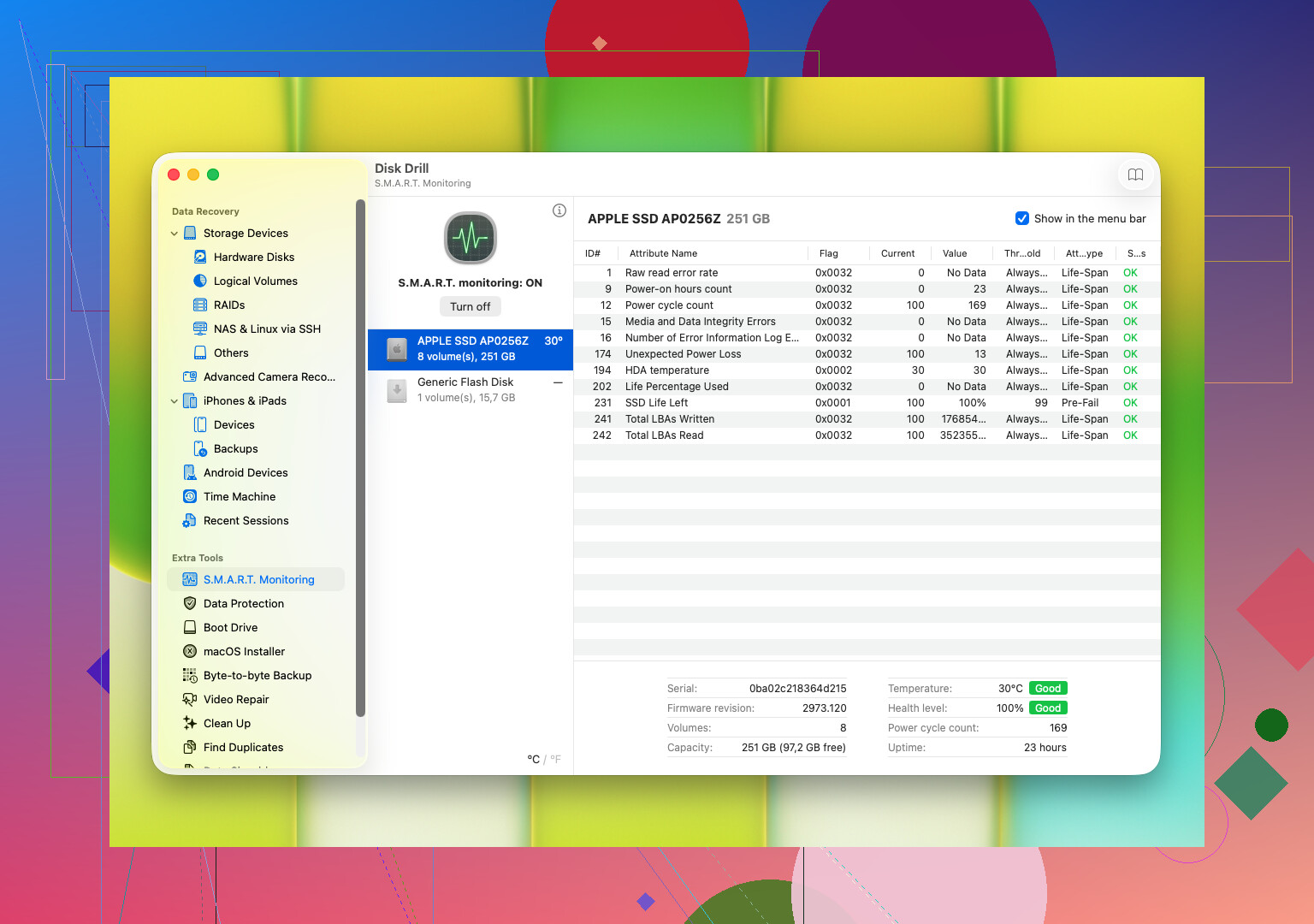
S.M.A.R.T. data
S.M.A.R.T. gives you the drive’s internal error reporting. You’re looking for stuff like bad sectors, reallocated sectors, read errors, heat issues, and signs the platters or heads are having a rough time. Most disk tools will read it.
If you see obvious failure signs, especially clicks or S.M.A.R.T. values getting worse fast, don’t hammer it with repair tools. Don’t run CHKDSK. Don’t keep rescanning it for hours. Don’t try random fixes from some 2012 blog post. I did tht once on an old 2 TB Seagate and it made the drive less readable, not more.
At that point, the safer move is one of these:
- Make a byte for byte image right away, if the drive still reads
- Hand it off to a recovery shop if the data is worth real money
If the drive still responds normally enough, then move to recovery software fast. For an easier starting point, I’d use Disk Drill.
What stood out to me with Disk Drill was the workflow. It rolls multiple scan methods together, reads common Windows and macOS file systems, and lets you preview files before recovery. Preview matters more than people think. If your photos open and your docs render, you know you’re not recovering garbage.
It also helps with a couple of things people skip:
- Reading S.M.A.R.T. info
- Creating a byte for byte backup image of a shaky drive
If the disk is starting to fail, imaging first is often the less bad option.
The basic recovery flow is simple enough:
- Connect the HDD
- Install Disk Drill on a different drive
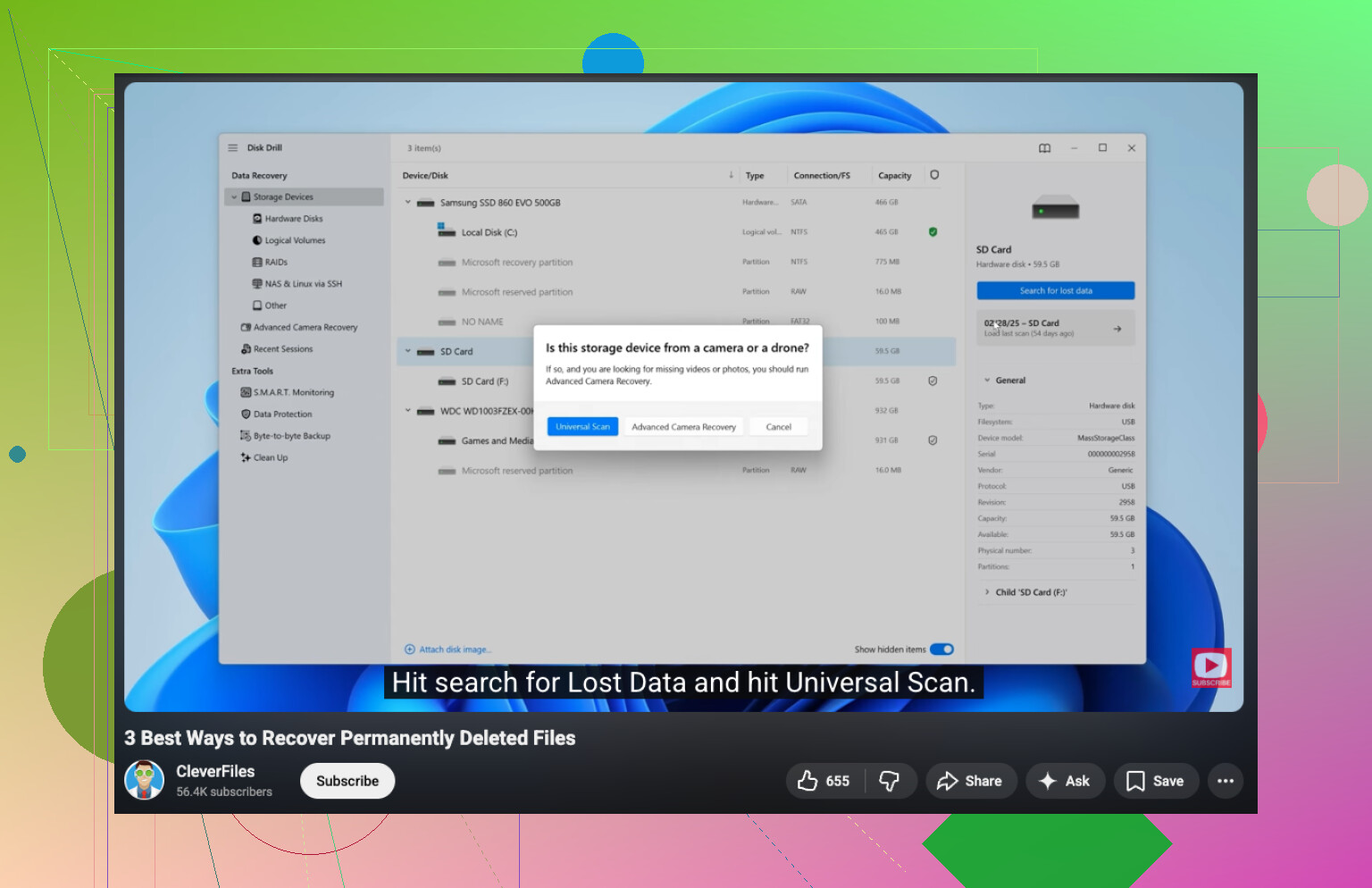
- Open it and pick the bad HDD from the list
- Start the scan
- Let it finish, or look through found files while it runs
- Preview what you need
- Recover everything to another drive, never back onto the same HDD
And yeah, this part matters. Don’t restore recovered files onto the problem drive. You’d be writing over the same disk you’re trying to save data from.
One more stop sign. If Disk Drill loses the drive, the scan hangs, or the drive noise gets worse while reading, stop. Right there. Those are the cases where software stops being helpful and starts making things worse.
4 Likes
Stop using the drive first. If it’s your system drive, shut the PC down. If it’s an external drive, unplug it.
I agree with @mikeappsreviewer on one big point, skip CHKDSK at the start. I disagree a bit on going straight into a full scan if the drive is flaky. Full scans pound weak drives for hours. My first move is simpler.
-
Try a different cable, port, or enclosure.
A bad USB bridge kills access all the time. I’ve had two “dead” externals come back from a $12 SATA-to-USB adapter swap. -
Check if BIOS or Disk Management sees it.
If BIOS sees it, your odds are better.
If Disk Management shows “unallocated” or RAW, your files might still be there. -
Boot from another drive or USB OS.
Do not keep booting from the bad disk if it’s internal. Every startup hits it again. -
Copy the most important folders first.
Do not chase perfection. Grab family photos, tax docs, work files first. Time matters. -
If normal copy fails, recover deleted and lost hard drive files with Disk Drill.
Install Disk Drill on a healthy drive. Recover to a second healthy drive. Preview files before saving. That saves time and tells you if the files are intact. -
If the drive reads for a few minutes, work in short sessions.
Heat and long reads make some HDDs worse. Weird, but I’ve seen it. -
If the drive clicks, disappears, or stalls hard, stop.
At that point home recovery gets risky fast.
If you want a quick visual walkthrough, this helped a freind of mine:
watch a step by step hard drive file recovery guide
Best search phrase for your issue:
recover lost or permanently deleted files from a hard drive
One more thing, never save recovered files back to the same disk. People do this, then wonder why the pics are corrupt.
I’d add one thing @mikeappsreviewer and @stellacadente only touched on lightly: figure out what kind of failure this is before you do any serious reading from it.
If the drive shows the correct size in BIOS or Disk Utility but the partition is missing, that’s often way more recoverable at home than a true mechanical fail. In that case, I would actually start with a read-only partition check tool, not a repair tool. Something like TestDisk can sometimes show whether the partition table just got mangled. Important part: inspect, don’t “write changes” unless you really know what you’re doing. One bad click and you can make recovery messier.
If the drive mounts sometimes, skip broad folder browsing in Finder/File Explorer. That causes tons of random reads. Go straight for known file paths or use recovery software from another drive. Disk Drill is fine for this because you can target the bad disk, preview files, and recover to a separate disk without poking around all over the failing one. That part matters more than ppl think.
One mild disagreement: “copy the most important folders first” is smart only if the drive is reasonably stable. If reads are already timing out, imaging the disk first is often safer than cherry-picking files.
Also, check the obvious power issue stuff. Desktop HDDs with weak power bricks do weird half-dead behavior. Seen it more than once.
For more real-world hard drive recovery discussion, this thread is decent:
practical Facebook advice on recovering files from a failing hard drive
And yeah, no freezer tricks. That zombie advice needs to die.