I updated my iPhone and now I want to see how much storage the update used and what’s taking up space. I’m not sure where to check in iPhone settings after the update, and I need help finding my storage details and available space.
iPhone storage looks simple until you try to figure out why the math feels off. I went through this on my own phone, and the numbers moved around enough to get annoying. Here’s the clean version of how to read it.
Where to check iPhone storage
Open Settings, then General, then iPhone Storage.
This is the screen you want. At the top, iOS shows a colored bar with categories like Photos, Apps, System Data, and a few others. Under it, you’ll see something like 54 GB of 256 GB Used. Scroll lower and you get the app-by-app list with the exact space each one takes. On most phones I’ve looked at, Photos sits near the top and eats the biggest chunk.
If you only want the device size and not the full breakdown, go to Settings, General, About. Look for Capacity. That number is the phone’s built-in storage size.
Why the storage number keeps shifting
This part threw me off at first. The total changes because iOS is always writing temp files, clearing caches, and moving stuff around in the background. System Data is the main troublemaker here. It grows, shrinks, then grows agian.
If the number looks wrong, restart the phone and check again. After a reboot, the system usually recalculates storage more cleanly. If you check while apps are syncing, downloading, or processing photos, the reading can look messy.
Does iCloud count toward iPhone storage
No. They are separate.
Your iPhone storage is the physical space inside the device. iCloud is online storage tied to your Apple account. So if your phone has 64 GB, buying 2 TB of iCloud does not turn the phone into a 2 TB phone. It only gives you a place to offload files, backups, and synced content.
To see iCloud usage, tap your Apple ID at the top of Settings, then open iCloud.
Why a nearly full iPhone starts feeling slow
I noticed this firsthand. Once free space got low, the phone felt off. The camera took longer to open. Apps reloaded more often. Scrolling got choppy in spots.
iOS needs spare room for cache files, updates, and background tasks. When storage gets squeezed, the system has less working room. So low storage is not only a file problem. It affects day-to-day performance.
If your phone feels laggy and storage is almost full, check storage first before blaming battery age or iOS bugs.
What helped me free up space
The suggestions inside iPhone Storage, like offloading unused apps, didn’t do much for me. My biggest issue was media, mostly photos, screenshots, and videos.
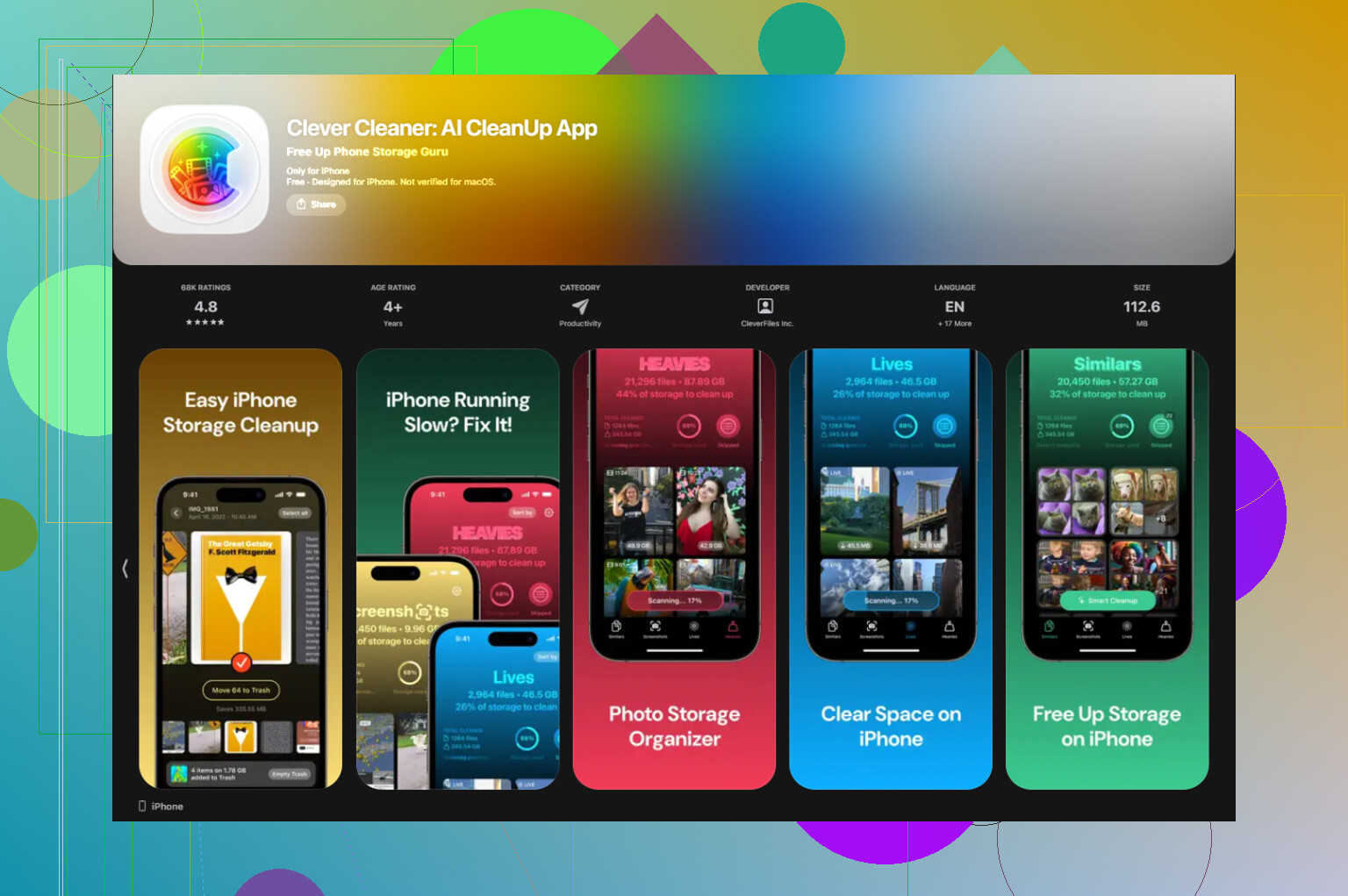
I ended up using Clever Cleaner. What mattered to me was seeing where the space was going in plain numbers.
The Screenshots section shows file sizes before deletion, which made it easy to spot useless image piles. The Heavies section sorts the largest files first, so giant videos jump right to the top. The Similars section groups near-duplicate photos and picks a Best Shot, which helped with burst-photo clutter on my phone. Processing stays on the device, so nothing gets uploaded elsewhere.
After I cleared around 15 GB, the phone stopped dragging so much and the storage reading settled down.
What System Data means
System Data is the junk drawer category. It includes cached app files, Siri data, Safari website data, temporary system files, and downloaded bits from streaming or social apps.
Apple does not give you one neat button to wipe all of it. Some of it drops after a restart. Some of it sticks.
What I’ve seen help:
Clear Safari data in Settings, Safari, Clear History and Website Data.
Delete and reinstall apps with heavy cache use, especially social media apps. Those tend to pile up local data fast.
Then check iPhone Storage again after the phone has had a minute to settle.
That won’t make the category vanish, though it often cuts it down enough to matter.
1 Like
After an iPhone update, look in one extra place people skip.
Go to Settings > General > iPhone Storage. Wait 20 to 60 seconds. iOS re-checks usage after big updates, so the graph might look off at first. If you updated today, the number often shifts a bit while the phone finishes cleanup and indexing.
If you want to see whether the update file is still sitting on your phone, scroll through the app list and look for an item named iOS or Software Update. On some versions, Apple leaves the downloaded update package there until install finishes cleanly. If you see it, tap it. If the install is done and the file is still hanging around, you might get a delete option.
One small disagreement with @mikeappsreviewer, restarting helps, but it does not always tell you what the update used. The better clue is comparing System Data and available space a few hours later. Updates often add temp files first, then remove some later. So check storage now, then recheck tonight or tomorow.
For available space, use the number at the top of iPhone Storage. Subtract Used from Capacity. That is your free room.
If storage is still tight after the update, sort out large photos, videos, and duplicates first. That usually beats chasing random cache files. If you want a cleaner app, Clever Cleaner is worth a look, and this writeup on free iPhone cleaner tools for clearing storage fast covers what it does.
Also check Settings > Privacy & Security > Analytics & Improvements > Analytics Data only if you suspect logs exploded after the update. Rare, but I’ve seen it.
One extra place to check that @mikeappsreviewer and @suenodelbosque barely touched is Battery right after the update. Not for storage directly, but if Photos, Files, or System Services are spiking, your phone is probably still indexing and the storage totals can look kinda fake for a while.
For the actual space used by the update, iPhone sadly does not give you a neat “this update took 4.2 GB” line item. Apple makes this way more annoying than it should be. The closest way is:
- Check Settings > General > iPhone Storage
- Look at iOS / System Data / app sizes
- Recheck a few hrs later after indexing finishes
Also, open the Files app and check On My iPhone. Sometimes downloaded stuff, update-related leftovers, or giant app folders are easier to spot there than in Settings. Most people never look there.
If your storage still looks bloated after the update, I’d focus less on the update itself and more on hidden junk like duplicate photos, screenshots, and huge videos. That’s where Clever Cleaner is actually useful. It makes it easier to spot what’s eating space without digging through 900 menus. This see Clever Cleaner free up iPhone storage fast video shows it pretty clearly.
Also, tiny correction to the “just restart it” advice. Rebooting helps, sure, but sometimes the numbers stay weird until the phone is plugged in and idle for a bit. iOS loves doing cleanup on its own schedule, which is super annyoing.
One thing I’d add to what @suenodelbosque, @himmelsjager, and @mikeappsreviewer covered is this: check whether the update changed your message attachments and offline media, not just System Data.
Go to Settings > General > iPhone Storage and tap into:
- Messages for large photos, videos, GIFs, and attachments
- TV, Music, Podcasts, Netflix/Spotify-style apps for downloads that may have re-synced after the update
I slightly disagree with the idea of chasing the update file too hard. Most of the time, the “missing space” after an update is not the installer itself. It’s reindexing, rebuilt caches, photo analysis, and apps re-downloading support files.
If you want a before-and-after reality check, compare:
- Available space now
- Top 5 largest apps/categories
- Messages attachments
- Downloaded media apps
Also worth checking: Settings > Camera > Formats and your photo/video settings. Some people notice storage pain after an update only because their camera keeps filling the phone faster than expected.
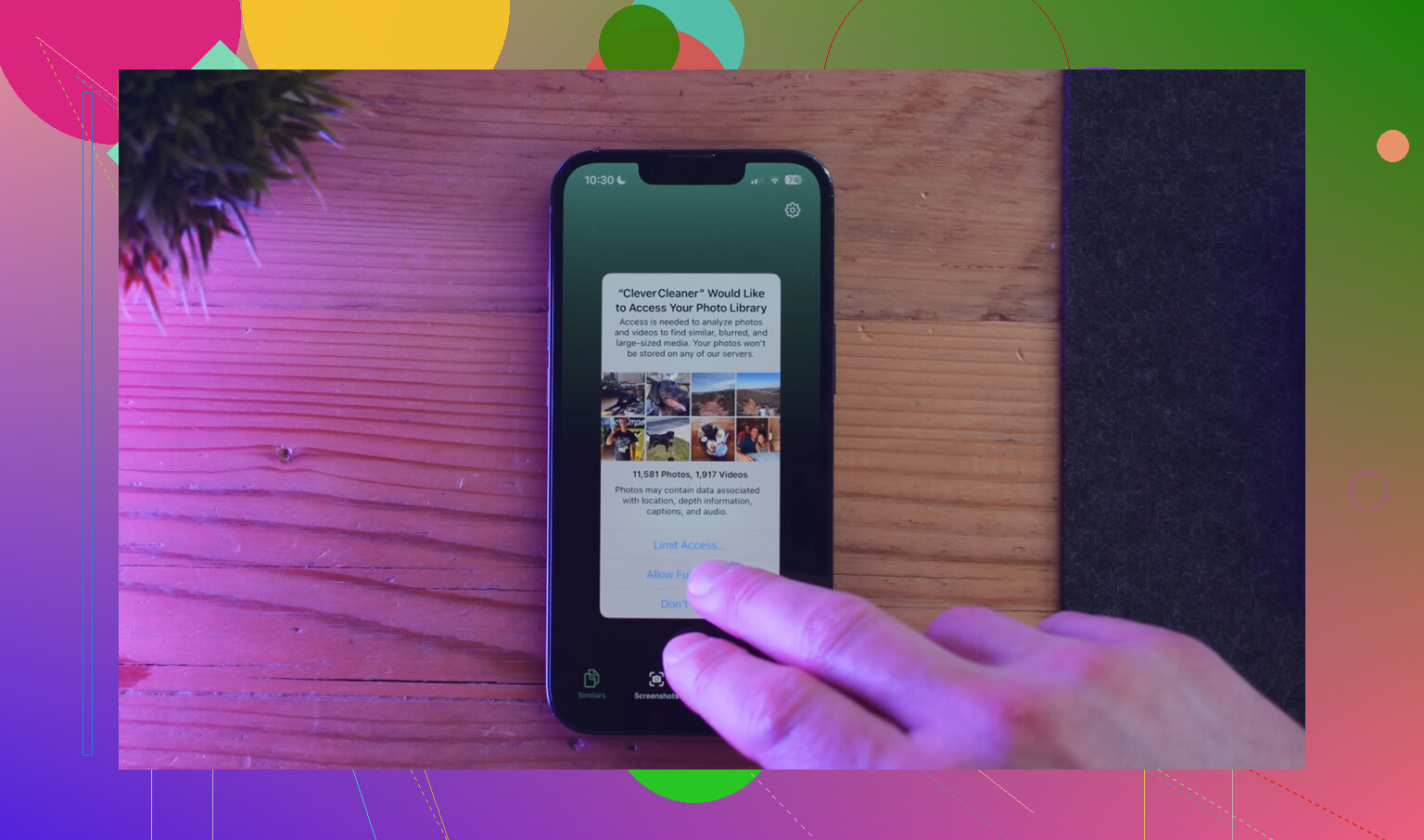
If you want a faster cleanup view, Clever Cleaner is decent for spotting heavy files and duplicate photos.
Pros:
- easy to scan large media
- useful for duplicate/similar photos
- simpler than digging through iOS menus
Cons:
- won’t magically shrink true System Data
- another app to install when storage is already tight
- cleanup suggestions still need your judgment
So yes, use iPhone Storage first, but if numbers still feel weird, look at attachments and offline downloads before blaming iOS itself.