I’m trying to clear the Twitter/X cache on my iPhone because the app is running slow and taking up storage, but I can’t find the cache-clearing option anywhere in settings. Did Twitter remove it, or is there another way to clear the app cache on iOS without deleting everything?
If X is eating a bunch of space on your iPhone, the first thing to know is that clearing its cache is usually safe. It won’t delete your posts, followers, bookmarks, or accounts. That stuff lives on X’s servers. You’re mostly just removing temporary files the app saved so images, videos, GIFs, and opened links load faster next time.
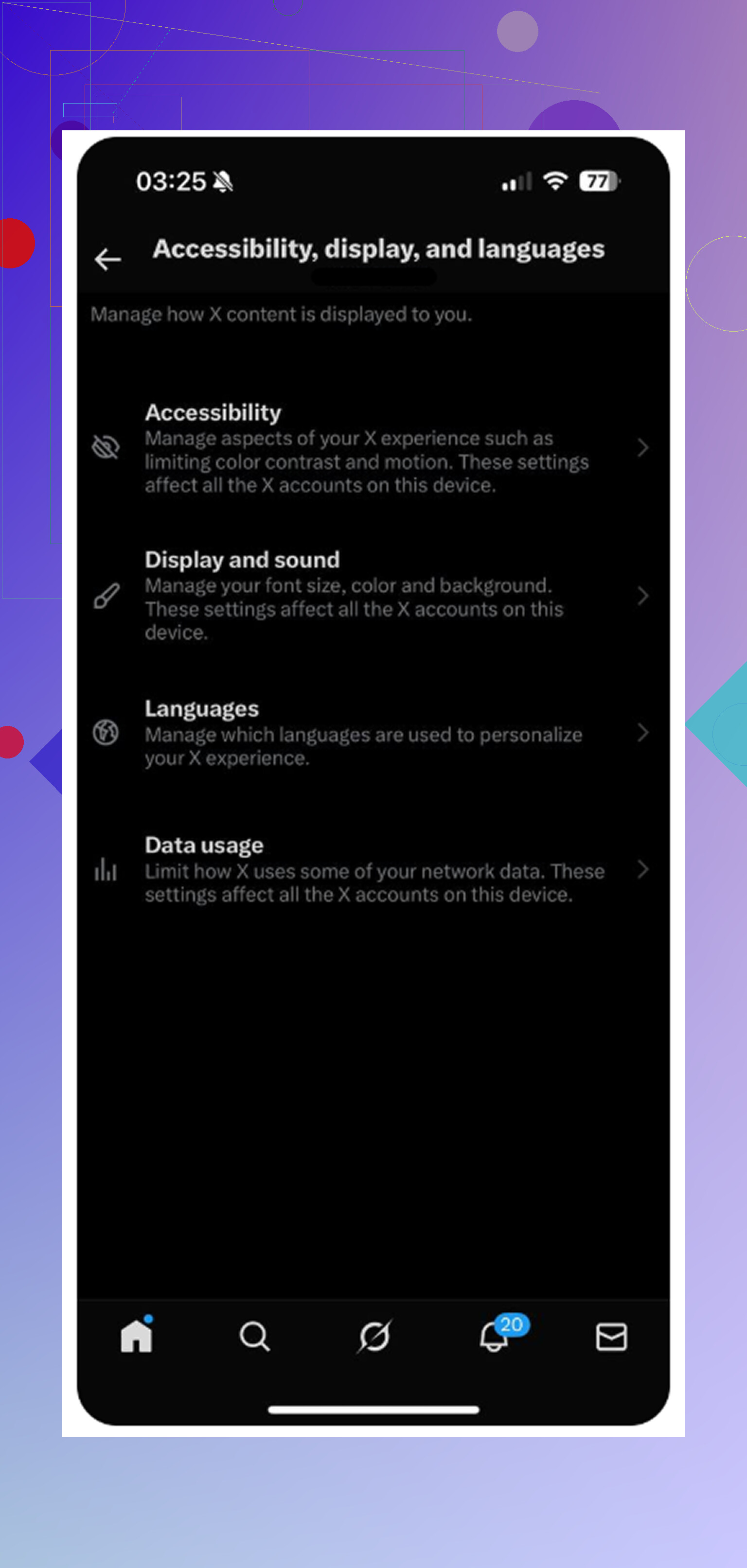
The in-app cache controls are kind of buried. Open X, tap your profile icon in the top-left, then go to Settings and Support > Settings and privacy > Accessibility, display, and languages > Data usage.
Near the bottom, there should be a Storage section with two choices:
- Media storage is the cache for images, GIFs, video previews, and similar stuff you’ve scrolled past. If you tap Clear media storage, it removes those temporary files and should not log you out.
- Web storage is for pages and cookies from links opened inside X’s built-in browser. Clear web page storage usually just removes cached site data. Clear all web storage also clears cookies, so that one can log you out of sites you opened through the app.
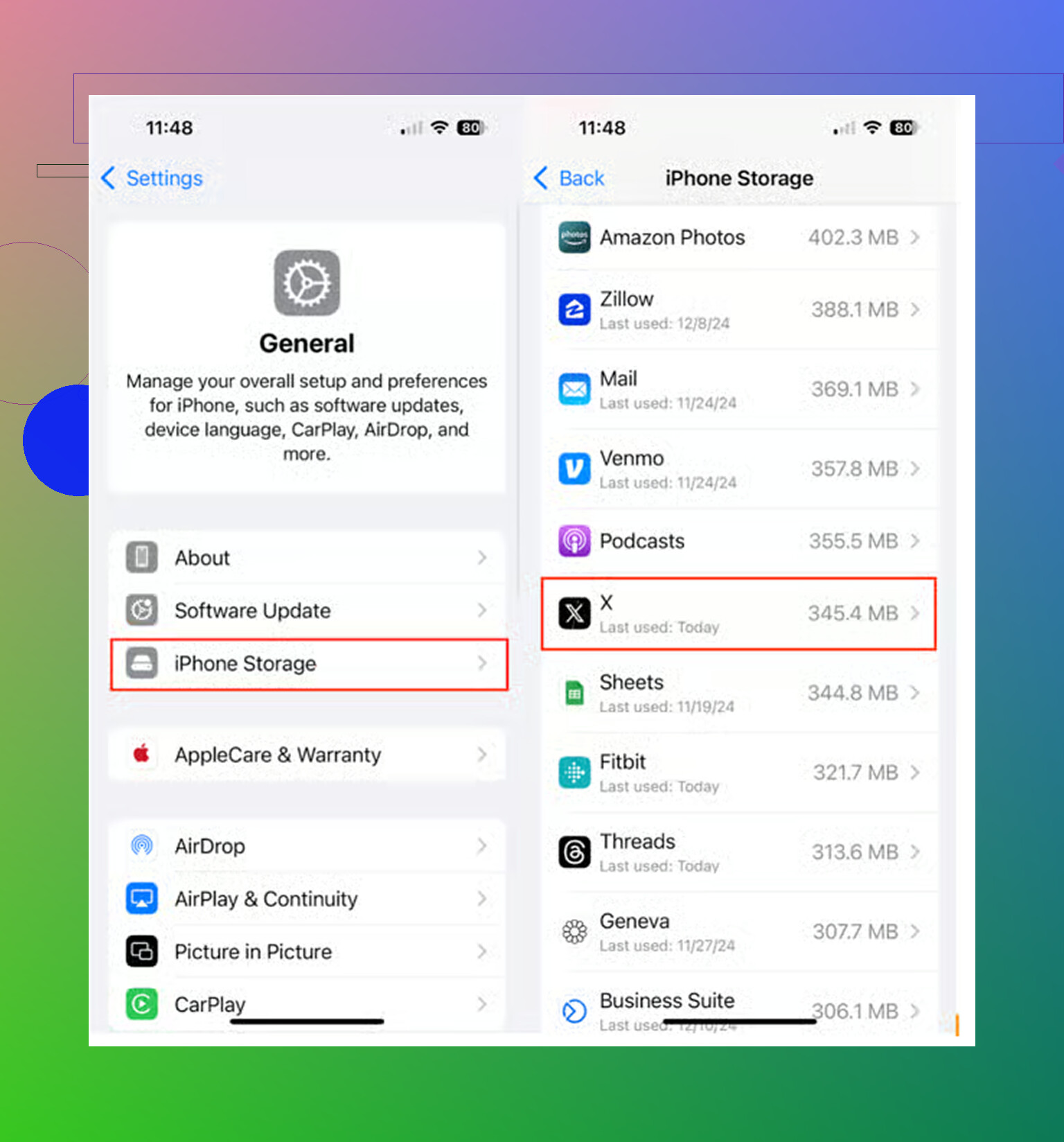
If X is showing something ridiculous like 10GB or 20GB in iPhone Storage, the in-app buttons may not be enough. In that case, try the iOS offload method instead. Go to iPhone Settings > General > iPhone Storage > X, then tap Offload App. Don’t use Delete App unless you actually want to remove it completely.
Offloading removes the app itself but keeps the important local data, like your saved login info. After that, tap Reinstall App. This often clears out the huge cached junk better than X’s own storage buttons, while still keeping you signed in.
That said, clearing the X cache may not fix the bigger storage problem. I ran into that myself. I cleared the cache, got a little space back, and then realized the real problem was my photo library. Screenshots, duplicate shots, random videos, near-identical pictures, all of that adds up way faster than one app cache.
A lot of cleanup apps are annoying because they scan your phone for free, then ask for a weekly subscription when you actually want to delete anything. The one I found most useful was Clever Cleaner, mainly because it’s actually free. No ads, no hidden paywall, no “pay to finish the cleanup” nonsense.
The Heavies section is handy because it sorts photos and videos by file size, so you can immediately see what’s taking up the most space. It also shows the exact size of each file, including screenshots, which makes it easier to decide what’s worth deleting.
The Similars section is probably the best part. It groups together photos that are almost the same and helps you keep the best one instead of manually digging through ten versions of the same shot. It also processes everything on the device, so your photos aren’t being uploaded somewhere else.
So yes, clear the X cache if the app is laggy or taking up too much space. It’s safe and sometimes helps. But if your iPhone is constantly warning you about storage, check your photos too. Cleaning up the media library usually frees up way more space than clearing app cache alone.
14 Likes
Deleting and reinstalling is the cleanest fix if the cache button is gone. Offload can help, but it often leaves the app’s Documents & Data behind, so don’t expect it to fully reset X’s storage. Before deleting, make sure you know your X password and have access to your 2FA method, because reinstalling may sign you out. iOS doesn’t give you a proper “clear cache” button for every app, so if X removed or hid that menu on your version, your realistic choices are in-app storage controls if they appear, offload for a lighter reset, or delete/reinstall for the full cleanup.
Don’t start by deleting your X account, clearing Safari history, or messing with “delete Twitter history” tools. None of that is the same as clearing the X app cache, and it can create extra problems without freeing the app storage you’re looking at.
The annoying bit is that iOS treats app storage pretty bluntly. If X’s own media/web storage buttons aren’t showing, you can’t force iOS to expose a hidden cache switch for it. I agree with the reinstall advice, but I’d check one thing first: go to Settings > General > iPhone Storage > X and look at whether the space is mostly the app size or Documents & Data. If the app itself is small but Documents & Data is huge, offloading may not do much because that’s the part iOS often keeps.
A quicker “lazy” attempt is: force close X, restart the iPhone, then open X again and let iPhone Storage refresh after a few minutes. Sometimes the reported number is stale. If it still shows a big storage number and the in-app cache menu is missing, delete/reinstall is the only real reset. Just make sure your login and 2FA are sorted first, because that is the step most people forget until they’re stuck outside the account.
If you’re almost out of storage already, make a little room before deleting X, because reinstalling it can be the annoying step that fails. I’d follow @caminantenocturno’s delete/reinstall advice, but only after checking your password/2FA and freeing a small buffer first, since iOS won’t give you a separate hidden cache button when X doesn’t show one.
Don’t expect clearing the X cache to give back much space in the first place. On most iPhones the app cache sits in the low hundreds of megabytes, not the multi-gigabyte monster people imagine, so you’ll clear it, feel good for a second, and watch the storage bar barely move. @himmelsjager already nailed the important check: look at whether it’s the app or the Documents & Data that’s bloated before you touch anything. If Documents & Data is the fat part, offload won’t save you and reinstall is the only clean reset.
The bit I’d push back on slightly is treating this as an X problem at all. If your phone keeps nagging about storage, one app is rarely the culprit. The photo cleanup angle from @mikeappsreviewer is honestly more useful than the cache stuff, and something free like Clever Cleaner is fine for spotting the big video files fast, just don’t expect it to fix a laggy app. Different problem entirely.