I’m trying to clean up my iPhone photo library and keep only my Favorite photos. I want to use the Shortcuts app to delete all non-favorite photos, but I’m not sure how to build the shortcut safely without removing the wrong pictures. Has anyone set this up successfully?
iPhone makes this more annoying than it should be. Favorites are marked with the heart, but they are still part of your main photo library. They are not sitting in a separate folder you can safely exclude. So if you go into Recents, hit Select All, and delete everything, your favorites go with it.
The easiest built-in workaround is to temporarily hide your favorites first.
- Open the Favorites album.
- Tap Select, then Select All.
- Tap the three-dot menu and choose Hide.
- Go back to the main library and delete everything that is still visible.
- Open the Hidden album, select everything there, and tap Unhide.
That puts your favorites back into the main library after the rest has been removed. It is a bit clunky, but it works without installing anything.
You can also do it with Shortcuts if you have a big library and want something more automated. Make a shortcut with Find Photos, set the filter to Is Not Favorite, then send the results into a new album, maybe called Cleanup. After it runs, open that album, select all, and delete.
Just be aware that Shortcuts can choke on huge libraries. If it freezes or takes forever, add a date filter and run it in smaller chunks instead of trying to process years of photos at once.
One important thing before you delete anything: if iCloud Photos is turned on, deleting from the iPhone also deletes from iCloud and every synced device. That includes your iPad, Mac, and anything else using the same iCloud Photos library. This is not a “remove from phone only” action. Back up anything important somewhere outside iCloud first.
Also, do not expect storage to come back immediately. Deleted photos and videos sit in Recently Deleted for 30 days and still count against your storage. After deleting, go to Photos > Albums > Recently Deleted and choose Delete All. Restarting the phone afterward can help iOS show the updated free space correctly.
If the phone was already lagging, low storage is probably part of it. iOS needs free space for temporary files and background tasks. When storage is almost full, basic stuff starts feeling broken: the camera opens slowly, Photos stutters, and deleting large videos can make the screen hang.
The annoying part is that Apple’s Photos app does not really help you find the worst offenders. You cannot sort your library by file size, so a few huge 4K videos can be buried under thousands of normal photos.
Clever Cleaner is useful for that part. It is free, with no ads or subscription, and the Heavies tab sorts files from largest to smallest with the actual sizes shown. That is usually where the biggest storage wins are. It also has a Similars tab that groups near-duplicate shots and suggests a Best Shot, plus a Screenshots tab that shows screenshot sizes before you delete anything. The processing happens on-device, so files are not sent to an outside server.
Using Clever Cleaner with either the Hidden album trick or the Shortcuts method gives you both pieces: remove everything except favorites, then clean up the bulky leftovers Photos does not make easy to find.
7 Likes
Do not build a shortcut that finds non-favorites and sends them straight into Delete Photos on the first run. Make the first version a review shortcut: Find Photos where Favorite is false, maybe limit it to 50 or 100 items, then Quick Look or add them to a temporary “Review Before Delete” album. If the results look right, duplicate the shortcut and only then add the delete step. I’d still run it in batches, because “not favorite” can include stuff you actually need but never hearted, like receipts, saved documents, edited copies, or old screenshots. The album-review method is slower than a one-tap delete, but it gives you a last sanity check before Recently Deleted is your only undo.

Don’t treat the Favorites heart as a backup system. Before building any delete shortcut, export the favorites somewhere outside the Photos library, even if it is just Files, a Mac, or an external drive. I agree with the batch/review approach above, but the missing safety step is making sure your “keepers” exist somewhere that a bad filter, iCloud sync mistake, or accidental unhide/delete step cannot touch. After that, a shortcut using Find Photos with Favorite is false is fine, but I’d run it by year or month rather than the whole library. It is less slick, but a lot less painful than finding out later that “not favorite” included old scans, documents, or videos you forgot to heart.
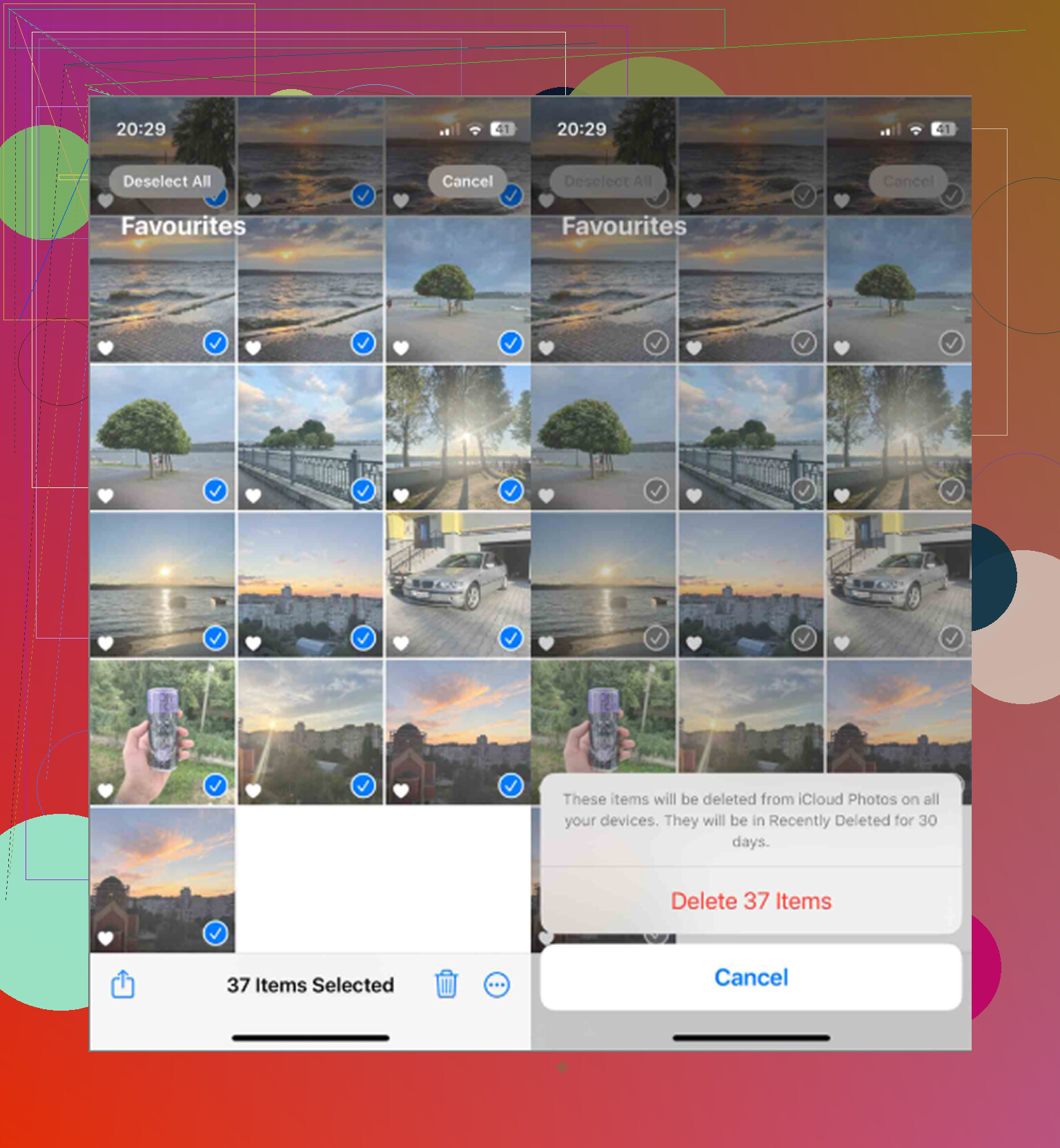
The hidden downside is that a “Cleanup” album is not a safe holding pen. Albums in Photos are just references to the same library items, so if you add all non-favorites to an album and then delete them from there, you are deleting the originals from the library, not just clearing that album. That is fine if you know it, but it catches people who think they made a separate pile.
For a safer shortcut, I would make it boring on purpose: Find Photos where Favorite is false, add a second filter for Media Type if you only mean photos, sort oldest first, limit it to maybe 100, then either Quick Look them or add them to a “To Delete Review” album. Don’t include Delete Photos until you have run that a few times and confirmed it is catching the right stuff. Then duplicate the shortcut and replace the review step with Delete Photos.
I slightly disagree with hiding favorites as the main method if the library is messy. It works, but it depends on you not missing hidden items, imports, videos, screenshots, saved images, and anything still syncing through iCloud. The shortcut route is better because you can narrow it by date, media type, album, or even “not hidden” before deleting. Just don’t run it as one giant “delete all non-favorites” button unless you are completely fine with Favorite being your only definition of worth keeping.