My iPhone storage is almost full, and I found a lot of old files and downloads I no longer need. I’m not sure where to find everything safely or how to remove it without deleting anything important. What’s the best way to delete old files on an iPhone and free up space?
You usually see “Storage Almost Full” right when you need the phone to work. I ran into the same mess, and iOS spreads your stuff across enough places to make cleanup slower than it should be. Here’s the short path I used to find old files and remove them without poking around forever.
Delete old files from the Files app
Open Files, then hit Browse at the bottom. The two spots worth checking first are:
- On My iPhone, for files saved on the device
- iCloud Drive, for files synced through iCloud
I’d start with Downloads inside On My iPhone. Mine had stale PDFs, random ZIPs, and email attachments I forgot existed.
For one file or folder:
- Press and hold the item
- Tap Delete
If you delete a folder, every file in it goes too, so double check before you tap.
For a batch cleanup:
- Tap the three-dot button in the top-right corner
- Choose Select
- Pick the files you want gone, or use Select All
- Tap the trash icon
Delete files, then finish the job so storage comes back
This part got me once. Removing files in Files does not give your space back right away. iPhone moves them into Recently Deleted, and they stay there for 30 days while still taking up storage.
To clear them for real:
- Go back to Browse in the Files app
- Find Recently Deleted under Locations
- Tap the three dots, then choose Delete All
Photos works the same way, annoyngly. If you deleted pictures or videos, open the Photos app and empty its Recently Deleted album too, or your free space won’t move much.
Remove files stored inside apps
If one app seems bloated, go here:
Settings > General > iPhone Storage
You’ll get a list of apps sorted by size. Tap any app and you’ll usually see two choices:
- Offload App, which removes the app but keeps its documents and saved data
- Delete App, which removes the app and all its stored files
Messages is one worth checking. In the same storage screen, scroll down and look for Review Large Attachments. I found old videos and file attachments there from text threads I didn’t need anymore. You remove those without wiping the whole conversation, which is nice.
See what is taking the most space
Here’s the part where the built-in tools felt weak to me. Files and Settings show totals, but they’re not great when your photo library is the thing crushing storage. On most phones, the heavy stuff is not documents. It’s 4K clips, bursts, screenshots, and years of photos.
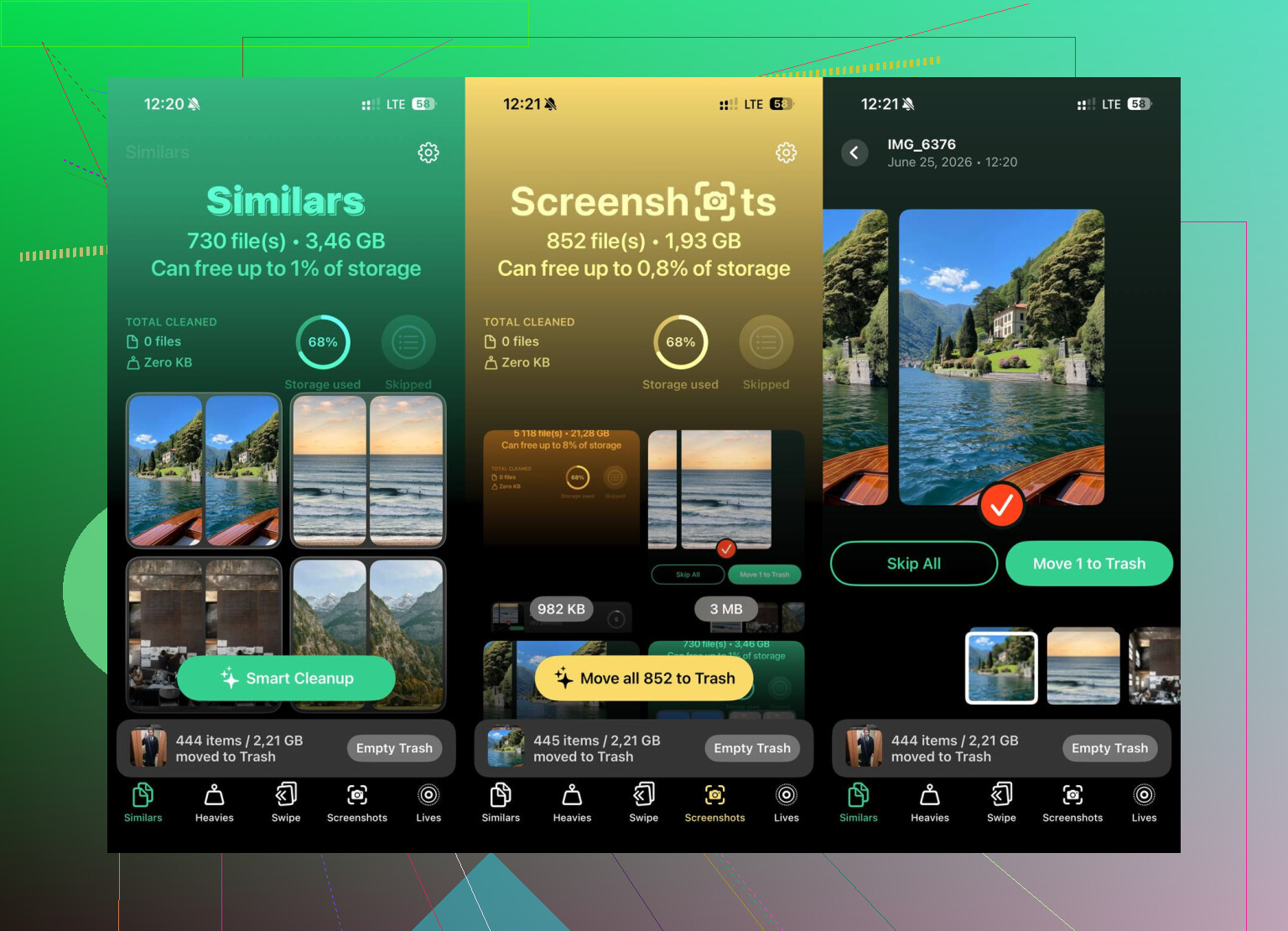
Clever Cleaner is one way to sort through that. It’s free, has no ads, and I didn’t hit a subscription wall. The parts I found useful were these:
- Heavies. This lists your biggest library items from largest to smallest, with file sizes shown. Big old videos jump out fast.
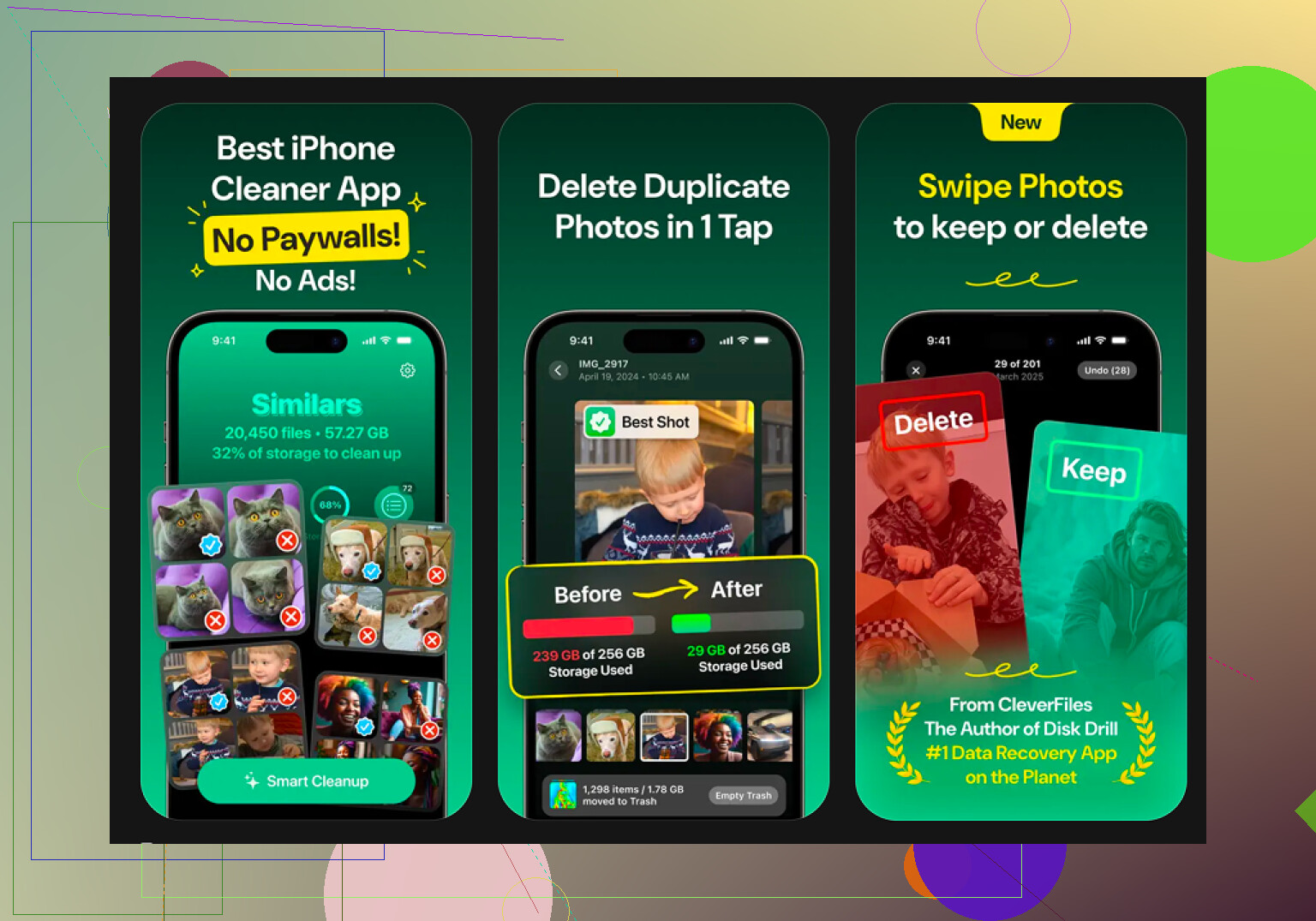
- Similars. It groups near-duplicate photos and marks a best shot, so you’re not comparing fifteen almost identical pics one by one.
- Swipe mode. This lets you work through the library month by month. Left to delete, right to keep. I liked this more than staring at my whole camera roll at once.
- On-device processing. Your photos stay on the phone. Nothing gets sent off to some outside server.
If the phone is packed and barely usable
I’d only do this when the device is crawling and cleanup is not enough. Go to:
Settings > General > Transfer or Reset iPhone > Erase All Content and Settings
This wipes the phone and puts it back to factory state. Back up anything you care about to iCloud or a computer first. Once you do it, there’s no undo.
After I cleaned Files, emptied both Recently Deleted sections, and trimmed the photo library, the storage number dropped a lot and the lag eased up pretty fast.
12 Likes
Start with the safest filter, sort by age, not by app.
Open Settings, tap General, tap iPhone Storage. Wait a minute. iOS builds a size map. Look for three things first.
-
Safari. Website Data gets bloated fast.
Settings > Safari > Clear History and Website Data. -
Podcasts, TV, Music, Netflix, Spotify, YouTube.
Offline downloads hide there. Open each app and remove old downloads inside the app. A 10 episode show batch is often 5 to 15 GB. People miss this alot. -
Voice Memos and GarageBand.
Old recordings eat space and do not stand out in Files.
I differ a bit from @mikeappsreviewer on one point. I would not jump to a full erase unless storage is wrecked and you already cleaned app downloads first. Most storage problems come from media caches, attachments, and offline content.
For safety, move keepers before deleting.
Upload docs to iCloud Drive, Google Drive, or a computer.
For photos, export favorites first if you feel nervious.
If your photo library is the main problem, Clever Cleaner is worth a look. It helps sort large videos, duplicates, and similar shots faster than scrolling forever.
If you want a step by step video, use how to free up iPhone storage and delete old files.
Biggest wins are usualy app downloads, message attachments, and videos. Those free space fast.
I’d add one thing @mikeappsreviewer and @boswandelaar only touched on indirectly: check mail attachments and downloaded files from third-party apps, because those are sneaky.
A lot of “old files” on iPhone are not sitting neatly in the Files app. They’re buried inside apps like Gmail, Outlook, WhatsApp, Telegram, Dropbox, Kindle, PDF readers, even Canva or Adobe apps. If you ever opened a file there, some apps keep local copies forever. Annoying, but yep.
What I’d do first, safest order:
-
Settings > General > iPhone Storage
- Wait for the bar graph to load
- Tap the biggest apps one by one
- Look for apps that say Documents & Data is huge
-
Open those apps directly
- In WhatsApp/Telegram, clear old media/downloads
- In mail apps, remove saved attachments if possible
- In streaming or cloud apps, delete local/offline files
-
Use search in Files
- Search terms like:
.pdf,.zip,.mp4 - That’s faster than digging folder by folder, imo
- Search terms like:
-
Check Notes app
- People forget Notes can store scanned docs, PDFs, and big attachments
-
Look at Books app
- Downloaded PDFs and ebooks can pile up there too
I slightly disagree with going nuclear too early. Full reset is kinda overkill unless your phone is acting completley broken.
If photos/videos are the real storage hog, Clever Cleaner is probly the faster route since it helps sort duplicates, similar pics, and big videos without endless scrolling. Also, this thread on real user feedback on a truly free iPhone cleaner with no ads is worth skimming before you install anything.
Biggest rule: delete in small batches first, then re-check storage. Safer, less panic.