Facebook is taking up a lot of storage on my iPhone, and offloading the app didn’t clear enough space. I’m trying to free up iPhone storage without losing anything important, but the Facebook app data keeps staying large. What else can I do to reduce Facebook storage safely?
Facebook can take up a weird amount of space on an iPhone, and it usually catches people off guard. The annoying part is that clearing it is only part of the fix, because the app will start rebuilding that storage again as soon as you use it.
Clearing Facebook data will not delete your account
Your Facebook account, friends, profile posts, photos, saved items, and similar stuff are stored on Facebook’s servers. They are not sitting only on your iPhone. So clearing local app data does not remove your account or wipe your saved posts.
What gets removed is the temporary junk the app keeps on the phone, mostly cache files used to make feeds, videos, images, and pages load faster.
What you can actually do on iPhone
iOS does not give you a simple “clear cache” button for most third-party apps, including Facebook. So you basically have two choices in Settings.
Offload Facebook
Go to Settings > General > iPhone Storage > Facebook, then choose Offload App.
This removes the app itself but keeps its Documents and Data. That means you may stay logged in after reinstalling, and your app settings are usually still there. The downside is pretty obvious: Documents and Data is where a lot of the storage buildup lives. So offloading may help a little, but it often does not make a huge dent.
Delete Facebook and reinstall it
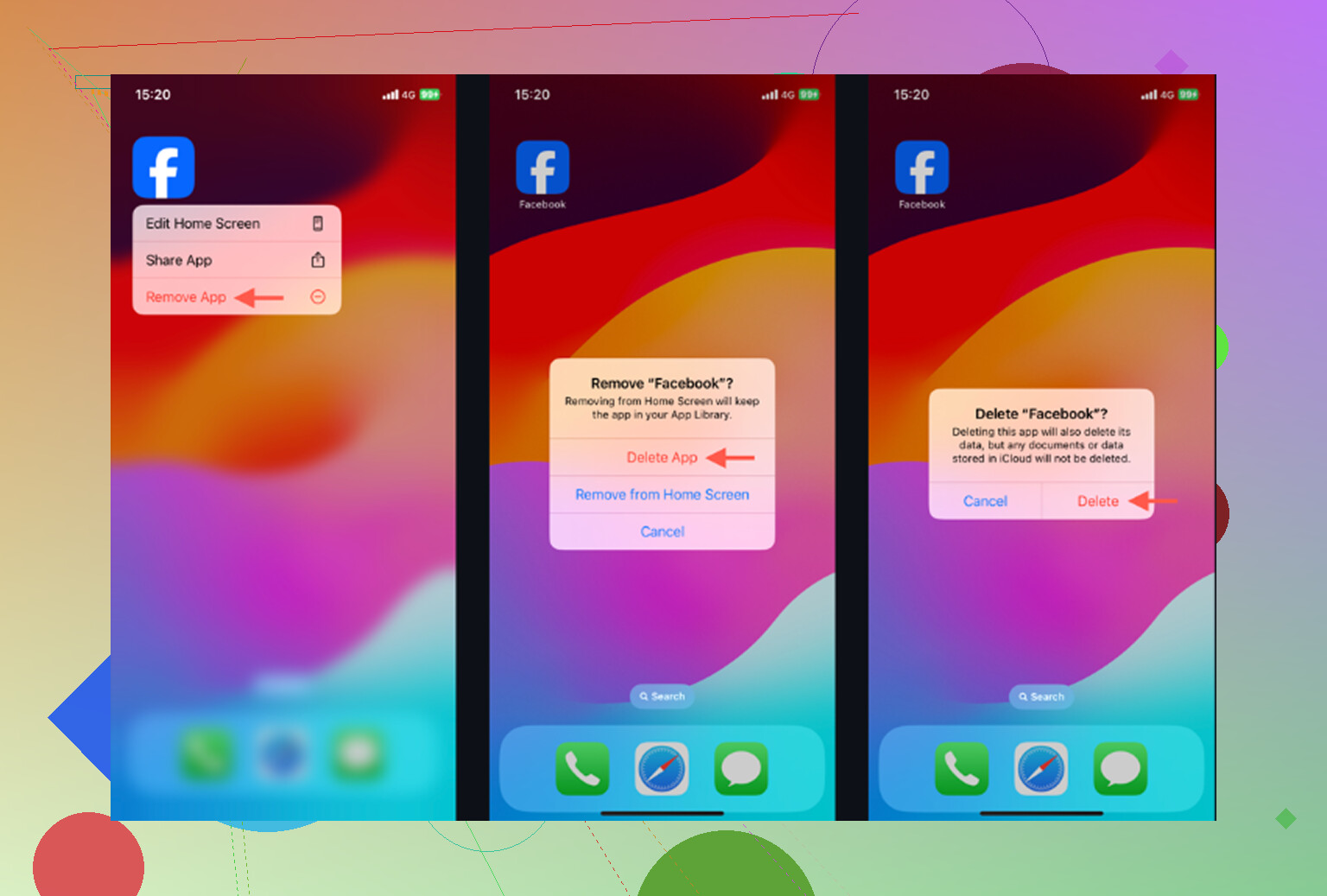
From the same iPhone Storage page, choose Delete App. You can also long-press the Facebook icon and remove it from there.
This is the cleaner option if Facebook has gotten huge. It removes the app and its local data, including the cache. After reinstalling, you will need to log in again, but your account content comes back from Facebook’s servers. Your posts, saved items, friends, and profile photos are not lost.
There is also a small cleanup option inside Facebook itself. Open Facebook, go to Menu > Settings and Privacy > Settings > Browser, then clear Browsing Data. That mostly clears cookies and cached pages from Facebook’s built-in browser. It can help a bit, but it will not clear the bigger media cache from scrolling through photos, Reels, and videos.
Why Facebook fills back up
Facebook caches a lot by design. If you watch Reels, scroll past images, or let videos autoplay, the app saves temporary data locally so the next session feels faster. So even after a fresh reinstall, the storage number can start creeping up again within a few days of normal use.
That does not mean anything is broken. It is just how the app behaves.
If your iPhone is still slow, Facebook may not be the real problem
A lot of people clear Facebook, see some space come back, and then wonder why the phone still feels cramped or sluggish. Usually the bigger storage problem is the Photos app.
Old screenshots, repeated shots, burst photos, large videos, and random screen recordings can quietly take up way more space than Facebook cache. iOS also needs free storage to work properly in the background. When the phone is close to full, everything can start feeling slower, no matter which app cache you just cleared.
What helped with the bigger cleanup
Clever Cleaner does not clear Facebook cache. You still need to delete and reinstall Facebook for that.
Where it helps is the photo library. It is free, has no ads, and does not require a subscription. The Heavies tab sorts files from largest to smallest and shows the exact size, which makes it easy to spot one giant video that is eating more storage than the Facebook app ever was.
The Similars tab groups near-duplicate photos and suggests a Best Shot, so you can clear five versions of the same picture without checking each one manually. Screenshots also show their file sizes before you delete them, which makes cleanup less of a guessing game.
Everything is processed on the device, so the photos are not uploaded somewhere else for sorting.
A good order to do it
Delete and reinstall Facebook first if you want the cache gone right away. Then clean up the photo library, because that is usually where the bigger storage mess is hiding.
One last thing: after deleting photos or videos, open Photos > Recently Deleted > Delete All. Until you clear that folder, the storage number may not change much because the files are still being kept on the phone.
7 Likes
If Facebook is only huge after a few days of video scrolling, reinstalling it is basically a reset button, not a permanent fix. @mikeappsreviewer is right that offloading usually disappoints here because it leaves the “Documents & Data” pile behind. If that pile is the problem, delete the app completely, restart the phone, then reinstall Facebook from the App Store.
The caveat I’d be careful about is login access, not your Facebook posts. Before deleting the app, make sure you know your password, have access to your email/phone number, and your two-factor authentication method still works. Your profile, photos, friends, groups, saved posts, etc. are on Facebook’s side. But local stuff like unsent drafts, some cached media, and app-specific temporary files can disappear.
If you’re tired of doing this every month, the lower-effort workaround is to use Facebook in Safari for a while instead of the app. It is less smooth, notifications are worse, and some features are clunkier, but it usually stops the Facebook app from ballooning in iPhone Storage. Then keep the app installed only if you actually need things like Marketplace, posting, or notifications.
Don’t hit “Remove from Home Screen” and think you deleted it. That leaves Facebook installed and won’t touch the storage problem. Go through Settings > General > iPhone Storage > Facebook and use Delete App, then check the storage number before reinstalling. I agree with the delete/reinstall advice, but I’d slow the rebuild afterward by turning off video autoplay inside Facebook settings, because Reels and feed videos are usually what make the cache swell again. It won’t keep the app tiny forever, but it can stretch out the time before you have to nuke it again.
If the storage number is still huge right after deleting Facebook, don’t trust the iPhone Storage screen immediately. It can lag, so restart the phone and check again before assuming the delete/reinstall trick failed.
Nobody’s mentioned Messenger, and that’s often the sneakier hog. If you actually chat, send voice clips, or get sent photos and videos, Messenger keeps its own separate cache that the Facebook app number doesn’t include. So you can delete and reinstall Facebook, watch the storage drop, and still be sitting on a big pile because Messenger is quietly holding all your media. Check both in iPhone Storage before you decide the trick failed.
The delete/reinstall advice is solid and I’d trust @mike34 on the storage screen lagging, that’s real. But if you’re the type who never opens Messenger anyway, killing autoplay like @espritlibre said plus just using the mobile site is probably enough to stop babysitting this every month.