My older iPhone became noticeably slower after the latest iOS update, with laggy apps, delayed typing, and poor overall performance. I’m looking for safe ways to speed up an old iPhone after a software update without losing data or replacing the phone.
If an older iPhone feels slow, it usually does not mean the hardware is done. A lot of the time, you can get back a decent amount of speed just by changing a few settings and clearing enough storage.
Restarting helps a little, but only in a temporary way. It clears some cached junk and closes processes that may be stuck. It does not fix the two bigger problems: newer iOS features asking more from older hardware, and storage being so full that the phone has no room to work properly.
Start with the settings that actually matter
Turn off Background App Refresh unless you really need it for certain apps. You can find it under Settings > General > Background App Refresh. On an older chip, apps constantly waking up in the background can make the whole phone feel heavier than it should.
Next, turn on Reduce Motion and Reduce Transparency. Reduce Motion is under Settings > Accessibility > Motion. Reduce Transparency is under Accessibility > Display & Text Size. This makes iOS look a bit flatter, but it cuts down on blur effects, parallax, and animations that older phones do not handle as smoothly anymore.
Also check Low Power Mode. If you leave it on all the time, the phone is going to feel slower because that mode intentionally limits performance to save battery. If speed is what you care about, leave Low Power Mode off.
Battery health is worth checking too. Go to Settings > Battery > Battery Health. If maximum capacity is under 80 percent, iOS may be applying performance management to stop the phone from shutting down unexpectedly. At that point, replacing the battery can make a bigger difference than any setting tweak.
Storage is usually the part people underestimate
iOS needs free space for temporary files, indexing, and basic system tasks. Once storage gets around 90 percent full or worse, things start dragging. Apps open slower, the camera can hesitate, and the phone may run warm because it is constantly fighting for space.
For older iPhones, keeping 10 to 20 percent of storage free is not just “nice to have.” It is pretty much required if you want the phone to behave normally.
A few quick wins: clear Safari data through Settings > Safari > Clear History and Website Data, and offload apps you do not use under Settings > General > iPhone Storage. But in most cases, the Photos library is where the real storage is hiding.
The cleanup step that makes the biggest difference
Manually sorting through thousands of photos, videos, screenshots, and duplicates is a pain. Clever Cleaner makes that part more realistic, and it is free with no ads or subscription.
The Heavies tab sorts files from largest to smallest and shows the exact size of each one. That is useful because a couple of old screen recordings or 4K videos can take up more space than a huge pile of normal photos. Deleting just a few of those can free several gigabytes right away.
The Similars tab groups photos that are nearly the same and picks the sharpest one from each set. So instead of checking ten versions of the same shot one by one, you can clear the extras much faster.
It also shows file sizes on screenshots before you delete anything, which makes the decision easier. Screenshots pile up quietly, and sometimes they take more space than expected.
The scan and cleanup happen on the device, so the photos are not uploaded somewhere else during the process.
After clearing about 30GB this way, with the settings changes done first, the phone should feel noticeably less bogged down. Apps open quicker, the camera launches faster, and the phone may stop getting warm during normal use. That heat is often the system working too hard because storage is packed and the index has no breathing room.
The settings changes help. The storage cleanup usually helps more. Doing both is often enough to make an old iPhone feel usable again without spending money.
1 Like
Don’t start by erasing the phone or chasing some sketchy “RAM cleaner” app. That is usually wasted effort, and the cleaner apps that promise to make iOS faster can’t really do much outside their own little sandbox. If you just updated iOS in the last day or two, give it some time on Wi-Fi and charger first. Older iPhones can feel awful right after an update because Photos, Spotlight search, app updates, and system cleanup are all running in the background.
I agree with the storage and battery points above, but I’d check the simple annoyance first: is it the whole phone, or only a few apps? If typing is delayed everywhere, Settings is slow, and swiping around stutters, then battery health, free space, and visual effects matter. If Instagram, Messages, or Safari are the main offenders, update those apps, clear Safari tabs, or delete and reinstall the specific app. A single bloated app can make it feel like the phone itself is dying.
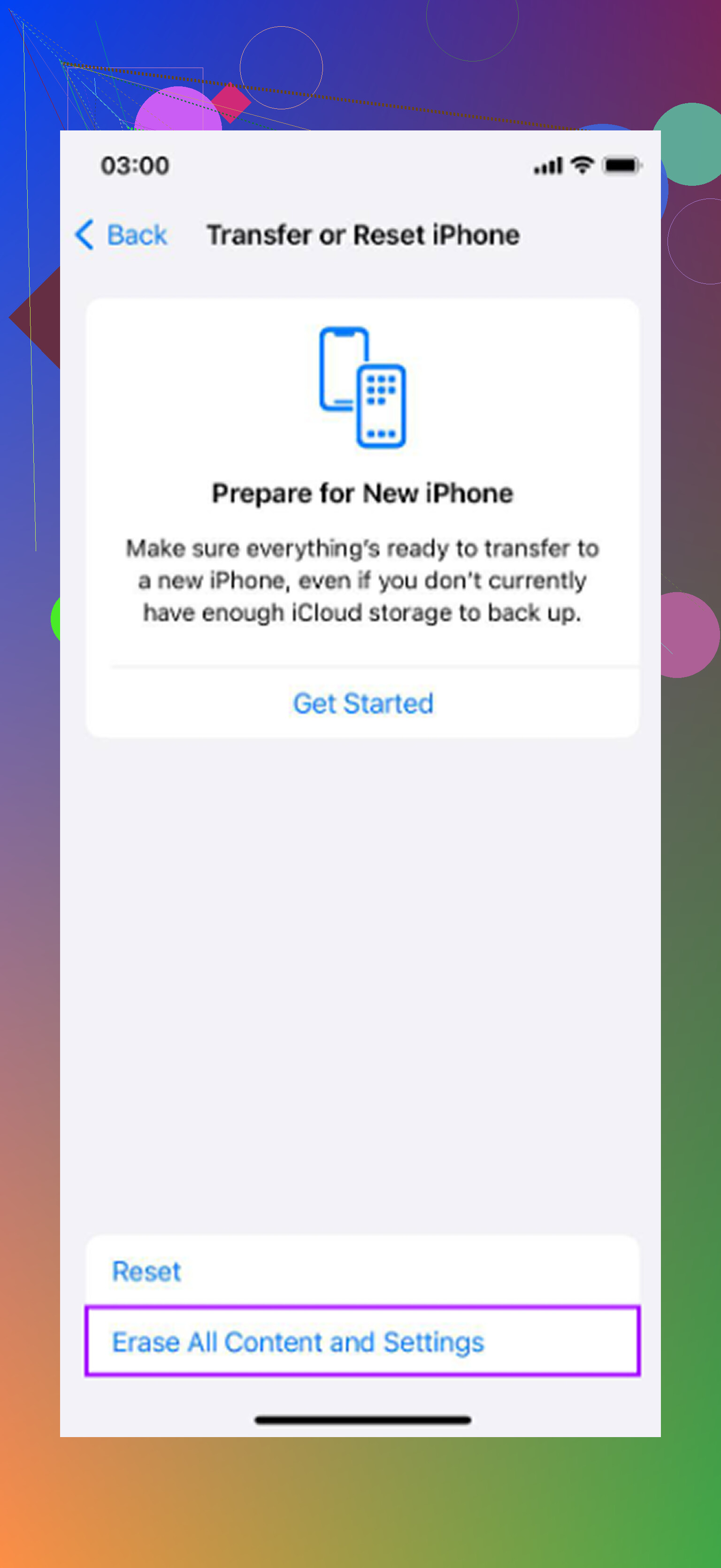
Before doing anything destructive, make an iCloud or computer backup. Then try this order: restart, install any smaller follow-up iOS update, free enough storage that you are not near the limit, turn off Background App Refresh for nonessential apps, and check Battery Health. Apple has a plain guide on iPhone battery and performance that is worth reading if your maximum capacity is low or you see a performance management message. If the phone is still slow after that, try Reset All Settings before a full erase. It keeps your data, but it does reset Wi-Fi, privacy, keyboard, and display settings, which is annoying but much less painful than rebuilding the whole phone from scratch.

Do not delete a bunch of photos or apps and assume the space is free right away, because iPhone keeps deleted photos in Recently Deleted for up to 30 days unless you empty it. That trips people up after they “clean” 20GB and the phone still acts cramped. After any cleanup app or manual deleting, go to Photos > Albums > Recently Deleted and clear it if you are sure you have a backup. Same idea with big Messages attachments: deleting the thread is easy, but make sure you are not wiping something you need. I agree with the battery and storage advice above, but I would treat cleanup as a careful storage job, not a speed hack. Free real space, restart, leave it charging overnight, then judge it the next day. If it is still laggy after that, the update may simply be a bad fit for that model or the battery may be the real bottleneck.