My iPad photo library keeps filling up with duplicate pictures, and it’s starting to take a lot of storage. I’m not sure if iCloud Photos, syncing, or imports are causing it. What’s the easiest and safest way to find and delete duplicate photos on an iPad without losing anything important?
The fastest way to make a dent is probably not Apple’s duplicate finder, at least not if your library is full of “same moment, slightly different photo” clutter. That was my issue. I had years of trip photos on my iPad, with 10 or 15 versions of the same scene, and doing it by hand got old almost immediately.
What helped most was starting with a cleaner app, then using Apple’s tools for the leftovers.
Start with a photo cleaner app
I used Clever Cleaner because it’s free to use and it doesn’t only look for exact copies. The useful part is the Similars feature. It groups photos that are almost the same, which is usually the real problem with iPad photo libraries.
So instead of opening ten beach photos and trying to decide which one is least blurry, it groups them and suggests a Best Shot. You can keep that one and clear out the rest pretty quickly.
It also catches other stuff that quietly eats storage over time, like screenshots, big videos, and Live Photos. Those categories can add up more than you’d expect.
Apple’s built-in Duplicates album is still worth checking
If you want to avoid third-party apps, open the Photos app and scroll down to Utilities. On iPadOS 16 or later, there should be a Duplicates album if Photos has found anything.
When Apple detects matching copies, you’ll see a Merge option. It keeps the version with the best quality and metadata, then sends the extra copies to Recently Deleted. It’s clean and simple, but there’s a catch: Apple is mostly looking for true duplicates.
That means five photos taken one after another probably won’t show up there. Same subject, tiny angle change, slight edit, different crop, those usually count as separate photos. That’s why Apple’s tool can look like it “missed” a lot, even though it’s working as designed.
If the Duplicates album doesn’t appear, it’s usually one of these:
- Your iPad hasn’t finished scanning the library yet. Leave it locked and plugged in for a while.
- You’re on iPadOS 15 or older, where this feature isn’t available.
- There just aren’t any exact duplicates for Apple to show.
You can also clean things up with search
If you don’t want to install anything, search in Photos is better than scrolling forever. Try terms like Screenshots, Receipts, Dog, Beach, or a city name. You can also go through Months or Years and focus on trips, holidays, or events where you know you overshot.
It’s slower than a cleaner app, but still much better than manually browsing your whole camera roll.
Empty Recently Deleted when you’re done
Deleting photos doesn’t immediately free the space. They go into Recently Deleted and can stay there for up to 30 days. If you want the storage back right away, empty that album too.
Also, if iCloud Photos is turned on, deleting something from your iPad deletes it from your iPhone, Mac, and any other device using the same Apple Account. That may be what you want, but check before permanently removing anything.
After the big cleanup, maintenance gets a lot easier. Spending a few minutes once in a while clearing new screenshots and duplicate-looking shots is way less painful than dealing with thousands at once.
6 Likes
Don’t start by mass-deleting from the iPad until you know whether those photos are part of iCloud Photos or were synced from a computer. If iCloud Photos is on, the iPad is not really a separate copy. Deleting there deletes from the shared library. If the pictures came from Finder/iTunes sync from a Mac or PC, some of them may not behave like normal camera roll photos, and the fix is usually to change the sync settings on the computer, not keep deleting the same stuff on the iPad.
The built-in Duplicates album is safe, but it is pretty conservative. I’d use that first for true duplicate files, then deal with “almost duplicates” separately. A cleaner app like Clever Cleaner can be useful for that second part, but I would still review the groups instead of tapping delete on everything. Burst shots, edited versions, and screenshots of important info can look disposable until you need one later.
Before doing a big cleanup, make sure you have at least one backup you trust, then empty Recently Deleted only after you’re sure. If you want a walkthrough of where Apple hides the duplicate tools, this guide to finding duplicate photos on iPad and other Apple devices is useful. The main trick is separating “duplicates caused by syncing” from “too many similar shots.” Those need different fixes.
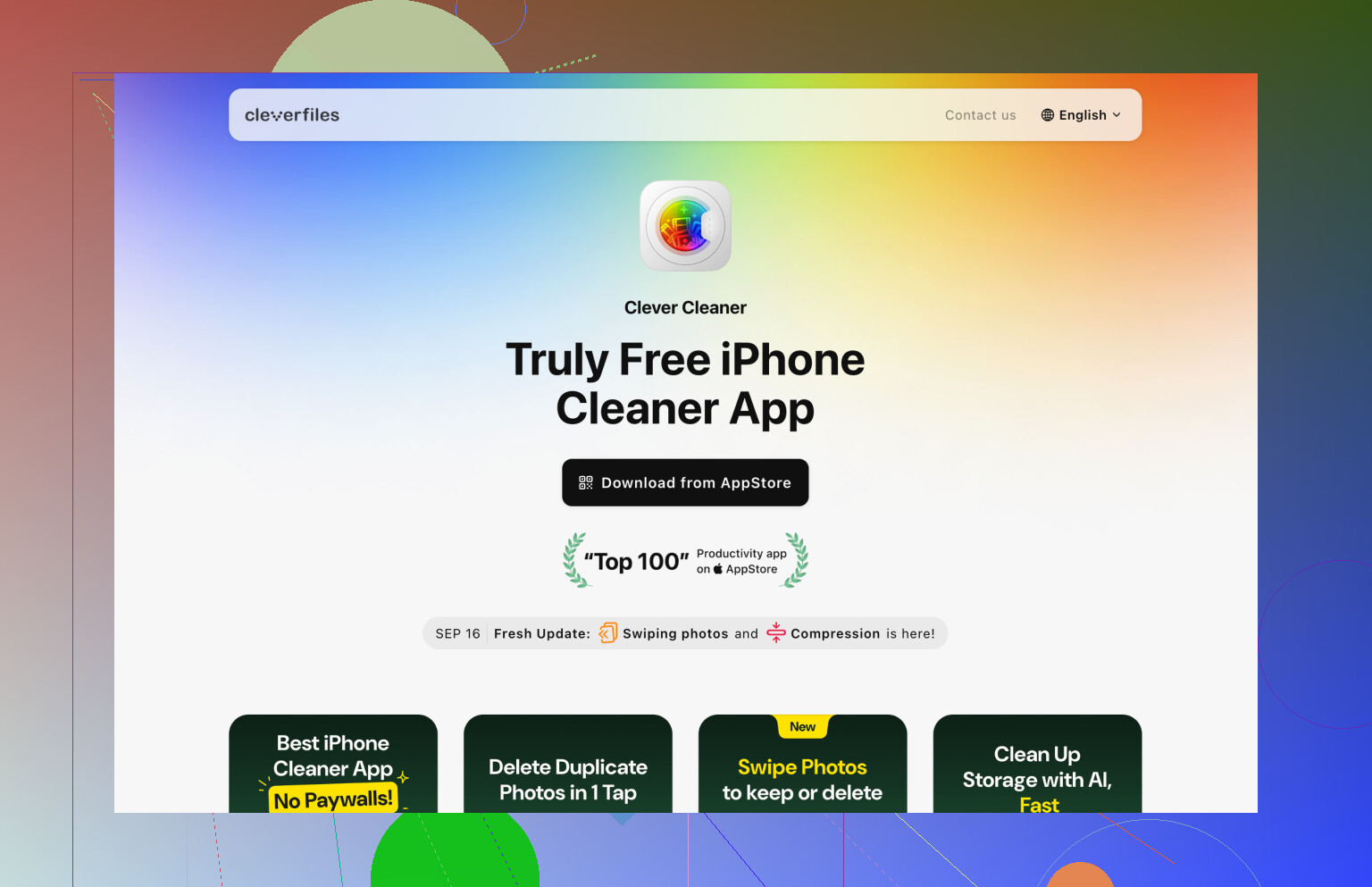
Don’t keep running a cleaner until you figure out what is making the second copy, or you’ll be doing the same cleanup again next month. After using Photos’ Duplicates album, open a few repeat photos and check where they came from: AirDrop, Messages, WhatsApp/Telegram, a scanner app, photo editor, or repeated camera-card imports can all quietly save extra copies. Many apps have a “save to Photos” or “save edited copy” setting, and turning that off is the real fix. Clever Cleaner is useful for clearing the pile that already exists, especially similar shots, but I’d treat it as cleanup after stopping the source. If they’re synced albums from a computer, delete/change the sync there, not on the iPad.