My iPhone keeps saying storage is full when I try to take photos, update apps, or save files, but in Settings it still shows free space available. I already restarted it and checked iPhone Storage, so now I’m confused about what’s actually using the memory. Has anyone fixed this issue or know what to try next?
Storage warnings on an iPhone feel worse than they are. I’ve seen the alert pop up when the phone still had room left, and I’ve also seen it show up because one folder was quietly hoarding junk. First move is simple. Check the built-in storage screen before deleting random stuff.
Start with iPhone Storage
Open Settings, then General, then iPhone Storage. Wait a bit. The colored bar needs a few seconds to finish loading.
This screen is the closest thing to a real answer. It shows what is eating space, photos, apps, messages, system data, media, all of it. If you skip this and start guessing, you waste time.
The fake warning people fall for
I ran into this once in Safari. Big scary popup, talk about damage, viruses, urgent cleanup, countdown timer. Total nonsense.
If the alert showed up while you were browsing, it is not from Apple. Same for warnings about SIM failure or storage corruption inside a web page. Those are scam ads trying to push you into tapping something dumb.
A real iPhone storage warning shows up as a normal system alert or inside Settings. If it came from a browser tab, close the tab and move on.
Why deleting stuff sometimes does nothing
This part gets people. You delete photos and videos, feel good for ten minutes, then the warning comes back. I did this on my old phone and thought iOS was broken. It wasn’t. The files were still sitting in Recently Deleted.
They stay there for 30 days and still take up the same space.
To clear it for real:
- Open Photos
- Tap Albums
- Scroll down to Recently Deleted under Utilities
- Tap Select
- Tap Delete All
Do the same in the Files app too. Check Downloads. Then empty Recently Deleted there as well. Photos and Files keep their trash separately, which is annoying but true.
If it started right after an iOS update
This happens a lot. During an update, the phone stores install files, temp data, leftover cache. Some of it clears itself. Some of it hangs around longer than it should.
I’d restart the phone first. A plain restart fixes more of these post-update storage alerts than people think. It forces iOS to recalculate the numbers and dump some temporary update files.
If the warning is still there after the restart, go back to iPhone Storage and look at System Data. If that chunk suddenly got huge, the update mess likely landed there.
Places where storage builds up without much noise
Messages is one of the bigger offenders. Video clips, memes, GIFs, voice notes, random attachments from years ago, they pile up. I checked one family thread once and it was absurd.
For future cleanup:
Settings > Messages > Keep Messages
Change it from Forever to 1 Year or 30 Days.
For immediate cleanup:
Settings > General > iPhone Storage > Messages
Use Review Large Attachments. This is one of the few spots in iOS where Apple gives you something useful fast.
Safari is another easy target. Website data stacks up over time.
Go to:
Settings > Safari > Clear History and Website Data
Apps like Instagram and TikTok are worse because they collect cache and often give you no proper clear-cache button on iPhone. In my experience, deleting the app and installing it again is the cleanest fix.
When the built-in tools stop being enough
The native storage screen gives totals, not much detail. You see photos taking 40GB, cool, but it does not show which videos are the monsters, which screenshots are pointless, or which burst photos are near duplicates.
That’s where Clever Cleaner helped fill the gap for me:
https://www.youtube.com/shorts/qUVkfQqrwsk
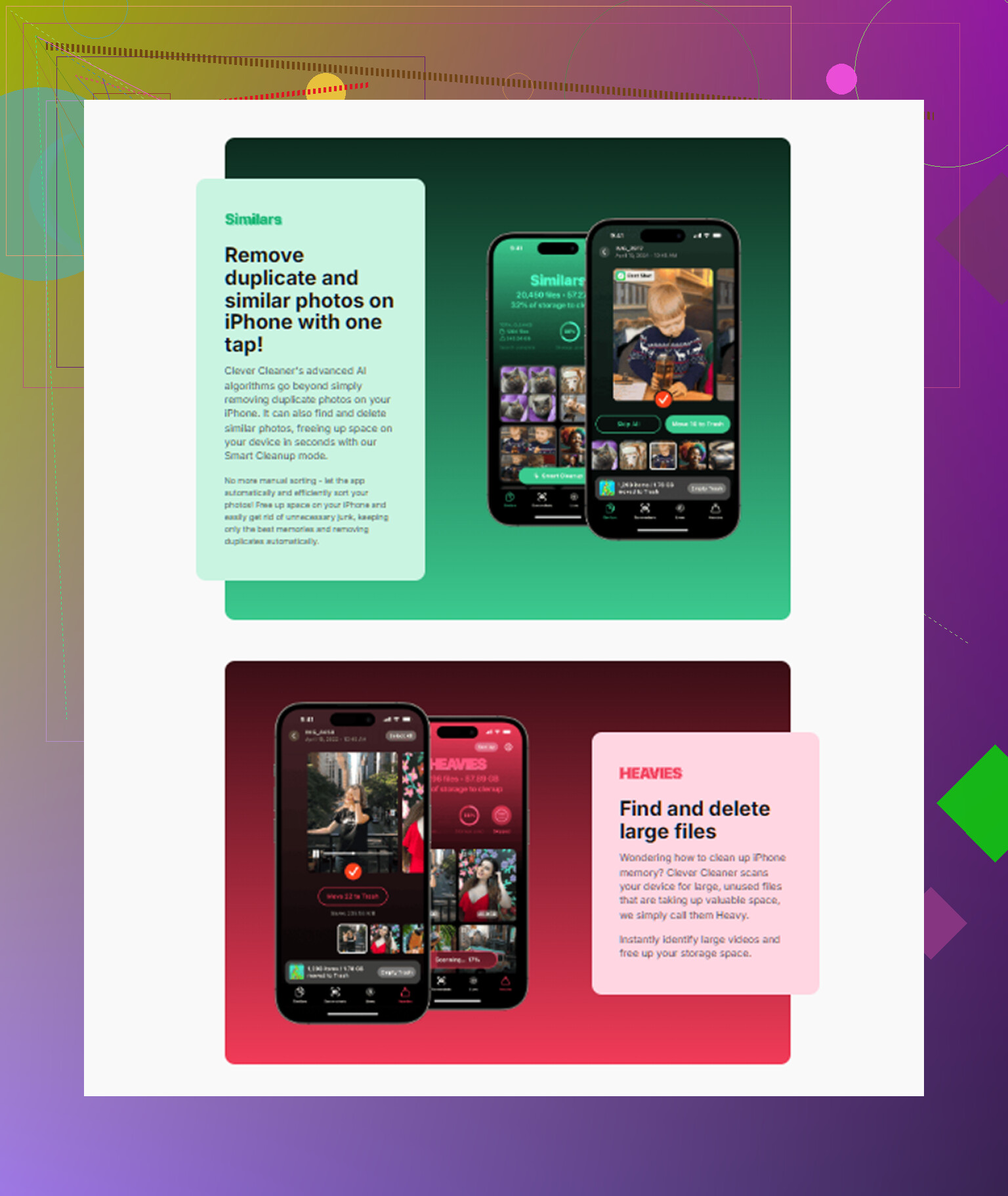
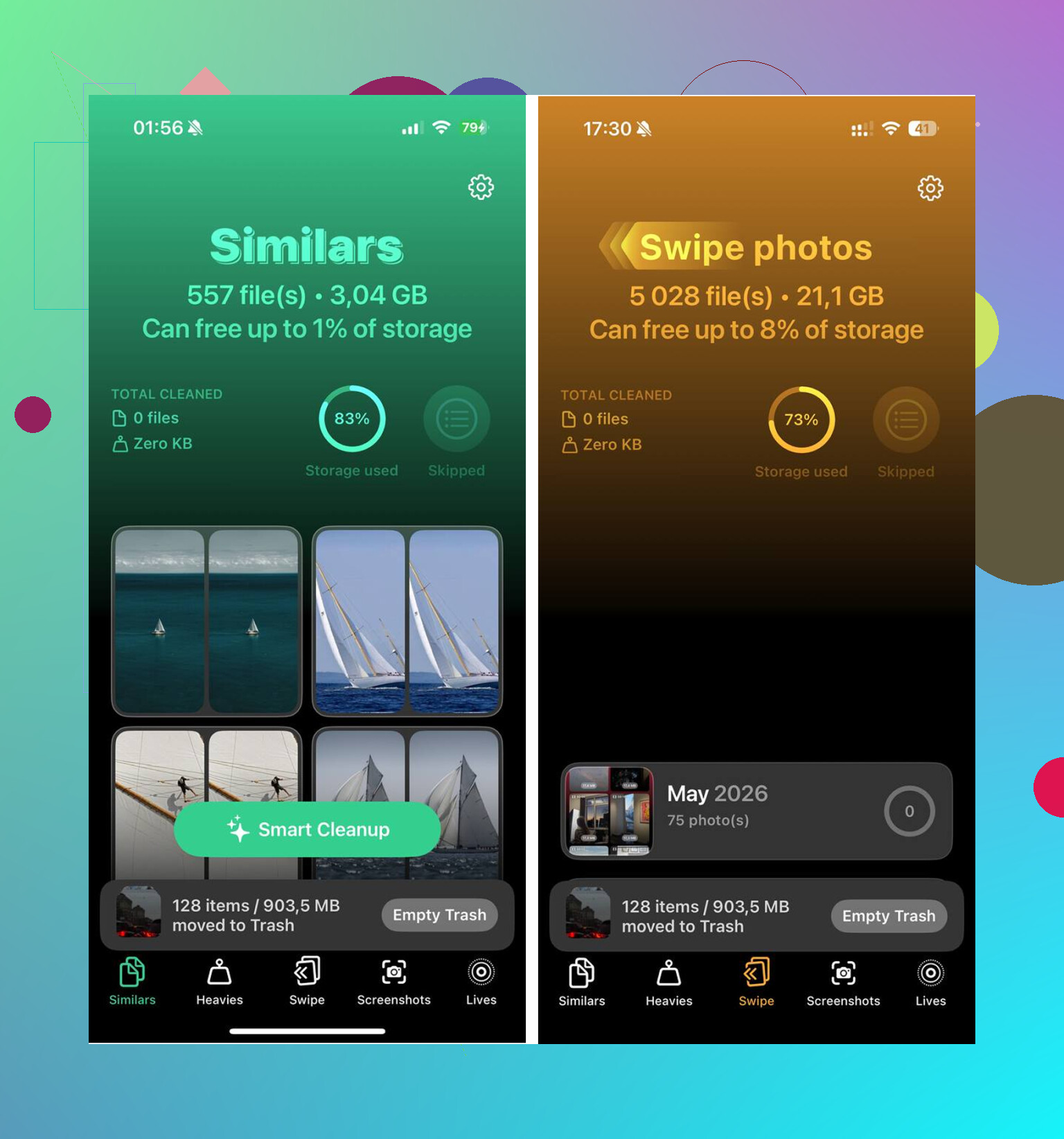
I used it when my library had turned into a mess. The useful part was seeing the biggest files first instead of hunting through years of camera roll clutter. The Heavies section puts large videos and screen recordings at the top. The Similars section groups near-duplicate photos, then picks a best shot so you don’t spend half your evening comparing three almost identical pictures of a receipt or your dog blinking.
On my phone, I cleared about 12GB this way. Then I emptied Recently Deleted. After that, the warning stopped showing up, and the lag I’d been noticing went away too.
If the alert stays even though space is free
This is the weird one. Settings says you have room left, but the storage full message keeps returning. I’ve seen this after updates and after heavy app use.
Start with a full restart. Not sleep and wake. A real restart.
If the phone still insists storage is full while Settings shows free space, the count is off somewhere in iOS. At that point, the reliable fix is backup first, then reset the phone.
Backup options:
iCloud
Finder on Mac
iTunes on Windows or older macOS setups
After the backup, erase the device and restore. It’s a pain. Still, when the problem comes from broken system accounting instead of your files, manual cleanup won’t touch it.
Short version
Check Settings > General > iPhone Storage first.
Ignore scary browser popups.
Empty Recently Deleted in Photos and Files.
Restart after iOS updates.
Clean Messages attachments and Safari data.
Reinstall cache-heavy apps if needed.
If the numbers still make no sense, back up and reset.
That order saved me a lot of pointless deleting.
7 Likes
If Settings shows free space but apps still say “storage full,” I’d look at reserved space, not visible space. iPhone needs working room for photos, app updates, and temp files. If you only have 2GB to 5GB free, iOS often acts full anyway. Photo capture alone needs space for processing, HDR, and rollback. Same with App Store installs.
One thing I disagree with @mikeappsreviewer on, a full reset is not my next move unless the gap is huge and stays for days. I’d check these first.
-
Sync backlog.
If iCloud Photos, Messages in iCloud, or Files sync got stuck, local temp storage spikes. Open Photos and leave it on Wi-Fi and power for 30 to 60 mins. Same for Files. -
App-specific document bloat.
Go to Settings, General, iPhone Storage, tap a big app. Some apps show Documents & Data far above app size. Podcasts, Music, WhatsApp, CapCut, Netflix downloads, Spotify offline files are common. -
Mail attachments.
Apple Mail stores local copies. Remove and re-add the mail account if Mail is huge. Annoying, but it works alot of the time. -
Offload gap.
Offloading apps frees the app binary, not all data. People think they freed 10GB and got 2GB. Reinstalling one bloated app after offload sometimes pulls the number back in line. -
Storage recalc lag.
After deleting large files, plug into power overnight on Wi-Fi. iOS does housekeeping when idle. The numbers sometiems catch up hours later.
If your photo library is the main problem, Clever Cleaner is worth a look because it surfaces large videos and duplicate shots faster than Apple’s view. Also, this is a decent guide for freeing up iPhone storage for free, watch how to free up iPhone storage fast.
If free space is under 5GB, treat it as full. iPhones get weird there.
If Settings shows, say, 6GB free but the phone still refuses a photo or app update, I’d stop thinking “storage total” and start thinking “usable contiguous space right now.” iOS can have free space on paper but not enough scratch space for camera processing, app unpacking, or file indexing. That part is why the error feels fake.
Small thing I’d check that @mikeappsreviewer and @vrijheidsvogel didn’t really lean on: your camera format/settings. If you shoot ProRAW, 4K/60, Cinematic, or lots of burst shots, the camera can choke way before storage looks truly full. Same with downloaded editing projects in apps like CapCut or VN. Those apps hide giant working files. Annoying, but yep.
Also check this:
- Settings > Camera > Formats
- Turn off ProRAW/ProRes if enabled
- Lower video recording quality temporarily
- Try saving one photo after that
Another sneaky one is failed app updates. App Store can reserve temp space, fail, and keep acting dumb. Open App Store, cancel anything stuck, then sign out/in to Media & Purchases. Sounds random, but I’ve seen it fix this exact glitch.
I mildly disagree with jumping to erase/restore too fast. That’s last resort stuff imo.
If photos are the main culprit, Clever Cleaner is actually useful because it surfaces huge videos, duplicate shots, and space hogs faster than Apple does. If you care about safety, this page explains whether the AI cleaner app is safe to use in a more readable way.
So yeah, “free space” is not always “enough working space.” iPhones get wierd when they’re near the edge.
I’m with @vrijheidsvogel on one thing: “free” space is often not truly usable space. But I’d add a less obvious angle: corrupted local indexes. Spotlight, Photos search, Files tags, even message attachment indexes can get out of sync and throw “storage full” behavior while the storage graph still looks fine.
A couple checks I’d do that weren’t really covered:
- Try saving the same file from a different app. If Camera fails but Notes or Files can save, it may be app sandbox temp space, not whole-device storage.
- Check Settings > Siri & Search and temporarily disable search indexing for a few huge apps, then restart. I’ve seen bloated indexes shrink later.
- Look at Voice Memos and GarageBand. These are easy to forget and can hold giant local files.
- If you use third-party cloud apps like Google Drive or Dropbox, clear their offline files. Those caches do not always show up clearly.
I slightly disagree with @mikeappsreviewer about reset timing too. Before erase/restore, test with one thing: record a short low-quality video. If even that fails, the issue is probably system-level temp space. If that works, the problem is likely format-specific or app-specific.
For photo cleanup, Clever Cleaner is decent if your library is the mess. Pros: faster at surfacing huge videos, duplicates, similar shots. Cons: you still need to review carefully, and cleaner apps can’t fix broken iOS storage accounting.
So yeah, if Settings says 8GB free and iPhone still screams “full,” I’d suspect indexing, app sandbox junk, or cloud app offline caches before nuking the phone.