My iPhone storage is still showing as full even after I deleted a bunch of photos and apps. I also checked Recently Deleted, but the available space barely changed. I’m not sure if iCloud Photos, system data, or cached files are causing this, and I need help figuring out how to actually free up storage.
The first thing to check is the simple one: your deleted photos may not actually be deleted yet. On iPhone, deleted photos and videos usually sit in Recently Deleted for a while before they’re fully removed, and they still count against your storage the whole time.
Open Photos, go to Albums, scroll down to Recently Deleted, and choose Delete All. A lot of people miss that step, then wonder why they deleted half their camera roll and gained nothing back.
If you already emptied that folder, restart the phone. iOS can be slow about updating the storage numbers in Settings. Sometimes the space is actually free, but the storage screen is still showing the old cached total. A restart usually forces it to recheck, and in some cases people have to restart more than once before the number changes.
Also, check whether iCloud Photos Optimize iPhone Storage is turned on. If it is, your phone may only be storing smaller local versions of many photos while the full-size originals live in iCloud. So deleting 1,000 “photos” might not free up anywhere near what you expected, because you may only be removing thumbnails or smaller copies from the device.
Photos also aren’t the only thing eating space. Messages can quietly hold years of videos, GIFs, screenshots, and random group chat junk. App caches are another big one. TikTok, WhatsApp, Instagram, and similar apps can pile up temporary files fast, sometimes several GB, without making it obvious.
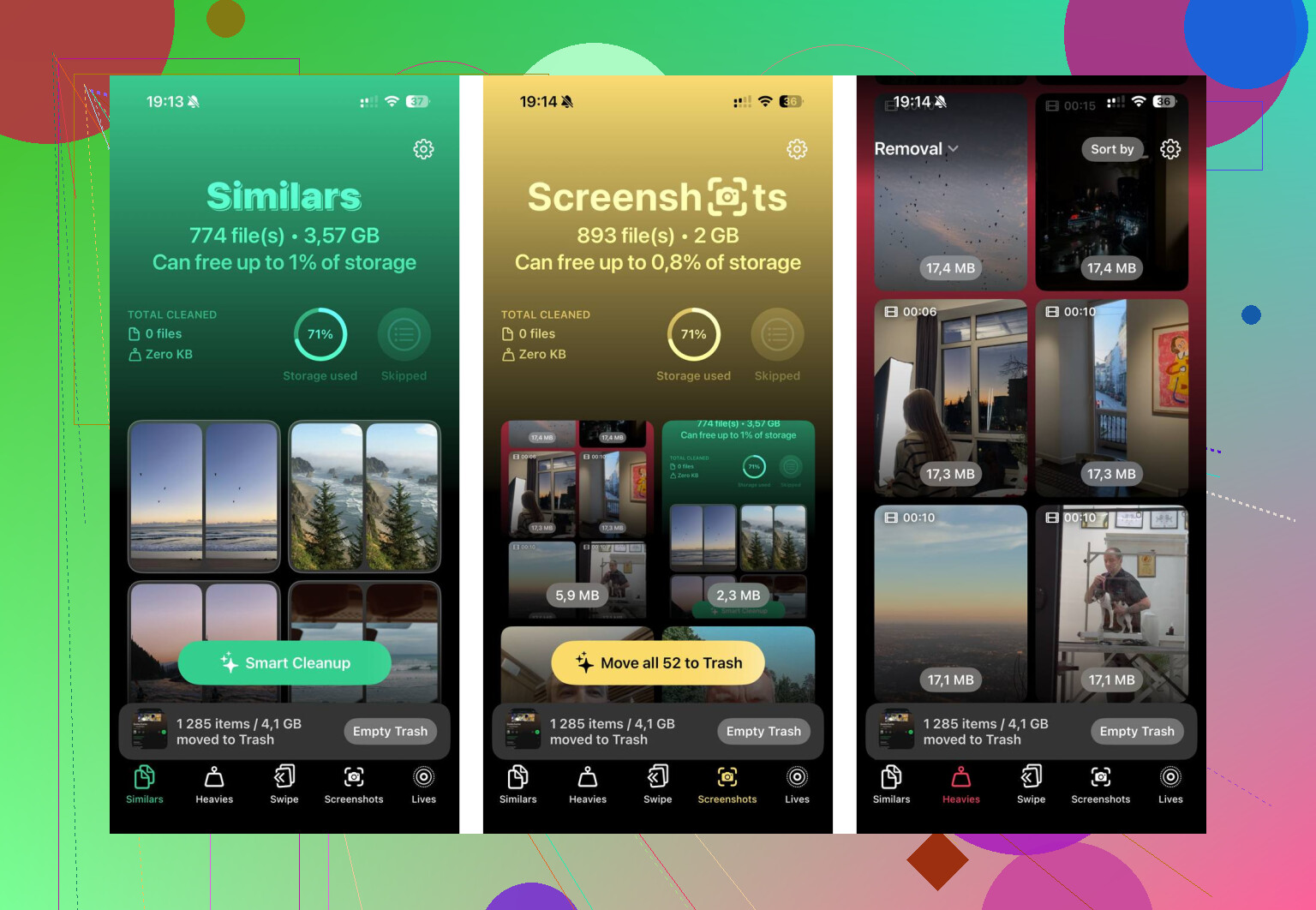
When I ran into this, manually hunting through the camera roll was basically useless. The built-in Photos app doesn’t make it easy to sort by file size or find ten nearly identical shots. I ended up using Clever Cleaner. I’m usually pretty skeptical of “cleaner” apps because a lot of them are just ads, trials, and subscription traps, but this one is free, with no paywall or ads.
The most useful part for me was the Heavies section, since it sorts your library by file size. That makes it easy to find the huge 4K videos you forgot were sitting there. The Similars section is good too, especially if you take a bunch of almost identical photos and only need to keep one. It also processes everything on the phone instead of uploading your photos somewhere else. After clearing around 40GB of stuff I didn’t realize was there, the lag went away and the phone felt normal again.
If none of that works, there’s one odd trick some people use. Go into Date & Time, turn off Set Automatically, set the date about two years back, open Photos for a minute, then set the date back correctly. Sometimes that forces iOS to clear out stuck photo cache or “ghost” deleted items.
Last resort would be a backup and factory reset, especially if System Data is huge, like over 20GB, and refuses to shrink. That can clear corrupted cache files nothing else touches. Just make sure everything is backed up to iCloud or a computer first. I’d still start with Recently Deleted, a restart, Messages/app caches, and a proper photo cleanup before going that far.
7 Likes
Offloading an app is not the same thing as deleting it. If you used the iPhone Storage screen and tapped “Offload App,” iOS removes the app itself but keeps its documents and data, so the storage bar may barely move. Go to Settings > General > iPhone Storage, tap the biggest apps, and look at whether the space is the app size or “Documents & Data.” For stuff like Spotify, Netflix, YouTube, podcasts, maps, or messaging apps, the hidden downloads/cache can be the real problem. Use “Delete App” for anything you can safely reinstall, not “Offload App,” then restart and give the storage screen a few minutes to recalculate.
The storage bar is not a live meter, so don’t trust it immediately after deleting things. iOS sometimes needs spare working space before it can finish cleaning up, syncing deletions, and rebuilding that “System Data” number. If the phone is sitting at basically 0 bytes free, it can get weirdly stuck and look like nothing helped.
I’d make a small amount of space the boring way first: delete one large video, one downloaded movie, or one game you can reinstall later, then restart the phone and leave it plugged in on Wi-Fi for a bit. Don’t keep bouncing between settings every 30 seconds expecting it to recalculate. Give it some time. @vrijheidsvogel is right about checking whether apps are mostly “Documents & Data,” because deleting the app itself may do more than offloading, but the phone still may not show the gain instantly.
I’d be careful with deleting photos if iCloud Photos is on, too. That can delete them from iCloud and other devices, not just clear local phone space. If you only want local space back, “Optimize iPhone Storage” is safer than mass deleting, assuming your iCloud library is in good shape. For a quick overlooked check, look in Settings > General > iPhone Storage for an iOS update download. Sometimes there’s a multi-GB update file sitting there, and removing that buys enough room for the rest of the cleanup to actually finish.