My USB drive suddenly stopped opening after I plugged it into my computer, and now it says the device is corrupted or needs to be formatted. It has important photos and work files on it that I haven’t backed up, so I’m looking for advice on safe USB data recovery methods that might help me restore the files without making things worse.
Losing access to a USB stick sucks. I’ve had it happen with a drive full of work docs and photos, and the first bad instinct was to click whatever Windows suggested. Don’t do that yet.
A corrupted USB does not always mean your files are gone. A lot of the time, the storage is still there and the file system is what got mangled. I’ve seen this after yanking a drive out too fast, a copy job dying halfway through, random file system errors, malware, worn-out flash storage, and old drives starting to flake out.
First thing to figure out
You need to tell the difference between a logical issue and a hardware problem. The next step depends on which one you’re dealing with.
Recovery software makes sense if your USB does things like this:
- It shows up in Disk Management or Disk Utility.
- It asks you to format it before use.
- It shows up as RAW, unreadable, or inaccessible.
- Its storage size appears correctly.
I’d stop and think about a recovery lab if you’re seeing this instead:
- The USB is not detected at all.
- It keeps disconnecting and reconnecting.
- Your computer hangs when you plug it in.
- The connector or casing is damaged.
- The files matter enough that one bad move would hurt.
What I would not do first
Do not format it. Also, don’t run CHKDSK yet.
I learned this the annoying way. Repair tools try to make the file system usable again. Sometimes they do. Sometimes they clean up the mess by throwing away file references you still needed. If the files matter, pull data off first. Fix the drive later.
If you want to try it yourself
I’d start with Disk Drill. I used it on a USB stick Windows refused to open, and it still scanned the device itself instead of depending on the broken file system.
The basic flow is simple:
- Install Disk Drill on your computer. Do not install it onto the broken USB.
- Plug in the USB drive and open Disk Drill.
- Pick the USB from the list of devices.
- Click Search for Lost Data.
- Let the scan finish.
- Preview what it finds.
- Recover the files onto another drive.
One extra thing. If the USB looks shaky, slow, or keeps dropping out, make a byte-for-byte backup first. Scan the image file instead of hammering the original stick over and over. I’ve had a weak drive get worse during repeated scans, so this step is worth it.
After the files are safe
Then I’d mess with repairs.
- Run CHKDSK if you’re on Windows.
- Run First Aid in Disk Utility if you’re on macOS.
- Reformat the USB if repair tools do nothing useful.
- Test it with a big copy job, both onto the drive and back off it.
If corruption returns after a format, write errors show up, files vanish again, or diagnostics report trouble, I’d retire the drive. USB flash media is cheap. Recovering the same files twice is not. I made tht mistake once and didn’t repeat it.
9 Likes
Stop using the USB for now. Every new write lowers your odds.
I agree with @mikeappsreviewer on skipping format first. I also would hold off on repair tools longer than most people suggest. CHKDSK sometimes helps, but on damaged flash media it also has a habit of “fixing” folder structure into oblivion. I’ve seen people lose filenames and folder trees that way. Not fun.
What I’d do first:
- Try a different USB port, no hub.
- Try a second computer.
- Check Disk Management on Windows. Look for:
- correct size shown
- no drive letter
- RAW or unallocated status
- If it shows there, recover files before any repair.
If the drive appears with the right capacity, file recovery software is your best shot. Disk Drill is a solid pick for corrupted USB recovery because it scans the device directly and often pulls photos, docs, and videos off drives Windows refuses to open. Save recovered files to your PC or another external drive, not back onto the USB. Peopel make this mistake all the time.
One thing I’d add that often gets missed. If your photos matter a lot, sort recovery results by file type and preview the images before recovering everything. On flash drives, corruption often hits directory info first. Raw photo recovery still works, but filenames and folders may be gone.
If the USB keeps reconnecting, gets hot, reports 0 bytes, or freezes File Explorer, stop DIY attempts. At that point, a lab has better odds.
If you want a quick visual guide, this short tutorial on recovering data from a corrupted USB is decent:
watch this quick corrupted USB data recovery tutorial
After recovery, throw the drive away. Seriously. Once a flash drive starts failing, it tends to do it agian.
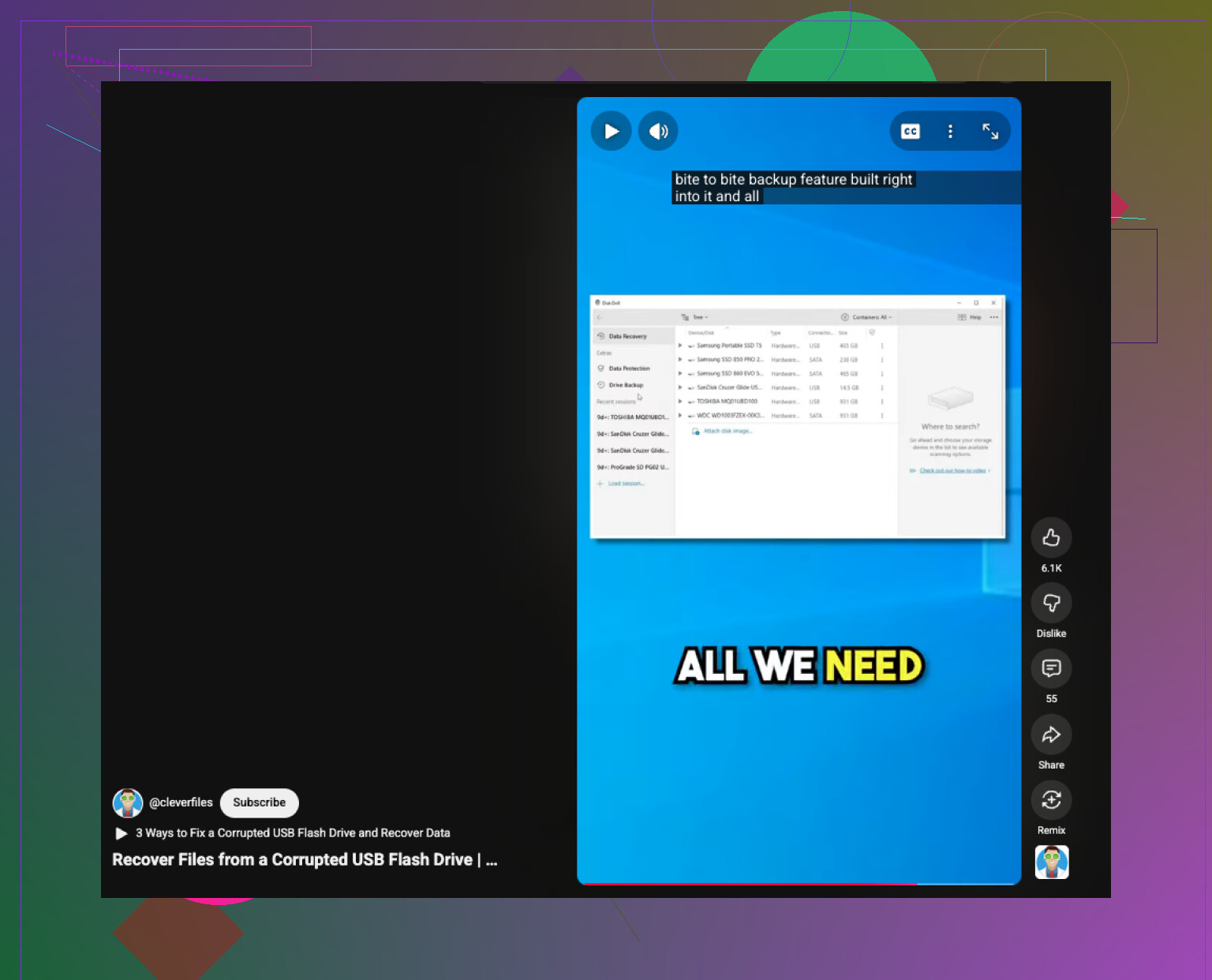
Don’t let Windows bully you into formatting it. That prompt shows up for all kinds of file system damage, and sometimes the data is still very recoverable.
I mostly agree with @mikeappsreviewer and @cazadordeestrellas, but I’d add one thing they only touched on lightly: check the SMART/health info if the USB is actually an SSD-style external flash device, not just a tiny thumb drive. If the controller is throwing read errors or the drive reports weird capacity changes, that’s a red flag that software recovery may get messy fast.
A couple things I’d try before any scan:
- plug it directly into a rear motherboard USB port if you’re on desktop
- avoid front panel ports and hubs
- in Device Manager, uninstall the USB mass storage device entry, then reconnect
- on Linux, see if it mounts read-only or shows errors in dmesg
Why Linux? Sometimes Windows throws the “needs formatting” tantrum while Linux will at least let you copy some files off. Not always, but enough that it’s worth 10 minutes if the files are important.
If the drive is visible with the correct size, I’d personally make an image first with something like ddrescue if you’re comfortable with that. Then run recovery on the image, not the original. If you want the easier route, Disk Drill is still a solid option for corrupted USB recovery and usually friendlier for photos/docs than going full command-line goblin mode. Recover to another drive only. Not back to the USB. Seriously.
One place I slightly disagree with the usual advice: I would not instantly trash the drive after recovery if this was clearly caused by improper removal once. I’d still test it hard first. But if it fails even one more time, yeah, bin it.
Also, this might help if you want more opinions from regular users:
real-world flash drive recovery tips and corrupted USB fixes
If it shows 0 bytes, gets super hot, or disconnects every few seconds, stop messing with it befor it gets worse. That’s where DIY turns into regret reallly fast.