My external hard drive is formatted as ExFAT and still gets recognized by my computer, but all my folders and files have disappeared. I haven’t formatted it or intentionally deleted anything, so I’m trying to figure out if ExFAT data recovery is possible and what steps I should take before making it worse.
If this is an exFAT external drive and the folder was deleted recently, stop using the drive right away. Deleted files usually aren’t wiped instantly. A lot of the time the space is just marked as available, so recovery is still possible as long as nothing new gets written over it.
The big mistakes to avoid are these:
- Don’t save or copy anything new to that drive.
- Don’t format it, even if Windows pops up and suggests it.
- Don’t run CHKDSK before you’ve tried recovery.
- Don’t install recovery tools on the same external drive you’re trying to recover from.
I’d also do a quick sanity check before assuming the files are truly gone. Search for the file names in Windows Search, turn on Show hidden files in File Explorer, and look in Disk Management to see if the drive shows up with the right size and looks normal.
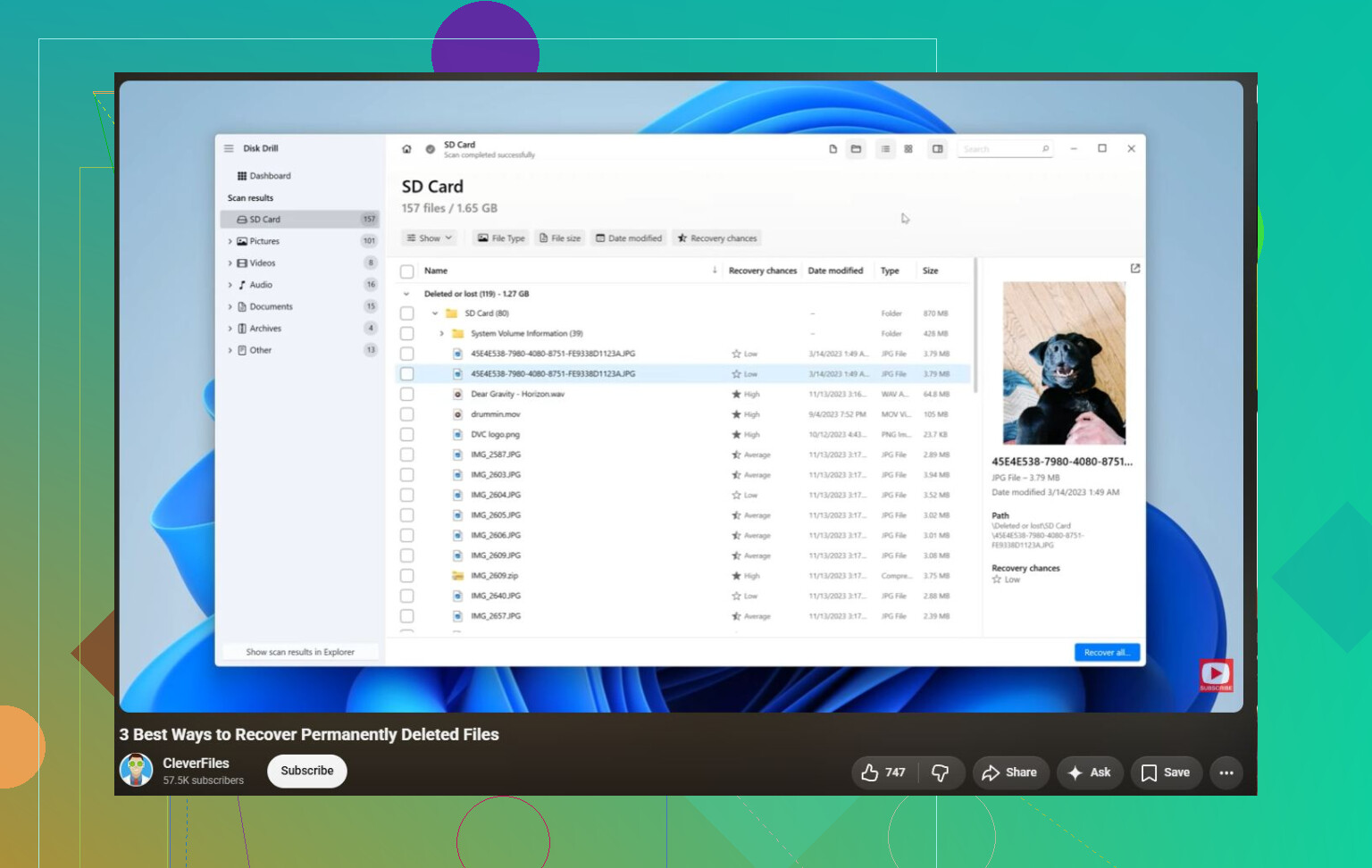
If the files really were deleted, Disk Drill is worth trying. Install it on your main computer, not the external drive. Then connect the exFAT drive and, if you’re at all unsure about the health of the drive, make a disk image first. It’s safer to scan the image instead of putting more stress on the original drive.
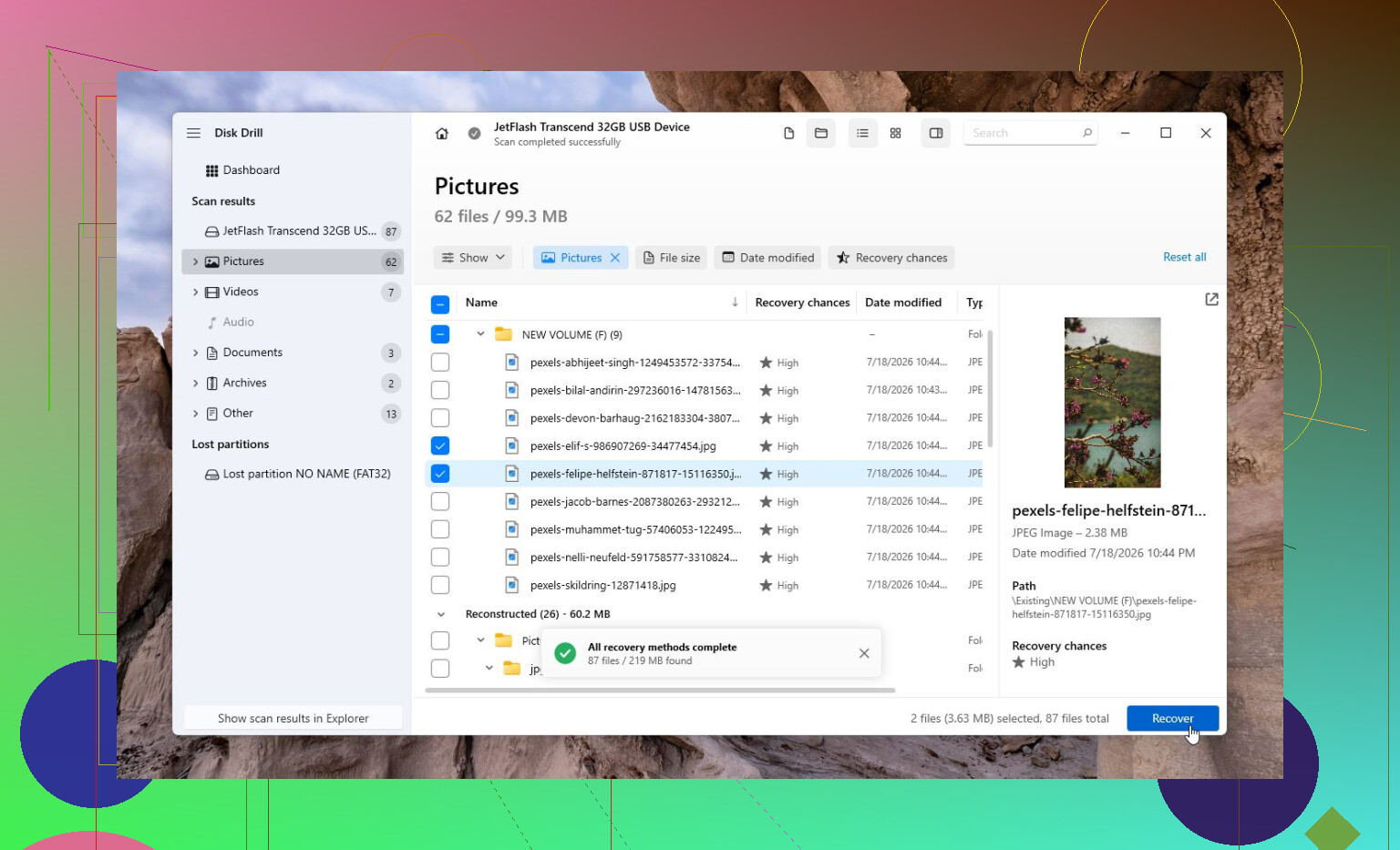
After that, select the image, run Universal Scan, let it finish, preview the files, and recover anything important to a totally different drive. Don’t recover back onto the same external drive.
The Windows version gives you 100 MB of free recovery, so you can at least check whether your files are recoverable before paying for anything.
For deleted camera or drone videos, Disk Drill also has Advanced Camera Recovery (ACR). That can help with fragmented video files that normal scans may not put back together correctly.
If Disk Drill doesn’t turn anything up, TestDisk is another option, especially when the exFAT partition itself is damaged. It’s free, but it’s not very beginner-friendly, so go slowly with it.
Also, don’t keep poking at the drive if it seems physically bad. Clicking sounds, random disconnects, not showing up on multiple computers, or showing the wrong capacity are all signs to stop using software and look at a professional recovery lab instead. Many labs will evaluate the drive for free. It can be expensive, sometimes a few hundred dollars and sometimes over $1,000, but for family photos or important documents it may be the safer route.
8 Likes
Expect some mess even if recovery works. With exFAT, a drive can mount normally while the directory records are damaged, so recovery software might find the file contents but not the original folder tree or filenames. If you see files named something like file000123.jpg, that does not always mean the scan failed. It may mean the directory info is what got damaged.
Mike is right about not writing anything to the drive. I’d take that further and avoid opening a bunch of files from it too, especially if Windows is slow, freezing, or asking to repair the disk. If you have another drive with enough space, make an image of the whole external disk first and scan that instead. If imaging fails because of read errors or disconnects, treat it more like a failing drive than a normal deleted-file situation.
For a first pass, use something that lets you preview results before committing. Disk Drill is fine if you want a GUI, but let the full scan finish before deciding it found nothing. exFAT scans can look disappointing early on and then turn up files later. Whatever you recover, save it to a different disk, then worry about repairing or reformatting the original only after you’ve checked the recovered files.
Check the drive’s Properties before you scan anything: does it still show a lot of used space, or does Windows think the drive is basically empty?
That detail changes how I’d read the situation. If the drive is showing, say, 700 GB used on a 1 TB disk but the root folder looks blank, then the data may still be there and the problem is more likely with directory entries, hidden/system attributes, a damaged root directory, or you’re viewing the wrong place. If it shows almost all free space, then it looks more like deletion, accidental formatting, or a file system record problem where Windows now believes the space is available.
Before running a recovery scan, I’d do only read-only checks:
Open the drive in File Explorer and make sure hidden items are visible. Then open Command Prompt and run something like:
dir X:\ /a
Replace X with the drive letter. That lists hidden and system items too. You might see folders like $RECYCLE.BIN, odd renamed folders, or old directories that Explorer is not showing normally. Don’t run commands that “fix” attributes across the whole disk unless you’re confident the drive is healthy and the files are actually just hidden. On a questionable disk, even well-meaning fixes can make the recovery picture messier.
I agree with the others about not running CHKDSK yet. People treat CHKDSK like a recovery tool, but it is really a file system repair tool. Its job is to make the volume consistent, not preserve your missing folder names or sort your photos. Sometimes it helps after recovery is done. Sometimes it turns recoverable directory damage into a pile of .CHK fragments.
The other boring thing worth checking is the cable/enclosure. A flaky USB cable or cheap external enclosure can make an exFAT drive appear normal one minute and empty or half-readable the next. If the disk is a bare SATA drive in a USB dock, try a different dock or direct SATA connection if you can. If it is a sealed portable drive, at least try a different cable and USB port. Do not keep retrying for hours if it clicks, disconnects, or gets very slow.
Yes, exFAT recovery is possible, but there are two different levels of “possible”:
Recovering file contents: often possible if the data has not been overwritten.
Recovering the original folders and names: depends on whether the directory records are intact.
That second part is where people get disappointed. exFAT is common on external drives because it works across Windows and macOS, but it is not very forgiving when unplugged during writes or when the drive starts developing read errors. A recovery tool may find thousands of files by signature, but those files may come back sorted by type with generic names. That is still a valid recovery result, just not the pretty one everyone wants.
Disk Drill is okay as a first GUI scan if you want something less painful than command-line tools, but I would treat it as a preview tool first, not as a promise. Let it complete the scan, check whether the previews actually open, and only recover to another disk. If you’re deciding whether it’s worth paying for, reading a few user comments like this Disk Drill review discussion may be useful, mainly so you know what expectations to have.
If the files are important, I’d image the drive before doing anything more aggressive. If the files are only “nice to have,” then scanning the original directly is a risk some people accept, but it’s still a risk. The safest order is: check used space, do read-only visibility checks, make an image if possible, scan the image, recover to a separate drive, then think about repairing or reformatting the original. Once you start fixing the exFAT volume itself, you may lose the clues recovery software was going to use.
Being recognized does not mean the file system is okay. It only means the computer can see a device and mount something that looks like an exFAT volume. The directory can still be trashed, the allocation bitmap can be wrong, or the drive can be returning bad reads while Windows politely shows you an empty folder.
A small caveat I don’t see mentioned enough: if this is actually an external SSD or a flash-based drive, recovery can be much less predictable than with a spinning hard drive. Deleted data may be trimmed/discarded by the OS or controller, and once that happens, recovery software may only find names, partial files, or nothing useful. If it is a normal portable HDD, your odds are generally better as long as you stop writing to it.
I’d use Mike’s “used space vs free space” check as the first fork in the road. If the space is still used, I’d lean toward directory damage or hidden/misplaced entries and scan it carefully. If it shows empty, treat it like deleted/formatted data and don’t touch the drive except to image it or scan it. Disk Drill is fine for a quick visual scan if you want something easy, but don’t judge by the first few minutes and don’t recover back to that disk. If the drive disconnects, clicks, or crawls during the scan, stop trying software and get the data copied by someone with proper imaging tools before the drive gets worse.