My external hard drive still shows that most of the storage space is being used, but all of my files suddenly disappeared and I can’t see them in File Explorer. I didn’t delete anything, and now I need help figuring out if the files are hidden, corrupted, or if the drive is failing before I lose everything.
I had this happen on an external drive a while ago. Plugged it in, opened it, and a pile of folders had vanished. My first thought was, great, I nuked my own files. Turned out the drive had file system damage, not a clean delete. I got most of it back, so I would not treat missing folders as dead data yet.
First thing, stop using the drive more than needed. Don’t format it. Don’t move new stuff onto it. Don’t run repair tools first. If your files are still sitting there, any write or repair pass risks changing the drive and making recovery harder.
Before running recovery, I’d check the easy stuff.
- Turn on Hidden items in File Explorer.
- Look at used space on the drive. If your folders are gone but it still says something like 800 GB used, I’d take that as a decent sign.
- Swap the USB cable or try another port if the drive is acting weird.
- If it disconnects, crawls, or throws file system errors, quit poking through folders again and again. I did that once and it did not help one bit.
If there’s no backup, I’d skip drive repair at first and go straight to recovery software. That was the route I took.
I used Disk Drill. The steps were simple enough:
- Install it on your computer’s internal drive, not on the external drive with the missing files.
- Connect the external drive and open the app.
- Pick the affected drive and hit Search for lost data.
- If the drive seems unstable, make a disk image first, then scan the image instead of hammering the original disk. I’d do this early if the drive drops out or sounds off.
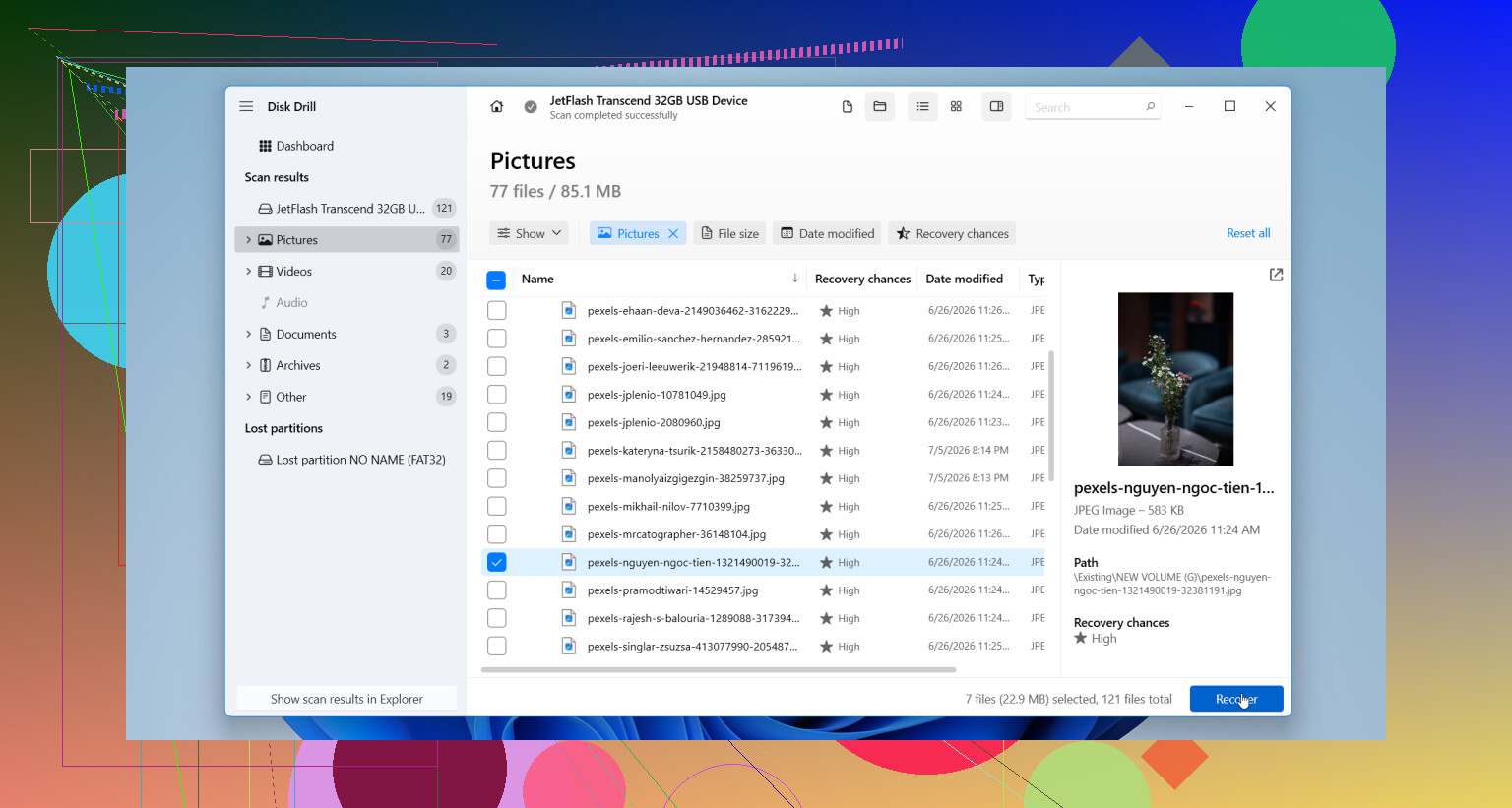
- Let the scan finish. Preview a few files. If they open fine, recover them to a different drive.
I would only think about repairing or formatting the original drive after the important files are copied somewhere else.
There are cases where I would stop the home recovery attempt and hand it off to a pro. Big warning signs:
- Clicking, grinding, or beeping sounds.
- Disconnecting every few seconds.
- No computer detects it anymore.
- Scans keep freezing or never finish because the drive keeps going offline.
- The files matter enough where one bad move is too much risk.
Those signs usually point to hardware trouble, not only file system corruption. Software won’t fix a dying mechanism.
If you do get your files back, I’d retire the drive. I know some people keep using them. I don’t. Once a drive starts losing folders, going unreadable, or tossing file system errors for no clear reason, my trust is gone. You can check SMART diagnostics and see what the health report says, but even with a clean result, I’d only keep it for throwaway storage, if at all. Drives are cheaper than re-losing photos, work files, or years of random personal junk you forgot you cared about till it vanished.
Mine still sort of worked after recovery. I replaced it anyway. Now I keep a second backup on another drive, which I should’ve done from day one tbh. Cost me some cash, yep, but less than dealing with that stress twice.

7 Likes
If the drive still shows full or near-full space, your files often still exist. What changed is the file table, folder entries, or visibility flags. I’d look at 4 likely causes.
- Hidden or protected files. Malware does this a lot.
- File system corruption. Common on drives yanked out without ejecting.
- Bad sectors in the area holding directory info.
- Partition issue, where Windows mounts the volume weirdly and your data stays orphaned.
I agree with @mikeappsreviewer on one big point, do not format the drive. I slightly disagree on waiting too long to test the file system state though. A read-only check of the drive’s SMART health early on helps. If CrystalDiskInfo shows caution or bad status, stop messing with the disk and clone it first.
What I’d do next:
- Check Disk Management. See if the partition shows RAW, unallocated, or healthy.
- Run dir /a in Command Prompt on the drive letter. Hidden stuff sometimes appears there even when Explorer shows nothing.
- Scan for malware if folders turned into shortcuts.
- If the file system looks damaged, use Disk Drill to scan for lost files and rebuild what Windows no longer lists.
- Recover to a different drive, never back onto the same one.
If this happened after formatting, this guide is close to what you need too, watch how to recover files from a formatted hard drive.
If the drive clicks, freezes, or disconnects, stop. That’s where DIY gets risky fast.
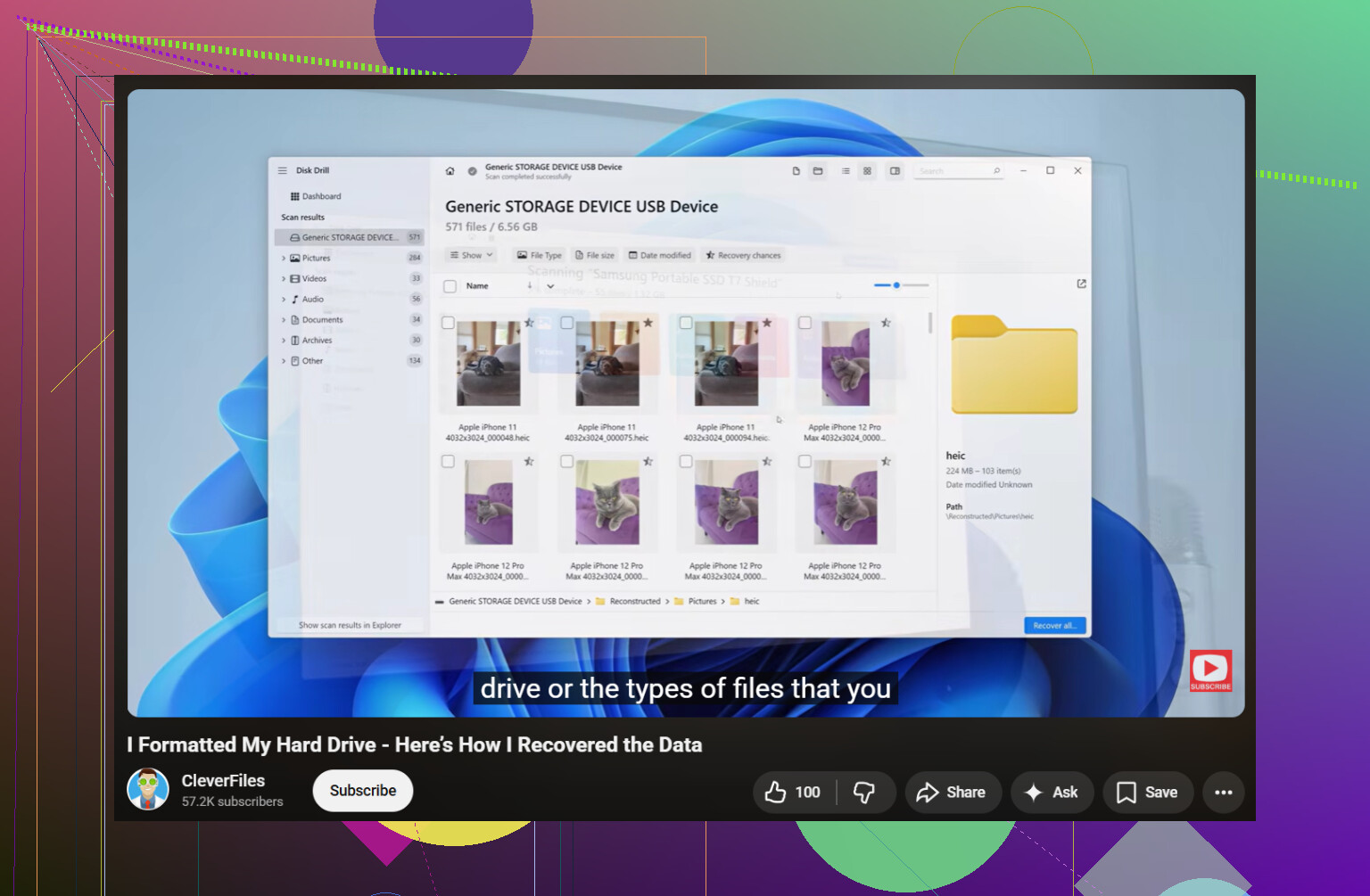
If the drive still shows used space, that usually means the data blocks are still there but Windows lost track of the folder structure. So no, “empty drive” in File Explorer does not always mean your files are gone gone.
A slightly diff take from @mikeappsreviewer and @chasseurdetoiles: I would not spend too much time inside File Explorer trying every little view option if the drive is acting flaky. If it’s stable, sure, check hidden/protected files once. After that, move on. Repeated browsing on a sick drive is just extra wear.
A couple things I’d check that they didn’t really stress:
- Try the drive on another computer. Sometimes it’s a Windows profile/view issue, not the disk itself.
- Check if ownership/permissions got messed up. Right click drive > Properties > Security. Rare, but I’ve seen folders “disappear” because the account lost access.
- In Admin Command Prompt, run:
attrib -h -s -r /s /d X:\*.*
Replace X with your drive letter. If malware or a glitch flipped all files to hidden/system, this can make them visible again. - Look in the root for weird shortcut files. That’s a classic sign of USB malware nonsense.
If none of that helps, then yeah, recovery software is the next sane move. Disk Drill is a solid option for external hard drive recovery because it can find files that still exist on disk even when Explorer shows nothing. Recover to a different drive, not the same one. Kinda obvious, but people do it anyway lol.
Also, if you want more community input, this thread on best hard drive recovery software for external storage drives is worth reading.
One thing I do disagree with a bit: people jump to CHKDSK way too fast. Sometimes it helps, sometimes it “cleans up” your missing files into oblivion. I’d save that for after recovery attempts, not before.
If the drive is clicking, freezing, or randomly disconnecting, stop DIY stuff. At that point it’s not a file visibility problem anymore, it’s a failing drive problem.
Used space + empty folders usually screams “directory problem,” not instant data loss. I mostly agree with @chasseurdetoiles, @cazadordeestrellas, and @mikeappsreviewer, but I’d add one thing they only touched lightly: check the USB bridge/enclosure too. I’ve seen perfectly fine drives look “empty” because the enclosure was glitching and returning garbage metadata.
What I’d do that does not involve repair yet:
- Check the drive’s file system in Properties. If it suddenly shows RAW, stop.
- Open Event Viewer and look for disk/NTFS warnings around the time files vanished.
- If it’s an external HDD, listen for spin-down loops or repeated reconnect sounds.
- If possible, remove the drive from the enclosure and test it directly or in another enclosure.
I slightly disagree with the “retire it no matter what” angle. If recovery succeeds and SMART is clean, sometimes the enclosure is the real failure, not the disk.
For recovery, Disk Drill is a reasonable next move.
Pros:
- Simple scan workflow
- Good at finding lost files from broken directory structures
- Can preview recoverable files
- Useful if Explorer shows nothing
Cons:
- Full recovery may require the paid version
- Deep scans can take a long time
- Results get messy if the file system is badly damaged
- Not a fix for mechanical failure
Important: recover to another drive only. If the scan shows filenames/folder tree intact, that’s a good sign the data itself survived. If it only shows generic file chunks, damage is worse but still possibly recoverable.