I accidentally formatted my hard drive before realizing it had important photos, work files, and personal documents on it, and I do not have a backup anywhere. I need help figuring out if hard drive data recovery is still possible after formatting, what recovery software or steps are safest to try, and how to avoid making the data loss worse.
I did this once with a spare drive and once with one I cared about. The second time felt awful. First move, stop writing to it. Unplug the drive, or shut the machine down and leave it alone until you know your next step.
The usual screw-up happens right after the format. People start copying files, installing recovery apps, or trying random repair steps on the same disk. That is how old data gets overwritten. If you want any shot at recovery, keep new writes off the formatted drive.
What a format usually means
A quick format and a full format are not the same thing.
With a quick format, the file system index gets cleared. Your computer treats the drive like it is empty, even though a lot of file data is still sitting there until something replaces it.
With a full format, the system spends longer checking the disk and often writes across the space. If that happened, recovery odds drop hard. On many setups, the old data is gone.
Drive type matters more than people think
If this was a mechanical hard drive, I would feel better about your chances. Those old spinning drives tend to give recovery software more to work with after a quick format.
If it was an internal SSD, things get uglier. TRIM tends to clean out blocks the OS thinks are free. Once that kicks in, recovery gets rough fast. External SSDs over USB are a weird middle ground. I have seen better results there, since TRIM does not always fire the same way over USB.
What I would do
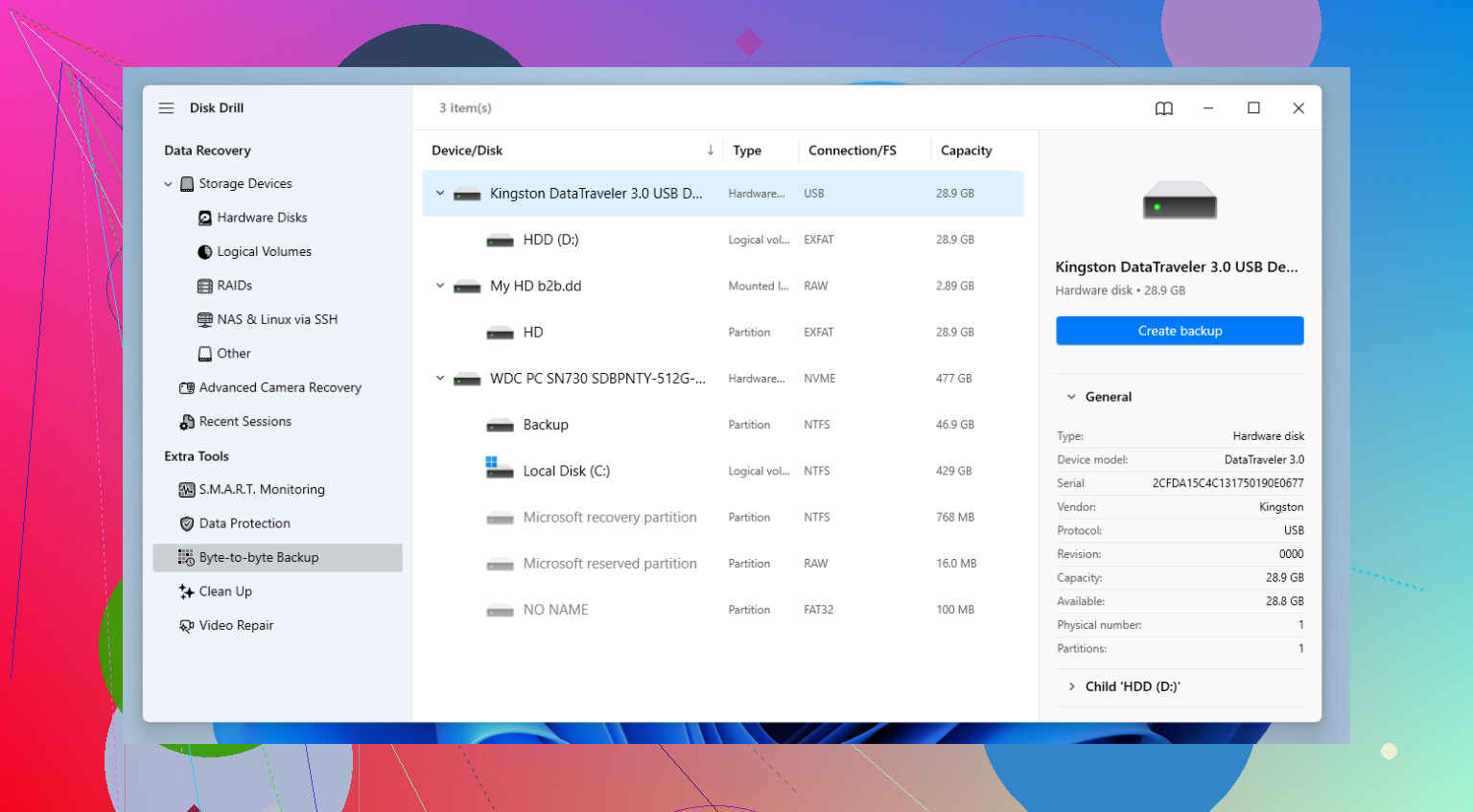
If you are not sending the disk to a lab, which gets expensive fast, I would try recovery software first. I have used a few over time, and for a formatted drive I had decent results with Disk Drill.
The main reason I liked it was simple. It did not fight me. It reads common file systems like NTFS, FAT32, and APFS, and it is decent at pulling files back even when the names and folders are trashed.
If you use it, make an image first if the option is there. A byte-to-byte image is safer to scan than hammering the original disk over and over. I learned this late, annoyngly.
Basic recovery flow
1. Install the recovery app on another drive, never the formatted one.
2. Attach the formatted drive and run a scan.
3. Sort the results by type if the original names are missing.
4. Use preview before restoring anything. If a photo opens or a doc shows readable text, recovery odds for that file are good.
5. Restore files to a different disk.
If you want the free route
PhotoRec is worth a look if you do not mind terminal tools and some mess. It is strong at file carving, but the output is ugly. You usually end up with piles of renamed files, stuff like image000123.jpg, and then you sort it by hand. I have done it. It works, but it is tedious.
Check cloud sync before you spend hours on recovery
This part gets missed all the time. Log in to OneDrive, Google Drive, or iCloud and look around. I have seen people think they lost their desktop and documents, then find out sync had been running in the background the whole time. Takes five minutes. Worth doing first.
If you have not written new data to the drive yet, I would still have some hope. Not a promise, but enough to try the careful route before assuming it is all gone.
4 Likes
If the drive was quick-formatted, recovery is still possible. If it was full-formatted, odds drop a lot. If it was an SSD, odds drop even more because TRIM wipes free blocks fast.
I agree with @mikeappsreviewer on one thing, stop using the drive. I disagree a bit on waiting too long before testing. Time matters more on SSDs. If you keep it connected to a running system, cleanup jobs might keep changing things.
My order would be this.
- Find out the drive type, HDD or SSD.
- Find out the format type, quick or full.
- Clone the drive first, if the files matter a lot.
- Scan the clone, not the original.
For photos and docs, file carving often gets the best hit rate after a format. You lose folder structure, but JPEG, PNG, PDF, DOCX, XLSX often come back. On a healthy HDD after a quick format, people often recover a decent chunk. On SSDs, results get bad fast. Thats the ugly truth.
I’d skip random “repair” tools. Those target filesystem damage, not formatted-drive recovery. Different problem.
Disk Drill is a solid pick here because it handles formatted partitions well and lets you preview results before recovery. Recover to a different drive, never back onto the same one. If the data is worth more than a few hundred bucks, stop DIY and use a lab.
If you want a walkthrough, this video guide for recovering files from a formatted hard drive covers the process in a clear way. Short and usefull.
One thing I’d add to what @mikeappsreviewer and @hoshikuzu said: check whether the format happened on the whole drive or just one partition. People say “I formatted the drive” when sometimes they only recreated a partition table. If that’s the case, partition recovery can sometimes bring back filenames and folders better than pure file carving. Different angle, same mess.
Also, I would not keep powering it on just to “see what’s there.” Even on an HDD, that can turn a recoverable situation into a more annoying one real fast.
If you want a practical path, use a second computer, connect the formatted drive as a secondary disk, and scan from there. Disk Drill is a reasonable choice for this because it can show both found partitions and carved files, which helps when you’re trying to recover photos plus office docs instead of just random junk. Recover everything to another drive, obviosuly.
If you’re comparing options, this list of best data recovery software for formatted hard drives is worth a look too.
Small reality check: if this was an SSD and it’s been sitting connected to Windows or macOS after the format, DIY odds may already be kinda bad. If it’s irreplaceable work stuff, skip the “I’ll try five apps” phase and talk to a recovery lab before you make it worse. That part sucks, but it’s true.
I’m mostly with @hoshikuzu, @boswandelaar, and @mikeappsreviewer, but I’d push one extra angle they only touched lightly: check whether this was just a filesystem reformat or an actual repartition plus format. If the partition map got rebuilt, sometimes partition-level recovery can preserve original structure better than pure carving. That matters a lot for work files.
One small disagreement: people often jump straight to file carving. Good for photos, sure, but for office documents I’d first try a scan mode that looks for lost volumes and old filesystem records. Carving is great when metadata is toast, but it can leave you with messy filenames and duplicates.
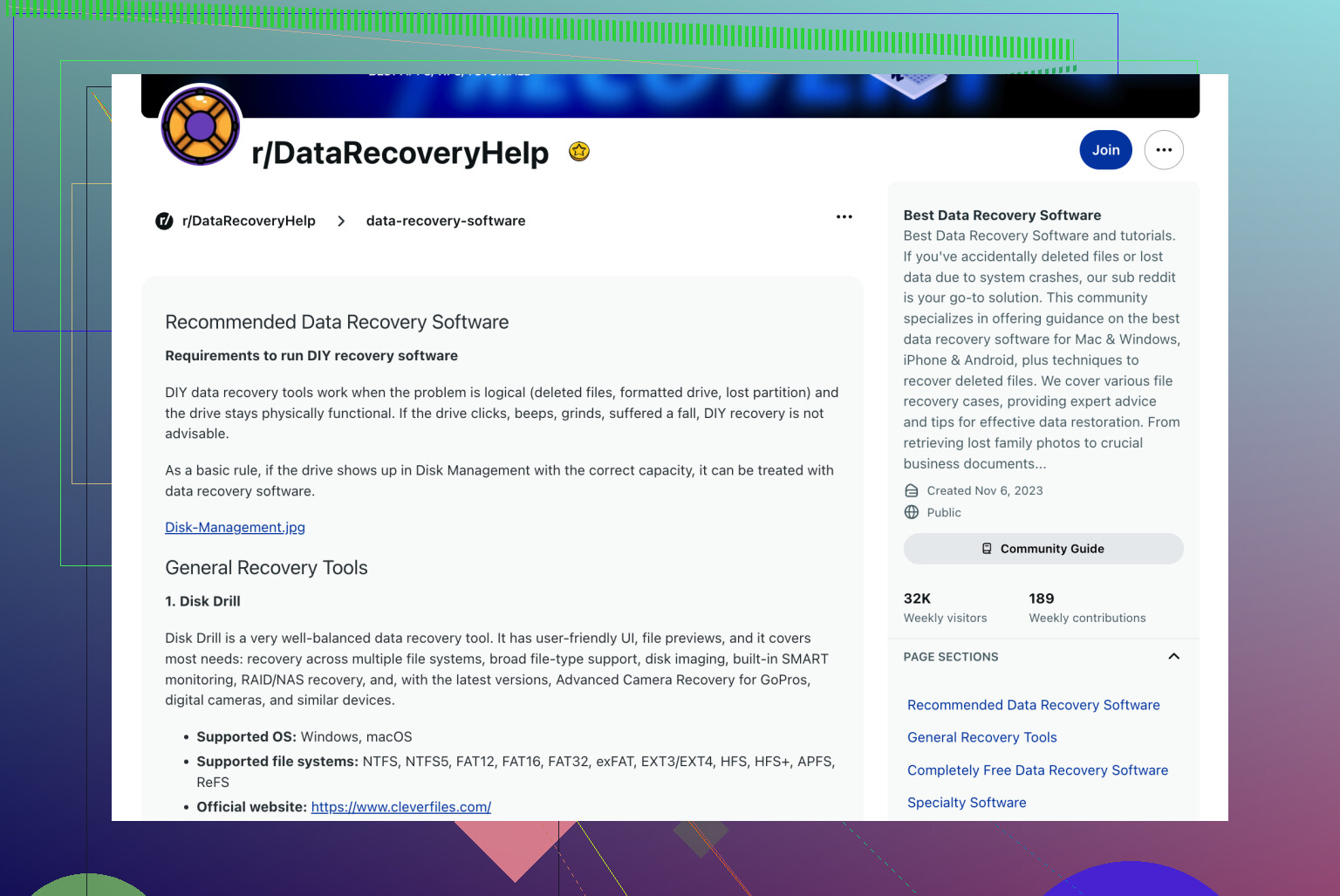
Disk Drill is fine for this because it does both broader scanning and carved recovery in one place.
Pros:
- good preview support
- handles formatted volumes reasonably well
- easier than command-line tools
- can find both lost partitions and raw files
Cons:
- not the cheapest option
- deep scans can take forever
- carved results can still be messy
- like every DIY tool, it cannot beat SSD TRIM
If this is a hard drive and it was a quick format, I’d absolutely try Disk Drill before giving up. If it’s an SSD and the data is truly irreplaceable, I’d stop testing tools after one careful pass and consider a lab. Too many repeated scans and power cycles can make a bad situation worse.