I accidentally deleted important files from my external hard drive and realized it shortly after. The drive has work documents and personal photos I really need back, and I’m afraid using it more could make recovery harder. What’s the safest way to recover recently deleted files from an external hard drive?
I did this once with a travel photo folder, and the first mistake I almost made was using the drive more. Don’t. If the photos were deleted from an external drive, the files usually are not gone at once. The file system often removes the entries pointing to them and marks the space as free. Your photos may still be sitting there until something new lands on those same sectors.
So first thing, unplug the external drive. Don’t copy to it. Don’t rename folders on it. Don’t run cleanup tools on it. Leave it alone until you know your next step. If new data gets written over the old photo data, recovery drops off hard. Past that point, software won’t help.
Before trying recovery software, check whether the drive itself looks sick. I’d stop the DIY route and send it to a lab if you notice any of this:
- Strange sounds. Clicking, grinding, scraping, beeping, anything like that.
- No spin, no power light. Feels dead even after swapping cables.
- Your system does not detect it at all, even on another computer or with another cable.
If none of those are happening, and the drive spins up and shows normally, software recovery is usually the sane option. For plain accidental deletion, paying lab prices makes no sense unless the hardware is failing.
I’ve tried a bunch of these over time. For photos, Disk Drill gave me the least headache. What stood out for me was simple stuff. The interface is readable. The scan results are easier to sort. It’s also good at pulling image and video formats by signature, which matters when folder info is gone. You can scan and preview files for free. If the preview opens cleanly, your odds are decent because the file data is still there.
If you want free options, PhotoRec exists. It’s open source and good at signature-based recovery. I’ve used it, and yeah, it works, but it feels rough. No clean modern UI. It tends to dump a huge pile of recovered files into folders with scrambled names, so sorting the mess takes forever. Recuva is another free one on Windows. Easier to deal with than PhotoRec, though it feels older and its deeper scan results weren’t as good for me on newer media.
If you use Disk Drill, this is the safer way to do it:
Recovery steps
1. Install it on your computer, not the external drive
Put the software on your internal system drive. Keep all writes away from the external disk where the photos were lost.
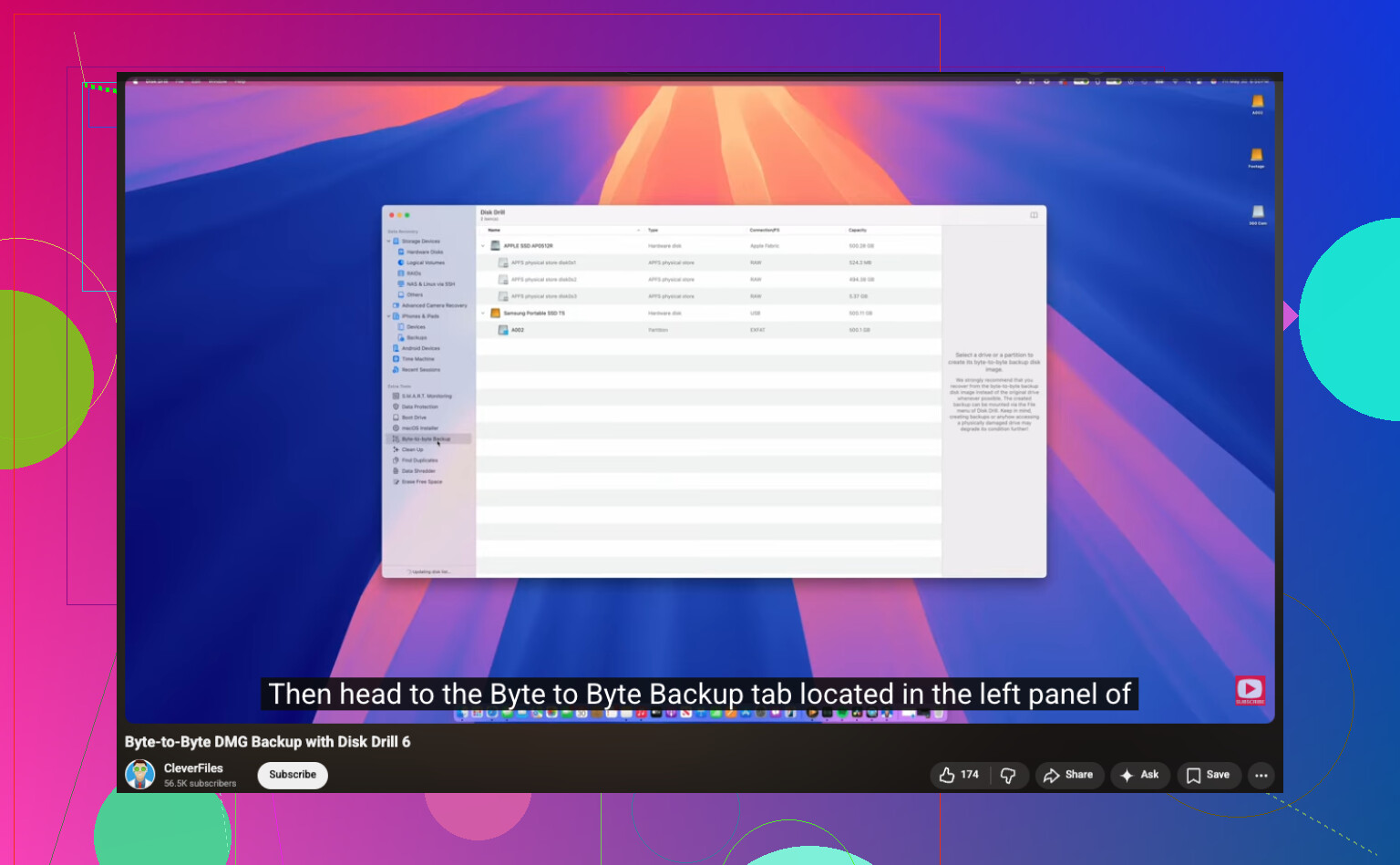
2. Make a full image of the external drive first
Reconnect the external drive and create a byte-for-byte image before doing deeper recovery work. The app supports this already. Save the image onto your computer or another healthy drive, not the original external disk.
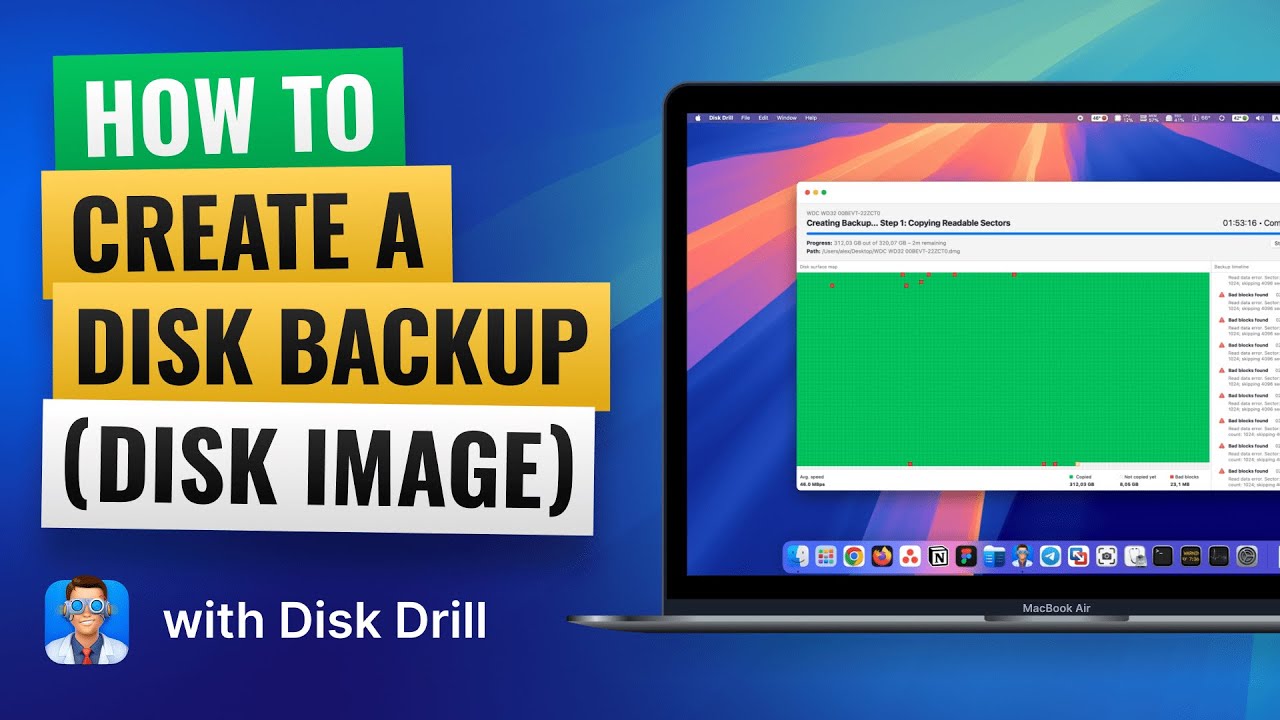
3. Scan the image, not the physical drive
After the image is done, disconnect the external drive if you want. Run the recovery scan against the image file. I like this route because it avoids extra wear on the original drive and cuts down the chance of me doing something dumb in a hurry.
4. Recover files to a different device
Let the scan finish. Filter by images. Preview what you find. When you restore the files, send them somewhere else, your internal drive, a second USB drive, anywhere except the original external drive.
A small thing people skip, previews matter. If a JPG or RAW file previews fine in the scanner, I’d take that as a good sign. If previews are broken or half gray, parts of the file were likely overwritten.
And yeah, after this mess, set up backups. I learned the hard way. The 3-2-1 setup is boring until the day it saves your weekend.
6 Likes
Stop using the drive. That part I agree with from @mikeappsreviewer. Time matters more than anything here.
My one difference, start with the trash path first if you deleted through Finder or File Explorer and the external was mounted in a normal way. Some externals keep a hidden recycle folder. On Windows, show hidden items and look for $RECYCLE.BIN on the external. On Mac, check .Trashes. People skip this and go straight to scanners.
If the drive opens fine and copies small files without errors, I’d do a quick health check before a deep scan. On Windows, read SMART with CrystalDiskInfo. On Mac, DriveDx or smartctl. If you see reallocated sectors climbing, pending sectors, or I/O errors, stop poking it. Clone first, then work from the clone. If health looks clean, move to recovery.
For mixed data like docs plus photos, Disk Drill is a solid pick because it handles both file system recovery and raw signature results in one place. That matters when you need filenames for work docs, not only loose JPGs. Recuva is ok for simple NTFS deletes, but it falls off on damaged indexes. PhotoRec finds stuff, but sorting 2,000 renamed files is a pain in the neck.
One more thing people miss, sort recovered results by original path and modification date first. Work docs are easier to identify that way, and you waste less time.
This video is a decent walk-through for external hard drive file recovery steps, watch this external hard drive file recovery guide.
Restore to a different drive. Not the same one. Sounds obviuos, but ppl do it.
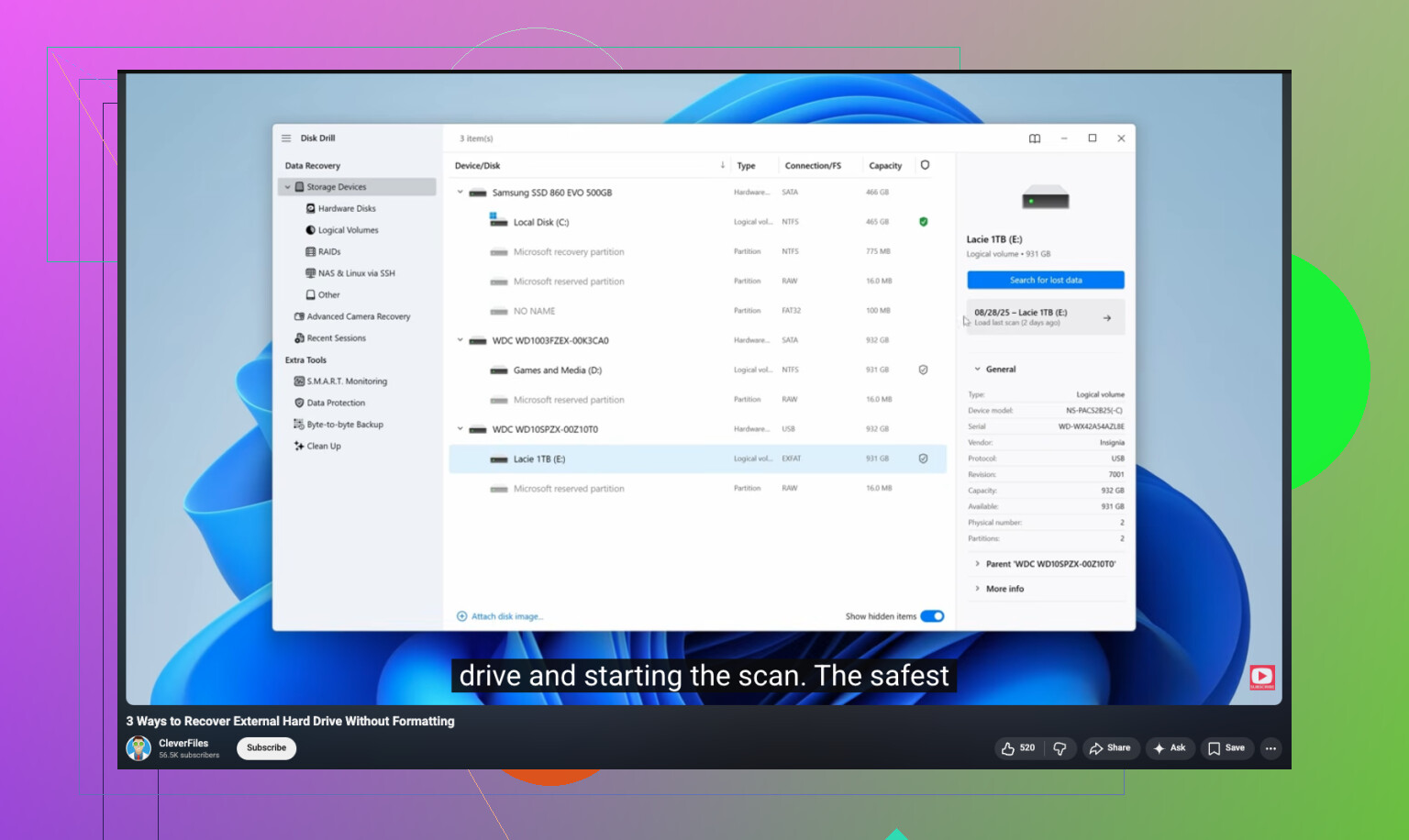
Stop using the external drive, yeah, but I’ll disagree a little with the “image first no matter what” crowd. If the drive is healthy, recently deleted, and you caught it fast, a normal read-only scan is often fine. Imaging is ideal, not always mandatory. If the drive is acting even a little weird, then clone first.
Also, before going full recovery mode, check your cloud sync apps. A lot of people forget docs and photos may still be in OneDrive, Google Drive, iCloud, Dropbox version history, etc. Same goes for Office temp/autorecovery files if those work docs were open recently. That can save a ton of time.
@kakeru is right about hidden recycle folders, and @mikeappsreviewer is right about not writing anything new. My add-on would be this:
- disable auto-backup/sync tools so they don’t “help” by updating the drive
- if it’s an SSD in an external enclosure, act fast because TRIM can make recovery worse
- if it’s an HDD, odds are usually better if nothing new was written
For software, Disk Drill makes sense here because you’ve got mixed file types, not just pics. I’d prioritize recovering work docs first, then photos. Those tend to be easier to verify quickly. Recuva is ok for simple deletes, but once metadata gets messy it gets kinda meh.
Also, if you want a solid explainer on recovering permanently deleted files from a hard drive without making things worse, that covers the basics pretty well.
Big rule: recover to another drive. Not the same one. Seems obvous, still gets people every time.
One angle nobody’s touched enough: check the file system type before choosing your tool. If that external is exFAT, a lot of “undelete” advice gets shakier because metadata recovery is less forgiving than NTFS or HFS+/APFS cases. In that situation, signature-based recovery becomes more important, which is why Disk Drill can make sense for mixed files.
My mild disagreement with @voyageurdubois: I would not rely too much on preview success alone. A preview can open while the full DOCX, PSD, or large RAW is still partially corrupted. For work files, test recovered docs properly after export.
Also worth doing: if the deleted folder had a very specific structure, write down folder names, file names, extensions, and approximate sizes from memory before scanning. Sounds dumb, helps a lot when scan results are chaos.
Disk Drill pros:
- good for mixed file types
- cleaner filtering than many rivals
- can combine deleted-entry recovery with signature finds
- previews help triage
Disk Drill cons:
- not the cheapest option
- deep scans can return lots of duplicates
- raw recovery loses original names/folder structure sometimes
- can feel heavy for a simple one-folder delete
Compared with what @kakeru, @voyageurdubois, and @mikeappsreviewer mentioned, I’d add one more caution: if this is an external SSD, every minute matters more than with a spinning HDD.
Priority order I’d use:
- Identify HDD vs SSD
- Check hidden trash/recycle area
- If failing, clone first
- Recover most important docs first
- Save everything to another disk
If you want one paid tool, Disk Drill is reasonable. If results look messy, don’t keep rescanning the original over and over.