I’m trying to get a physical serial (COM) port passed through to a VMware virtual machine and keep running into configuration issues. The VM either doesn’t detect the port at all or shows errors when I attempt to connect devices. I need guidance on the correct VMware settings, host requirements, and any driver or permissions tweaks needed to make reliable serial port passthrough work for hardware testing and legacy equipment control.
This is one of those things that should be simple and then VMware goes “lol nope.”
Short version: physical COM passthrough in VMware is touchy. You’ve got three pieces that all have to line up:
- Host side
- VM hardware config
- Guest OS driver / COM number
Also that “VMware serial port passthrough” topic is basically about reliable physical COM port access in VMware virtual machines without random disconnects or detection issues.
1. Check the host first
- Make sure the host actually owns the COM port and no other app is holding it open.
- On Windows host:
- Device Manager → Ports (COM & LPT) → confirm the port exists and the COM number (COM1 / COM2 etc).
- Check nothing like PuTTY, vendor config tools, weird tray apps are using it.
- On Windows host:
- Close every terminal app or hardware config utility that might be touching the port.
If the host can’t talk to the serial device reliably, the guest won’t either.
2. Correct VMware serial device type
In VMware (Workstation / ESXi) the serial device type is key. For a physical port you want:
- “Use physical serial port on the host”
- Choose COM1 / COM2 that matches Device Manager on the host
Or if you use a named pipe, make sure both client and server are configured correctly. But for your use case it sounds like straight physical passthrough.
Also:
- Add the serial port while the VM is powered off.
- After adding, edit the VM’s
.vmxand confirm something like:
Adjustserial0.present = 'TRUE' serial0.fileType = 'device' serial0.fileName = 'COM1' serial0.tryNoRxLoss = 'FALSE'COM1to whatever your host is using.
Sometimes the GUI lies or borks the config, so checking the vmx is not wasted time.
3. Avoid USB to serial weirdness (or treat it properly)
If your “physical serial port” is actually a USB to RS232 adapter:
- Option A: Let host own the adapter and expose it as a physical serial port to the VM. That usually means installing the USB serial driver on the host first, making sure the device shows as COMx, then mapping COMx in VMware.
- Option B: Use USB passthrough instead. Pass the USB device itself to the VM, then install the USB serial driver inside the guest. This is sometimes much more reliable.
A lot of “port not detected” issues happen because people half do both: they let host grab the USB serial and also try USB passthrough at the same time.
4. Guest OS side
Inside the guest:
- On Windows guest
- Device Manager → Ports → check if a COM port appears when VM has the serial device added.
- If nothing shows, run
devmgmt.mscas admin and “Scan for hardware changes.” - Check that no old driver is stuck with a yellow exclamation mark.
- On Linux guest
- Check
dmesg | grep ttyafter boot. - Look for
/dev/ttyS0or similar. - Try
setserial -g /dev/ttyS*to see what the kernel thinks.
- Check
You might need to adjust the COM number expected by your app. Some apps are hard coded to COM1 only and you end up with COM3 or COM4 in the VM.
5. ESXi specific gotchas (if that’s what you’re on)
- Not all hosts even expose physical COM ports properly to ESXi. Some servers don’t map them in the way VMware likes.
- You often need to mark the serial port as “Use physical serial port” and sometimes also configure the ESXi host advanced settings or use a serial over network target.
- For remote serial devices, many people end up using a network backed serial port instead of raw hardware mapping.
6. When VMware’s native passthrough is a pain
If you keep getting:
- VM not seeing the port
- Random disconnects
- Errors as soon as you connect
Then skip raw hardware passthrough and virtualize the serial port over TCP.
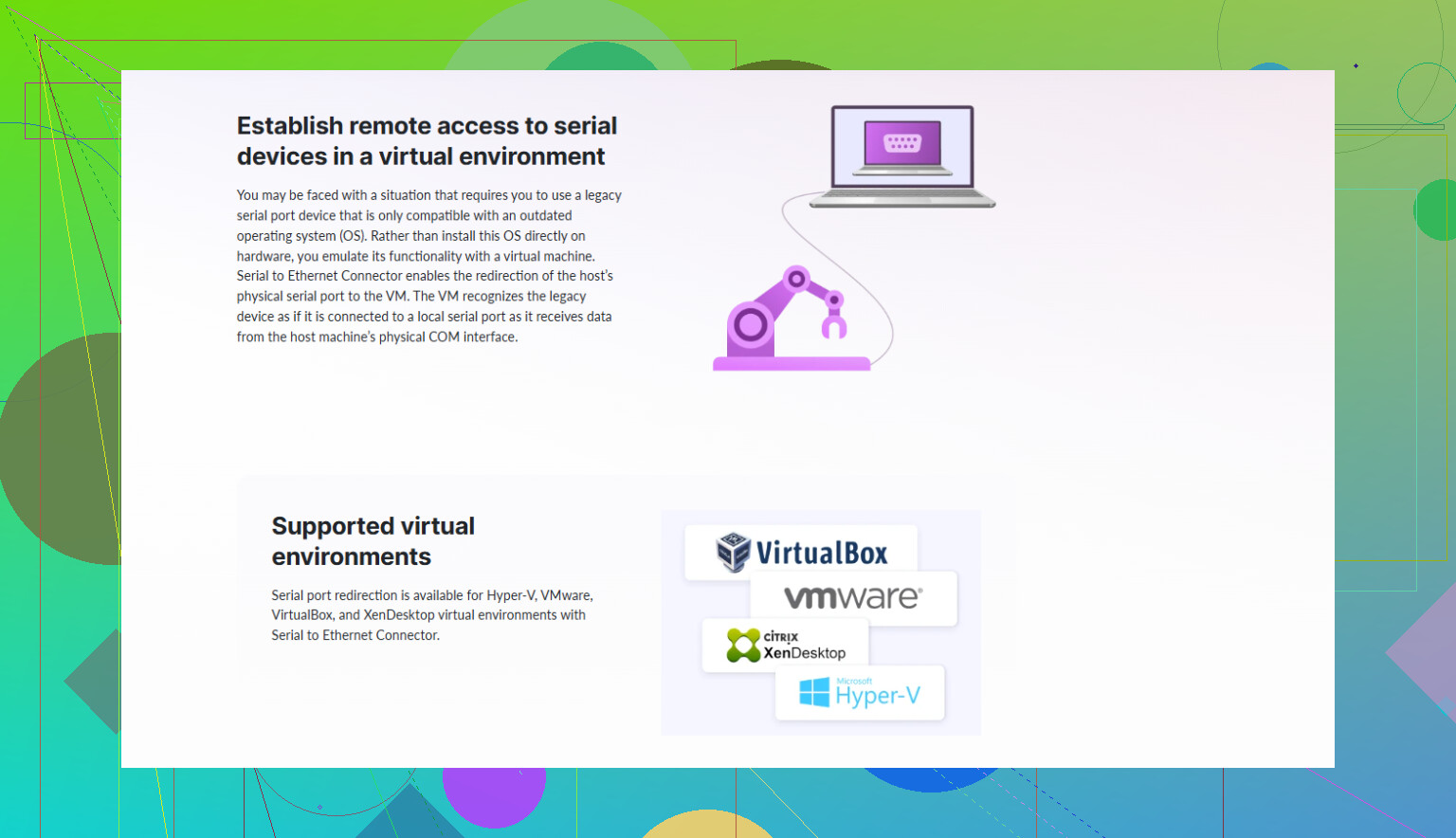
That is exactly where something like Serial to Ethernet Connector comes in handy. It basically turns your real COM port into a network shared port and the guest OS talks to it like a local serial port via a virtual driver.
You install it on the host, share the physical serial port over the network, then install the client part in the VM. The VM gets a virtual COM port that tunnels over TCP to the host’s real COM. It tends to be more stable than VMware’s own physical mapping, especially for long‑running connections or when you move VMs around.
For more detail on setting up serial connectivity inside VMware, this walkthrough is pretty decent:
practical guide to reliable serial ports in VMware VMs
If you post your exact stack (Host OS, VMware product and version, guest OS, physical vs USB serial), plus what shows in Device Manager / dmesg, people can usually point to the exact missing step. Right now it sounds like either the COM mapping in VMware is wrong or the host still has the port locked.
14 Likes
Yeah, VMware + real COM ports is one of those “how is this still this janky in 2026?” things.
@vrijheidsvogel already hit the obvious host / VM / guest alignment stuff, so I’ll skip the basics and poke at the less-obvious failure modes that usually bite people when everything looks right but the port still flakes out.
1. Double‑check what type of serial hardware you actually have
People swear “it’s a physical COM port” and it ends up being:
- PCIe serial card with quirky drivers
- USB‑to‑serial hidden on the front panel
- IPMI / iDRAC virtual serial wired into COM1 in BIOS
Those behave very differently under VMware.
- If it is a PCIe serial card, on ESXi you often get more reliable behavior by doing PCI passthrough of the whole card instead of VMware’s serial device abstraction. That way the guest owns the card completely and VMware isn’t in the data path.
- If it is IPMI / BMC serial redirection, sometimes the host firmware is quietly stealing COM1. In that case, even if Windows shows COM1, you’ll see random disconnects or garbage. Turning off serial redirection in BIOS magically “fixes” VMware serial passthrough.
So if your host is a server board, check BIOS for “Serial over LAN”, “Console redirection”, etc., and kill it.
2. VMware’s serial buffering & flow control quirks
This is where I half‑disagree with @vrijheidsvogel: leaving everything at defaults is not always fine.
In the VM’s .vmx, the following can make or break some serial protocols:
serial0.yieldOnMsrRead = 'TRUE'
serial0.tryNoRxLoss = 'TRUE'
serial0.bufferSize = '5120'
tryNoRxLoss = 'TRUE'helps when the guest is a bit slow and you are getting dropped bytesyieldOnMsrReadcan smooth timing for chatty devices- Increasing
bufferSizehelps for bursts of data
You have to power off the VM, edit the .vmx, save, then power it back on. VMware’s GUI usually does not expose these.
If your symptom is “port is detected but errors as soon as you connect / high traffic,” tuning these is worth a try.
3. Timing‑sensitive gear: stop relying on “pure” passthrough
If you talk to:
- industrial controllers
- POS hardware
- CNC equipment
- very old firmware update tools
they often expect very specific timing & strict RTS/CTS handling. VMware’s emulated serial layer is sometimes just not accurate enough and you get:
- connection only works sporadically
- device seen, but commands time out
- firmware flasher hangs mid‑way
In that scenario, a network‑virtualized COM port is ironically more stable than the “real” passthrough. That is exactly where Serial to Ethernet Connector becomes useful.
Setup pattern that usually works:
- Install Serial to Ethernet Connector on the host and expose the real COM port over TCP.
- Inside the VM, install the client component and create a virtual COM port that connects to that TCP endpoint.
- Your software in the VM just talks to COMx like local hardware, but the data is tunneled to the host’s real port.
Because the app inside the VM only sees a local, dedicated virtual driver, you bypass a bunch of VMware timing weirdness. This tends to fix random disconnects and flaky long sessions. If you want an easy way to get started, check out download Serial to Ethernet Connector for reliable COM over network and see if that layer behaves better than raw VMware mapping.
4. Don’t mix USB passthrough and COM passthrough on the same adapter
Small but common gotcha: if the underlying device is USB‑to‑serial, pick one:
- USB passthrough to the guest, or
- Let the host create COMx and map that into the VM
If you passthrough USB and still somehow have host drivers grabbing it, you get weird behavior like:
- VM detects the port but fails to open
- Device locks up after first connect
- Only works until a host app “wakes up” and touches the same adapter
Check host Device Manager and make sure it is either completely owned by ESXi/VMware USB passthrough, or fully controlled by the host and only presented as COMx.
5. Sanity‑check inside the guest in a way that bypasses your app
Your application may be adding confusion. In the guest:
- On Windows:
- Use something simple like
mode com1+copy con com1or PuTTY with hardware flow control off to test basic TX/RX.
- Use something simple like
- On Linux:
stty -F /dev/ttyS0 9600 cs8 -cstopb -parenbthenecho 'test' > /dev/ttyS0and watch the remote side.
If these basic tests fail, it is VMware / driver / mapping. If they work but your app still dies, then it is baud / parity / flow control mismatch or timing expectations in that specific app.
If you can post exact stack (VMware Workstation vs ESXi, exact host OS, guest OS, and if you’re using onboard COM vs PCIe vs USB adapter), people can narrow this to “tweak vmx flags,” “switch to USB passthrough,” or “skip VMware serial and go through Serial to Ethernet Connector entirely.” Right now it smells like either firmware grabbing the port or VMware’s serial layer not coping with what your device expects.
Quick angle that complements what @yozora and @vrijheidsvogel already covered: treat this as a reliability / topology problem, not just “get the COM to show up.”
1. Decide which layer owns the hardware
A lot of flaky behavior comes from VMware and the host fighting over the same port.
- If you use VMware “Use physical serial port on the host”, then:
- Host must see the COM and not actively use it.
- Guest should not get USB passthrough for the same device.
- If you use USB passthrough, then:
- Do not map a COM in VMware at all.
- Let the guest install the USB‑serial driver and own it fully.
Mixing both methods often gives exactly what you describe: VM sometimes detects, sometimes errors when connecting.
2. Test with the dumbest possible config first
Instead of starting with your real app:
- Set the port to a very basic profile (9600, 8N1, no flow control) on both ends.
- In the guest, use a barebones test (Windows: PuTTY or
mode+copy con comX; Linux:echo test > /dev/ttyS0). - Verify you see data on the remote device or loopback.
If simple traffic fails, your issue is mapping / driver / timing. If it works but your app still breaks, focus on baud / parity / handshake settings or timing sensitivity.
3. Watch for “hidden owners” of COM1 / COM2
Even when Device Manager looks fine:
- BIOS serial redirection, management controllers or OEM monitoring tools can quietly latch the port.
- Disable “console redirection,” “serial over LAN,” etc. in BIOS.
- Kill any vendor tray tools that might “probe” serial ports in the background.
This is an area where I slightly disagree with a pure “host / VM / guest alignment” view: even a passive host tool that occasionally touches the port can ruin long‑running connections inside the VM.
4. When VMware’s serial abstraction is just not stable enough
If you need:
- long, uninterrupted sessions
- sensitive industrial / POS / CNC gear
- legacy flash tools that choke on small timing shifts
then raw VMware passthrough often becomes the weakest link. In those cases, routing the serial over TCP and presenting a virtual COM inside the VM is usually more predictable.
That is where Serial to Ethernet Connector is worth testing:
- Install on the host, share the physical COM as a network endpoint.
- Install the client in the guest, create a virtual COM that tunnels to the host.
- Your app in the VM sees a local COMx; the host keeps stable control of the real hardware.
Pros of Serial to Ethernet Connector
- Often more stable than VMware’s native serial for long sessions
- Works even if you migrate the VM, as long as it can reach the host over IP
- Lets multiple VMs or tools connect in controlled ways, depending on config
- Decouples guest timing quirks from the real hardware
Cons of Serial to Ethernet Connector
- Extra software layer to install and manage in both host and guest
- Adds slight latency, which can matter for ultra timing‑critical protocols
- Not ideal if you must keep everything fully offline and locked down
- Licensing cost vs the “free” VMware serial device
5. How to choose between direct VMware passthrough and Serial to Ethernet Connector
- If your traffic is light, not very timing‑sensitive, and host/guest are simple:
→ Try VMware physical COM passthrough first. - If you see:
- disconnects after some time
- errors only under heavier traffic
- the port “locks up” until reboot
→ Keep VMware config minimal and move to Serial to Ethernet Connector for the actual production use.
Both @yozora and @vrijheidsvogel are right about getting the fundamentals lined up. Once you have that, your remaining decision is mostly “raw passthrough vs network‑virtualized COM.” Given your symptoms, I would stabilize with the simple test case, then strongly consider Serial to Ethernet Connector if it still misbehaves under real workload.