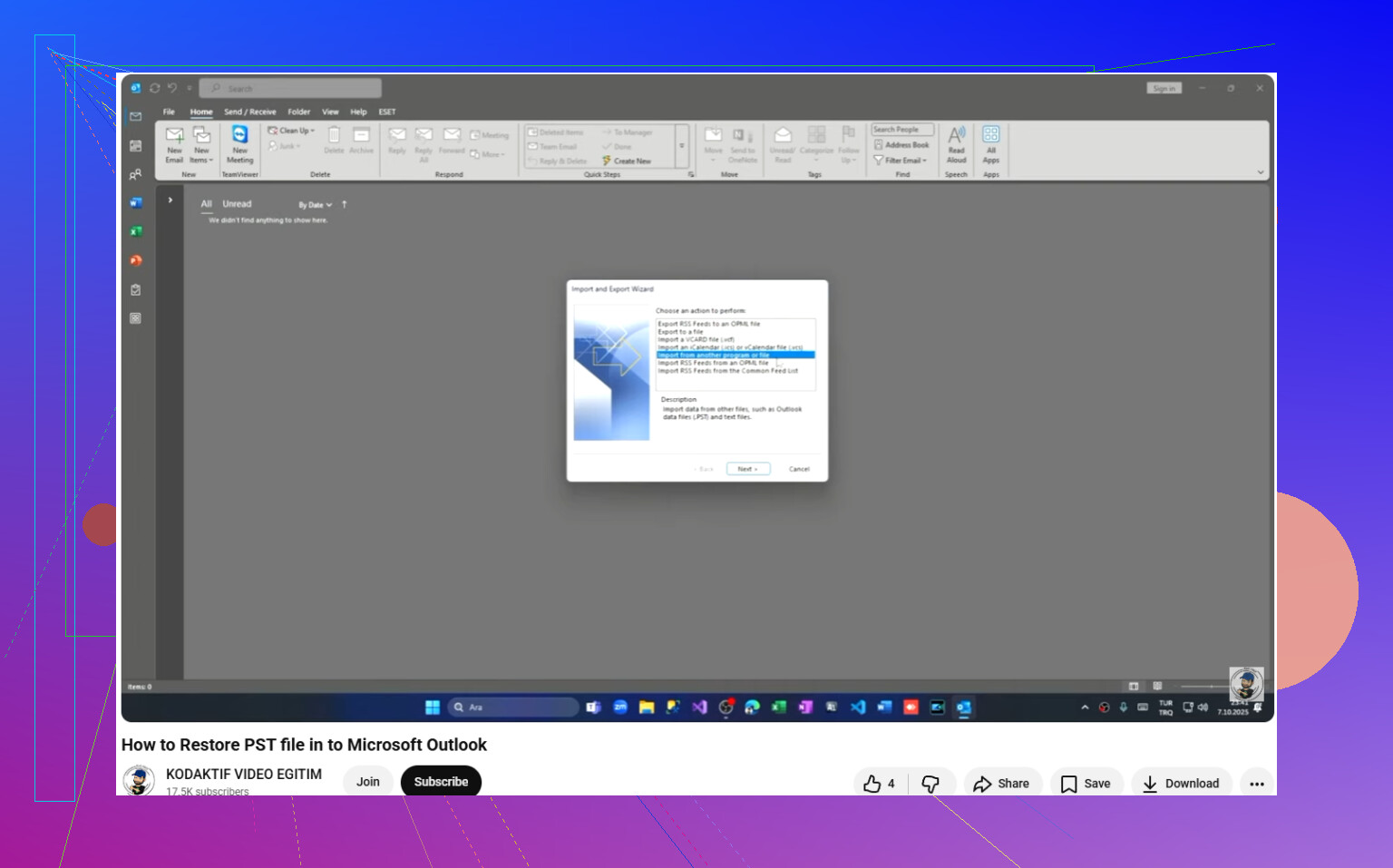
After a recent Windows update, my Outlook PST file seems to be missing and I can’t access important emails, contacts, or archived data. I’ve checked the usual folders and searched my PC, but I still can’t find it. I need help figuring out how to recover a missing PST file after a Windows update without losing my Outlook data.
I ran into this once, and the worst part was Outlook acting like the file vanished into thin air right when I needed old mail. If you deleted stuff from Documents, Downloads, or some random archive folder, there’s a decent chance the missing PST got caught in it.
First thing, stop doing stuff on the PC. I mean it. Don’t keep browsing, downloading, saving screenshots, or installing random tools on the same drive. When Windows deletes a file, it usually removes the pointer first and leaves the data sitting there until something else lands on top of it. Your PST is safest while the drive stays quiet.
Here’s the order I’d go in.
Start with the easy checks
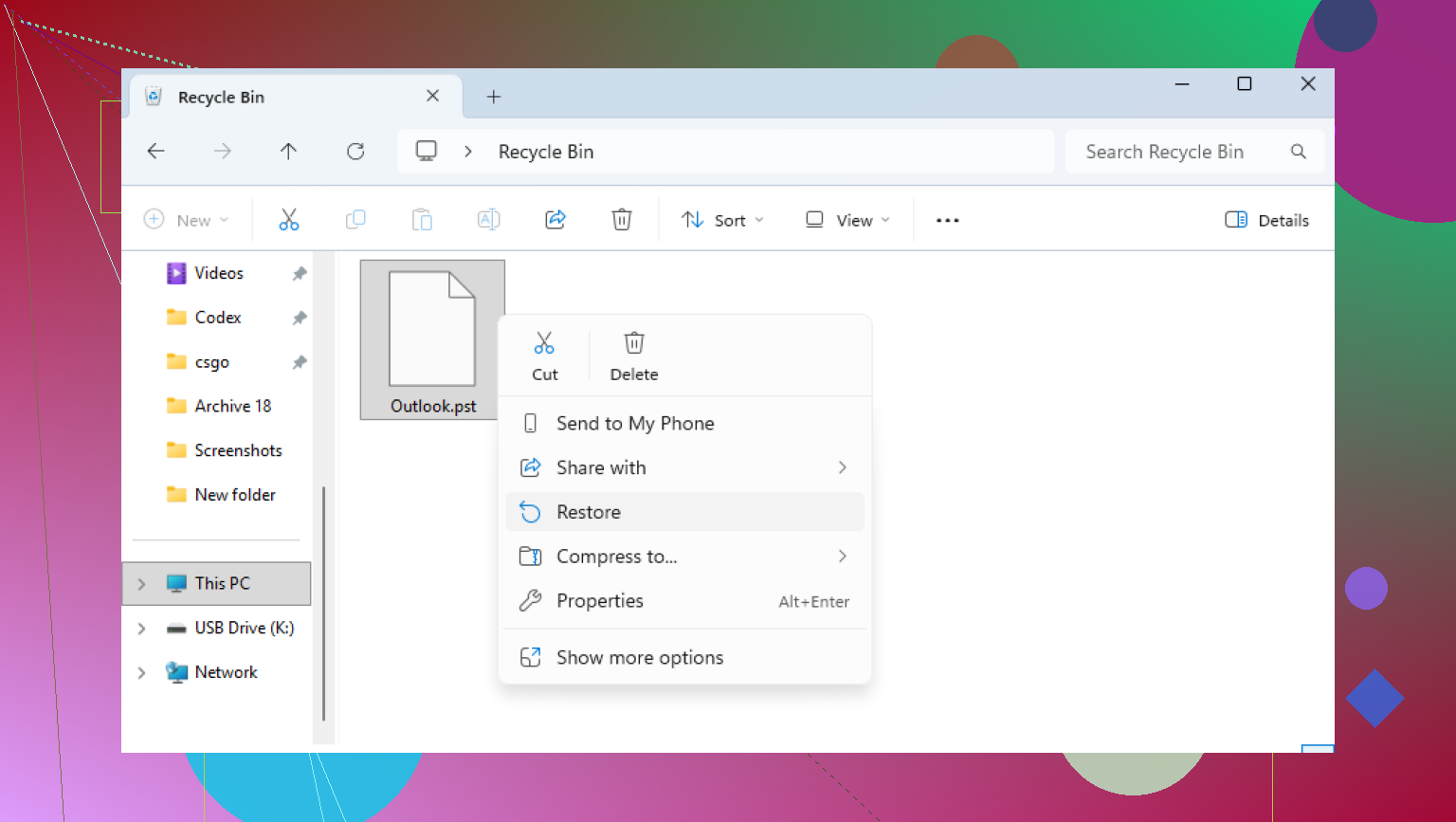
Look in the Recycle Bin. If you deleted the file the normal way, it might still be sitting there. Restore it and you’re done. If you used Shift+Delete, then yeah, it skipped the bin.
Also check your cloud accounts if you sync folders there. OneDrive, Dropbox, Google Drive, any of those. Use the web portal, not only the desktop app. Look for deleted items, trash, recycle bin, or version history. I’ve seen files show up there after I was sure they were gone. Worth five minutes.
Try Windows previous versions
Sometimes Windows kept an older copy of the folder through restore points or shadow copies. Not always, but when it’s there, it saves a lot of pain.
Go to the folder where the PST used to live. A common path is:
C:\Users\YourName\Documents\Outlook Files
Right-click the folder, hit “Restore previous versions,” and check the list. If you see a version from before the deletion, open it and copy the PST somewhere else first. Don’t drag it back into the same spot yet. I’d put it on the Desktop or an external drive for the moment.
If those fail, use recovery software
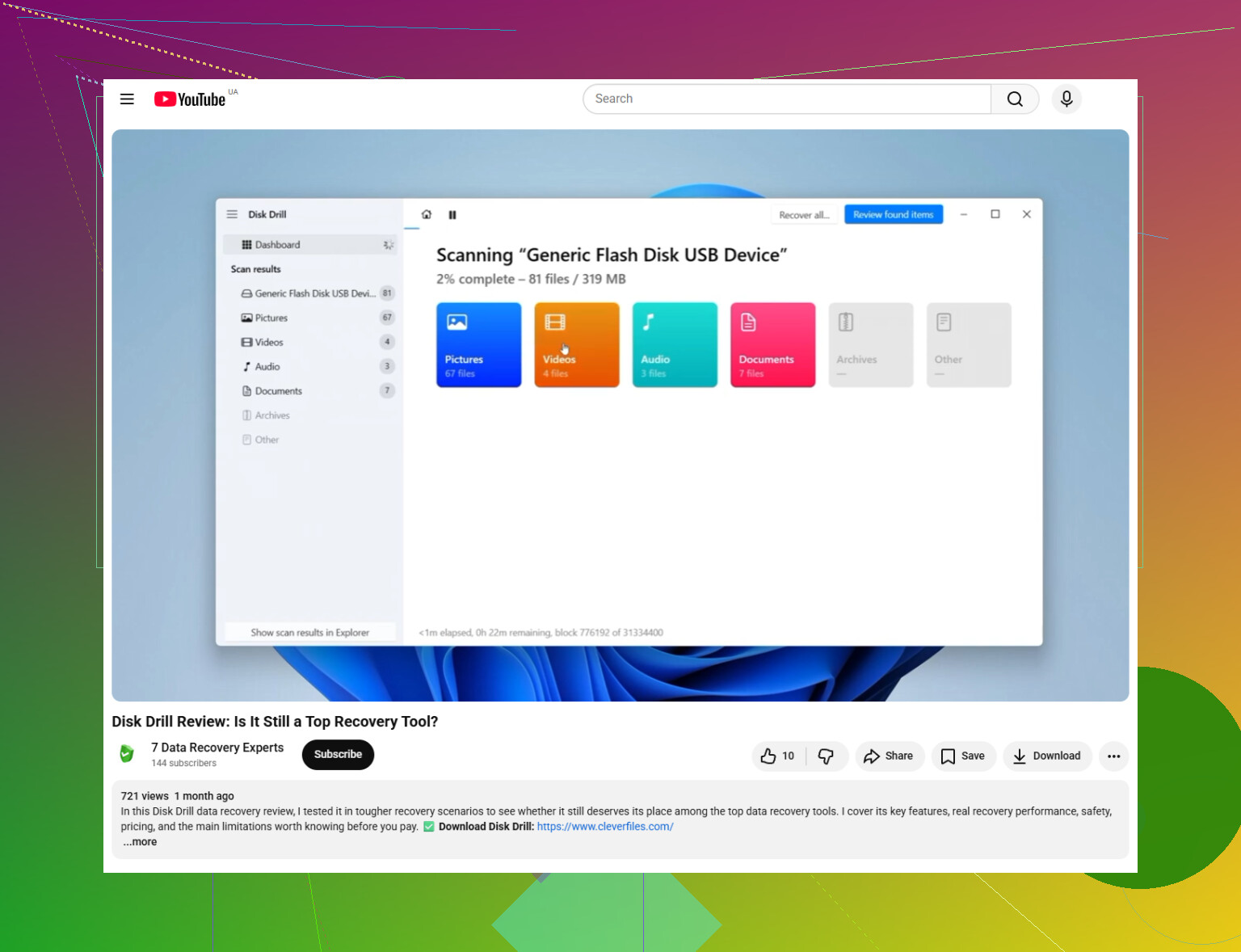
Once the easy paths are dead ends, you’re in deleted-file recovery territory. This is where a scanner helps. One option is Disk Drill.
What I’d do:
Install the recovery app on another drive or a USB stick if you have one. If you install it onto C:, you risk overwriting the same area where the PST used to sit. I learned this one the hard way, annoyngly enough.
Scan the main drive, usually C:.
Filter results for .pst files, or search by extension.
Check file sizes carefully. This matters more than people think. A fresh Outlook data file might be tiny, a few hundred KB or something in that range. The old real file you care about is often much larger, hundreds of MB, sometimes multiple GB.
Recover the file to a different location. Desktop is fine. External drive is better. Don’t restore it into the original Outlook folder yet.
Watch for the fake-out new Outlook file
Outlook likes to make this more confusing by generating a new empty data file after it loses the old one. So you open Outlook, see a file with a familiar-ish name, and think you’re safe. Then it’s empty. Brutal.
After you recover the old PST, open Outlook and use:
File > Open & Export > Open Outlook Data File
Pick the recovered PST. If the recovery worked, your old folders should show up in the left pane. Wait until you confirm the contents are there. After that, go into Account Settings and switch the recovered PST back as the default data file.
If your account uses IMAP, read this part
If the mailbox is tied to IMAP, like Gmail, Yahoo, Comcast, or a lot of ISP mail accounts, your inbox mail might still live on the server. Re-adding the account in Outlook often rebuilds the OST and pulls mail back down.
But don’t assume this fixes everything. Local-only folders, archives, old exports, weird folder trees you made over the years, stuff stored only on your computer, those are often PST-only. If those matter, recovery still matters.
After you get it back
Move the PST into a place your backups cover. Or copy it to an external drive every so often. PST files tend to collect years of mail and attachments, and losing one feels worse than losing some random document folder. I started backing mine up after one stupid cleanup session and haven’t skipped since.
If the scan finds a large PST, I’d take that as a good sign.
1 Like
One thing I’d add to what @mikeappsreviewer said, Windows Update often does not delete the PST. It loses the Outlook profile path, or signs you into a temp profile. Big difference.
Check this first.
- Confirm you are in the right Windows user account.
- Press Win + R, type %localappdata%\Microsoft\Outlook
- Then check %userprofile%\Documents\Outlook Files
- Open Control Panel, then Mail, then Data Files. Outlook sometimes still knows the old PST path even when it does not open it.
If you see a path there with a broken location, note it down. That tells you where the file lived before the update.
Also search by size, not only by name. In File Explorer search:
*.pst
Then sort by size and date modified. A lot of people miss old PSTs because Outlook made a new tiny one after the update. Your real archive file is often 1 GB, 5 GB, even 20 GB.
If the file exists but Outlook rejects it, run Inbox Repair Tool. It is scanpst.exe. Common path:
C:\Program Files\Microsoft Office\root\Office16\SCANPST.EXE
Point it at the PST and repair it. I’ve seen updates leave the file there but corrupt the header, so Outlook acts like it dissapeared.
If search shows nothing, check whether Windows moved your profile during the update. Look for:
C:\Windows.old\Users\YourName
A surprising number of missing Outlook files turn up there after feature updates.
If it is gone for real, then yes, Disk Drill makes sense for PST recovery, especially if the file was stored locally and not in an Exchange or IMAP sync setup. Different issue than mail on the server.
This vid helps if you want a quick walkthrough on recovering deleted Outlook data files with Disk Drill:
recovering a missing Outlook PST file after a Windows update
One more thing. Do not open Outlook over and over while testing. Each launch loves to create fresh data files and muddy the mess. That part is dumb, but it’s Outlook.
I’d check one place neither @mikeappsreviewer nor @caminantenocturno really leaned on much: Outlook’s profile XML and registry leftovers. Sometimes after a Windows feature update, the PST is still on disk, but Outlook got pointed to a fresh profile and acts dumb about it.
Open Registry Editor and look here:
HKEY_CURRENT_USER\Software\Microsoft\Office\16.0\Outlook\Profiles
If you have Office 2019/2021/365, that path is common. Older Office versions use a different number. If you see your old profile, the PST path may still be buried in there. That can tell you the exact missing location, even when File Explorer search is being useless.
Also check if the drive letter changed. Sounds silly, but external drives or secondary partitions sometimes get reassigned after updates. If your PST lived on D: before and now that archive drive is E:, Outlook will report the file as missing even though it’s sitting right there.
Another thing I slightly disagree on: I would not rely too much on Windows search alone. It misses stuff, especially with indexing half-broken after an update. Use Command Prompt instead:
dir C:\*.pst /s /a
That does a more brute-force search.
If the PST turns up but won’t mount, copy it first, then test the copy. If it’s truly gone, then yeah, Disk Drill is a solid move for Outlook PST recovery because these files are usually large and easy to identify by size. Just recover it to another disk, not the same one. Small detail, big diffrence.
For putting it back into Outlook, this is actually useful:
how to restore a recovered PST file in Outlook step by step
One more weird check: create a new Windows admin account and look from there. I’ve seen “missing” files turn out to be profile permission weirdness after updates. Annoying, but fixable.