I accidentally moved photos and videos from my SD card to my Mac, and now some of the files are missing from both locations. I really need help figuring out how to recover deleted or lost SD card files on a Mac without making things worse.
I’d stop right there and leave the SD card alone. No new photos, no file copies, no second format. Once you write new data to it, your old files start getting replaced, and recovery gets worse fast.
I’m on Mac too, and the tool I had the least trouble with was Disk Drill. I used it on camera cards a few times after deleting photos by mistake and once after a format. It read the usual SD card formats like FAT32 and exFAT without a fight. The preview feature helped a lot, and its camera-focused recovery mode did better with broken-up video clips from action cams and drones than I expected.
What I would do
- Plug the SD card in with a decent card reader
- Install Disk Drill on your Mac
- Pick the SD card from the device list and scan it
- Run “Universal Scan” first
- If missing files are videos from a camera, try “Advanced Camera Recovery” too
- Open previews before restoring anything
- Save recovered files to your Mac’s internal drive or another disk, never back onto the same SD card
The preview part matters more than people think. If a photo opens cleanly in the scan results, or a video preview starts and looks normal, I usually take that as a good sign the file is still intact enough to pull back.
Also, check the Mac Trash before you do anything else. I know, sounds dumb. Still, I’ve seen deleted files from removable media end up there when the card was mounted at the time. A friend got a whole shoot back like this and thought the card reader had done something magical. Nope. Trash.
If you want a free route, PhotoRec is worth a look. It works. I used it once when I didn’t want to install anything paid. Still, it felt rough. The interface is old-school Terminal stuff, and the output was messy. Filenames were gone, folders were gone, and sorting the recovered pile took longer than the scan.
Accidental deletion is one of the less bad cases, from what I’ve seen. If you didn’t keep using the card after the mistake, your odds are usually decent.
10 Likes
First, check where the move failed. On macOS, a move from SD card to Mac is often copy first, delete second. If the copy broke midway, you end up with files split between both places.
Do this before scanning anything.
- Search your Mac with Spotlight and Finder.
- Check Trash on the Mac.
- Open Photos, if you import there.
- Look in hidden temp folders if you used Image Capture or a camera app.
- Run Disk Utility, select the SD card, click First Aid. This fixes minor directory issues without writing much. I know @mikeappsreviewer says go straight to recovery tools, and I mostly agree, but First Aid is worth one shot if the card mounts weird or shows empty folders.
If files still don’t show up, use recovery software. Disk Drill is a solid Mac option for SD card recovery, mostly because it previews files well and handles exFAT and FAT cards cleanly. Save recovered stuff to your Mac, not back to the card. Obvious, but ppl still do it.
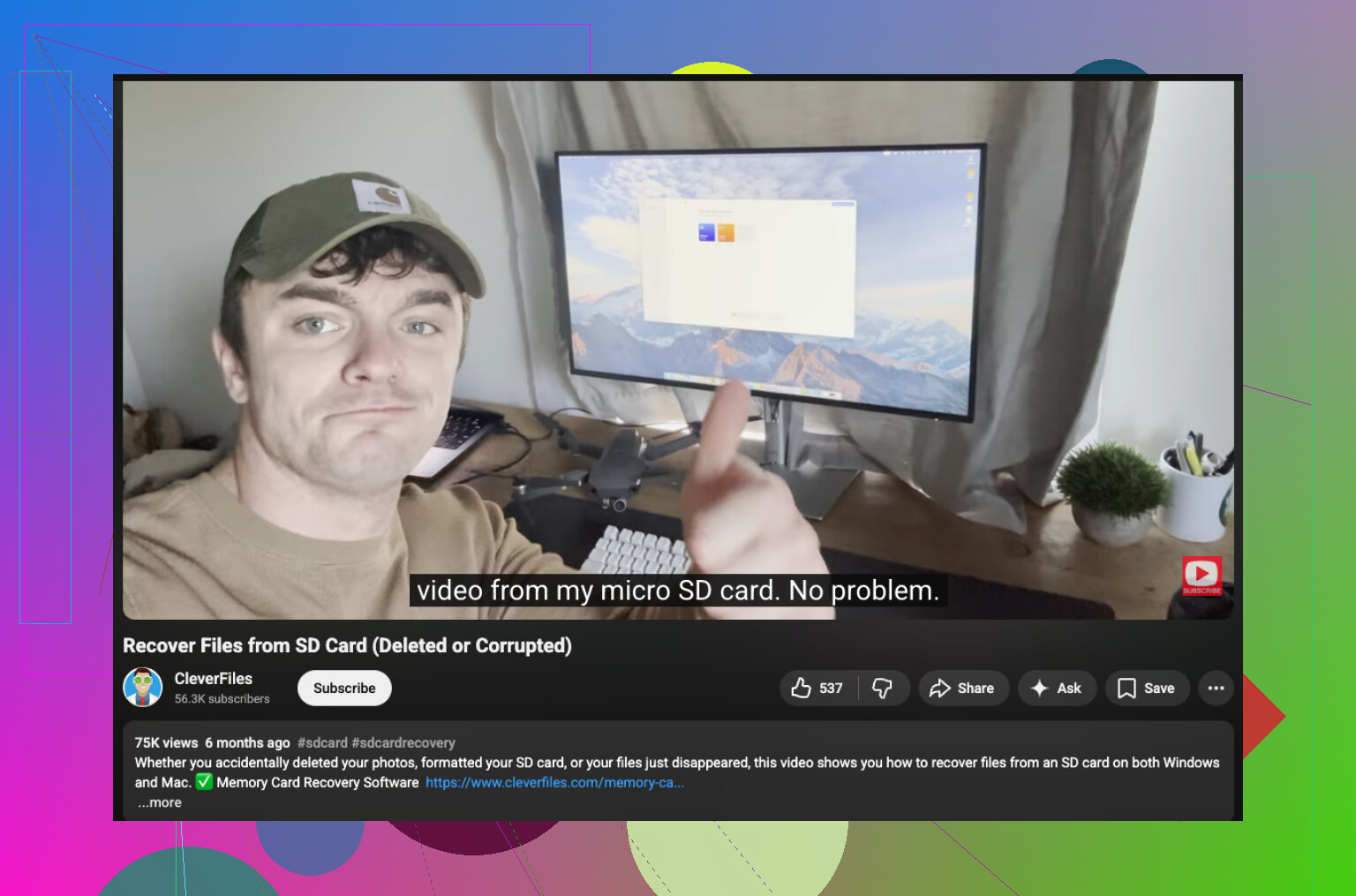
If you want a visual step-by-step, this Mac SD card recovery video guide helps:
Mac SD card file recovery tutorial
One more thing. If iCloud Photos or another sync app was involved, check recently deleted there too. I lost a batch once becuase sync removed the local copy before I noticed.
I’d be a little more cautious than @codecrafter about running First Aid right away. Usually it’s fine, but if the card has directory damage, any repair attempt can change metadata and make later recovery a bit messier. Not always a disaster, just not my first move.
What I’d do instead is make a byte-for-byte image of the SD card first, then work from that image. That way you preserve the current state before trying anything. On Mac, you can do this with Disk Utility or Terminal if you’re comfortable. It’s slower, but way safer. Lots of ppl skip this and regret it later.
After that, recover from the image or the card with Disk Drill. @mikeappsreviewer already covered the normal scan flow, so I won’t rehash it, but one thing worth adding is to sort results by file type and estimated recovery chances, then recover a small test batch first. Don’t dump 200 GB of junk onto your Mac before checking if the files are actually usable.
Also check for duplicate copies in weird places on macOS:
- Finder Recents
- Downloads
- Pictures
- DCIM copies made by import apps
- hidden folders created during failed transfers
If the missing videos are large, they may have copied incompletely and look “gone” when they’re really just corrupted partial files. Sometimes recovery software finds the original intact clip still sitting on the SD card.
For a broader Mac SD card recovery discussion, this thread is useful:
how to recover missing files from an SD card on Mac
Short version: stop using the card, clone it first if possible, then scan with Disk Drill and recover only to another drive. That gives you the best shot without making things worse.
I’d add one thing the others only touched lightly: check whether the files were ever actually “moved” at the filesystem level. On Macs, dragging from an SD card often becomes copy-then-delete, but some apps create package imports, sidecar files, or library references that make the originals look gone when they are just buried.
What I’d check before doing any repair:
- Finder window search set to “This Mac” with file extensions like
.JPG,.HEIC,.MOV,.MP4,.ARW,.CR3 - Smart folders by date modified, around the time of the transfer
- Terminal:
mdfind 'kMDItemFSName == '*.MOV''for files Spotlight might know about but Finder misses - Photos library package contents only if you know what you’re doing, because imported files can be inside the library, not loose in Pictures
Small disagreement with @codecrafter here: I would not run First Aid first if the card is readable at all. Not because it is bad, but because logical repairs can reshuffle metadata. I’m more in line with @sternenwanderer on preserving the current state first. @mikeappsreviewer is right about leaving the card alone.
If the card still mounts, recover in this order:
- Find hidden copies on the Mac
- Clone the SD card
- Scan the clone, not the original
- Only then consider file repair tools for broken videos
About Disk Drill specifically:
Pros:
- very Mac-friendly
- good previews
- handles common SD formats well
- easier triage for photos and videos than command-line tools
Cons:
- not the cheapest route
- deep scans can return lots of clutter
- recovered original filenames/folder structure are not always preserved
- preview success does not guarantee a perfect recovered video
If your missing files are mostly videos, be ready for partial recovery. Photos usually come back cleaner than long video clips. Disk Drill is a sensible option, but I’d still treat cloning the card as the real first win.