I’m thinking about clearing app data on my iPhone to free up storage, but I’m worried I might lose important info like saved settings, login details, or offline content. Can someone explain what actually happens when you clear app data on iOS, which apps are safe to do this with, and what I should back up first to avoid losing anything important?
Short version. On iPhone there is no single “Clear app data” button like on Android. You have three different things that affect app data and they behave differently.
-
Offload App
Settings > General > iPhone Storage > pick an app > Offload App
• iOS removes the app binary to free space.
• It keeps your documents and data.
• The app icon stays on the home screen with a small cloud icon.
• When you tap it, iOS downloads the app again and your data loads back.
You keep logins and settings most of the time, unless the developer stores everything on their server. -
Delete App
Settings > General > iPhone Storage > app > Delete App
or long press app icon > Remove App > Delete App
• Deletes the app and its local data.
• You lose offline content stored on the device.
• Local-only data goes away. For example:
- Game saves that are not synced to Game Center or a cloud account
- Downloaded videos or music stored inside the app
- Cached maps or offline articles
• After reinstall, you log in again. Cloud synced data comes back. Local only stuff does not.
- Clear data from inside the app
Some apps have their own “Clear cache” or “Reset” options in settings inside the app.
• “Clear cache” usually wipes temporary files, thumbnails, etc.
- Frees storage
- You keep logins and preferences most of the time
• “Reset app”, “Erase all data” or “Sign out and delete data” often behaves like Delete App. - You lose local history, custom settings, downloads in that app
- Online account data usually survives on the server if it is account based
What you probably lose if you remove or reset an app
• Offline videos from streaming apps
• Offline playlists or downloaded podcasts
• Offline maps
• Downloaded documents inside some viewers
• Locally stored chat history in some messaging apps that do not use iCloud backup
• Game progress without cloud sync
What you usually keep
• Anything tied to an account, like Netflix watch history, Spotify playlists, Gmail, etc.
• Data stored in iCloud or another cloud service if sync is enabled
• Subscriptions and purchases linked to your Apple ID
Safe way to free space with less risk
-
Start in iPhone Storage
Settings > General > iPhone Storage
Sort by size and check each big app. -
Prefer “Offload App” over “Delete App” for stuff you want to keep
For example
• Large games you do not open often
• Photo editing apps you use once in a while
This gives you space but keeps local data so you do not reconfigure everything. -
Clear downloads inside apps
• Open Netflix, YouTube, Spotify, Maps, etc.
• Remove offline downloads from within the apps.
Often this frees more space than anything else, and you keep logins and preferences. -
Photos and Messages
• Photos app. Turn on iCloud Photos, then enable “Optimize iPhone Storage” to move full resolution photos to iCloud and keep smaller versions on the phone.
• Messages app. Settings > Messages > Keep Messages. Set to 1 Year or 30 Days to auto remove older conversations.
Also delete large attachments from individual threads. -
Backup before you delete
If you care about chats or game saves, check first
• Is there iCloud backup for the app in Settings > Apple ID > iCloud > Show All.
• Does the app have its own backup / account login sync.
If not sure, do an iCloud or Finder backup before deleting.
About your specific worry
• Saved settings. Often lost if you delete the app, kept if you offload, sometimes synced via iCloud Keychain or the app’s account.
• Login details. Many apps store login in Keychain. After reinstall, iOS offers the stored password. Some apps force a full login again.
• Offline content. You lose it once the app and its data are removed, unless it syncs somewhere else, which is rare for offline files.
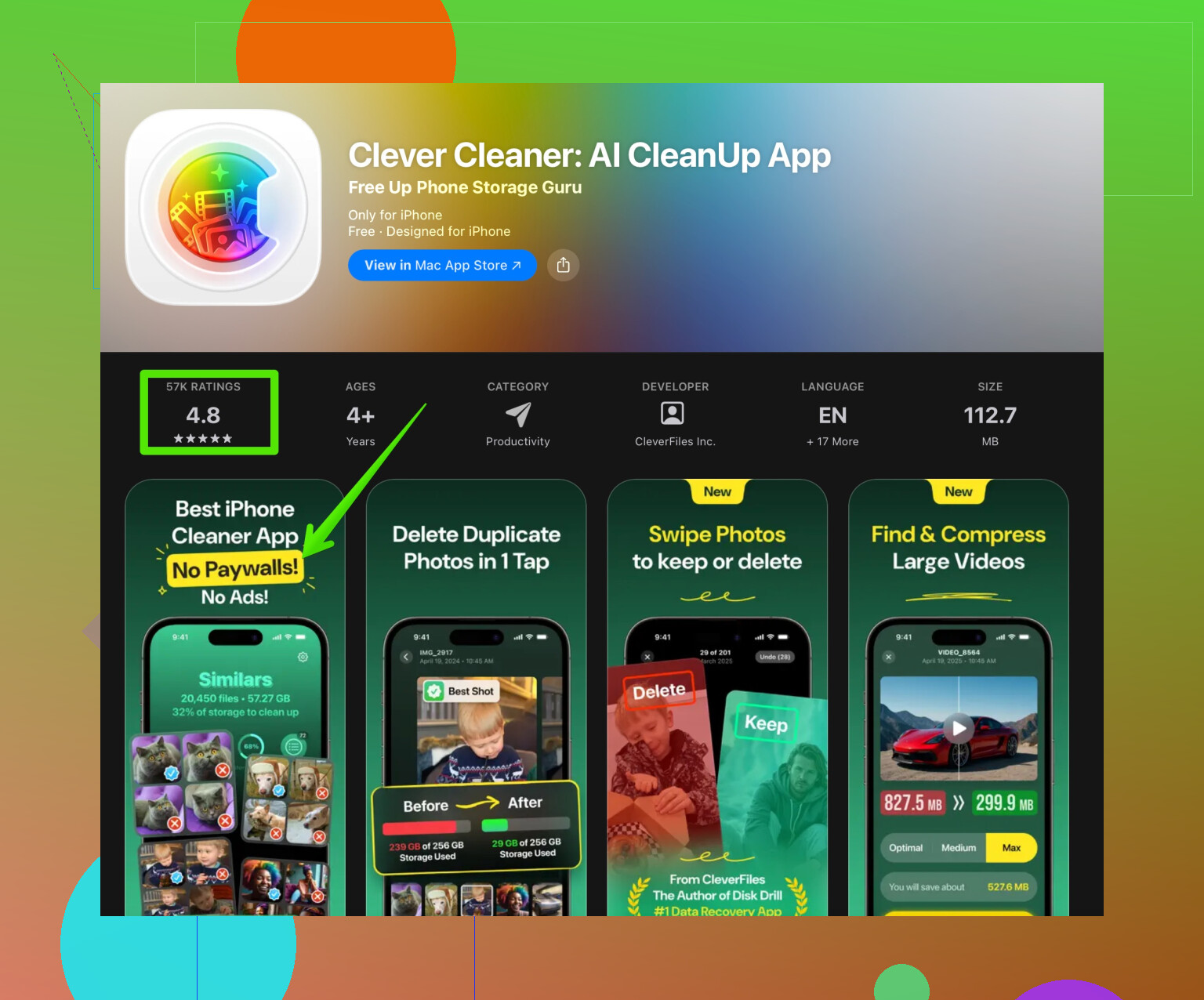
If you want to clean storage without messing with each app manually, take a look at something like the Clever Cleaner App. It focuses on junk like duplicate photos, screenshots, and large videos, so you do not have to reset apps. The store page is here, with more details and examples of what it removes:
smart storage cleanup for your iPhone
Basic workflow that works well
- Backup or at least make sure important stuff syncs to iCloud or the app’s own cloud.
- Use iPhone Storage to spot the heaviest apps.
- Clear downloads and caches inside those apps first.
- Offload apps you rarely use.
- Delete apps only when you are sure nothing important is stored only on the device.
19 Likes
If you’re trying to “clear app data” on iPhone to free space, what actually happens depends how you do it and what kind of app you’re dealing with. iOS is a bit sneaky here.
@viajantedoceu already nailed the 3 main system options (Offload, Delete, in‑app settings), so I’ll skip rehashing the exact steps and focus on what you really lose or keep in real life.
What you actually lose vs keep in practice
Think in three buckets:
-
Account-based stuff
Tied to a login: Netflix, Spotify, Gmail, banking apps, etc.- Delete app:
- You lose local junk like caches and offline downloads.
- Your playlists, watch history, emails, subscriptions and profile settings come right back when you log in again.
- Offload app:
- Usually keeps app-specific preferences and you stay logged in, or iOS autofills your password from Keychain.
So for account-based apps: biggest risk is losing offline stuff, not the core data.
- Delete app:
-
Local-only apps or features
This is where people get burned.- Old games with no cloud sync
- Niche note apps with no iCloud / account
- Some chat apps that don’t sync entire history
Delete the app or hit a “reset” option inside it and that data is simply gone. No magic restore later. Even an iCloud backup won’t help you if you delete the app and then keep using the phone for weeks, because the backup eventually overwrites with the “no data” state.
-
Hybrid stuff (part online, part offline)
Examples:- YouTube / Netflix / Spotify with downloaded content
- Offline maps in Google Maps, Maps.me, etc.
- Read-it-later apps with downloaded articles or PDFs
- Office apps with local-only docs
When you clear caches or delete the app: - Online library, playlists, saved locations = survive
- Downloaded videos, playlists stored for offline, offline maps, local docs = gone
What actually happens when you “clear data” in different ways
Not repeating the menu paths, just the consequences:
1. System offload
- App’s code removed.
- Documents and data kept.
- You usually keep your login and preferences.
- Good for big games or tools you rarely open, without wrecking your setup.
2. Full delete
- App gone. Local data gone.
- Good if:
- The app is pure cloud (email, bank, social).
- You’re sure everything important syncs.
- Bad if:
- You have unsynced game progress.
- The app stores chat logs locally.
- You keep PDFs, notes, or recordings only inside that app.
3. Clear cache / reset inside the app
- “Clear cache” usually safe: thumbnails, temp files, old logs. You keep login & settings in most cases.
- “Reset app” or “erase all data” is basically a self-destruct button for local data. Same for “sign out and remove from device” type wording.
I actually disagree a bit with treating “clear cache” as always harmless. Some poorly written apps treat “cache” as “everything stored offline,” so your podcasts or downloaded episodes may also vanish under that label. Always read the small text under the switch if they provide it.
What about your specific worries
Saved settings
- Often stored in app’s local container.
- Offload usually keeps them.
- Delete usually wipes them.
- Some apps sync settings to your account or iCloud, but you cannot rely on that unless you know for sure (think big names like Google, Microsoft, popular password managers).
Login details
- The username/password itself is usually saved in iCloud Keychain, separate from the app.
- After reinstall, iOS often suggests the login, but some apps force 2FA or email verification again.
- Authenticator apps and some secure/banking apps can be brutal: delete them and you might have to redo the entire setup with recovery codes.
Offline content
- Almost always gone if you delete the app or use a “clear downloads” or “reset” function.
- If it is important (lecture videos, offline docs, maps for a trip), copy them somewhere else first or make sure they also live in cloud storage.
Safer way to free space without losing important data
Instead of going nuclear on “app data,” try this layered approach:
-
Remove heavy offline downloads first
Open streaming and media apps and delete:- Offline episodes
- Downloaded albums / playlists
- Old offline maps
This alone can free gigabytes without touching your logins or settings.
-
Target junk in Photos / big files
- Delete old screen recordings and random 4K videos.
- Remove obvious duplicates, 20 identical selfies, etc.
Manually doing this sucks though, so a dedicated cleaner helps.
-
Use an app that focuses on junk instead of nuking app data
If you are mainly trying to free “dead weight” like duplicates, blurry photos, giant videos and similar stuff, something like the Clever Cleaner App is much safer than randomly deleting app data.
It is built specifically to scan for:- Duplicate or near-duplicate photos
- Massive videos hogging space
- Old screenshots and other clutter
That way you free storage without risking game saves or offline chats. If you want a focused cleanup tool, check this out:
smart storage cleanup for your iPhone
-
Only delete or reset apps once you’re sure data is backed up
Before you wipe anything important:- Check if the app appears in iCloud backups.
- Check if it uses its own account sync / cloud.
- Export or email crucial stuff (notes, recordings, PDFs) out of the app.
In plain terms
If you “clear app data” in any of the harsher ways, assume:
- You keep: stuff tied to accounts and cloud sync.
- You lose: anything that lives only on that device, especially downloads, old chats, local docs, and unsynced game progress.
If you are even slightly unsure and the data matters, back up first, then experiment. iOS does not have an “undo” once local containers are wiped, no matter how much we wish it did.
What really matters is this: iOS never has a universal “clear app data” button like Android, so what happens is all about where the data lives and how the app is built, not just what you tap.
@viajantedoceu already covered the system-level stuff very well, but they were a bit optimistic about offloading always preserving your setup. Some apps treat a reinstall after offload almost like a fresh install, especially older games or poorly maintained apps. So I’d never assume logins and settings will survive, even if they usually do.
Think of your apps in three risk levels before you clear anything:
-
Very low risk
Mail, social, streaming, banking, big-brand productivity. Almost everything important is on their servers. Deleting the app usually just kills cached files and offline content. You log back in and you are basically back where you were, except downloads. -
Medium risk
Hybrid apps: note apps with both local and cloud notes, chat apps that only sync part of history, office apps with some docs in cloud and some saved “on this iPhone.” Here, clearing or deleting can selectively wipe things you forgot were local only. -
High risk
Old games, niche utilities, password-free note apps, offline diaries, call recorders, authenticator apps. If you remove them or use their “reset data” option, that data is generally gone for good. Even iCloud backup will not save you forever because backups rotate, as was mentioned.
Where I slightly disagree with @viajantedoceu is around “just check if it syncs.” Many apps say they sync, but only sync part of the data. Example: a note app that syncs text but not attached voice memos, or a journaling app that syncs entries but not images. If those attachments matter, export a sample first and test a reinstall on another device if you can.
If your main goal is space, target the obvious space hogs before you touch configuration or logins at all:
- Delete big videos and duplicate photos
- Remove 4K screen recordings and long clips
- Purge old WhatsApp or iMessage media threads
This is where a dedicated cleaner is actually useful. The Clever Cleaner App is designed to focus on this “dead weight” rather than nuking app containers, which is a safer path for what you are trying to do.
Pros of Clever Cleaner App:
- Finds duplicate or near-duplicate photos without you hunting manually
- Flags huge videos that eat gigabytes
- Good for cleaning screenshots and random junk that accumulates silently
- Lets you clean storage without touching app data or logins directly
Cons of Clever Cleaner App:
- It will not fix problems inside individual apps, like a bloated chat database
- You still need to review what it wants to delete, or you might lose a “duplicate” shot you actually like
- It does not replace a proper backup; if you rely on it as your only protection, you are still vulnerable
- Needs a bit of trust, since you are granting access to your media library
If you are worried about losing anything important, do this order of operations:
- Back up to iCloud and, if possible, a computer.
- Manually export or screenshot crucial app data that clearly lives only inside that app.
- Use something like Clever Cleaner App to clear media clutter first.
- Only then start experimenting with deleting or resetting apps you are confident are cloud based.
In short, treat “clear data” as safe only for apps that are clearly account centric, and assume anything private, niche, or offline heavy can vanish permanently once you delete or reset the app.