I noticed a large amount of synced media showing up in my iPhone storage, and I’m not sure what it actually includes or whether deleting it is safe. I’ve already been trying to free up space, but I don’t want to remove anything important like music, videos, or files that might be connected to my computer. Can someone explain what synced media on iPhone means and the safest way to delete it?
After iOS 17, I noticed a weird new storage chunk on my iPhone called Synced Media. It looked huge, and at first I thought the phone had duplicated half my library. Turns out it is Apple renaming and regrouping older manually synced stuff, and the label makes it look worse than it is.
What Synced Media means
This section is for files you moved onto the iPhone from a computer with a cable, using Finder on Mac or iTunes on Windows. Music, photos, books, old media libraries, all of it lands there if it came from your computer instead of from the App Store or direct download on the phone.
Before iOS 17, those files were mixed into the app they belonged to. Music sat under Music. Books sat under Books. Then Apple split them out into one separate storage category. So the content did not suddenly appear out of nowhere. The phone is showing old synced data under a new name.
You can remove it, but not from the iPhone alone. If the original files still exist on your Mac or PC, deleting the synced copies is safe. The catch is simple. Since a computer put them there, a computer has to take them off.
Why the storage number looks off
I ran into this too. The number shown for Synced Media looked inflated, almost like the same files were counted twice. On iOS 17, there seems to be a reporting issue where media shows once inside the app category and again inside Synced Media. So your phone looks packed even when the real used space is lower.
The annoying part is the phone still behaves like storage is full. Downloads fail. Updates stall. Random apps start whining about space. So even if the count is wrong, the effect on day to day use feels real enough.
How I removed Synced Media
Method 1, remove it from Finder or iTunes
- Plug the iPhone into your Mac or Windows PC.
- Open Finder on a Mac, or iTunes on Windows.
- Select your iPhone.
- Open the tab for the type of content, usually Music or Photos.
- Uncheck whatever you do not want on the phone anymore.
- Click Sync or Apply.
Once the sync finishes, the unchecked items get removed from the iPhone. This is the normal fix, and for music it usually does the job.
Method 2, the empty folder fix for stubborn synced photos
This one felt dumb the first time I tried it, but it worked.
- Make a new empty folder on your computer.
- In Finder or iTunes, set photo syncing to use that empty folder.
- Run Sync.
The phone compares its current synced photos against an empty source folder, finds nothing, and wipes the synced photo set. If old synced pictures refuse to disappear any other way, this tends to clear them fast.
Method 3, remove and reinstall Apple Music
If the leftover Synced Media seems tied to music, deleting the Apple Music app and installing it again from the App Store sometimes clears data the standard sync process leaves behind. I would try the normal sync removal first, then do this if the storage block stays stuck.
Why fixing Synced Media is only part of it
When iPhone storage gets cramped, the phone starts acting cheap. I saw lag opening apps, camera warnings, and update installs hanging for no clear reason. From what I saw, keeping around 5GB to 6GB free helps the system breathe. It needs room for temp files, updates, cache churn, all the junk you never see.
Also, Synced Media is often one slice of the mess, not the whole mess. On mine, duplicate-ish photos, saved videos I forgot about, and piles of screenshots were eating a lot too. Clearing synced files helped, but it did not solve the whole storage problem by itself.
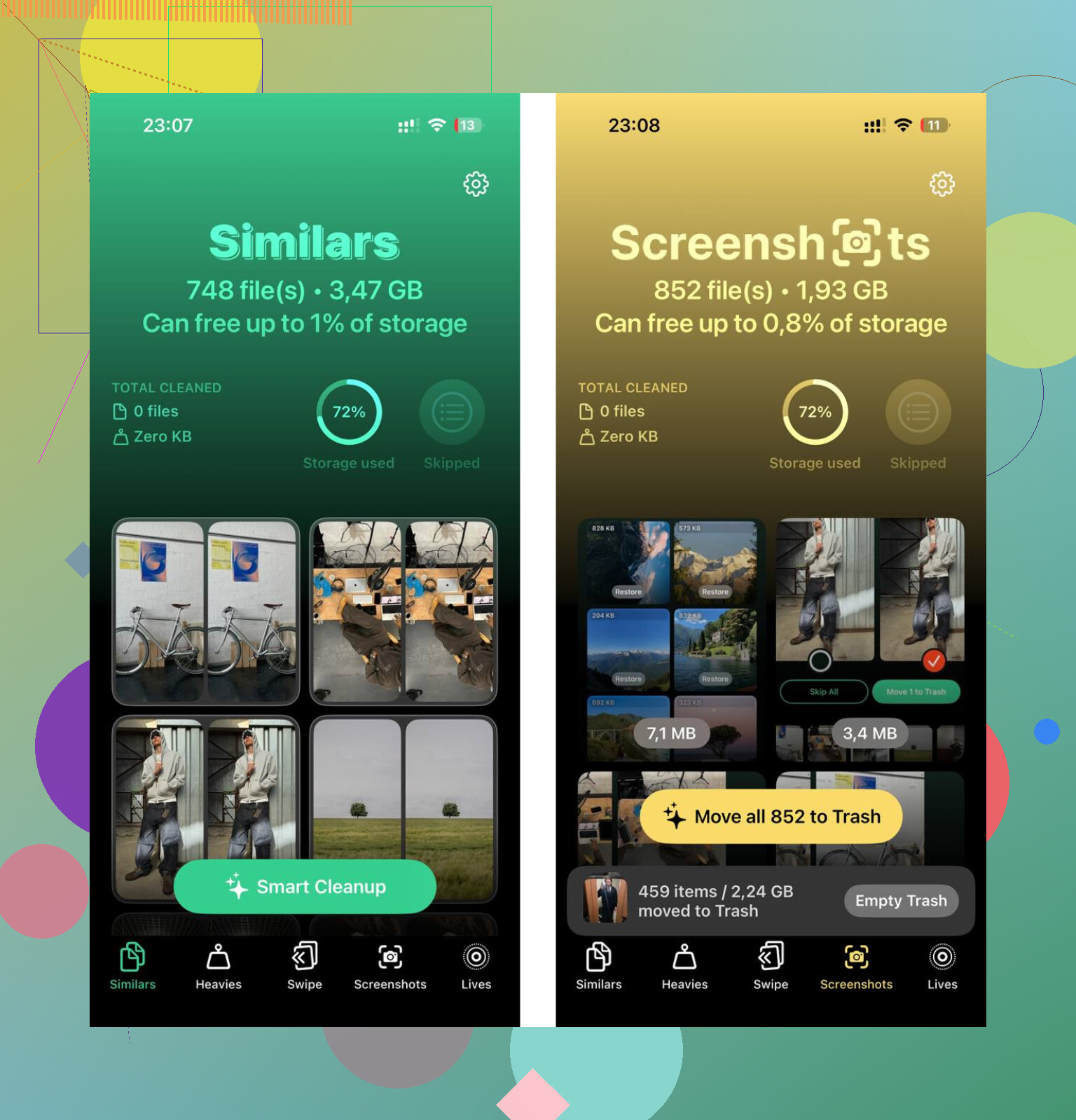
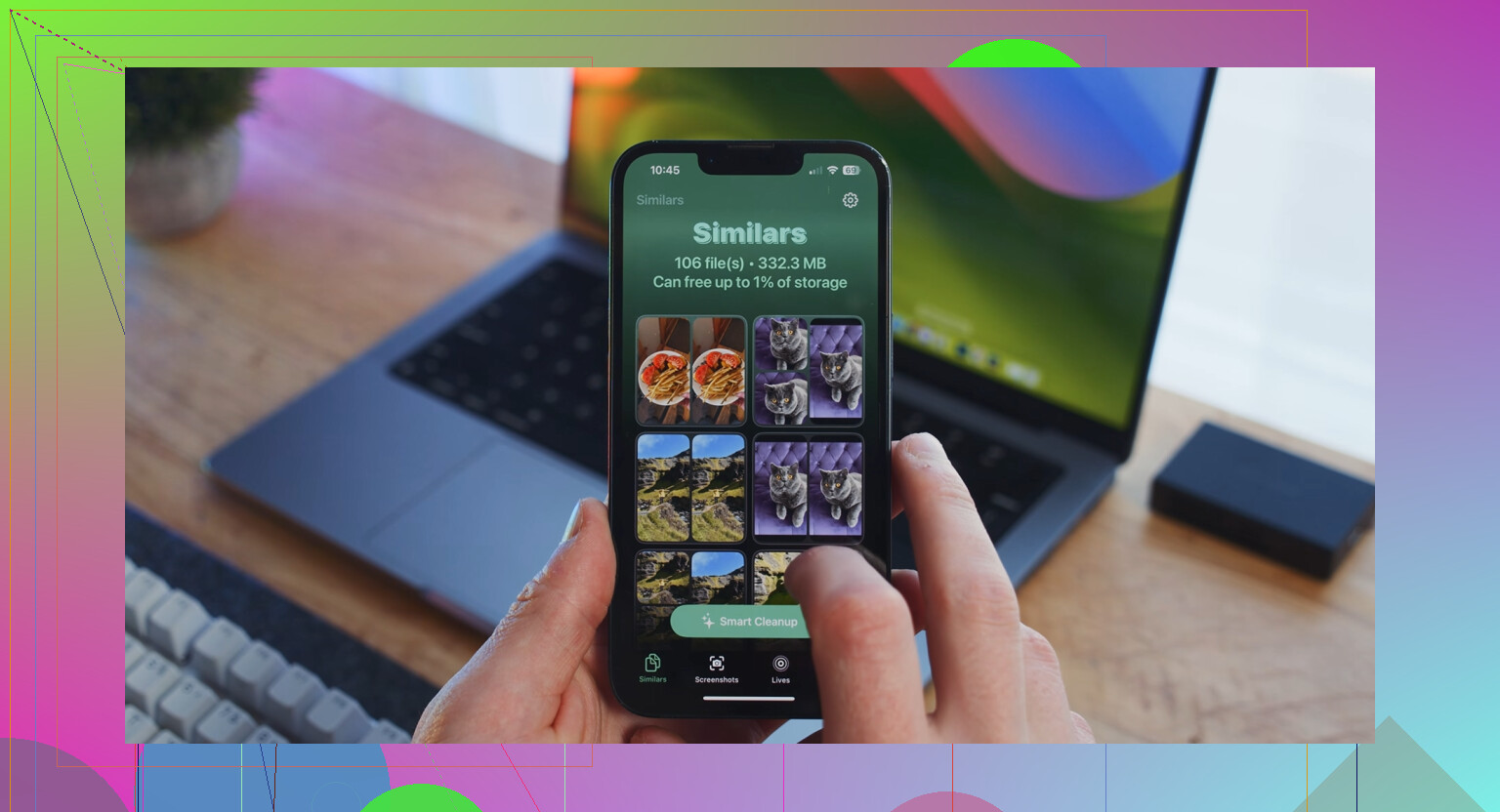
Clever Cleaner deals with the photo side. I used it after clearing the synced stuff. The Similars tab grouped near-matching shots and picked a best one, which helped with bursts and those five attempts at the same receipt photo. The Heavies tab listed files by size, biggest first, with exact numbers, so I did not have to guess what was taking space. From my use, everything stayed on device.
What fixed it for me was doing both parts. First, remove Synced Media through Finder or iTunes. Then clean out the oversized photos and videos sitting elsewhere. After that, the lag dropped off and the next iOS update installed without the usual storage fight.
12 Likes
Synced Media is usually stuff you put on the iPhone from a Mac or PC at some point. Old music libraries, synced photo folders, videos, audiobooks, imported files. If you never used Finder or iTunes sync, the label is sometimes storage reporting being messy.
I agree with @mikeappsreviewer on what it includes. I slightly disagree on one part though. It is not always safe to delete blindly, because some people forget those files exist only on the phone now. If the original computer died years ago, deleting synced media means it is gone. So check before you wipe anythng.
What I’d do first:
- Open Music, TV, Photos, Books.
- Look for content that does not come from iCloud or a streaming app.
- Confirm you still have the originals on a computer or backup.
- Restart the phone and re-check storage after a few mins. iOS storage counts get weird sometimes.
If your goal is space, target the bigger wins first. Photos and videos usually eat more room than synced leftovers. Clever Cleaner is useful for that side of the cleanup, especially for duplicates and large videos. This review gives a solid breakdown of how it works on iPhone, NY Weekly’s Clever Cleaner for iPhone review and hands-on test.
Short version, yes, deleting Synced Media is safe if you know where the source files live. If you do not know, check first. One bad tap and poof.
What @mikeappsreviewer and @boswandelaar said is mostly right: Synced Media is usually older content that got onto the iPhone through Finder or iTunes, not stuff your phone downloaded by itself. Where I slightly disagree is the word “safe.” It’s safe to remove only if that media still exists somewhere else. If those songs, videos, or photo folders live only on the phone now, deleting them is not safe at all. iOS won’t warn you in a very helpful way either, which is peak Apple.
One thing worth checking before you start nuking anything: does the number actually change after a restart and a few minutes on the Storage screen? Sometimes iPhone Storage mislabels or lags behind, especially after updates. I’ve seen Synced Media look huge, then shrink after the phone finishes recalculating. So don’t panic just becuase the graph looks ugly.
Also, look at the apps tied to old local content:
- Music
- TV
- Photos
- Books
- Files
If you see old albums, ripped CDs, imported movies, or photo folders that aren’t from iCloud, that’s probably your answer.
If your real goal is freeing space fast, Synced Media may not even be the biggest problem. In most cases, giant videos, duplicate photos, and bloated message attachments are the actual storage hogs. That’s where something like Clever Cleaner helps more than obsessing over one weird Apple storage label. If you want a decent overview of a free iPhone cleaning app for duplicates and large media, this is useful: see why Clever Cleaner is a free iPhone cleaner worth trying.
Short version: yes, you can delete Synced Media, but first make sure it isn’t the only copy. Apple renamed the mess, not neccearily created a new one.