I deleted some photos and files on my iPhone and can’t find a main Trash folder. I’m trying to recover anything important before it’s permanently deleted, but I’m not sure where deleted items go or how long they stay in Recently Deleted, Files, Mail, and other apps.
The annoying part is that deleting stuff on an iPhone often doesn’t mean it’s actually gone yet. If you’re used to Windows or macOS, you kind of expect one trash bin where everything ends up. iOS doesn’t work that way. Each app can have its own “Recently Deleted” area, so you can delete a ton of photos or files and still see almost no storage change.
That’s because those items are still on the phone. Photos, files, notes, and messages usually sit in a recovery folder for a while before iOS removes them for real. Photos and files usually hang around for 30 days, and some things like messages can stick around for up to 40 days. If you want the space back right now, you have to empty those folders yourself.
The main places to check are:
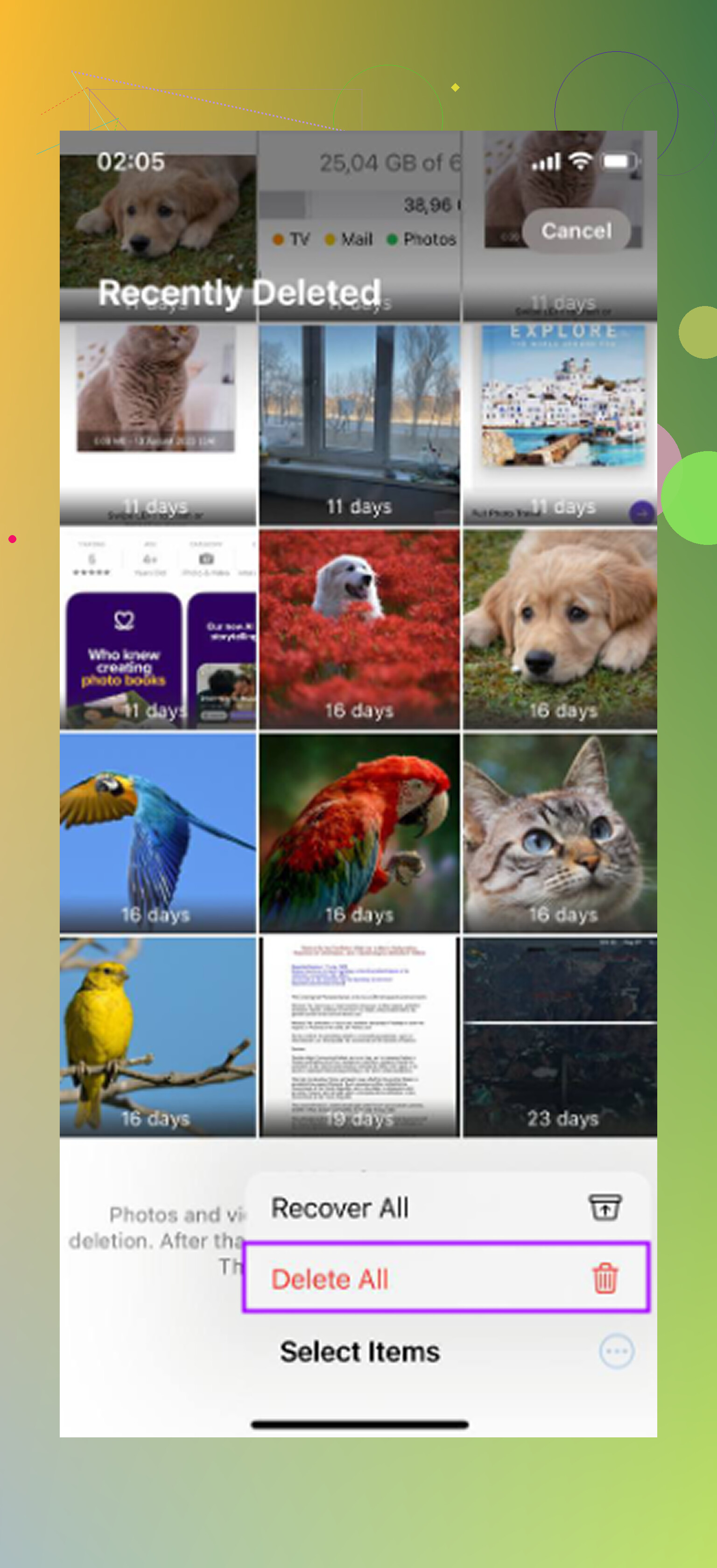
- Photos: Open Photos and go to the “Albums” or “Collections” area, then scroll down to “Utilities.” Look for “Recently Deleted.” You’ll probably have to unlock it with Face ID or your passcode. Once you’re inside, tap “Select,” then “Delete All.” This is usually where the biggest chunk of wasted space is hiding.
- Files app: Open Files, tap “Browse,” then check under “Locations.” There should be a “Recently Deleted” folder with a trash icon. Open it, use the three-dot menu, choose select, then delete everything permanently.
- Notes: If you delete notes that had images, scans, drawings, or other attachments, they can still take up space. Go back to the main Folders view in Notes and check “Recently Deleted.”
- Messages: On iOS 16 and newer, deleted conversations don’t disappear right away either. From the main Messages list, tap “Edit” or “Filters” near the top, then choose “Show Recently Deleted” and remove them from there.
If you don’t see a “Recently Deleted” folder somewhere, it usually means one of two things: your iOS version doesn’t support it for that app, or there’s nothing currently sitting in that deleted folder. The Photos one is also easy to miss now because Apple buried it lower down in the Utilities section.
I ran into this when my iPhone got so full it was basically unusable. Apps were crashing, everything lagged, and I couldn’t even take a photo. Low storage can make the whole phone feel broken because iOS needs some free space for temporary files and normal background stuff.
I tried cleaning everything manually at first, but it got old fast. I’d clear Recently Deleted in Photos, then find a bunch of huge videos somewhere else, then see “System Data” still taking up space that I couldn’t easily touch.
What ended up helping me was using Clever Cleaner. I’m usually pretty skeptical of cleanup apps because a lot of them are packed with ads or push some overpriced subscription, but this one was free for me, with no ads or premium lockout.
The useful part is that it shows the actual size of screenshots and videos, so you can see what’s eating storage instead of guessing. The “Heavies” section sorts the biggest files first, which is great for finding old screen recordings or giant videos you forgot about. The “Similars” section finds near-duplicate photos, so you can keep the best shot and delete the extras. It also runs on-device, so your photos aren’t being uploaded somewhere just to scan them.
After you clear the Recently Deleted folders, restart the phone too. Sometimes “System Data” or “Other” gets packed with cache junk that doesn’t seem to settle down until after a reboot. Between emptying the hidden trash folders and cleaning out duplicates or huge files, you should finally see the storage number move.
12 Likes
Don’t empty Recently Deleted until you’ve checked whether the same stuff is syncing through iCloud, because deleting on the iPhone can delete it from iCloud and your other Apple devices too. There isn’t one main Trash folder on iPhone, which is annoying but normal. Photos has its own Recently Deleted album, Files has its own Recently Deleted area, Notes has one, and Messages may have one depending on your iOS version. Most of these keep items for about 30 days, while deleted messages can hang around up to 40 days. The catch is that “recoverable” does not always mean “backed up,” so if something matters, restore it first, then copy it somewhere safe like iCloud Drive, a computer, Google Photos, Dropbox, or an external drive before doing any cleanup.

Recovery comes before cleanup. If you care about the deleted stuff, don’t empty Recently Deleted yet and don’t run any “clean storage” pass until you’ve checked the app it came from. iPhone has no single Trash can. Photos, Files, Notes, and Messages each handle deletion separately, and the clock starts from when you deleted the item, not when you notice it missing.
For the usual Apple apps, Photos and Files are generally 30 days, Notes is 30 days, and Messages recovery depends on iOS version, with deleted messages recoverable for roughly 30 to 40 days on supported versions. Files is the one people mix up a lot: a photo saved in Photos won’t be in Files trash unless you saved it as an actual file there. Same with PDFs, downloads, voice memos, mail attachments, and stuff stored inside third-party apps. Some apps have their own trash area, and some don’t give you much of a safety net at all.
A cleaner app like Clever Cleaner might be useful after you’ve recovered what matters, especially for finding big videos or duplicate-looking photos, but it won’t magically bring back something you already permanently deleted. Treat it as a storage organizer, not a recovery tool. If the item is important, recover it first, make a second copy somewhere outside the phone, then delete with confidence.
Your iCloud settings change the answer more than the trash folder does. If iCloud Photos is on, deleted photos sync as deleted everywhere, and an iPhone backup usually won’t contain a separate hidden copy of them. Check Recently Deleted first, then iCloud.com, but don’t count on “restore from backup” saving photos unless they were actually part of that backup setup.