Subtitles used to work fine in VLC, but now they won’t show up at all, even though the subtitle track is selected and external .srt files are loaded. I’ve tried different videos and subtitle files, but nothing appears on screen. What settings or fixes should I check to get VLC subtitles working again?
When subtitles stop working, I stop the movie. No point watching if you miss half the dialog.
Here is what usually fixes it for me with VLC and what I ended up using instead on Mac and Windows when I got tired of messing with it.
How I get VLC to show subtitles again
Make sure the filenames match exactly
This sounds trivial, but this breaks things more often than anything else.
I keep the video and subtitle in the same folder. Then I rename both so the names match 1:1.
Example:
Awesome_Movie_2026.mp4
Awesome_Movie_2026.srt
Things that have broken it for me in the past:
- Extra space at the end of the name, like
Awesome_Movie_2026 .srt - Different capitalization on some systems:
awesome_movie_2026.srtvsAwesome_Movie_2026.mp4 - Extra text like
Awesome_Movie_2026.eng.srtwhen VLC was expectingAwesome_Movie_2026.srt
Safe pattern:
- Put video and subtitle in the same folder
- Give them the same base name
- Keep only the extension different (mp4, mkv, avi vs srt, ass, sub)
If I have multiple subtitles, I name them like this:
- Awesome_Movie_2026.en.srt
- Awesome_Movie_2026.es.srt
Then I pick them manually inside VLC.
Turn the subtitle track on inside VL
C
Even when the file is correct, VLC loves to act like subtitles do not exist until you poke it.
While the movie is playing:
- Right click anywhere on the video
- Go to Subtitle
- Then Sub Track
What I usually see:
- “Disable” is checked
- One or more tracks are listed but none are selected
I click Track 1, or another track if I know which language I want.
If the list is empty:
- Right click
- Subtitle
- Add Subtitle File
- Browse to the .srt or .ass file
- Open
If that works, I know the file itself is fine and it was only VLC not auto-loading it.
Check if the subtitle format is supported
Most of my subtitles are:
- .srt
- .ass
These work. When they do not, it is usually because:
- The file is corrupted
- The file is not text based
- The subtitle is out of sync and I thought it was “not working” when it was actually delayed
For out of sync cases:
- Right click
- Subtitle
- Subtitle Track Synchronization, or use Tools → Track Synchronization in the menu bar
- Adjust the subtitle delay by small steps, like 0.2 or 0.5 seconds, until the lines match the speech
Quick sanity check on the subtitle file
When VLC acts weird, I open the subtitle in a text editor.
What I look for:
-
Normal .srt starts with something like:
1
00:00:01,000 → 00:00:03,000
First line of dialog -
If I see garbage characters or nothing readable, the file is probably not valid
-
If the timestamps are all out of order or use a strange format, VLC sometimes chokes on it
If the file is clearly broken, I go find another version instead of fighting that one.
Alternative players I ended up using on Mac
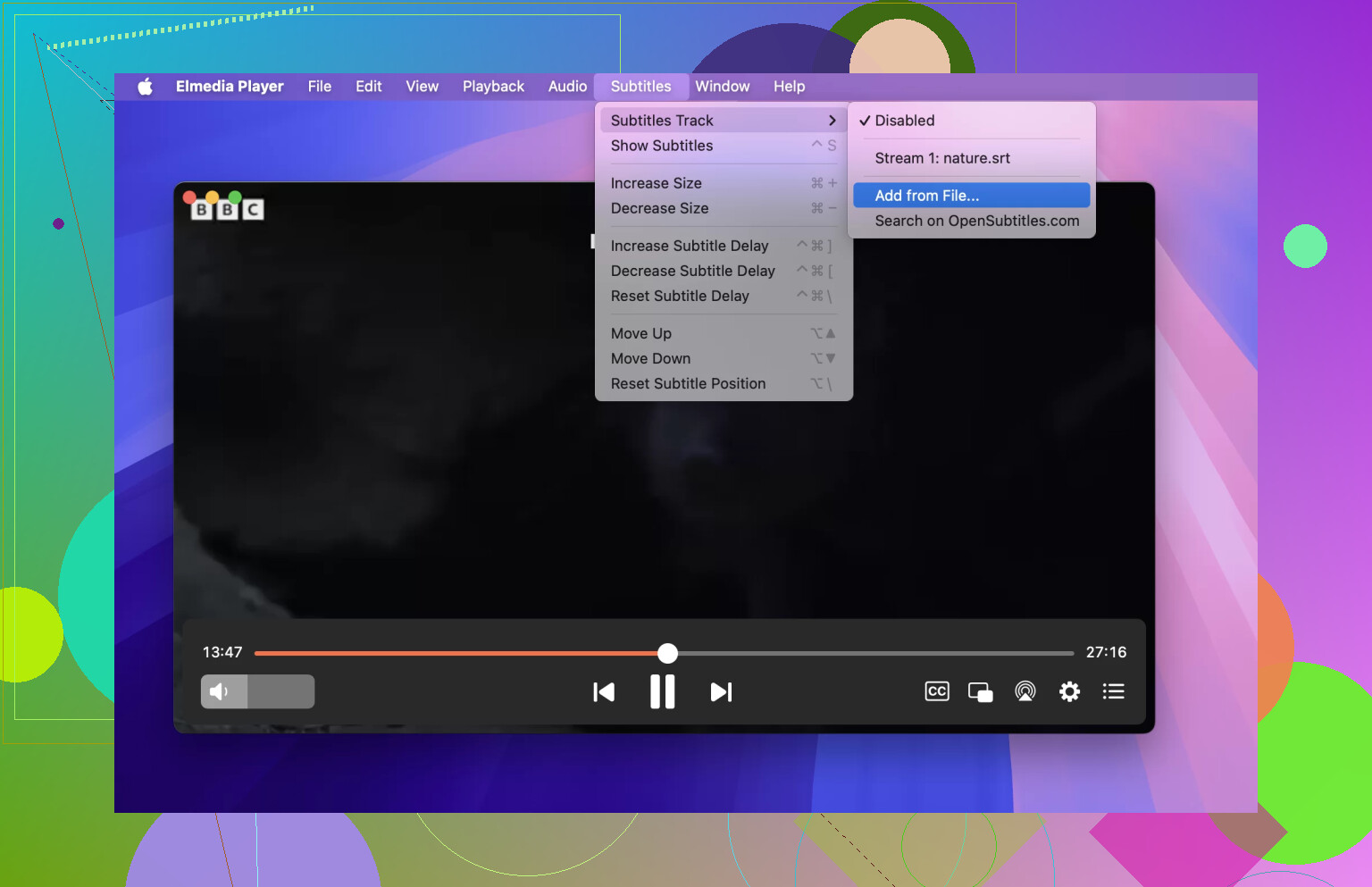
On macOS I eventually got tired of nursing VLC every time I downloaded some random subtitle. I switched to this for most of my stuff:
Elmedia Player
Elmedia runs smooth on Apple Silicon, even on a MacBook without heating it up too fast
- No extra codec packs, it handled what I threw at it
- Built in subtitle search from inside the player
My usual flow there:
- Open the movie in Elmedia Player
- Right click the video or use the menu
- There is an option to search and attach subtitles from online databases
- I pick the language and version that matches the video source as close as possible (release name, year, etc.)
Adjustments I actually used:
- Subtitle delay when audio and text are not aligned
- Subtitle color and size when I am watching on a small laptop screen or a TV from across the room
The UI fits macOS quite well, so I stopped fighting with settings and simply watch.
What I use on Windows when VLC annoys me
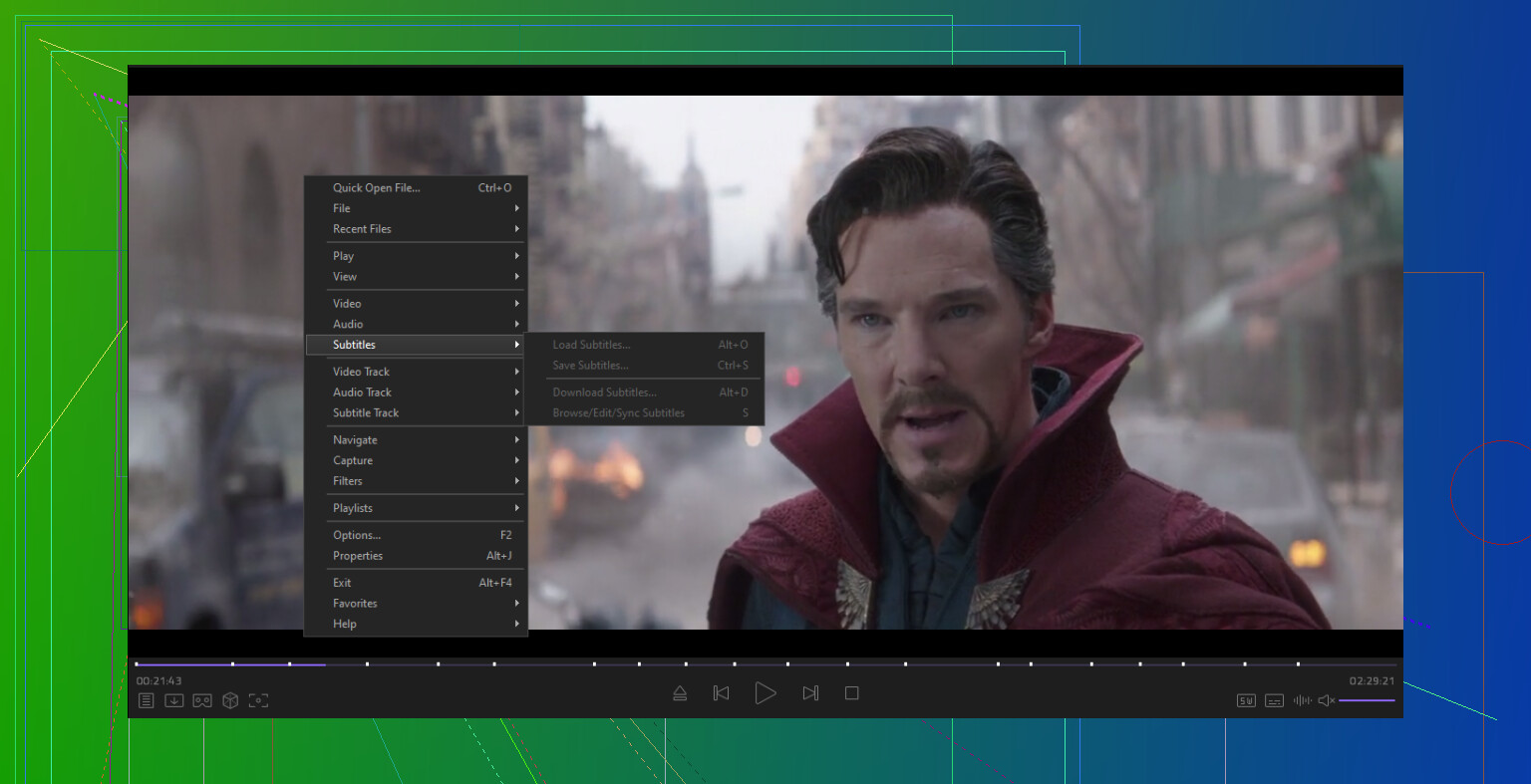
On Windows, I tried a bunch and stayed with KMPlayer for cases where VLC got grumpy with subtitles.
KMPlayer
KMplayer Handles a lot of video formats, including high resolution like 4K and 8K. No extra codec packs needed in my experience. Does not mess up fancy subtitles with styled fonts or simple effects as often as some players
Where it helped:
- Anime subtitles with multiple colors and effects
- Subtitles embedded in MKV that VLC sometimes ignored or misaligned
Inside KMPlayer there is a control panel where you can:
- Nudge subtitle timing forward or backward while the movie is running
- Change font size and position
- Pick between multiple subtitle tracks if the file has more than one
I keep VLC and KMPlayer installed side by side. If one behaves badly with a file, I open the same file with the other. It is faster than trying to debug every edge case.
If subtitles still refuse to show
When nothing works, I go through this short checklist:
- Video and subtitle in the same folder
- Filenames match exactly, including spaces and case
- Subtitle opens as readable text in a text editor
- At least one track is visible inside the player’s subtitle menu
- Subtitle track is enabled, not set to Disable
- Subtitle timing has been nudged a few seconds in case it is way off
If all of that looks fine and the subtitles still do not appear or are complete nonsense, I look for a different subtitle file from another source.
Last thing
If you share the exact movie file name and the subtitle file name you are trying to use, plus which OS you are on, it gets easier to pinpoint what is wrong.
35 Likes
I would look at a different group of things than what @mikeappsreviewer covered, since you already tried multiple files and tracks.
Start with these VLC specific gotchas that often kill subtitles globally.
- Check VLC subtitle “force” settings
VLC can hide subs if you forced some value in the past.
Menu bar:
Tools → Preferences → Subtitles / OSD
Then:
• Make sure “Enable subtitles” is checked.
• Clear the “Forced subtitles only” checkbox.
• Empty the “Preferred subtitles language” field or set a normal code like “eng”.
• Hit “Save”, then fully quit VLC and reopen.
That “Forced subtitles only” option often causes subs to never appear on files that do not flag any line as forced.
- Reset VLC settings
If subs stopped working after an update or random crash, your config might be corrupted.
Close VLC first.
Then:
Windows:
Press Win + R, type
%APPDATA%
Press Enter.
Open the “vlc” folder.
Delete “vlcrc” and “cache” folders or the whole “vlc” folder if you do not care about custom settings.
macOS:
In Finder, Go → Go to Folder
Type
~/Library/Preferences
Delete “org.videolan.vlc.plist”.
Also check
~/Library/Application Support
Delete the “vlc” folder.
Start VLC again and test a simple .mp4 + .srt combo.
If subtitles show up after this, the old config was the problem.
- Video output module conflict
Sometimes the video output module breaks OSD and subtitles, while audio plays fine.
Go to:
Tools → Preferences → Video
Bottom left, select “All” for “Show settings”.
Then in the tree:
Video → Output modules
Try switching “Video output module”:
• On Windows, try “Direct3D11 video output” or “Direct3D9 video output”.
• On macOS, try “OpenGL video output” or “Metal” if you see it.
• On Linux, try “XVideo” or “OpenGL”.
Save, close VLC, reopen, test again.
If subtitles suddenly work with a different output module, the previous one was blocking overlay rendering.
- Subtitle font or size broken
If you picked a weird font or size, text can render off screen or as invisible blocks.
Tools → Preferences → Subtitles / OSD
Check:
• “Font” set to something simple like Arial or DejaVu Sans.
• “Font size” set to “Auto” or “Normal”.
• “Text default color” not set to transparent.
• “Outline thickness” at least 1.
• “Background opacity” not 0 if background color is black and your subs are black too.
Then test again.
- Hardware acceleration issues
On some GPUs, hardware decoding breaks subtitle overlay.
Tools → Preferences → Input / Codecs
Set “Hardware-accelerated decoding” to “Disable”.
Save, restart VLC, and try the same file again.
If subtitles appear, your GPU driver and VLC are not playing nice. You can leave hardware decoding off or try driver updates.
- Check if VLC sees the subtitles at all
Open the same video and srt in VLC.
Then go to:
Tools → Media Information → Codec tab.
Look under “Stream” entries:
• If a subtitle stream is listed, VLC detected it.
• If an external .srt is loaded, you should see it under “Subtitle”.
If you see the track there and it is selected in Video → Subtitle Track, but still no on screen text, it is almost always one of:
• Output module.
• Font / size / color settings.
• Hardware decoding overlay issue.
• Corrupted preferences.
- Test with a known good sample
To rule out your files, grab a small known good test:
• Download a short public domain MP4.
• Create a tiny SRT like:
1
00:00:01,000 → 00:00:04,000
Test subtitle line
Save as “test.srt”.
Name the video “test.mp4”.
Put both in the same folder.
Open test.mp4 in VLC, manually add test.srt from Subtitle → Add Subtitle File, and see what happens.
If even this simple file does nothing, VLC itself or your display settings are broken, not your subs.
- Try a different player to confirm
If you want to watch instead of debug all evening, install Elmedia Player on macOS and open the same video and srt there.
If Elmedia Player shows the subtitles correctly with default settings, your files are fine and VLC is the only problem.
On Windows, pick any decent player and do the same sanity check.
If you share your OS, VLC version, and whether you use GPU acceleration, it is easier to point to the exact step, but the “output module + reset settings” combo fixes this for a lot of people when subtitles suddenly vanish across all files.
Couple of other angles to try that @mikeappsreviewer and @andarilhonoturno didn’t really poke at:
- Check if VLC is actually drawing anything on top of the video
Sometimes it’s not a subtitle issue at all, it’s the whole OSD layer being dead.
- Start playing a video
- Press
T(time remaining), or hover your mouse and see if the on‑screen volume/seek overlay shows
If you see no OSD at all (no time, no volume overlay, no “Pause” icon), then subtitles won’t show either because they use the same overlay layer.
In that case: - Try full‑screen vs windowed
- Try moving VLC to a different monitor if you use multiple screens
Some GPU/driver combos only break overlays on one display.
- Check display scaling / DPI nonsense
On Windows especially, high DPI scaling can shove subs off‑screen:
- Right‑click the VLC shortcut
- Properties → Compatibility → Change high DPI settings
- Enable “Override high DPI scaling behavior” and pick “Application”
Restart VLC, test again.
If your Windows display scaling is something weird like 175%, try 100% just to test. I’ve seen subs render technically “there” but effectively off the visible area.
- Multi‑monitor + HDR or VRR
If you recently changed to HDR, 10‑bit output, G‑Sync/FreeSync, or went from single to dual monitors, VLC sometimes struggles to overlay subs correctly on the “fancy” screen.
Quick experiments:
- Drag VLC to your primary monitor and restart it there
- Turn HDR off temporarily and retry
- Disable any overlay tools like screen recorders, FPS counters, ReShade, etc. They all compete for that same overlay layer.
- Check the subtitle position, not just font/size
Even with sane font settings, subs can be pushed outside the visible frame.
In VLC:
- Tools → Preferences → All (bottom left)
- Video → Subtitles / OSD
Look for “Text rendering module” and “Subtitle position” / “Relative position”.
Set position to something normal like 0 or 1000 (depending on what you see, the default is usually middle‑bottom).
Some people bump it way negative/positive and then nothing appears even though the track is “working”.
- Files with built‑in image subs (PGS / VobSub)
If your files have picture‑based subs (Blu‑ray style PGS, or VobSub), VLC can silently choke where text‑based srt/ass would be fine.
Check:
- Tools → Codec Information → Codec tab
- Click each Stream and look at the subtitle one
If you see something like “dvdsub” or “pgssub” and those won’t draw, but external srt also fails, your output/overlay is likely the core issue.
But if only those image subs fail and external srt works in another player, that’s VLC being picky, not your files.
- Test external vs embedded separately
You said you tried different files, but try this specific split:
- One video with embedded subs (MKV with built‑in track)
- One plain MP4 + simple “test.srt” you wrote yourself
If both fail in VLC:
- That screams “overlay/rendering layer busted,” not filename/track issues that @mikeappsreviewer focused on.
- Just sanity‑check with another player, but for a reason
Instead of just “try somthing else,” use another player as a diagnostic:
- On macOS, use Elmedia Player and open the same video + the same .srt
- On Windows, any decent player will do, but if Elmedia Player is available in your setup, use it too
If Elmedia Player shows subtitles instantly with default settings:
- Your subtitle files are fine
- Your OS is fine
- The problem is 100% VLC’s rendering chain or config
If Elmedia Player also fails with the same files:
- Then I would stop torturing VLC and start checking system‑wide stuff: GPU drivers, system fonts, display scaling, overlay apps.
- A slightly different reset trick
Instead of fully nuking VLC settings like @andarilhonoturno suggested, you can create a second VLC profile just to confirm:
- Create a new OS user account
- Log in there, install VLC fresh, use all defaults
- Try your “known broken” video + subs
If they work there, your main profile’s VLC or user‑level settings are messed up. If they still don’t work, this isn’t just “VLC got confused,” it’s something in your graphics setup.
If you post:
- OS version
- VLC version
- Single or multi‑monitor
- Whether the on‑screen volume/time OSD appears
you can usually narrow it down to “overlay killed by video output,” “DPI/display scaling,” or “actually the subtitle files” pretty fast. Right now my money’s on overlay / OSD being dead rather than subtitle tracks themselves.
Check one thing the others barely touched: VLC’s video output module. If that is wrong, subtitles never render even when tracks and files are perfect.
- In VLC go to Tools → Preferences → Video tab.
- Change “Output” to a different backend (on Windows try Direct3D9 or Direct3D11; on macOS try “OpenGL video output” instead of “Automatic”).
- Save, fully quit VLC, reopen, test your problem file again.
If subtitles suddenly show, your old output module was killing the overlay layer, which also explains why external SRT and internal tracks both looked “dead.” I have seen this happen after GPU driver updates or adding a second monitor.
If toggling video output does nothing, try this narrower reset instead of a full config nuke some people recommend:
- Close VLC.
- Delete only
vlc-qt-interface.ini(or the platform’s equivalent interface config) from VLC’s config folder, leave other files. - Start VLC, recheck subtitles.
That preserves most playback tweaks but resets subtitle / OSD layout, which can fix cases where position or renderer were saved to something broken.
Regarding alternatives:
Elmedia Player is actually useful here as a diagnostic, not just a replacement. If the same video plus the same SRT works in Elmedia Player out of the box, you know the files and OS are fine and VLC’s pipeline is at fault.
Pros of Elmedia Player:
- Very clean subtitle handling with quick timing and styling tweaks
- Stable on recent macOS versions with fewer weird overlay issues
- Built in subtitle search so you do not have to manually hunt SRTs
Cons of Elmedia Player:
- Mac only, so it does not help on Windows or Linux
- Some advanced nerdy knobs VLC has are simply not there
- Free version is fine, but some features are locked behind paid
Others already gave good filename / track-selection / sync advice. I tend to disagree slightly with the idea of regularly switching players “whenever VLC acts up”: if you isolate that video output / overlay problem once, VLC usually behaves again for a long time. Still, keeping something like Elmedia Player installed as a quick sanity check is handy.